
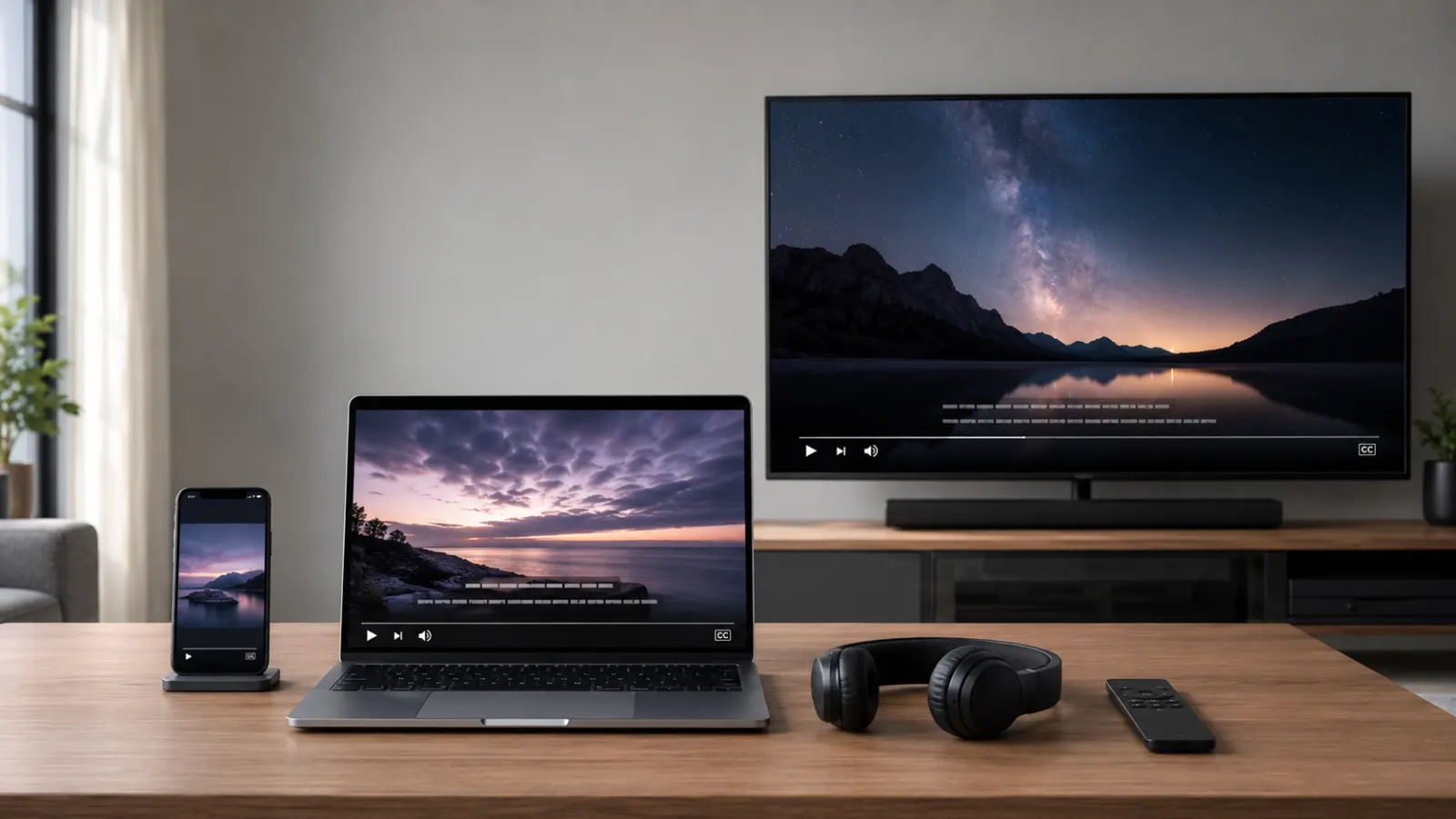
Closed captioning appears on televisions, streaming services, online videos, smartphones, computers, video meetings, and some cinema screenings. Look for a CC button, speech bubble, subtitles icon, audio menu, or accessibility settings.
The exact location changes by device and platform. Some videos do not offer captions, so the control may only appear after you start playback.
what are closed captions
Quick Answer: Where Can You Find Closed Captioning?
You can commonly find closed captioning in these places:
- On the video player toolbar, usually marked CC
- Inside the Settings or gear menu
- Under Audio and Subtitles
- In your television’s Accessibility menu
- In a cable or satellite box menu
- Under Accessibility settings on a phone or tablet
- In a computer’s system accessibility settings
- Inside video meeting controls
- On streaming service playback screens
- In selected movie theater screenings
- In online course and training video players
- In recorded presentations, webinars, and social media videos
On YouTube, the CC button appears at the bottom of the player when captions are available. Netflix places caption choices inside its Audio and Subtitles menu. Apple devices also provide system settings for preferring closed captions and SDH when supported.
What Does Closed Captioning Look Like?
Closed captions display spoken dialogue and other useful audio information as text on the screen. They may identify speakers or describe relevant sounds, music, and changes in tone.
The FCC defines closed captioning as a visual display of the audio portion of video programming. Unlike open captions, viewers can normally turn closed captions on or off. FCC closed captioning guide
Common caption symbols and labels include:
- CC
- Closed Captions
- Captions
- Subtitles/CC
- Subtitles and Captioning
- Audio and Subtitles
- English CC
- English SDH
- Accessibility
- Hearing
- Live Captions
The icon may resemble a small rectangle containing the letters CC. Some services use a speech bubble or keyboard-shaped icon instead.
Where to Find Closed Captioning on a Television
Your TV may receive captions from the television itself, a cable box, a streaming device, or the app playing the video. This means you may need to check more than one menu.
Look on the remote control
First, inspect the remote for a button labeled:
- CC
- Caption
- Subtitles
- Audio
- Accessibility
- Menu
Pressing the CC button may turn captions on immediately. On some televisions, it opens a menu where you can select a language or caption style.
Check the TV settings
A common path is:
- Open Settings or Menu.
- Select Accessibility.
- Choose Captions or Closed Captioning.
- Turn captions on.
- Select a language or appearance if those choices are available.
Menu names differ among television manufacturers and models. The FCC requires covered digital television equipment to provide ways to control caption display, but the precise interface depends on the equipment.
Check your cable or satellite box
If television captions are enabled but no text appears, open the settings on your cable or satellite receiver. Look under Accessibility, Display, Preferences, Language, or Closed Captioning.
The external receiver may control the caption signal instead of your television.
Check the streaming device
Roku, Fire TV, Apple TV, Chromecast, game consoles, and other connected devices may have their own accessibility menus. Captions can sometimes be activated at three different levels:
- The streaming app
- The streaming device
- The television
Start with the video player. If you cannot find the control there, check the connected device’s accessibility settings.
Where to Find Captions on Streaming Services
Most major streaming services place caption controls inside the video player. Start a movie or episode, reveal the playback controls, and look for Audio, Subtitles, CC, or a speech bubble.
Netflix
While a title is playing:
- Tap, click, or press the remote button that reveals the player controls.
- Select Audio and Subtitles.
- Choose a caption or subtitle language.
- Resume the video.
Netflix notes that available languages depend on the title, location, profile settings, and licensing arrangements. Titles with subtitles for deaf and hard of hearing viewers may display an SDH badge on the details page.
Hulu
Open the player’s Settings menu and select Subtitles & Captions. Hulu uses this area for caption language and visual formatting preferences.
Disney+
During playback, open the audio and caption controls, then select an available caption or subtitle language. Disney+ states that available options vary by title and country or region.
Apple TV app
In the Apple TV app, caption controls may appear during playback. You can also set a general preference:
- Open Settings.
- Select Accessibility.
- Choose Subtitles and Captioning.
- Turn on Closed Captions and SDH.
Apple notes that supported accessibility features and languages vary by video and region.
Where to Find Closed Captioning on YouTube
YouTube places its caption button inside the video player.
On a computer
- Open a video.
- Move the pointer over the player.
- Look at the lower-right area.
- Click the CC button.
If you see no CC button, that video may not have an available caption track. You can select Settings, then Subtitles/CC, to choose a language or customize the display.
On a phone or tablet
- Tap the video to display its controls.
- Tap the CC button.
- Open Settings if you need another language.
On supported mobile versions, YouTube also offers an option to show captions when the video is muted.
Find YouTube videos that already have captions
YouTube lets viewers filter search results:
- Search for your topic.
- Select Filters.
- Choose Subtitles/CC.
This filter helps you find videos with caption tracks.
Find the full video transcript
For a captioned video, open the description and select Show transcript. The transcript scrolls with the video, and selecting a line can take you to that part of the recording.
Where to Find Captions on a Smartphone or Tablet
Mobile devices may provide two kinds of caption controls:
- Captions supplied by the video app
- Device-generated captions created from playing audio
Try the video app first because prepared captions are usually written or reviewed specifically for that program.
iPhone and iPad
To set a preference for accessible captions:
- Open Settings.
- Select Accessibility.
- Tap Subtitles & Captioning.
- Turn on Closed Captions + SDH.
- Tap Style to adjust the appearance.
These preferences work in supported video apps and with media that includes a compatible caption track.
Android devices
For standard caption preferences:
- Open Settings.
- Tap Accessibility.
- Select Caption preferences.
- Turn on Show captions.
- Open Caption size and style if you want to change the display.
Google warns that these preferences may not apply to media apps that do not support the Android caption settings.
Android Live Caption
On supported devices, Live Caption can generate text for speech playing on the device. Open Settings, select Accessibility, and choose Live Caption. Options and language availability vary by device
Live Caption differs from a professionally prepared caption track. Automatically generated text may contain mistakes, especially with names, accents, background noise, or overlapping speech.
How to turn off closed captions on any device?
Where to Find Closed Captioning on a Computer
A computer may show captions through the website, media player, operating system, or meeting application.
Windows 11
Windows Live Captions can caption audio playing on the computer. You can start it in several ways:
- Press Windows key + Ctrl + L
- Open Quick Settings and select Accessibility
- Go to Settings, Accessibility, Captions
- Open Start, All apps, Accessibility, Live captions
Microsoft states that Live Captions is available in Windows 11 version 22H2 and later. The first setup may request permission to process voice data on the device and download language files.
Mac
On a Mac:
- Open the Apple menu.
- Select System Settings.
- Choose Accessibility.
- Open Captions under Hearing.
- Turn on Prefer closed captions and SDH.
You can also adjust the font, size, color, background, and other appearance settings.
Websites and browser video players
Move your pointer over the video or select the player once. Look for:
- CC
- A speech bubble
- A gear icon
- Three dots
- Audio
- Language
- Subtitles
If the embedded player has no caption option, check whether the page provides a transcript below the video.
Where to Find Captions in Online Meetings
Meeting platforms usually place live captions under More, Accessibility, Language, or Meeting options.
Microsoft Teams
During a Teams meeting:
- Select More actions.
- Open Language and speech.
- Select Show live captions.
Teams also provides caption style, position, color, and spoken-language controls in supported meeting experiences.
Other conferencing platforms may use labels such as:
- Show captions
- Live transcript
- Enable subtitles
- Accessibility
- Language interpretation
Captions generated during a live meeting are automatic unless the event provides a human captioner. Accuracy can change with audio quality, speaker clarity, language selection, and background noise.
Where Else Can You Find Closed Captioning?
Closed captions and similar text access may appear in several other settings.
Online courses and workplace training
Look along the bottom of the course video player. If the player has no visible CC button, check the lesson resources for:
- Transcript
- Downloadable captions
- Accessibility resources
- Text version
- Course notes
Social media videos
Many social platforms show captions directly over short videos. Creators may add those words permanently to the video, or the platform may provide a caption control.
If the words cannot be turned off, they are open captions rather than closed captions.
Movie theaters
Some theaters offer selected open-caption screenings. Others provide personal caption devices for supported showings. Availability varies by cinema, location, movie, and showtime, so check the accessibility details for the specific screening or contact the theater before visiting.
Museums, exhibitions, and public displays
Captioned videos may appear on exhibition screens, information kiosks, orientation films, and interactive displays. Look for a CC symbol near the screen or ask staff whether a captioned version is available.
Podcasts and audio programs
A podcast does not technically display closed captions by itself, but the platform or publisher may provide a synchronized transcript. On devices with Live Caption, the operating system may also generate text from podcast audio.
Closed Captions, Subtitles, and SDH
These labels are related, but they do not always mean exactly the same thing.
Closed captions
Closed captions generally include speech plus relevant non-dialogue information, such as speaker identification and meaningful sounds. Viewers can switch them on or off.
Subtitles
Standard subtitles commonly present dialogue as text, often to translate speech into another language. They may not include sound descriptions or speaker labels.
SDH
SDH means subtitles for deaf and hard of hearing viewers. These tracks commonly include dialogue, speaker identification, and relevant sound information. Netflix distinguishes standard subtitles from closed captions by noting that closed captions include dialogue plus descriptions of sounds.
Open captions
Open captions form part of the visible video and cannot be turned off. They are often used in social videos, advertisements, public displays, and designated cinema screenings.
Open Captions vs Closed Captions
Why Can’t You Find the CC Button?
The missing control does not always mean your device is faulty. Check these possibilities.
The video has no caption track
Some players hide the CC control when the publisher has not supplied captions. YouTube specifically states that its CC button only appears when captions are available.
The control appears only during playback
Start the video, then tap the screen, move the pointer, or press the down or select button on your remote. Playback controls often disappear while the video plays.
Captions are controlled by another device
A cable box, streaming stick, game console, or app may override the television’s caption settings. Check the device currently delivering the video.
Your preferred language is unavailable
Caption languages can vary by title, region, profile settings, and licensing. On Netflix, changing the profile’s language preferences can affect which choices appear.
The app needs an update
Install current updates for the streaming app and device software. Restart the app after updating, then test another captioned video to determine whether the problem affects one title or the entire service.
Captions are selected but not visible
Check the caption style. Text may be difficult to see if its color, background, opacity, or size blends into the video. Resetting the style to the device default can help.
How to Choose the Right Caption Option
Use the label that best fits what you need:
- Choose English CC for dialogue and relevant sound information.
- Choose English SDH when available for accessible subtitles with audio context.
- Choose a standard subtitle language when you mainly need dialogue translation.
- Choose Live Caption when a video has no prepared caption track.
- Choose a transcript when you want to read, search, or review the full content.
- Choose open-caption screenings when you want text displayed throughout a film without using a separate device.
Prepared captions are generally the better first choice because they can preserve speaker names, punctuation, timing, and meaningful sound information. Use automatic captions as a practical alternative, but expect occasional recognition errors.
Common Mistakes to Avoid
- Checking only the television when a streaming device controls playback
- Assuming every subtitle track includes sound descriptions
- Expecting captions to appear before the video starts
- Choosing the wrong spoken language for live captions
- Making caption text too transparent or too small
- Assuming every episode has the same language choices
- Confusing a transcript with synchronized captions
- Assuming automatically generated captions are always accurate
- Forgetting to test another video before changing device settings
- Treating open captions as a control that can be switched off
Final Answer
So, where can you find closed captioning? Start with the video player and look for CC, Subtitles, Audio, or Accessibility. If the control is not there, check the settings on your television, streaming device, phone, or computer.
Remember that captions must be available for the selected video. If no prepared track exists, a supported Live Caption feature may provide automatically generated text.
closed captioning internet extension
Frequently Asked Questions
Where is the closed caption button?
The button usually appears at the bottom of the video player. Look for CC, a speech bubble, a keyboard-shaped symbol, or a Settings icon. On a television, it may also appear on the remote or inside the Accessibility menu.
Why does the CC symbol not appear?
The video may not include captions, or the player may hide its controls until playback begins. Tap the screen, move the pointer, or press a remote button. If the symbol remains missing, test another video known to have captions.
Can I find closed captions in television settings?
Yes. Open Settings and look under Accessibility, Captions, Closed Captioning, Hearing, or Display. If you use a cable box or streaming device, check its settings too.
Are closed captions available on every video?
No. Caption availability depends on the video, service, device, region, and applicable requirements. Apple, Netflix, and YouTube all note that availability can vary by video or title.
Can I change the size of closed captions?
Many televisions, phones, computers, and streaming services let you change caption size, color, background, font, or opacity. Look under Caption Style, Subtitle Appearance, or Accessibility.
Can I get captions when a video does not provide them?
Supported Android devices and Windows 11 computers can generate live captions from device audio. These automatic captions are useful, but they may not match the accuracy or detail of a prepared caption track.
Where can I find captions for a YouTube video?
Select the CC button at the bottom of the player. You can also open the video description and choose Show transcript if a transcript is available.
Are subtitles the same as closed captions?
Not always. Subtitles commonly display dialogue, often for translation. Closed captions also represent relevant audio information for viewers who are deaf or hard of hearing.