
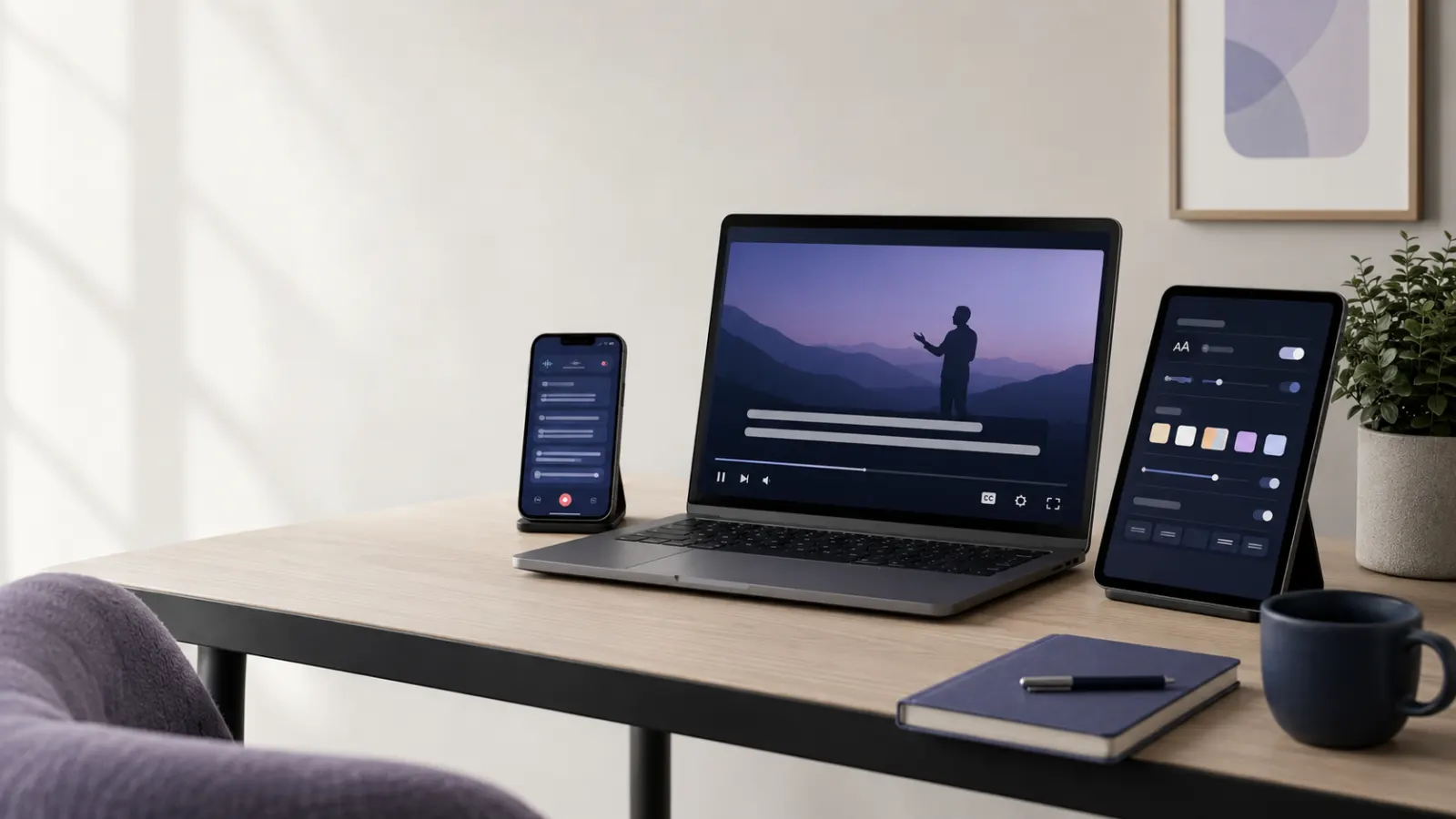
Closed captioning apps are available through the Apple App Store, Google Play Store, browser extension stores, desktop software websites, and the accessibility settings built into many phones and computers.
Before downloading anything, check your device settings. Android, iPhone, iPad, Mac, Windows 11, Chrome, and popular meeting platforms already offer captioning tools. The right option depends on whether you want captions for videos, calls, meetings, face-to-face conversations, or content you create.
Quick Answer: Where Can You Find Closed Captioning Apps?
You can find closed captioning apps in five main places:
- Your device’s accessibility settings: Look for Live Caption, Live Captions, Subtitles, or Caption Preferences.
- Apple App Store: Search for live captions, speech-to-text, transcription, or video captioning.
- Google Play Store: Search for Live Transcribe, live captioning, subtitles, or speech transcription.
- Browser settings and extension stores: Chrome includes a Live Caption feature for supported audio played in the browser.
- Meeting and video platforms: Zoom, Microsoft Teams, and Google Meet have built-in caption options.
Built-in tools are often the easiest place to begin because they may caption audio across several apps without requiring separate software.
First, Decide What Kind of Captioning You Need
The phrase “closed captioning app” can describe several different tools. Choosing the correct category will save you time.
Captions for Videos You Watch
Use this type if you want to read dialogue while watching:
- Online videos
- Movies and television shows
- Social media clips
- Podcasts
- Livestreams
- Recorded lectures
- Video messages
Start with the CC or subtitles button inside the video player. If the video has no caption track, a device-level live caption feature may generate text from the audio.
Captions for Face-to-Face Conversations
A live transcription app listens through your phone or computer microphone and displays speech as text. This can help during:
- Personal conversations
- Classes
- Medical appointments
- Lectures
- Interviews
- Customer service interactions
- Events and presentations
Google’s Live Transcribe captures nearby speech and sounds through an Android device and shows them as text. It is built into Pixel phones and some other Android devices, while other users can download it from Google Play.
Captions for Calls and Online Meetings
Meeting captions appear as people speak during a video call or webinar. Many communication platforms provide this feature directly.
Google Meet offers live captions that each participant can turn on for their own view.
Microsoft Teams users can open Language and speech in the meeting controls and select Show live captions.
Zoom supports automated captions, manual captioning, and compatible third-party captioning services. The host may need to enable the relevant options for the meeting or account.
Apps for Adding Captions to Your Own Videos
Creators need a caption editor rather than a conversation transcription tool. These apps can help you:
- Generate subtitles from recorded speech
- Correct names and punctuation
- Adjust caption timing
- Change font and placement
- Burn captions into the video
- Export a separate subtitle file
- Prepare accessible social media content
Always review automatic captions before publishing. Speech recognition can misinterpret names, accents, technical language, overlapping speakers, and audio recorded in noisy environments.
Where to Find Closed Captioning Apps on Android
Android users should check the phone’s built-in tools before visiting Google Play.
Use Android Live Caption
Google’s Live Caption can automatically caption speech from media playing on a supported device, including videos, podcasts, phone calls, video calls, and audio messages. Feature availability and setup can differ by phone manufacturer.
A common way to find it is:
- Open Settings.
- Select Accessibility.
- Look for Live Caption.
- Turn the feature on.
- Download the requested language pack if prompted.
You may also find a Live Caption control by pressing a volume button and checking the volume panel. The exact location depends on the device.
Find Google Live Transcribe
Live Transcribe is designed for nearby conversations and environmental sounds rather than only the media playing on your phone.
To find it:
- Open Settings.
- Search for Live Transcribe.
- Check the Accessibility section.
- If it is unavailable, open Google Play.
- Search for Live Transcribe & Sound Notifications.
Google states that Live Transcribe can use downloaded languages offline on eligible devices. The supported offline languages depend on the device and Android version.
Search Google Play Carefully
Useful search phrases include:
- Live caption app
- Speech-to-text accessibility app
- Real-time transcription
- Captions for conversations
- Automatic video subtitles
- Caption editor for video
Check the developer’s identity, permissions, privacy information, update history, user reviews, and subscription terms before installing an app.
Where to Find Closed Captioning Apps on iPhone and iPad
Apple devices include separate controls for available caption tracks and automatically generated Live Captions.
Turn On Closed Captions and SDH
Closed Captions and SDH tells supported video apps to show accessibility captions when the content provider makes them available.
On an iPad, Apple directs users to:
- Open Settings.
- Select Accessibility.
- Tap Subtitles & Captioning.
- Turn on Closed Captions + SDH.
- Open Style if you want to adjust the appearance.
Apple allows users to customize elements such as font, size, color, background, opacity, and text edges.
Check Apple Live Captions
On supported devices and in supported regions and languages, Live Captions can transcribe spoken audio in real time.
To look for it:
- Open Settings.
- Tap Accessibility.
- Select Live Captions.
- Turn it on.
- Adjust the text appearance if needed.
Apple notes that Live Captions availability varies by language, country, and region. Apple also warns that automatically generated captions may be inaccurate and should not be relied upon in emergencies or other high-risk situations.
Search the Apple App Store
If your device does not support the built-in feature, search for:
- Live captions
- Conversation captions
- Real-time transcription
- Speech-to-text
- Deaf and hard of hearing communication
- Automatic video captions
- Subtitle editor
Use the filters and app information pages to confirm device compatibility, supported languages, pricing, and data practices.
Where to Find Closed Captioning Tools on Windows
Windows 11 includes system-level Live Captions, so you may not need to download another program.
Turn On Live Captions in Windows 11
Microsoft states that Live Captions is available in Windows 11 version 22H2 and later. It can caption audio passing through the computer and can also include microphone audio.
You can start it in several ways:
- Press Windows key + Ctrl + L.
- Open Settings, then Accessibility, then Captions.
- Open the Accessibility menu in Quick Settings.
- Search for Live captions from the Start menu.
Microsoft says the initial setup requests permission to process voice data on the device and downloads the required language files. Its support documentation states that audio processing and caption generation occur on the device for this Windows feature.
You can also change the caption text, color, background, and style through Settings > Accessibility > Captions.
Where to Find Closed Captioning on a Mac
Supported Mac computers include Live Captions in the accessibility settings.
To find the feature:
- Open the Apple menu.
- Choose System Settings.
- Select Accessibility.
- Click Live Captions.
- Turn the feature on.
The Live Captions window can transcribe computer audio or sound captured through the Mac’s microphone. Users can also adjust its font, size, colors, window position, and other display options.
Apple states that Live Captions on Mac requires Apple silicon and is not available in every language, country, or region.
Where to Find Captioning in Google Chrome
Google Chrome has a built-in caption tool for audio played in the browser.
To look for it:
- Open Chrome.
- Select the three-dot menu.
- Open Settings.
- Select Accessibility.
- Find Live Caption.
- Turn it on.
Google says Chrome can generate captions for videos, podcasts, games, livestreams, video calls, and other audio media played through the browser. Chrome also includes caption translation options, although translation may require sending caption data to Google.
Try the built-in setting before installing an extension. If you still need an extension, confirm that it comes from a recognizable developer and only requests permissions relevant to captioning.
Closed Captioning Apps for Live Conversations and Meetings
A dedicated app may offer more control than a device’s basic caption window.
Ava
Ava provides live captions for in-person conversations and video meetings. Its service is available on mobile devices, desktop computers, and the web. Ava also advertises integration with platforms such as Zoom, Google Meet, and Microsoft Teams.
Ava may suit users who need:
- Captions across different conversation settings
- Speaker identification
- Mobile and desktop access
- Workplace or classroom captioning
- A professional captioning option for scheduled situations
Features, free-use allowances, subscriptions, and professional services can change. Confirm current terms on Ava’s official website before choosing a plan.
Google Live Transcribe
Google Live Transcribe is especially useful for face-to-face speech on Android. It can display speech, identify certain non-speech sounds, adjust text size, use custom words, and save limited transcription history when that option is enabled.
It is a practical starting point for Android users who need readable text during nearby conversations.
Otter
Otter focuses on transcription, meeting notes, searchable records, summaries, and collaboration. Its official website states that it supports real-time transcription and works with in-person and virtual meetings through mobile and web tools.
Otter may fit meetings, interviews, and note-taking better than casual video viewing. Check its current plan limits and privacy controls before recording or transcribing a conversation.
Platform Captions
If you only need captions during online meetings, the platform’s own feature may be the simplest option:
- Google Meet for live meeting captions
- Microsoft Teams for captions under Language and speech
- Zoom for automated, manual, or third-party captions
Built-in meeting captions reduce the need to run a second app, but availability can depend on the account, meeting settings, language, and host permissions.
How to Choose the Right Closed Captioning App
Use these questions to narrow your choices.
What Are You Captioning?
Choose a tool based on the audio source:
- Videos on your phone: Try Android Live Caption or Apple’s available caption controls.
- Browser audio: Try Chrome Live Caption.
- Computer audio: Try Windows or Mac Live Captions.
- Nearby conversations: Try Live Transcribe or a dedicated conversation captioning service.
- Online meetings: Check the platform’s caption button first.
- Videos you create: Choose a video editor with transcription and subtitle editing.
Does It Support Your Language?
Do not assume that an app supports every language or regional accent. Check:
- Spoken languages
- Caption output languages
- Translation languages
- Offline language packs
- Regional availability
- Device restrictions
Language lists can change with software updates, so verify them on the developer’s current support page.
Can You Use It Offline?
Offline processing can help when internet access is poor and may provide additional privacy. However, not every language or device supports offline captions.
Google documents offline Live Transcribe support for downloadable languages on eligible Android devices. Microsoft states that Windows 11 Live Captions uses downloaded language files and on-device processing.
Does It Save the Transcript?
Some tools display temporary captions without creating a permanent record. Others save, export, or share transcripts.
Before recording a conversation, check:
- Whether audio is uploaded
- Whether transcripts are stored
- How long records remain available
- Who can access shared transcripts
- Whether deletion is permanent
- Whether local laws or workplace policies require consent
Can You Change the Caption Appearance?
Readable captions should offer suitable:
- Text size
- Font
- Text color
- Background color
- Contrast
- Screen position
- Line spacing
Android, Apple, and Windows provide caption appearance controls, although individual media apps may not follow every system preference.
Closed Captions, Live Captions, Subtitles, and Transcripts
These terms overlap, but they do not always mean the same thing.
Closed Captions
Closed captions can be turned on or off by the viewer. They normally represent spoken dialogue and relevant audio information. The FCC describes closed captioning as the visual display of the audio portion of video programming.
Live Captions
Live captions are created while speech is happening or while audio is playing. They often rely on automatic speech recognition, although professional captioners can also provide live text.
Subtitles
Subtitles commonly display spoken dialogue and may translate it into another language. They do not always include meaningful sound information intended for viewers who are deaf or hard of hearing.
Transcripts
A transcript presents speech as a longer written record. It may not be synchronized with the video or displayed line by line at the moment each phrase is spoken.
Common Mistakes to Avoid
Downloading an App Before Checking Your Device
Your phone, computer, browser, or meeting platform may already include the feature you need.
Assuming Automatic Captions Are Always Correct
Automatic captions can make mistakes, especially with names, specialist terms, accents, low-volume speech, and overlapping voices. Review generated captions before publishing them or using them for an important decision.
Ignoring App Permissions
A captioning app may request microphone, audio, storage, camera, or meeting access. Read the permission request and the developer’s privacy information before granting access.
Confusing Viewer Captions With Creator Tools
A viewing tool helps you understand audio. A creator tool lets you edit timing, correct text, and export or embed subtitles. Make sure the app supports your intended task.
Relying on Live Captions During an Emergency
Apple explicitly warns that the accuracy of its automatically generated Live Captions can vary and that users should not rely on them in high-risk or emergency situations.
Final Takeaway
If you are wondering where you can find closed captioning apps, begin with the accessibility settings on your phone or computer. Android, Apple devices, Windows 11, Mac, and Chrome all provide caption options on supported hardware.
For conversations, try a live transcription tool such as Google Live Transcribe or Ava. For meetings, check Google Meet, Microsoft Teams, or Zoom before installing extra software. Match the tool to the audio source, confirm language support, review its privacy terms, and test its accuracy in the environment where you plan to use it.
Frequently Asked Questions
Where can I download a closed captioning app?
You can download captioning apps from the Apple App Store or Google Play Store. Desktop tools are also available from verified developer websites. Check your device’s accessibility settings first because captioning may already be built in.
Are closed captioning apps free?
Some built-in caption features are included with the device or platform. Dedicated apps may offer free access, limited free use, subscriptions, or paid professional captioning. Prices and plan limits change, so verify the current terms on the official app page.
What is the best free captioning app?
There is no single best option for every use. Google Live Transcribe is a useful starting point for nearby speech on supported Android devices. Android Live Caption, Chrome Live Caption, Windows 11 Live Captions, and Apple Live Captions may suit media played on compatible devices.
Can I get captions for any video?
A system-level caption feature may generate text for audio even when a video lacks its own caption track. Compatibility depends on the device, app, audio source, language, and content restrictions.
Can closed captioning apps work without the internet?
Some can. Windows 11 Live Captions uses downloaded language files and on-device speech recognition. Google Live Transcribe offers downloadable offline languages on eligible Android devices. Availability varies by language and hardware.
How do I get captions during an in-person conversation?
Open a live transcription tool, grant microphone permission, place the device near the speaker, and select the correct language. Google Live Transcribe and Ava are examples of tools designed for nearby conversations.
Are live captions private?
Privacy depends on the tool. Some features process speech on the device, while others send audio or caption data to online services. Review the tool’s current privacy documentation and storage settings before using it for confidential conversations.
Do captioning apps work for phone calls?
Some device features and communication apps can caption calls, but availability varies by phone, operating system, language, region, and call type. Google states that Android Live Caption can work with calls on supported devices.
Can I use a captioning app for medical or legal conversations?
You can use captioning as a communication aid, but automatic text may contain errors. Do not treat an unreviewed machine transcript as an authoritative medical or legal record. Ask the relevant organization about qualified human captioning or other formal accommodations when accuracy is critical.