
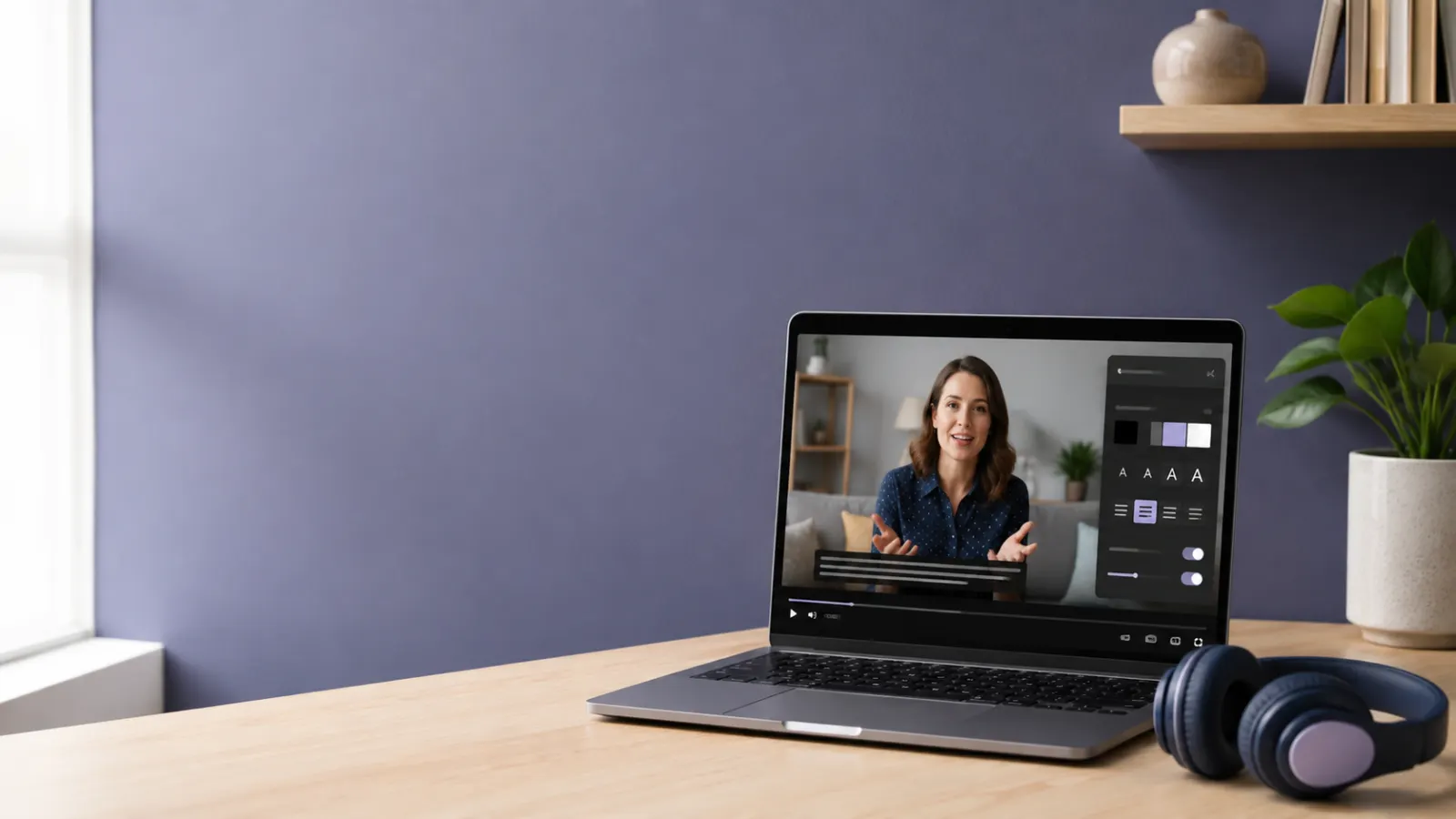
A free closed captioning internet extension can turn spoken audio from videos, online classes, podcasts, meetings, and live streams into readable text. It can help people who are Deaf or hard of hearing, language learners, students, and anyone watching content in a noisy or quiet setting.
Before installing an extension, check your browser and operating system. Google Chrome already includes free Live Caption, while Windows 11 offers systemwide live captions. These built-in options may give you everything you need without adding another browser extension.
Quick Answer: What Is the Best Free Closed Captioning Internet Extension?
For most Chrome users, the best starting point is not an extension. It is Chrome’s built-in Live Caption feature.
Chrome Live Caption can generate captions for videos, podcasts, live streams, video calls, games, and other audio playing in the browser. You can activate it from Chrome’s Accessibility settings. Google also supports downloadable caption language packs and Live Translate options, although available languages and features can vary by device and browser version. Google Chrome Help
If you need additional features, consider these options:
- Chrome Live Caption: Best for quick, automatic captions without installing an extension.
- Windows 11 Live Captions: Best for captioning audio from different apps, not only a browser.
- Substital: Best for adding existing subtitle files to online videos.
- Vi Subtitle: Best for on-device live transcription and customizable browser overlays.
- Captions for Live Presentations: Best for displaying a presenter’s speech through microphone input.
- Web-based captioning tools: Useful when you do not want to install anything.
The right choice depends on whether you want automatic speech recognition, an existing subtitle track, translation, a transcript, or captions for a presentation.
What Does a Closed Captioning Internet Extension Do?
A closed captioning extension adds readable text to online audio or video. Depending on the tool, it may capture audio from a browser tab, listen through your microphone, generate captions with speech recognition, or display a subtitle file over a video.
These tools generally fall into four groups.
1. Automatic live-caption tools
These tools listen to speech and convert it into text while the audio plays. They are useful for:
- Online lectures
- Podcasts
- Webinars
- Videos without captions
- Live streams
- Browser-based calls
- Recorded meetings
Because the captions are generated automatically, names, accents, technical terms, and unclear speech may not always appear correctly.
2. Subtitle overlay extensions
A subtitle overlay extension does not necessarily transcribe speech. Instead, it lets you search for or upload a subtitle file and display it over an online video.
Substital, for example, lets users search for subtitles or add an SRT file to a detected online video. Its Chrome Web Store listing also describes synchronization and appearance controls. Substital on the Chrome Web Store
3. Presentation captioning tools
Presentation tools use a device microphone to caption the words spoken by a presenter. These can help audiences follow:
- Classroom lessons
- Conference presentations
- Workshops
- Community events
- Training sessions
- Public talks
The Captions for Live Presentations extension describes real-time microphone-based speech-to-text captions intended for presentations and screen sharing. Captions for Live Presentations
4. Systemwide live-caption tools
Systemwide tools caption audio from multiple applications rather than one browser tab.
Windows 11 Live Captions can caption audio passing through the computer. Microsoft says the feature is available in Windows 11 version 22H2 and later. It can be opened with the Windows key, Ctrl, and L keyboard shortcut.
Best Free Closed Captioning Options for Internet Audio
Google Chrome Live Caption
Chrome Live Caption is the simplest option for people who browse with Google Chrome. It is built into the browser, so you do not need to search the Chrome Web Store or grant permissions to an independent extension.
It can generate captions for different forms of media playing in Chrome, including:
- Online videos
- Podcasts
- Live streams
- Games with spoken audio
- Video calls
- Social media clips
- Recorded lectures
Google’s current instructions place the feature under Settings, then Accessibility, where users can turn Live Caption on and manage caption languages. Google Chrome Help
How to turn on Live Caption in Chrome
- Open Google Chrome on your computer.
- Select the three-dot menu in the upper-right corner.
- Select Settings.
- Open Accessibility.
- Turn on Live Caption.
- Add a caption language if Chrome prompts you to download a language pack.
- Play a video, podcast, or other spoken media.
- Look for the caption bubble on the screen.
You can also enter chrome://settings/accessibility in the address bar to open the relevant settings page directly.
Why Chrome Live Caption is a strong first choice
- It does not require a separate extension.
- It works with several types of browser audio.
- It offers adjustable caption preferences.
- It is easy to turn on or off.
- It can support caption translation where Live Translate is available.
Feature availability can depend on the operating system, browser version, language, and device. Check Chrome’s current settings rather than assuming every option is available on every computer.
Windows 11 Live Captions
Windows 11 Live Captions may be more useful when you need captions outside Chrome. It can work across supported audio experiences on the computer, including content playing in applications.
Microsoft states that audio and speech data used to create Windows Live Captions is processed on the device and that generated captions are not stored.
How to activate Windows 11 Live Captions
Use any of these methods:
- Press Windows key + Ctrl + L.
- Open Quick Settings, select Accessibility, and activate Live Captions.
- Go to Settings, select Accessibility, and then select Captions.
- Open Start, select All apps, choose Accessibility, and open Live Captions.
Microsoft also allows users to change caption style, including text appearance and background settings, from Settings, Accessibility, and Captions.
Choose Windows Live Captions if you need:
- Captions across more than one browser
- Captions for local video files
- Captions for audio in desktop applications
- One captioning interface for several programs
- On-device caption generation
Windows Live Captions requires Windows 11 version 22H2 or later. Live translation has additional device and version requirements, including supported Copilot+ PCs for certain features.
Substital for Existing Subtitle Files
Substital is useful when a video lacks its own subtitle controls but a matching subtitle file exists. It can detect videos on supported webpages and display subtitles over them.
Its Chrome Web Store listing says users can:
- Search for available subtitles
- Upload an SRT or ZIP file
- Synchronize subtitles manually
- Change font size
- Adjust text and background colors
- Use subtitles on several online video platforms
View Substital on the Chrome Web Store
How to use Substital
- Install Substital from its official Chrome Web Store page.
- Pin the extension to the browser toolbar.
- Open the webpage containing your video.
- Select the Substital icon.
- Choose the detected video.
- Search for a matching subtitle track or upload your own SRT file.
- Adjust the timing if the subtitles do not match the dialogue.
Substital differs from an automatic caption generator. It primarily displays available or uploaded subtitles rather than creating a complete transcript from speech in every situation.
Vi Subtitle for On-Device Browser Captions
Vi Subtitle describes itself as a live-caption extension that uses on-device speech recognition. Its Chrome Web Store page lists free live captions, support for several languages, customizable subtitle appearance, and compatibility with videos, meetings, and live streams.
The listing requires Chrome 138 or later and separates some translation and export functions into premium features. Confirm the current free limits before installing it because extension features and pricing can change.
This extension may suit people who want:
- Captions displayed directly over a webpage
- On-device audio processing
- More visual controls than a basic caption bubble
- Support for several spoken languages
- Optional subtitle export or translation features
Captions for Live Presentations
Captions for Live Presentations serves a different purpose from video captioning. It listens through the microphone and presents spoken words as text in the browser.
Its official listing positions it for classrooms, conferences, talks, and screen-shared presentations. Chrome Web Store listing
Choose this type of extension when:
- You are delivering the presentation.
- You want the audience to read your speech.
- The sound comes from a person in the room.
- You want to display captions on a shared screen.
- A microphone-based tool fits the event setup.
It may not be the best choice for privately watching a video through headphones because the tool is designed around microphone input.
Closed Captions, Live Captions, Subtitles, and Transcripts
These terms are related, but they do not always mean the same thing.
Closed captions
Closed captions are optional text tracks that viewers can turn on or off. Well-prepared closed captions can include dialogue, speaker identification, and meaningful non-speech audio.
For example:
- A door slams behind the speaker.
- Soft music begins.
- The audience laughs.
- Maria speaks from another room.
Live captions
Live captions appear as speech happens or while recorded audio plays. A person may create them through real-time captioning, or software may generate them automatically.
Automatic live captions offer fast access, but they may contain recognition errors.
Subtitles
Subtitles usually present dialogue as text. They may translate dialogue into another language, although subtitles can also appear in the same language as the audio.
A subtitle extension may require an existing subtitle file instead of creating text directly from speech.
Transcripts
A transcript provides a written record of spoken content. Unlike temporary live captions, a transcript may remain available for review, editing, searching, or downloading.
Do not assume that every free captioning tool creates a downloadable transcript. Chrome Live Caption is designed primarily for real-time reading rather than transcript editing or export.
How to Choose the Right Captioning Extension
Start with the type of audio you want to understand.
For videos without captions
Choose automatic live captions. Chrome Live Caption or Windows 11 Live Captions should be your first test because they do not require an independent extension.
For movies with available subtitle files
Choose a subtitle overlay tool such as Substital. This option may provide more accurate wording than automatic transcription when the subtitle file matches the video.
For lectures and study sessions
Look for live captions plus transcript, copy, or export functions. Check whether those features are included in the free plan or require payment.
For online meetings
Try the meeting platform’s own caption controls first. For example, Microsoft Teams offers live captions during meetings, although captions and saved transcripts are separate features.
For in-person presentations
Use a microphone-based presentation captioner. Test the microphone, room acoustics, display size, and internet requirements before the event.
For privacy-conscious use
Review where speech processing occurs. Look for clear answers to these questions:
- Does processing happen on the device or in the cloud?
- Does the tool collect audio or transcripts?
- Does it save caption history?
- What browser permissions does it request?
- Can it read data from every website?
- Is there a public privacy policy?
- Can you limit access to selected sites?
Never rely on a store label or marketing claim alone. Read the extension’s current permissions, privacy disclosure, user reviews, and update history before installation.
How to Install a Caption Extension Safely
Browser extensions can request access to webpages, microphones, tabs, or browsing data. Review the request before selecting Add extension.
Use this checklist:
- Install from the browser’s official extension store.
- Confirm the developer or publisher name.
- Read the privacy disclosure.
- Check the most recent update date.
- Review the permissions it requests.
- Avoid tools that request unrelated access.
- Read recent reviews, not only the overall rating.
- Check whether the free version has time or feature limits.
- Test the extension on non-sensitive content first.
- Remove it if it behaves unexpectedly.
A captioning tool may reasonably request microphone or tab-audio access, depending on how it generates captions. It should clearly explain why it needs that permission.
Common Problems and Simple Fixes
Captions do not appear
- Confirm that Live Caption or the extension is switched on.
- Refresh the page.
- Restart the browser.
- Play audio with clear speech.
- Check whether the selected language matches the spoken language.
- Confirm that the browser version meets the tool’s requirements.
Captions cannot hear the video
The tool may be listening through the microphone instead of capturing tab audio. This can cause problems when you use headphones.
Check the extension’s description to learn whether it uses:
- Browser-tab audio
- Computer audio
- Microphone input
- Uploaded audio
- On-device recognition
Captions are inaccurate
Automatic captions may struggle with:
- Background noise
- Overlapping speakers
- Uncommon names
- Technical vocabulary
- Fast speech
- Strong accents
- Low-quality recordings
- Music playing over dialogue
Reduce background noise, increase audio clarity, select the correct language, and slow the video if the player supports speed controls.
Captions cover important parts of the video
Move the caption bubble or change its position if the tool allows it. You can also adjust the font size, text color, or background opacity.
The extension works on one website but not another
Some websites use protected players or technical layouts that an extension cannot detect. Test Chrome or Windows Live Captions because those tools may caption the audio without relying on the webpage’s subtitle system.
Mistakes to Avoid
- Do not confuse subtitles with automatic closed captions.
- Do not install several caption extensions at once.
- Do not assume every free tool offers unlimited transcription.
- Do not grant microphone access without understanding why it is needed.
- Do not use unedited automatic captions as a final professional transcript.
- Do not expect perfect accuracy from unclear audio.
- Do not overlook the caption tools already built into your browser or computer.
- Do not share sensitive meetings with a cloud transcription service without checking its privacy policy.
- Do not depend on an untested extension for an important live event.
- Do not assume a translated caption preserves every nuance of the original speech.
Final Recommendation
The easiest free closed captioning internet option for most Chrome users is Chrome Live Caption. It requires no separate extension and can caption several kinds of browser audio.
Use Windows 11 Live Captions if you want captions across browsers and desktop applications. Choose Substital when you already have or can find a matching subtitle file. Consider a specialized extension only when you need features such as a subtitle overlay, microphone-based presentation captions, translation, editing, or transcript export.
Test any tool with the websites, language, headphones, and audio setup you normally use. A feature list cannot guarantee that an extension will work equally well with every device or media platform.
Frequently Asked Questions
Is there a completely free closed captioning extension?
Yes, free options exist, but their functions differ. Chrome includes free Live Caption without a separate extension. Windows 11 also provides systemwide Live Captions on supported versions. Some independent extensions offer free captioning while charging for translation, exporting, longer sessions, or other advanced features.
Does Chrome have free closed captioning?
Yes. Chrome has a built-in Live Caption setting for supported computers. Open Settings, select Accessibility, and activate Live Caption. Google Chrome Help
Can I add captions to any online video?
Live-caption tools can process speech from many online videos, but no tool is guaranteed to work with every website, audio format, language, or protected media player. I cannot confirm universal compatibility for any extension.
Can a browser extension caption Zoom or Google Meet?
Some extensions claim support for browser-based meetings. You can also use the meeting platform’s native captions or Windows 11 Live Captions. Test your selected method before an important call.
Can I use live captions with headphones?
This depends on how the tool receives sound. A captioner that captures browser-tab or system audio may work with headphones. A microphone-only extension may not hear the content clearly while the sound is routed to headphones.
Are automatically generated captions accurate?
They can make speech easier to follow, but they are not guaranteed to reproduce every word correctly. Audio quality, language support, speaker clarity, names, accents, and background noise can affect the result.
Can I download Chrome Live Captions?
Chrome’s built-in Live Caption is intended for real-time display. It does not function as a standard downloadable transcript generator. Choose a dedicated transcription tool if editing and exporting text are essential.
What is the best option for Firefox?
Firefox users can first use captions supplied by the video website. On Windows 11, systemwide Live Captions can provide another option because they work at the operating-system level. Independent Firefox add-ons vary, so verify current compatibility, permissions, and maintenance in the official Firefox Add-ons store.
Can live captions translate another language?
Some captioning tools include live translation, but language availability and free-plan limits differ. Chrome offers Live Translate controls on supported configurations, while certain Windows translation features require compatible Windows versions and hardware. Verify the available languages on your device before relying on the feature.
Are browser captioning extensions safe?
Safety depends on the extension, its permissions, processing method, data practices, and publisher. Use the official browser store, inspect permissions, read the privacy policy, and avoid giving an extension more access than its function requires.
Related Ideas
how to turn off closed captions
open captions vs closed captions
how to turn off live captions on android, windows and Apple devices