
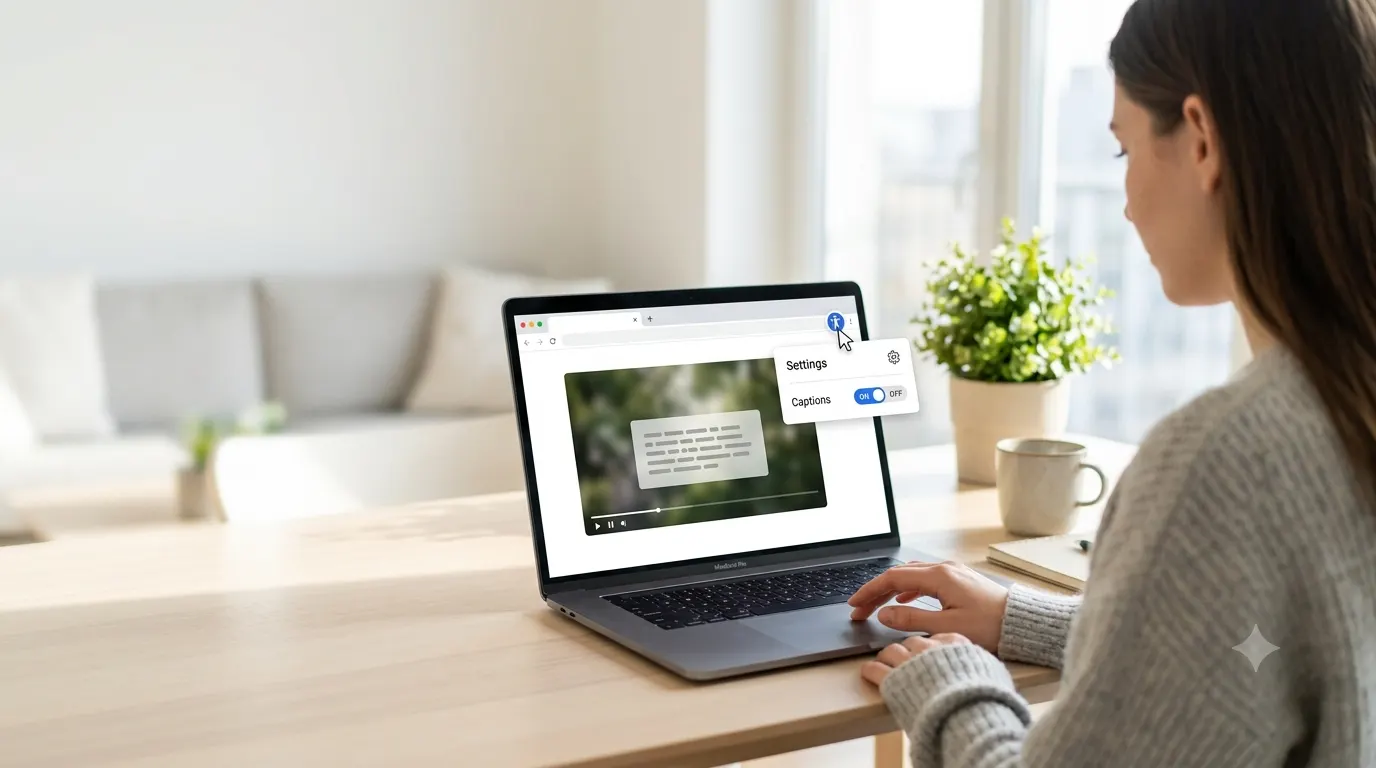
If Chrome suddenly starts showing captions for videos, podcasts, or other audio, you can disable the feature in just a few clicks. Chrome’s Live Caption automatically creates captions for supported media, which is helpful for accessibility but unnecessary for many users.
This guide explains how to turn off Live Caption on Chrome across different devices. You’ll also learn why the feature turns on, what happens after you disable it, and how to fix common issues if captions continue to appear.
Quick Answer
To turn off Live Caption in Google Chrome:
- Open Google Chrome.
- Click the three dot menu in the top right corner.
- Select Settings.
- Click Accessibility from the left menu.
- Turn off the Live Caption toggle.
Once disabled, Chrome will stop automatically generating captions for supported audio and video content.
What Is Chrome Live Caption?
Chrome Live Caption is an accessibility feature that automatically creates captions for audio playing inside the browser. Unlike captions provided by YouTube, Netflix, or other streaming services, Chrome generates these captions directly on your device.
The feature works even if the website does not offer built in subtitles, making it useful for people who are deaf, hard of hearing, learning a new language, or watching content in noisy environments.
However, many users accidentally enable it and later wonder why captions appear on nearly every video they play in Chrome.
Why You Might Want to Turn Off Live Caption
Although Live Caption is useful, it is not necessary for everyone. You may want to disable it if:
- Captions block part of the video.
- You already use subtitles provided by the website.
- The automatic captions contain mistakes.
- You find the caption box distracting.
- You prefer a cleaner viewing experience.
- You want to reduce unnecessary browser features.
Turning the feature off does not affect your ability to use normal subtitles offered by websites like YouTube or streaming services.
How to Turn Off Live Caption on Chrome for Windows and Mac
If you use Chrome on a Windows PC or Mac, disabling Live Caption only takes a minute.
Method 1, Turn It Off from Chrome Settings
This is the easiest and most reliable method.
- Open Google Chrome.
- Click the three dots in the upper right corner.
- Select Settings.
- Open Accessibility from the left sidebar.
- Find Live Caption.
- Switch the toggle to Off.
After turning it off, reload any open videos. The automatic caption box should no longer appear.
Method 2, Use Chrome Search
If you cannot find the Accessibility menu:
- Open Chrome Settings.
- Type Live Caption into the search box.
- Open the matching result.
- Turn the feature off.
This shortcut works well if Chrome’s settings layout changes after an update.
How to Turn Off Live Caption While Watching a Video
Sometimes the Live Caption box appears while you’re already watching content.
You can usually remove it without opening the full settings menu.
- Click the media controls that appear near the address bar, if available.
- Locate the Live Caption option.
- Turn it off.
- Refresh the page if captions remain visible.
If you do not see this shortcut, use the main Accessibility settings instead.
How to Turn Off Live Caption on Chrome for Android
Chrome on Android may use Live Caption through your phone’s accessibility settings rather than Chrome itself.
To disable it:
- Open the Settings app.
- Tap Accessibility.
- Select Live Caption.
- Turn the feature off.
On some Android devices:
- Open Settings.
- Tap Sound or Sound and vibration.
- Find Live Caption.
- Disable the toggle.
The exact location varies by manufacturer. Samsung, Google Pixel, OnePlus, Motorola, and other brands may place the setting in slightly different menus.
Turn Off Live Caption Using the Volume Controls on Android
Many Android phones include a quick shortcut.
- Press either volume button.
- Tap the Live Caption icon beside the volume slider.
- Turn the feature off.
This method is often faster than searching through the Settings app.
How to Turn Off Live Caption on Chromebook
Chromebooks include accessibility features similar to Chrome on desktop.
To disable Live Caption:
- Open Settings.
- Select Accessibility.
- Choose Audio and captions.
- Turn Live Caption off.
Once disabled, captions will no longer appear automatically while using Chrome on your Chromebook.
Live Caption vs Website Captions
Many users confuse Chrome Live Caption with subtitles provided by websites.
Understanding the difference helps you know which setting to change.
Chrome Live Caption
- Created automatically by Chrome.
- Works on many websites.
- Appears in a movable caption box.
- Can work even when a website has no subtitles.
Website Captions
- Created by the website or video creator.
- Usually more accurate.
- Controlled through the video’s own settings.
- Turning off Chrome Live Caption does not disable these captions.
If captions remain after disabling Live Caption, check the video’s subtitle or closed caption settings.
Why Are Captions Still Showing?
If captions continue to appear after turning off Live Caption, another feature may be responsible.
Common causes include:
- YouTube captions are enabled.
- Netflix subtitles are turned on.
- Hulu or Disney Plus subtitles are active.
- Your operating system accessibility settings are overriding Chrome.
- A browser extension is generating captions.
- The website automatically enables subtitles.
Testing another website can help determine whether Chrome or the website is displaying the captions.
Signs You’re Seeing Chrome Live Caption
You are likely using Chrome Live Caption if you notice these behaviors:
- The caption box floats above the webpage.
- Captions appear on multiple websites.
- Audio without official subtitles still receives captions.
- The captions remain even when the website has subtitles turned off.
If these signs match what you see, disabling Chrome’s Live Caption setting should solve the problem.
What to Do If You Cannot Find the Live Caption Setting
If the Live Caption option is missing from Chrome, don’t assume something is wrong. The feature may not be available because of your browser version, operating system, or account settings.
Try these solutions:
- Update Chrome to the latest version.
- Restart the browser after updating.
- Check that you’re using the official Google Chrome browser instead of another Chromium-based browser.
- Search for Live Caption in Chrome Settings.
- Restart your computer if the setting still doesn’t appear.
Older versions of Chrome may not include the feature, while newer versions may place it in a different location after interface updates.
Does Turning Off Live Caption Affect Normal Subtitles?
No. Turning off Live Caption only disables Chrome’s automatic captions.
You can still use subtitles provided by websites and streaming services.
For example:
- YouTube captions continue to work.
- Netflix subtitles remain available.
- Amazon Prime Video captions still function.
- Disney Plus subtitle settings stay unchanged.
- Educational websites with built in captions continue displaying them.
This means you can enjoy official subtitles without Chrome generating another caption box on top of the video.
Can You Turn Live Caption Back On Later?
Yes. You can enable Live Caption again at any time.
Simply return to:
Chrome Settings → Accessibility → Live Caption
Turn the toggle back on, and Chrome will begin generating captions for supported media again.
You do not need to reinstall Chrome or restart your computer in most cases.
Benefits of Keeping Live Caption Enabled
Although many people prefer to disable it, Live Caption offers several advantages.
It can help if you:
- Watch videos in noisy places.
- Have difficulty hearing spoken dialogue.
- Learn English or another language.
- Need captions for videos without subtitles.
- Watch educational content with unclear audio.
- Prefer reading along while listening.
If any of these situations apply to you, leaving the feature enabled may improve your browsing experience.
Common Problems After Turning Off Live Caption
Sometimes users believe Live Caption is still active even after disabling it. In many cases, another setting is causing the captions.
YouTube Captions Stay On
Open the video’s settings.
Select Subtitles/CC and turn them off.
Streaming Service Subtitles Continue
Each streaming platform manages subtitles independently.
Disable captions within the player’s settings instead of Chrome.
Captions Return After Restarting Chrome
Check whether you’re signed into Chrome with synced settings.
Another device may be reapplying accessibility preferences through synchronization.
Caption Box Appears Only on Certain Videos
This usually indicates the website itself is providing subtitles rather than Chrome.
Review the playback settings for that specific site.
Tips for Managing Chrome Accessibility Features
Chrome includes several accessibility tools besides Live Caption.
Review these settings occasionally to customize your browsing experience.
Useful options include:
- Page zoom controls.
- High contrast support through extensions.
- Caret browsing.
- Keyboard navigation improvements.
- Screen reader compatibility.
- Reader mode, where available.
Keeping only the features you actively use can make Chrome feel cleaner and less distracting.
Common Mistakes to Avoid
Many users waste time troubleshooting because they disable the wrong caption feature.
Avoid these common mistakes:
- Turning off YouTube captions instead of Chrome Live Caption.
- Looking in Windows accessibility settings before checking Chrome.
- Forgetting to refresh the webpage after changing settings.
- Assuming every caption comes from Chrome.
- Ignoring browser updates.
- Confusing Live Caption with Closed Captions offered by a website.
Checking where the captions originate will usually save you several minutes of troubleshooting.
How to Know Which Caption Feature Is Active
Ask yourself these questions:
- Do captions appear on almost every website?
- Does the caption box float above the webpage?
- Can you drag the caption box to another location?
- Are captions showing even when the website has no subtitle option?
If you answered yes to most of these questions, Chrome Live Caption is probably enabled.
If captions only appear on one website, the platform itself is most likely providing them.
Final Thoughts
Knowing how to turn off Live Caption on Chrome helps you keep your browsing experience simple and distraction free. Whether you’re using Windows, Mac, Android, or a Chromebook, the process only takes a few moments once you know where to look. If captions continue appearing after you disable the feature, check whether they come from the website, streaming service, or your device’s accessibility settings. In most cases, identifying the source quickly resolves the issue. With the right settings in place, you can enjoy videos, podcasts, and online content exactly the way you prefer, with or without captions
Frequently Asked Questions
How do I permanently turn off Live Caption in Chrome?
Open Chrome Settings, select Accessibility, then switch Live Caption off. The setting remains disabled until you manually enable it again.
Why does Chrome keep showing captions?
Chrome may have Live Caption enabled, or the website you’re visiting may have its own subtitle feature turned on.
Is Live Caption available on every device?
No. Availability depends on your operating system, Chrome version, and supported languages.
Does disabling Live Caption improve browser performance?
For most users, performance changes are minimal. Disabling unnecessary accessibility features may reduce background processing slightly, but you should not expect a major speed increase.
Can I use website subtitles after turning off Live Caption?
Yes. Website subtitles and closed captions continue working normally.
Why do captions still appear on YouTube?
YouTube has its own subtitle controls. Turn off captions using the video’s settings menu.
Does Chrome Live Caption need an internet connection?
The feature uses speech recognition models downloaded to your device. After installation, many Live Caption functions work locally without requiring a constant internet connection.
Can I customize the appearance of Live Caption?
Depending on your operating system and Chrome version, you may be able to adjust caption size, color, or style through accessibility settings. These options vary by device.
Related Guides
If you’re customizing Chrome or managing captions across devices, these guides may also help.
1 thought on “How to Turn Off Live Caption on Chrome, Desktop, Android, and Chromebook”