
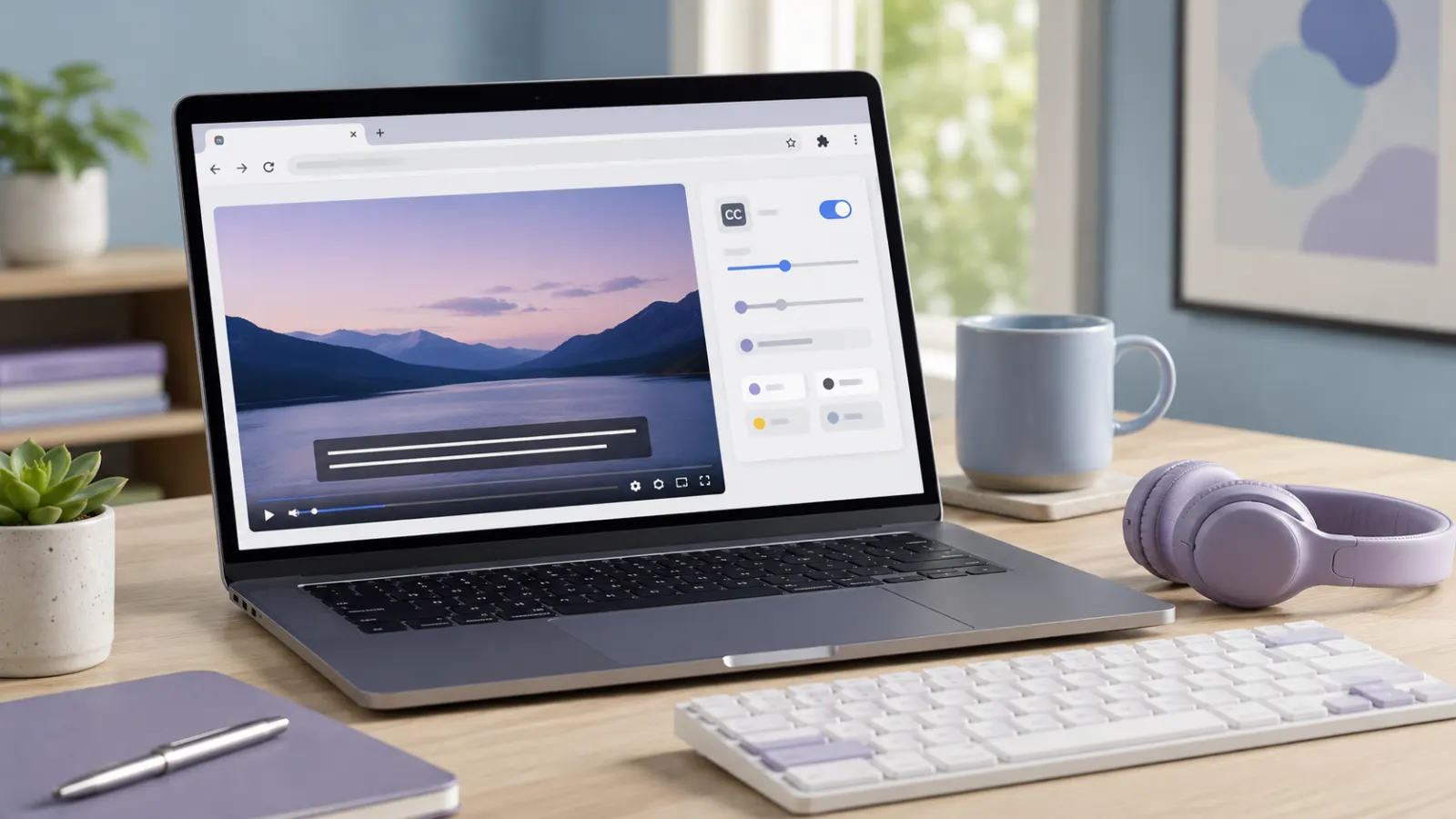
Yes, there are several YouTube closed captioning extensions for Google Chrome. However, you may not need an extension if you simply want to read captions while watching a video.
YouTube already provides built in closed captions for supported videos. Chrome also includes Live Caption, which can create captions for audio playing in the browser. Extensions become useful when you want extra features such as dual language subtitles, custom subtitle files, downloadable transcripts, improved caption styling, or spoken subtitles.
This guide explains the available options, how to install them, and how to choose a safe extension for your needs.
Chrome Live Caption
Quick Answer: Which YouTube Caption Option Should You Use?
Choose the tool based on what you want to do:
- Use YouTube’s CC button to view existing captions.
- Use Chrome Live Caption when a video has no YouTube caption track.
- Use Substital to add your own subtitle file.
- Use YouTube Dual Subtitles to display two languages together.
- Use YouTube Caption to read, search, or download available captions.
- Use Better YouTube Subtitles for additional appearance controls.
- Use Speak Subtitles for YouTube to hear subtitle text spoken aloud.
YouTube lets viewers turn captions on through the CC button and customize the font, size, color, background, opacity, and character edges. These built in controls should be your first choice when the video already has a suitable caption track.
Extension features, availability, pricing, privacy practices, and performance can change. Check the current Chrome Web Store listing before installing any recommendation.
Start with YouTube’s Built In Closed Captions
You do not need a Chrome extension to activate captions that already exist on YouTube.
How to turn on YouTube captions in Chrome
- Open the YouTube video.
- Move your pointer over the video player.
- Click the CC button in the lower right corner.
- Click Settings if you want to select a different language or adjust the caption display.
If the CC button does not appear, YouTube does not have an available caption track for that video. In that situation, Chrome Live Caption may help generate text from the audio.
How to use the keyboard shortcut
Press C while the YouTube player is active to turn captions on or off.
The shortcut may not work if your cursor is inside a search box, comment field, or another text field. Click the video player first, then press C again.
How to change the caption appearance
Open the video settings and follow these steps:
- Click Settings in the player.
- Select Subtitles/CC.
- Choose Options.
- Adjust the font, color, size, opacity, background, window color, or character edge style.
YouTube states that these choices remain your default caption format until you change them or reset the settings.
Use Chrome Live Caption When YouTube Has No Captions
Chrome Live Caption is a browser accessibility feature, not a separate extension. It creates captions for supported audio and video playing in Chrome.
This option is useful for:
- YouTube videos without a caption track
- Embedded videos on other websites
- Podcasts and other audio content
- Videos with captions in an unavailable language
- Situations where you need a separate movable caption box
How to enable Live Caption in Chrome
On a Windows or Mac computer:
- Open Google Chrome.
- Click the three dot menu.
- Select Settings.
- Select Accessibility.
- Open Captions if that option appears.
- Turn on Live Caption.
Chrome may need to download speech recognition files before the feature starts working. Google’s current help documentation also describes Live Translate controls for translating generated captions into another supported language. Available controls and languages can depend on the device and Chrome version. Chrome Help
Chrome Live Caption versus YouTube captions
These two options do not work in exactly the same way.
YouTube captions come from a caption track attached to the video. The creator may have written, uploaded, synchronized, or reviewed that track. YouTube may also generate automatic captions.
Chrome Live Caption listens to the media audio and creates text through speech recognition. It operates independently of the caption track supplied by YouTube.
A reviewed YouTube caption track will often communicate the content more accurately than newly generated browser captions. It may also include speaker identification and meaningful sounds. However, accuracy depends on how the creator prepared the captions. YouTube advises creators to review automatic captions because speech recognition can transcribe audio incorrectly. Google YouTube Help
Useful YouTube Closed Captioning Extensions for Chrome
The following extensions were listed in the Chrome Web Store when this guide was reviewed on August 25, 2026. Each one solves a different captioning problem.
1. Substital for adding external subtitle files
Substital adds subtitle files to videos on YouTube and other supported platforms. It is helpful when a YouTube video has no captions but you already have a compatible subtitle file.
The Chrome Web Store listing describes it as a tool for adding captions to videos and movies across YouTube, Netflix, and other platforms. At the time reviewed, the listing marked it as a featured extension and showed more than 300,000 users. Substital on the Chrome Web Store
Use it when you want to:
- Load subtitles you already downloaded
- Watch a video with community made subtitles
- Replace an unsuitable caption track
- Adjust subtitle synchronization
- Add captions to supported videos beyond YouTube
Keep in mind that an external subtitle file must match the video version. Captions may drift out of sync if the file was created for a shorter, longer, or differently edited copy.
2. YouTube Caption for transcripts and downloads
YouTube Caption presents available video captions in a separate reading interface. Its Chrome Web Store listing says it can display captions as a list or article, search subtitle text, jump to a specific line, and download captions in formats such as SRT and VTT. YouTube Caption on the Chrome Web Store
It may suit:
- Students reviewing lectures
- Researchers locating a statement
- Viewers who prefer reading along
- Editors working with caption files
- People who want a more convenient transcript view
YouTube also offers a native transcript for videos with captions. Open the video description and select Show transcript. You can click a transcript line to jump to that point in the video. Try this free built in feature before installing an extension solely for transcript navigation.
Only download or reuse subtitle text when you have the necessary rights or permission.
3. YouTube Dual Subtitles for bilingual viewing
YouTube Dual Subtitles displays two subtitle languages at the same time and provides custom styling. This can make language lessons and foreign language videos easier to follow.
It works best for:
- Comparing a native language with a target language
- Following foreign language tutorials
- Studying translations in context
- Learning vocabulary through authentic videos
- Watching with people who prefer different languages
The extension still needs suitable subtitle information. It cannot guarantee that every video or language combination will be available or accurately translated.
4. Dualsub for subtitle translation
Dualsub is another bilingual subtitle option. Its Chrome Web Store page says it can translate and display two subtitle languages on YouTube and other video websites. Dualsub on the Chrome Web Store
Consider it if you want:
- Two subtitle tracks on screen
- Real time subtitle translation
- Support beyond YouTube
- A language learning aid
- A lightweight bilingual display
Machine translation can miss context, humor, idioms, names, and technical terms. Treat translated captions as a viewing aid rather than a guaranteed word for word interpretation.
5. Subtitles for YouTube for personal subtitle files
Subtitles for YouTube lets users upload a subtitle file from their computer and display it over a YouTube video. Its store description presents it as an option for using manually translated subtitles instead of relying only on automatic captions. Subtitles for YouTube on the Chrome Web Store
This extension can help when:
- A video has no captions in your language
- Someone has supplied a subtitle file separately
- You created captions for personal study
- You want to test subtitle timing
- You need to compare a manual translation with automatic text
Check that the file comes from a source you trust and matches the exact video.
6. Better YouTube Subtitles for improved styling
Better YouTube Subtitles focuses on appearance rather than caption generation. The extension’s listing says it works with existing YouTube subtitles and adds customization through styling changes.
It may be useful if you need:
- Different caption positioning
- Additional appearance choices
- A more readable font treatment
- Improved contrast
- Convenient caption shortcuts
Start with YouTube’s native subtitle options. Install a styling extension only if the built in font, background, size, and color controls do not meet your needs.
7. Speak Subtitles for YouTube for spoken subtitle text
Speak Subtitles for YouTube converts subtitle text into synthesized speech. Its store listing describes support for multiple voices and languages and notes that it may conflict with other YouTube extensions.
This may help:
- Language learners practicing pronunciation
- Viewers following foreign language material
- People who prefer listening to subtitle text
- Users who need an additional audio aid
Spoken subtitles are not the same as professional audio description. Audio description explains important visual details, actions, expressions, and scene changes that the original soundtrack does not communicate.
Which Chrome Caption Extension Is Best?
There is no single best option for every viewer. Use this quick guide:
- For ordinary YouTube captions: Use YouTube’s CC button.
- For videos without captions: Try Chrome Live Caption.
- For external subtitle files: Try Substital or Subtitles for YouTube.
- For two languages together: Try YouTube Dual Subtitles or Dualsub.
- For caption downloads and searching: Try YouTube Caption.
- For more visual customization: Try Better YouTube Subtitles.
- For spoken subtitle text: Try Speak Subtitles for YouTube.
- For a readable transcript: Try YouTube’s Show transcript feature first.
Choose the smallest tool that solves your problem. A dedicated extension may offer more control, but installing several YouTube extensions can create conflicts or make troubleshooting harder.
Define closed captioning, meaning, purpose and accessibility
How to Install a YouTube Caption Extension
Follow these steps for an extension listed in the official Chrome Web Store:
- Open the extension’s Chrome Web Store page.
- Confirm the extension name and publisher.
- Read its description, privacy information, recent reviews, and update details.
- Click Add to Chrome.
- Review the requested permissions.
- Select Add extension if you accept them.
- Open a YouTube video.
- Click the Extensions icon near the address bar.
- Select the installed caption tool.
- Pin it to the toolbar if you plan to use it frequently.
Reload YouTube after installation. Some extensions cannot modify a tab that was already open before they were installed.
Check Privacy and Permissions Before Installing
A captioning extension may need access to YouTube so it can read subtitle data, add an overlay, or modify the player. That does not automatically mean the extension is unsafe, but you should understand the requested access.
Google explains that a permission warning does not prove an extension is dangerous. It shows what the extension may be able to access or change. You can refuse the request if you are not comfortable with it.
Before installing, check:
- Whether the publisher is clearly identified
- When the extension was last updated
- Which websites it can access
- Whether its permissions match its stated purpose
- Whether it collects or shares user data
- Whether recent reviews describe unresolved problems
- Whether it requires payment or an account
- Whether a built in browser feature can do the same job
Do not judge safety from the star rating alone. Google states that it does not verify the authenticity of every Chrome Web Store review, although reviews that violate its terms may be removed.
Limit an extension to YouTube
If Chrome provides the option, restrict the extension’s site access:
- Open Chrome’s three dot menu.
- Select Extensions.
- Select Manage Extensions.
- Find the extension and open Details.
- Locate its site access settings.
- Choose access on specific sites.
- Add YouTube if that is the only site where you need it.
Google documents these controls under the permissions section of Chrome’s extension manager.
How to Remove an Extension
If an extension causes playback problems, displays unwanted elements, or requests permissions you no longer want to grant, remove it:
- Click the Extensions icon in Chrome.
- Find the extension.
- Open its menu.
- Select Remove from Chrome.
- Confirm the removal.
You can also open Extensions, select Manage Extensions, and remove it from there.
Troubleshooting YouTube Captions in Chrome
The CC button is missing
The video may not have an available YouTube caption track. Try Chrome Live Caption, but remember that generated captions may contain errors.
Captions are turned on but do not appear
Try these steps:
- Reload the video.
- Turn the CC button off and on.
- Open Settings and select a caption language again.
- Test another video with known captions.
- Open the video in an Incognito window without extensions.
- Disable recently installed YouTube extensions.
- Update Chrome.
- Restart the browser.
If captions work in Incognito mode but not in your normal window, an extension or stored browser setting may be interfering.
The extension does not work
Check whether the extension has permission to operate on YouTube. Then reload the tab. If that does not help, disable other extensions that alter the YouTube player.
Captions are inaccurate
Switch from automatic captions to a creator supplied language track if one is available. Clear audio and reviewed captions usually produce a better experience than unedited speech recognition, but accuracy varies by video.
Captions do not match the audio timing
An uploaded subtitle file may belong to another version of the video. Look for a matching file or use the extension’s synchronization controls if it provides them.
Dual subtitles show only one language
Confirm that the video offers a suitable original caption track. Translation extensions may also depend on supported languages, available translation services, and current website compatibility.
Closed Captions, Subtitles, and Transcripts Are Not Identical
People often use these terms interchangeably, but they serve slightly different purposes.
Closed captions communicate spoken dialogue and relevant audio information. They may identify speakers and describe meaningful sounds.
Subtitles commonly communicate dialogue, often through translation. Some subtitle tracks also contain useful sound information, but that depends on how they were created.
Transcripts present spoken content as continuous text. They help users scan, search, study, or revisit information, but they may not remain visible in sync with the video.
W3C explains that captions include dialogue, speaker identification, and important non speech audio. It also recommends providing both captions and a separate transcript where practical.
Why Accurate YouTube Captions Matter
Closed captions give Deaf and hard of hearing viewers access to information delivered through audio. They also help people watching in noisy or quiet environments, language learners, and viewers dealing with unclear sound.
For web accessibility, WCAG 2.1 Success Criterion 1.2.2 requires captions for prerecorded audio in synchronized media at Level A, with a limited exception for media that serves as an alternative to text and is clearly labeled. Live synchronized media captions appear at Level AA under Success Criterion 1.2.4. W3C WCAG 2.1
Browser generated captions can provide useful assistance, but they do not repair the creator’s original video or create an accessible caption track for everyone. YouTube creators should add and review captions in YouTube Studio rather than expecting viewers to install an extension. YouTube provides options for uploading caption files and adding subtitles by language. Google YouTube Help
Common Mistakes to Avoid
- Installing an extension before checking YouTube’s CC button
- Assuming automatic captions are always accurate
- Granting access to every website without reviewing the need
- Installing several extensions that modify the same player
- Trusting ratings without reading permissions and privacy details
- Confusing spoken subtitles with audio description
- Expecting a subtitle extension to create perfect translation
- Downloading or republishing caption text without permission
- Using viewer tools instead of adding proper captions to your own videos
- Forgetting to reload YouTube after installing an extension
Final Answer
There is a YouTube closed captioning extension for Google Chrome for nearly every common need, including custom subtitles, bilingual captions, transcript downloads, spoken subtitles, and extra styling.
Start with YouTube’s built in CC button. If the video has no captions, try Chrome Live Caption. Install an extension only when you need a feature those native tools do not provide, and always review its permissions before giving it access to YouTube.
Frequently Asked Questions
Is there a free YouTube closed captioning extension for Google Chrome?
Yes. Several extensions have free installation options in the Chrome Web Store, including tools for subtitle files, dual subtitles, styling, and transcripts. Some may offer optional purchases or paid features. Check the current listing before installing because pricing can change.
Does Google Chrome have automatic captions?
Yes. Chrome includes Live Caption for supported media. Open Chrome Settings, select Accessibility, and enable Live Caption. It can help when a YouTube video lacks its own caption track.
Can a Chrome extension add captions to a video that has none?
An extension can display an external subtitle file or, depending on the tool, generate text from audio. Substital and Subtitles for YouTube focus on adding subtitle files. Chrome Live Caption generates captions from browser audio without requiring a separate extension.
Can I upload my own subtitles while watching YouTube?
Yes. Extensions such as Substital and Subtitles for YouTube are designed to overlay compatible subtitle files on supported YouTube videos. The file must match the video timing.
Can I show two subtitle languages on YouTube?
Yes. YouTube Dual Subtitles, Dualsub, and similar Chrome extensions can display bilingual subtitles. Availability and accuracy depend on the video’s caption tracks and the extension’s translation support.
Can I download captions from a YouTube video?
Some extensions can export available subtitles as text, SRT, or VTT files. YouTube Caption lists those capabilities in its Chrome Web Store description. Respect copyright, privacy, and any applicable terms before downloading or reusing the text.
Can I view a YouTube transcript without an extension?
Yes. If the video has captions, open its description and select Show transcript. You can read the text and click a line to jump to the corresponding moment. Google YouTube Help
Are Chrome caption extensions safe?
I cannot confirm that every caption extension is safe. Review the publisher, requested permissions, privacy disclosures, update history, and recent feedback for the specific extension. Restrict its site access when possible and remove it if its behavior changes unexpectedly.
Will a caption extension work in Incognito mode?
Not automatically. Open Chrome’s extension manager, select the extension, and enable Allow in Incognito if you trust it and need it there. Remember that enabling an extension in Incognito gives that extension access within those sessions according to its permissions.
What is the best option for accessibility?
Use a reviewed caption track supplied through YouTube whenever one is available. Chrome Live Caption can serve as a useful backup. For your own videos, create and review proper synchronized captions instead of relying only on automatic browser transcription.