
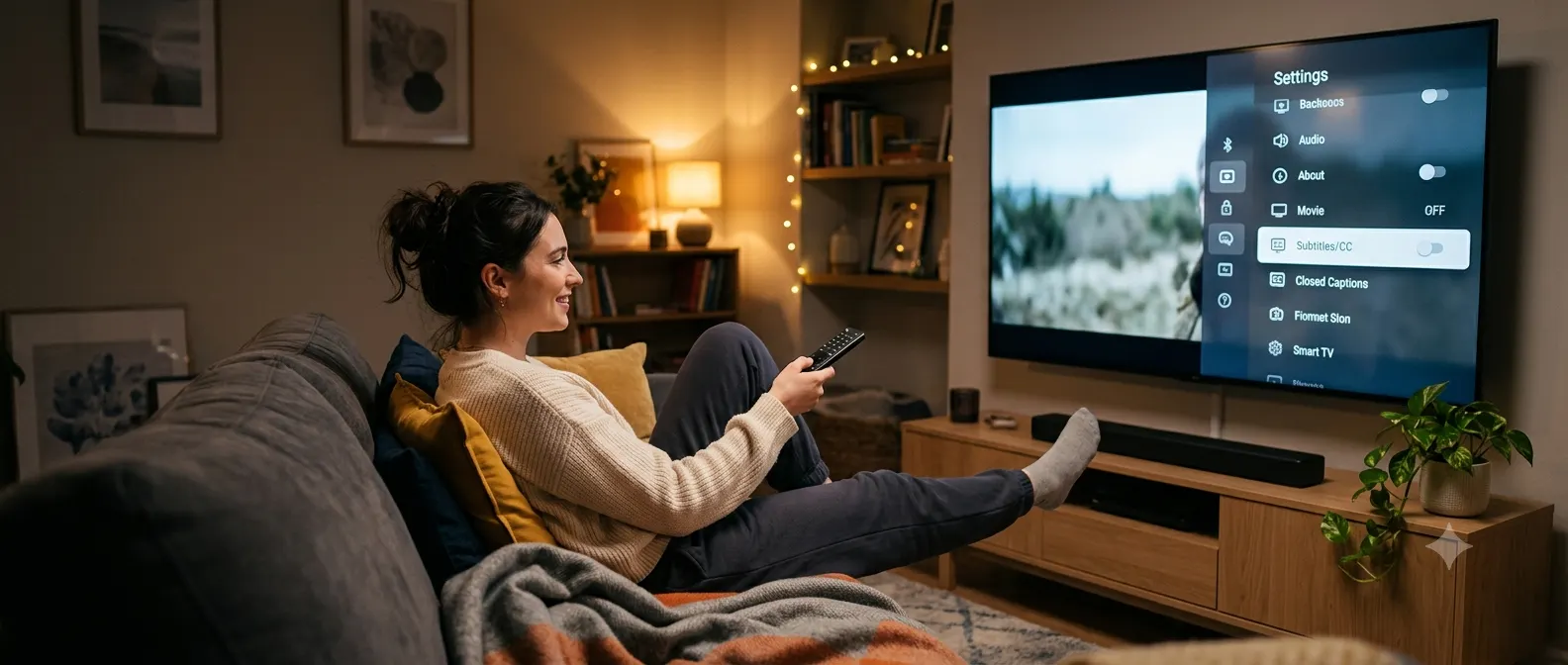
If you’re wondering how do I turn off closed caption on Netflix, the good news is that you can disable captions in just a few taps. Whether you’re watching on a smart TV, phone, tablet, computer, Roku, Fire TV, Apple TV, PlayStation, or Xbox, Netflix lets you control subtitle and closed caption settings directly during playback. This guide explains exactly how to turn off closed captions on every major device, what to do if captions won’t disappear, and how to fix common subtitle problems. By the end, you’ll know the fastest way to enjoy your favorite movies and shows without unwanted text on the screen.
Quick Answer
To turn off closed captions on Netflix:
- Start playing any movie or TV show.
- Open the playback controls by tapping or moving your mouse.
- Select Audio & Subtitles or the speech bubble icon.
- Under Subtitles, choose Off.
- Return to your video, and the captions should disappear immediately.
If captions stay on, restart the video or check your device’s accessibility settings.
Understanding Closed Captions on Netflix
Before changing any settings, it helps to know the difference between subtitles and closed captions.
Subtitles display spoken dialogue and are mainly intended for viewers who understand the language but prefer reading along or are watching in a noisy environment.
Closed captions include dialogue plus sound descriptions, such as:
- Door slams
- Phone rings
- Soft music plays
- Audience laughs
Netflix groups these options under its subtitle settings, so turning subtitles off also disables closed captions for that title.
Turn Off Closed Caption on Netflix Using a Smart TV
Most smart TVs follow nearly the same process, even if the menus look slightly different.
Steps
- Open Netflix.
- Play any movie or series.
- Press the Up or Down button on your remote.
- Open Audio & Subtitles.
- Highlight Off under the subtitle section.
- Confirm your selection.
- Continue watching without captions.
If you don’t see the menu immediately, pause the video first and try again.
How to Turn Off Netflix Captions on Android
Android users can disable captions in seconds.
Follow these steps
- Launch the Netflix app.
- Start playing a title.
- Tap the screen once.
- Select Audio & Subtitles.
- Tap Off.
- Tap Apply or return to playback.
The subtitles should disappear instantly.
Turn Off Closed Captions on Netflix for iPhone and iPad
The iOS app uses a very similar layout.
Steps
- Open Netflix.
- Play your chosen show.
- Tap anywhere on the screen.
- Choose Audio & Subtitles.
- Select Off.
- Return to the video.
If captions continue appearing, close the app completely and reopen it before trying again.
Disable Closed Captions While Watching Netflix on a Computer
Watching Netflix in Chrome, Edge, Firefox, or Safari makes subtitle settings easy to access.
Steps
- Visit Netflix and sign in.
- Play a movie or TV episode.
- Move your cursor over the video.
- Click the speech bubble icon.
- Under Subtitles, choose Off.
- Continue watching.
The change takes effect immediately without refreshing the page.
How to Turn Off Captions on Netflix Using Roku
Roku offers two ways to manage captions, through Netflix and through Roku’s own accessibility settings.
Method 1: Inside Netflix
- Open Netflix.
- Start playback.
- Press the Star button or access playback options.
- Open subtitle settings.
- Select Off.
Method 2: Roku Settings
If captions remain visible:
- Open Roku Settings.
- Go to Accessibility or Captions.
- Change the caption preference to Off.
- Return to Netflix and test another video.
Turn Off Netflix Closed Captions on Amazon Fire TV
Fire TV devices include both Netflix controls and system accessibility settings.
Netflix method
- Play a title.
- Open playback controls.
- Select Audio & Subtitles.
- Choose Off.
Fire TV accessibility settings
If subtitles still appear:
- Open Settings.
- Select Accessibility.
- Open Closed Caption settings.
- Turn captions off.
- Restart Netflix if needed.
Disable Netflix Captions on Apple TV
Apple TV users can remove captions during playback.
Steps
- Open Netflix.
- Start a movie or episode.
- Swipe down on the Apple TV remote touch surface or use the remote menu button, depending on your model.
- Open subtitle options.
- Select Off.
- Resume playback.
If captions return automatically, check the Apple TV accessibility menu to ensure system-wide captions are disabled.
Turn Off Closed Captions on PlayStation and Xbox
Netflix works similarly on both gaming consoles.
Steps
- Launch Netflix.
- Play any title.
- Open playback controls.
- Choose Audio & Subtitles.
- Select Off.
- Continue watching.
If the captions remain, review the console’s accessibility settings, as they may override Netflix’s subtitle preferences.
Why Do Closed Captions Keep Turning Back On?
Sometimes captions reappear even after you’ve turned them off. This usually happens for one of these reasons:
- Your device has system-wide caption settings enabled.
- Another profile uses different subtitle preferences.
- The Netflix app needs to refresh.
- The streaming device temporarily failed to save your settings.
- Accessibility options are overriding Netflix’s playback preferences.
Most issues disappear after updating the app, restarting the device, or disabling captions in both Netflix and the device’s accessibility settings.
What to Do if Netflix Captions Won’t Turn Off
If you’ve selected Off but subtitles still appear, don’t worry. The problem is often caused by a device setting rather than Netflix itself.
Try these fixes one at a time.
Restart the Video
Sometimes the subtitle preference doesn’t update immediately.
- Stop playback.
- Return to the Netflix home screen.
- Play the title again.
- Check whether captions have disappeared.
Restart the Netflix App
Closing and reopening the app can refresh your settings.
- Exit Netflix completely.
- Wait a few seconds.
- Launch the app again.
- Play a different title to test the change.
Restart Your Device
A quick reboot often fixes temporary software glitches.
- Turn your device off.
- Wait about 30 seconds.
- Turn it back on.
- Open Netflix and test subtitles again.
Update the Netflix App
Using an outdated version of Netflix can lead to playback issues.
Visit your device’s app store, check for updates, install the latest version, and try again.
Check Device Accessibility Settings
Many devices have system-wide caption controls that can override Netflix.
Look for settings such as:
- Accessibility
- Hearing
- Closed Captions
- Subtitles
Turn these options off if you don’t want captions to appear.
Why Some Netflix Titles Show Different Subtitle Options
Not every movie or TV show includes the same subtitle choices.
The available options depend on factors such as:
- The country you’re watching from.
- The language of the title.
- Licensing agreements.
- Accessibility features provided by the content owner.
Some titles offer dozens of subtitle languages, while others only include a few.
Can You Turn Off Captions Permanently?
Netflix remembers your most recent subtitle choice on many devices, but there isn’t a universal account setting that permanently disables captions for every device and every profile.
For the best results:
- Turn captions off while watching.
- Use the same Netflix profile.
- Disable system-wide captions on your device.
- Keep the Netflix app updated.
Most users won’t need to change the setting again unless they switch devices or profiles.
How to Change Caption Appearance Instead of Turning Them Off
If you still want subtitles but find them distracting, you can customize how they look.
Netflix allows you to change:
- Text size
- Font style
- Text color
- Background color
- Shadow effects
Larger, clearer captions can improve readability without blocking too much of the screen.
Closed Captions vs. Subtitles
Although many people use the terms interchangeably, they serve slightly different purposes.
| Closed Captions | Subtitles |
|---|---|
| Include dialogue and important sound descriptions. | Usually display spoken dialogue only. |
| Designed primarily for viewers who are deaf or hard of hearing. | Designed for viewers who understand spoken audio differently or need translation. |
| May describe music, sound effects, and background noises. | Usually focus only on speech. |
On Netflix, both are managed through the same subtitle menu.
Tips for a Better Netflix Viewing Experience
A few small adjustments can make watching Netflix even more enjoyable.
- Use the latest version of the Netflix app.
- Maintain a stable internet connection.
- Choose the correct audio language.
- Keep your streaming device updated.
- Use subtitles only when they improve your viewing experience.
- Adjust playback quality if videos buffer frequently.
- Watch with the profile that stores your preferred settings.
Common Mistakes to Avoid
Many caption problems happen because of simple oversights.
Avoid these common mistakes:
- Turning captions off before the video starts instead of during playback.
- Forgetting that another profile may have different preferences.
- Ignoring your device’s accessibility settings.
- Assuming every device uses the same menu layout.
- Skipping app updates for long periods.
- Confusing subtitles with closed captions.
- Changing settings on one device and expecting every device to update instantly.
Final Thoughts
Knowing how do I turn off closed caption on Netflix makes watching movies and TV shows much more enjoyable when you don’t need on-screen text. The process only takes a few seconds on most devices. Simply open the subtitle menu during playback and choose Off. If captions keep appearing, the issue usually comes from your device’s accessibility settings rather than Netflix itself. Checking both the app and your device settings will solve the problem in most cases. Whether you’re streaming on a smart TV, phone, tablet, computer, Roku, Fire TV, Apple TV, or gaming console, you can quickly manage subtitle preferences and enjoy a cleaner viewing experience.
Frequently Asked Questions
Why won’t Netflix let me turn captions off?
Your device’s accessibility settings may be forcing captions to stay on. Check both Netflix’s subtitle menu and your device’s caption settings.
Do caption settings sync across all devices?
Not always. While Netflix often remembers recent preferences, some devices use their own accessibility settings that override the app.
Can I disable captions for every Netflix profile?
No. Each profile may remember its own subtitle preferences, so you may need to turn captions off separately.
Why do captions keep coming back?
This usually happens because system accessibility settings are enabled, another person changed the profile settings, or the app needs to be restarted.
Does turning subtitles off affect audio?
No. Disabling subtitles only removes the on-screen text. Your audio settings remain unchanged.
Can I customize captions instead of removing them?
Yes. Netflix lets you change the font, size, color, and background style of subtitles through your account settings on supported devices.
Are closed captions available for every Netflix title?
Most Netflix content includes subtitles or closed captions, but the available languages and accessibility features vary by title and region.