
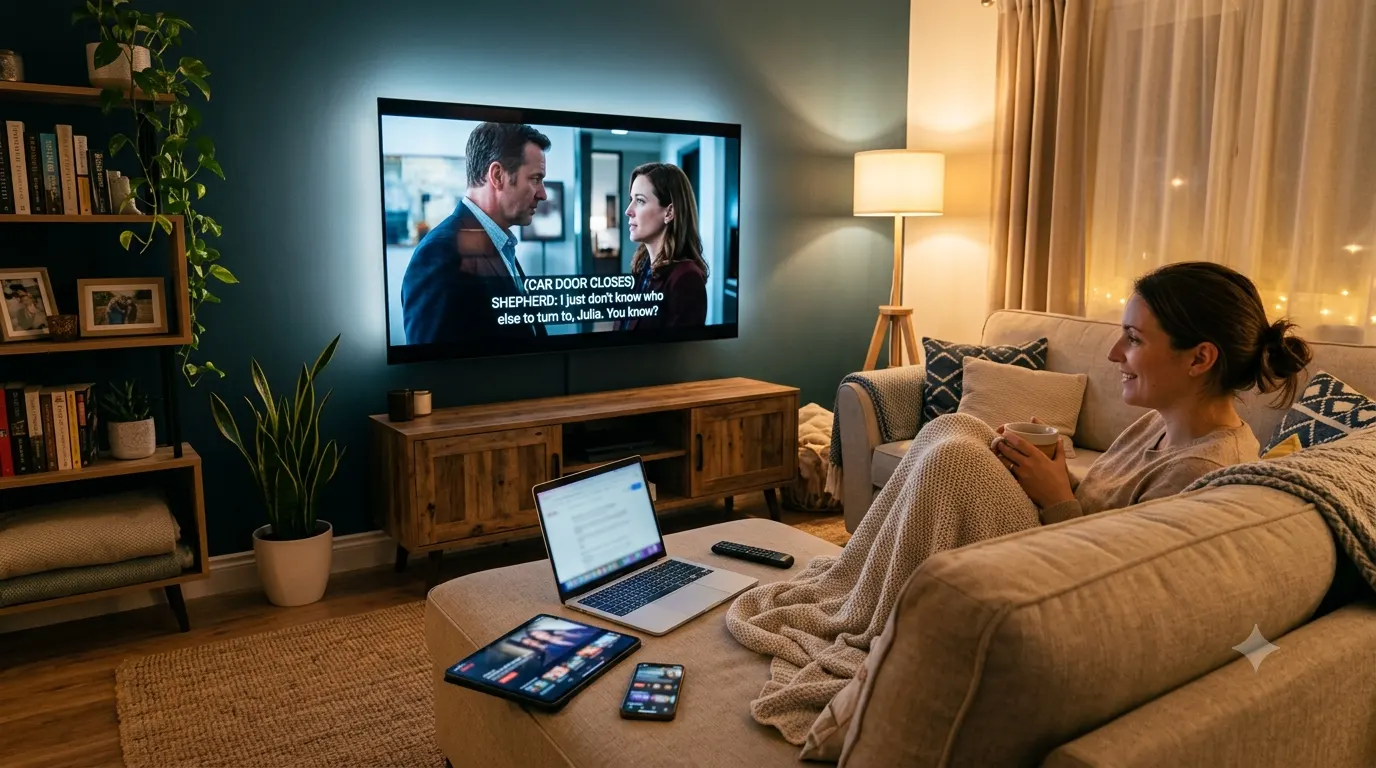
Watching Netflix with closed captions can make every show and movie easier to follow. Whether you need captions for accessibility, want to catch every line of dialogue, or prefer watching without sound, Netflix lets you enable and customize closed captions in just a few steps.
This guide explains how to get closed caption on Netflix across different devices, how to adjust subtitle settings, and what to do if captions are missing or not working correctly.
Quick Answer
If you’re wondering how to get closed caption on Netflix, here’s the fastest method:
- Start playing a movie or TV show.
- Open the playback controls by tapping the screen or moving your mouse.
- Select Audio & Subtitles.
- Choose your preferred subtitle or closed caption language.
- Close the menu and continue watching.
Netflix saves your subtitle preferences for many devices, making it easier to enjoy future shows with captions enabled.
What Are Closed Captions on Netflix?
Closed captions display spoken dialogue along with important nonverbal sounds that help viewers understand what’s happening on screen. Unlike standard subtitles, closed captions may include descriptions of background sounds, music cues, or speaker identification.
Examples include:
- Door creaks open.
- Soft music plays.
- Audience applauds.
- Phone rings.
These extra details improve the viewing experience for people who are deaf or hard of hearing, as well as anyone watching in a noisy environment or with the volume turned down.
Why Use Closed Captions on Netflix?
Many viewers use captions for reasons beyond accessibility. They can improve comprehension, reduce distractions, and make it easier to enjoy content in different situations.
Some common benefits include:
- Understand fast dialogue more easily.
- Watch quietly without disturbing others.
- Follow movies in different languages.
- Catch names, places, and important details.
- Improve language learning.
- Enjoy clearer viewing in noisy places.
- Avoid missing whispered conversations.
- Follow complex storylines more confidently.
How to Turn On Closed Caption on Netflix
Netflix offers a similar process across most devices, although the exact menu may look slightly different.
Turn On Closed Captions on the Netflix Website
If you’re watching Netflix in a browser:
- Sign in to your Netflix account.
- Start playing your chosen title.
- Move your mouse over the video player.
- Click the Audio & Subtitles icon.
- Select your preferred caption language.
- Continue watching.
Your captions should appear immediately if they’re available for that title.
Turn On Closed Captions on the Netflix Mobile App
Using an Android phone or iPhone is just as simple.
- Open the Netflix app.
- Play a movie or episode.
- Tap the screen.
- Select Audio & Subtitles.
- Choose your caption language.
- Tap Apply or return to playback.
The captions will begin displaying right away.
Turn On Closed Captions on a Smart TV
Most smart TVs follow nearly the same process.
- Launch Netflix.
- Start playing a title.
- Open the playback controls using your remote.
- Select Audio & Subtitles.
- Pick your preferred caption option.
- Resume playback.
If your remote has a dedicated subtitle button, it may also open the caption menu on some TV models.
Turn On Closed Captions on Streaming Devices
Devices such as Roku, Amazon Fire TV, Apple TV, Chromecast with Google TV, and Android TV all provide easy access to subtitle settings.
Generally, you’ll need to:
- Play a movie or show.
- Open the playback menu.
- Choose Audio & Subtitles.
- Select your caption language.
- Continue watching.
The exact button depends on your device, but the overall process stays very similar.
How to Customize Netflix Caption Appearance
Netflix allows you to personalize subtitle styling on supported devices through your account settings.
You can often change:
- Font style
- Text size
- Text color
- Background color
- Window color
- Shadow effects
These settings help improve readability, especially if you have vision preferences or watch on larger screens.
Why Customize Captions?
Changing the appearance can make captions:
- Easier to read.
- Less distracting.
- More visible during bright scenes.
- Better suited for children or older viewers.
- Comfortable for longer viewing sessions.
Choose a style with good contrast between the text and the background for the best reading experience.
How to Change Netflix Subtitle Language
Netflix supports subtitles in many languages, although availability depends on the title and your region.
To switch languages:
- Play your chosen movie or episode.
- Open Audio & Subtitles.
- Browse the available subtitle options.
- Select your preferred language.
- Return to playback.
If your preferred language doesn’t appear, that specific title may not offer subtitles in that language.
Do All Netflix Movies Have Closed Captions?
Most Netflix Originals include closed captions in multiple languages. Many licensed movies and TV shows also provide captions, but availability depends on licensing agreements and regional content rights.
You may notice that:
- Netflix Originals usually offer the widest language support.
- Older titles sometimes have fewer subtitle options.
- Regional content often includes captions for local languages.
- Live events may have different caption availability.
If captions are unavailable for one title, another version of the same movie may offer additional subtitle languages.
Why Can’t I See Closed Captions on Netflix?
Sometimes captions don’t appear even after you’ve enabled them. In most cases, the issue has a simple solution.
Common causes include:
- Captions are turned off.
- The selected language isn’t available.
- Temporary streaming glitches.
- Outdated Netflix app.
- Device software needs updating.
- Internet connection problems.
- Account synchronization issues.
Checking these possibilities usually restores captions within a few minutes.
Basic Troubleshooting Steps
Before trying advanced fixes, start with these simple solutions.
- Pause and resume playback.
- Turn captions off, then back on.
- Restart the Netflix app.
- Restart your device.
- Check for app updates.
- Verify your internet connection.
- Try another movie or TV show.
- Sign out of Netflix and sign back in.
These quick steps resolve many common caption issues without additional troubleshooting.
Advanced Fixes if Netflix Captions Are Still Not Working
If the basic troubleshooting steps don’t solve the problem, try these additional solutions. They can help resolve caption issues caused by device settings, software conflicts, or account preferences.
Check for Netflix App Updates
An outdated app can cause playback or subtitle problems.
To update the app:
- Open your device’s app store.
- Search for Netflix.
- Install any available updates.
- Restart the app and test captions again.
Running the latest version ensures you have recent bug fixes and subtitle improvements.
Update Your Device Software
Older operating systems sometimes create compatibility issues.
Check for updates on your:
- Smart TV
- Android phone
- iPhone or iPad
- Streaming device
- Game console
- Computer
Install any available updates before reopening Netflix.
Restart Your Streaming Device
A simple restart clears temporary system errors.
To restart:
- Turn off the device completely.
- Unplug it for about one minute if possible.
- Turn it back on.
- Open Netflix and check the captions again.
Try Another Netflix Title
Some titles have different subtitle options than others.
If captions don’t appear on one movie:
- Open another Netflix Original.
- Test a different TV series.
- Compare the available subtitle languages.
If captions work on another title, the issue may be limited to the original content.
How to Get Closed Caption on Netflix Using Roku
Roku makes it easy to enable captions during playback.
Follow these steps:
- Open Netflix.
- Start your movie or show.
- Press the Up or Down button during playback.
- Open the subtitle menu.
- Select your preferred caption language.
- Continue watching.
You can also manage caption preferences through Roku’s Accessibility settings if you want captions enabled across supported apps.
How to Turn On Captions on Amazon Fire TV
If you watch Netflix through Fire TV:
- Launch Netflix.
- Play any title.
- Press the Menu button while watching.
- Select Audio & Subtitles.
- Choose your subtitle language.
- Return to playback.
Fire TV also includes system-wide accessibility options for captions.
Enable Closed Captions on Apple TV
Apple TV offers both Netflix subtitle controls and accessibility settings.
To enable captions:
- Open Netflix.
- Start a video.
- Swipe down on the remote touch surface or press the appropriate menu button.
- Select Subtitles.
- Choose your preferred language.
You can also customize caption appearance through Apple TV accessibility settings.
Turn On Closed Captions on Chromecast With Google TV
If you’re using Chromecast with Google TV:
- Open Netflix.
- Play your selected title.
- Open the playback controls.
- Select Audio & Subtitles.
- Turn captions on.
- Resume playback.
Google TV also allows additional caption customization through Accessibility settings.
Enable Closed Captions on PlayStation
Netflix supports captions on PlayStation consoles.
Steps include:
- Open Netflix.
- Start playing content.
- Open playback controls.
- Select Audio & Subtitles.
- Choose your subtitle option.
- Continue watching.
If captions don’t appear, restart both the console and the Netflix app.
Turn On Closed Captions on Xbox
Xbox users can activate Netflix captions in a similar way.
Simply:
- Launch Netflix.
- Play a movie or show.
- Open Audio & Subtitles.
- Select your preferred language.
- Return to playback.
Xbox accessibility settings also allow caption customization across supported apps.
Using Closed Captions on Android Devices
Android phones and tablets provide quick access to subtitles.
For the best experience:
- Keep the Netflix app updated.
- Use a stable Wi-Fi connection.
- Select the subtitle language before watching.
- Restart playback if captions disappear unexpectedly.
Many Android devices also include accessibility features that improve subtitle visibility.
Using Closed Captions on iPhone and iPad
Netflix works well with iOS accessibility features.
Helpful tips include:
- Enable captions before full-screen playback.
- Update both iOS and the Netflix app regularly.
- Adjust text size if captions feel too small.
- Restart the app if subtitle settings don’t save.
Watching Netflix with Captions in a Web Browser
Desktop users can enable captions through supported browsers such as Chrome, Edge, Firefox, and Safari.
For the smoothest experience:
- Keep your browser updated.
- Clear the browser cache if playback problems occur.
- Disable conflicting browser extensions.
- Refresh the page after changing subtitle settings.
Accessibility Features That Improve Your Viewing Experience
Closed captions are part of Netflix’s broader accessibility options.
Additional features may include:
- Multiple subtitle languages.
- Audio descriptions for many titles.
- Custom subtitle styling.
- Larger subtitle text.
- Improved contrast options.
- Device-level accessibility controls.
These settings help viewers create a comfortable and personalized watching experience.
Tips for Choosing the Best Caption Settings
Everyone has different viewing preferences. A few small adjustments can make captions much easier to read.
Consider these recommendations:
- Choose a medium or large font size.
- Use high-contrast text colors.
- Avoid transparent text if visibility is important.
- Keep captions near the bottom of the screen.
- Test different styles until you find one that’s comfortable.
Simple changes often improve readability during fast-moving scenes.
Common Mistakes to Avoid
Many caption problems happen because of small oversights.
Avoid these common mistakes:
- Assuming every title offers every language.
- Forgetting to save subtitle changes.
- Using an outdated Netflix app.
- Ignoring device software updates.
- Confusing subtitles with closed captions.
- Expecting caption settings to sync instantly across every device.
- Leaving accessibility settings disabled.
- Closing the subtitle menu without selecting a language.
Checking these items first can save time when troubleshooting.
Related Ideas
If you’re looking for more streaming accessibility guides, these topics may also help.
Final Thoughts
Learning how to get closed caption on Netflix takes only a few moments, but it can make your viewing experience much better. Whether you’re watching in a quiet room, learning a new language, or simply want to catch every word of dialogue, Netflix provides easy-to-use caption controls across nearly every supported device. If captions ever stop working, start with simple fixes such as checking your subtitle settings, updating the Netflix app, or restarting your device. Most issues are resolved quickly, allowing you to get back to enjoying your favorite movies and TV shows with clear, readable captions.
Frequently Asked Questions
How do I get closed captions on Netflix?
Start playing a movie or TV show, open the Audio & Subtitles menu, select your preferred subtitle or closed caption language, and return to playback. The exact steps may vary slightly depending on your device.
Why can’t I turn on captions on Netflix?
Captions may be unavailable for the title you’re watching, the app may need an update, or a temporary playback issue may be preventing them from appearing. Restarting the app or switching to another title often fixes the problem.
Are closed captions available on every Netflix show?
Most Netflix Originals include closed captions in multiple languages. Some licensed content offers fewer subtitle options because availability depends on licensing agreements and regional support.
What’s the difference between subtitles and closed captions?
Subtitles mainly display spoken dialogue. Closed captions also describe important sounds, speaker changes, and background audio, making them more accessible for viewers who are deaf or hard of hearing.
Can I change the size of Netflix captions?
Yes. Netflix allows many users to customize caption size, font, color, background, and other appearance settings through their account or supported device settings.
Does Netflix remember my caption settings?
In many cases, yes. Netflix often remembers your subtitle preferences on the device you’re using, although settings may differ between devices.
Why are captions out of sync?
Caption timing issues can happen because of streaming interruptions, outdated apps, or temporary playback glitches. Restarting playback, updating the app, or restarting your device usually resolves the issue.
Can I use captions in different languages?
Yes. Netflix supports multiple subtitle languages for many titles. The available options depend on the movie or show’s licensing and your region.
Do captions work offline?
If you’ve downloaded a Netflix title that includes captions, you can usually use the available subtitle options while watching offline.
Are closed captions free on Netflix?
Yes. Closed captions are included with your Netflix subscription and don’t require an additional fee.