
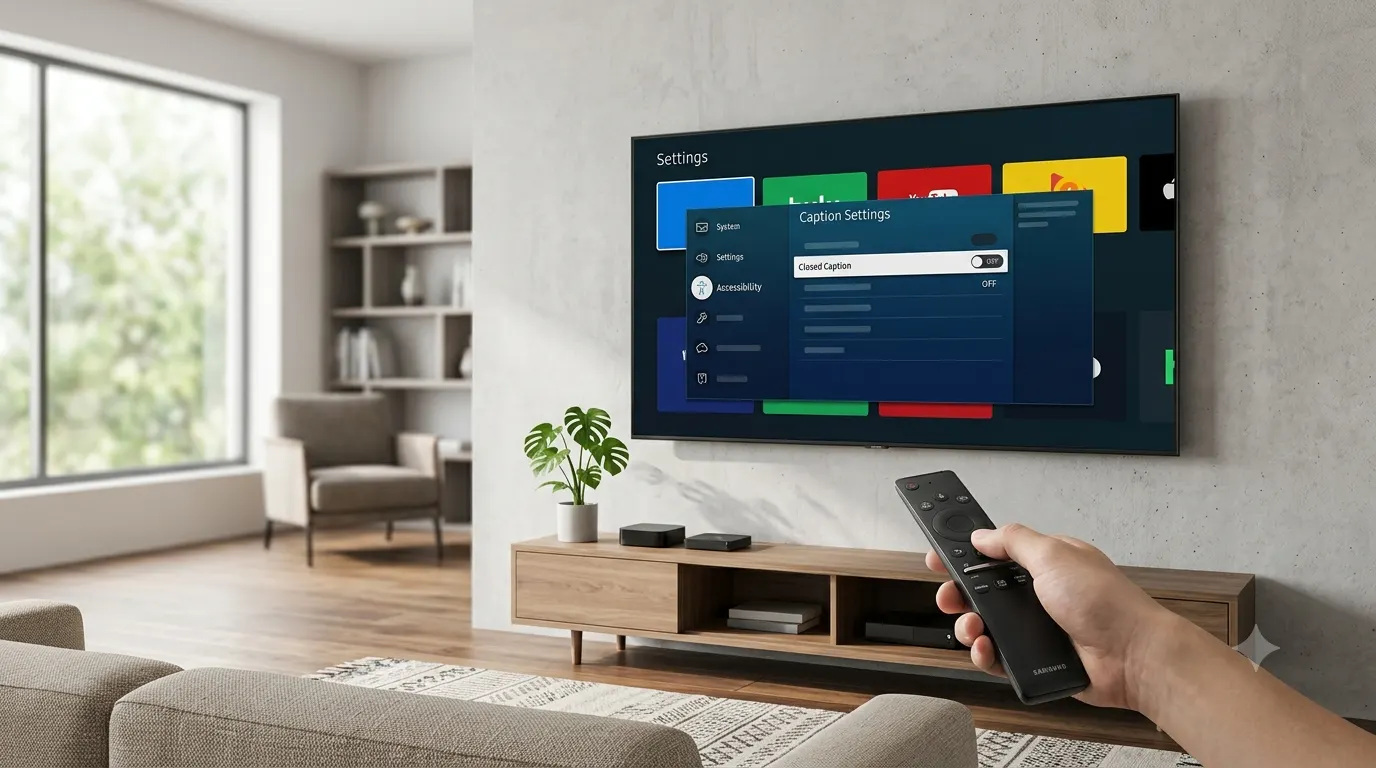
Closed captions can be helpful when you need them, but they can quickly become distracting if they stay on when you don’t want them. If you’re wondering how to turn off closed caption on Samsung TV, the process is usually simple, though the exact steps depend on your TV model, software version, and the app or device you’re using.
This guide walks you through every common method to disable closed captions on Samsung TVs. Whether you’re watching cable, streaming Netflix, using Samsung TV Plus, or playing content through an HDMI device, you’ll find the right solution here.
Quick Answer
If you want to turn off closed captions on most Samsung Smart TVs, follow these steps:
- Press the Home button on your remote.
- Open Settings.
- Select General or General & Privacy.
- Choose Accessibility.
- Open Caption Settings.
- Turn Caption or Closed Caption Off.
If captions still appear, they may be enabled inside the streaming app, cable box, or another connected device instead of the TV itself.
Why Closed Captions May Still Be On
Many people assume the TV controls every caption setting. In reality, captions can come from several different sources.
Common reasons include:
- The Samsung TV caption setting is enabled.
- A streaming app has subtitles turned on.
- Your cable or satellite receiver controls captions.
- A streaming stick such as Roku or Fire TV has accessibility settings enabled.
- The movie or show includes subtitles that must be turned off separately.
- Samsung TV Plus has its own subtitle controls for some channels.
Knowing where the captions originate makes solving the problem much easier.
Find Your Samsung TV Model First
Samsung has changed its menus over the years. Before changing any settings, identify which type of TV you own.
You likely have one of these:
- New Samsung Smart TV running One UI or the latest Smart Hub.
- Samsung Smart TV from 2018 to 2022.
- Older Samsung LED or LCD TV.
- Samsung TV connected to an external streaming device.
- Samsung TV using a cable or satellite box.
The instructions below cover each situation.
Turn Off Closed Caption on New Samsung Smart TVs
If your TV was released in recent years, these steps usually solve the issue within a minute.
Method 1, Using Accessibility Settings
- Press the Home button.
- Open Settings.
- Select General & Privacy.
- Choose Accessibility.
- Open Caption Settings.
- Toggle Caption to Off.
Once disabled, live TV captions should disappear immediately.
Method 2, Through the Quick Settings Menu
Some Samsung TVs let you reach accessibility settings faster.
Follow these steps:
- Press Home.
- Open the Quick Settings panel.
- Select Accessibility.
- Open Caption Settings.
- Disable captions.
This shortcut saves time without navigating through several menus.
Turn Off Closed Caption on Older Samsung TVs
Older Samsung televisions have slightly different menu names.
Try this sequence:
- Press Menu on the remote.
- Select System.
- Open Accessibility.
- Choose Caption.
- Turn captions Off.
Some older models place the option under Broadcasting instead of Accessibility.
If you cannot find the setting, use your TV’s Search feature if available or check both menu locations.
How to Turn Off Captions While Watching Live TV
Live television often uses broadcast captions instead of app-based subtitles.
To disable them:
- Press Home.
- Go to Settings.
- Open Accessibility.
- Select Caption Settings.
- Turn captions off.
Switch channels afterward to confirm the setting has updated correctly.
Turn Off Captions on Samsung TV Plus
Samsung TV Plus includes hundreds of free channels. Some programs support captions independently.
If captions appear:
- Open Samsung TV Plus.
- Start the channel.
- Press the Select or Down button during playback.
- Open the playback controls.
- Find CC or Subtitles.
- Select Off.
If the controls don’t appear, try pausing the program first.
Turn Off Closed Captions in Netflix
Sometimes the TV caption setting is already disabled, but Netflix subtitles remain active.
To turn them off:
- Open Netflix.
- Start any movie or show.
- Open the playback menu.
- Select Audio & Subtitles.
- Choose Off under subtitles.
- Continue watching.
Netflix remembers subtitle preferences for many profiles, so you may only need to do this once.
Turn Off Captions in YouTube
YouTube has its own caption controls.
While watching a video:
- Open the playback controls.
- Select the CC icon if available.
- Turn captions off.
If captions continue appearing, the creator may have uploaded subtitles that need to be disabled from the same menu.
Turn Off Captions in Prime Video
Amazon Prime Video manages subtitles independently.
Follow these steps:
- Start a movie or TV show.
- Open playback options.
- Select Subtitles.
- Choose Off.
The change applies immediately.
Turn Off Disney+ Subtitles
Disney+ uses a similar process.
- Start playback.
- Open the subtitle menu.
- Select Off.
- Return to your show.
If multiple family members use the same account, each profile may save its own subtitle preferences.
Turn Off Hulu Captions
For Hulu:
- Begin playing a video.
- Open the playback settings.
- Navigate to Subtitles & Audio.
- Select Off.
The subtitles should disappear without restarting the app.
Turn Off Closed Captions From a Cable or Satellite Box
Sometimes the TV isn’t creating the captions at all.
Common cable providers include:
- Xfinity
- Spectrum
- Cox
- DIRECTV
- Dish Network
Each receiver has its own caption settings.
If captions remain after disabling them on your Samsung TV, check your cable box’s accessibility or display menu and turn captions off there.
Turn Off Captions From an HDMI Device
Connected devices often override the TV’s settings.
Examples include:
- Roku
- Amazon Fire TV Stick
- Apple TV
- Chromecast with Google TV
- Blu-ray players
- Gaming consoles
Open the settings menu on the connected device and disable captions directly. Once disabled there, they usually disappear from your Samsung TV as well.
Check Accessibility Settings Carefully
Samsung includes several accessibility features that improve the viewing experience.
Look for options such as:
- Caption
- Closed Caption
- Subtitle
- Accessibility Shortcut
- Hearing Assistance
Only the Caption option controls standard TV closed captions, but reviewing the others can help if captions seem to activate unexpectedly.
What If the Caption Option Is Grayed Out?
Sometimes you can’t change the caption setting because it’s unavailable.
Possible reasons include:
- You’re viewing content through an external HDMI device.
- The current app manages subtitles separately.
- No broadcast captions are available.
- Your TV software is temporarily unresponsive.
In these cases, adjust the caption settings within the app or connected device instead of the Samsung TV itself.
Fix Closed Captions That Won’t Turn Off
If you’ve disabled captions on your Samsung TV but they still appear, another device or app is usually controlling them. Work through these solutions one by one until the captions disappear.
Restart Your Samsung TV
A simple restart can refresh accessibility settings.
Follow these steps:
- Turn the TV off.
- Unplug it from the power outlet.
- Wait about 60 seconds.
- Plug it back in.
- Turn the TV on and check if captions are gone.
You can also hold the Power button on the remote for several seconds until the Samsung logo appears to perform a soft restart on many models.
Update Your Samsung TV Software
Older software versions can occasionally cause settings to behave unexpectedly.
To check for updates:
- Press Home.
- Open Settings.
- Select Support.
- Choose Software Update.
- Select Update Now.
After installing any available update, restart the TV and test the caption settings again.
Reset Accessibility Settings
If captions continue turning back on, resetting accessibility settings may help.
Depending on your TV model:
- Open Settings.
- Go to General or General & Privacy.
- Select Accessibility.
- Review every caption-related option.
- Disable any enabled accessibility features that you do not use.
Some Samsung models also include an Accessibility Reset option.
Reset Smart Hub
If only streaming apps keep showing subtitles, refreshing Smart Hub can solve app-related issues.
To reset Smart Hub:
- Open Settings.
- Select Support.
- Choose Device Care or Self Diagnosis, depending on your model.
- Find the Reset Smart Hub option if available.
- Follow the on-screen instructions.
Keep in mind that resetting Smart Hub may require you to sign back into your streaming apps.
Reinstall the Streaming App
Occasionally, subtitle preferences become stuck inside an app.
Try this process:
- Remove the app from your Samsung TV.
- Restart the TV.
- Install the latest version.
- Sign back in.
- Turn subtitles off during playback.
This often fixes subtitle settings that refuse to save.
Turn Off Captions on Roku Connected to Samsung TV
If you use a Roku device, changing the TV settings alone won’t remove captions.
Instead:
- Open Roku Settings.
- Select Accessibility.
- Choose Captions.
- Set captions to Off.
Also check the subtitle menu inside the streaming app you’re watching.
Turn Off Captions on Amazon Fire TV Stick
Fire TV devices manage captions independently.
Follow these steps:
- Open Settings.
- Select Accessibility.
- Open Closed Caption.
- Turn the feature off.
Afterward, restart the streaming app if captions remain.
Turn Off Captions on Apple TV
Apple TV has system-wide subtitle settings.
To disable them:
- Open Settings.
- Select Accessibility.
- Choose Subtitles and Captioning.
- Turn Closed Captions + SDH off.
Individual apps may still have separate subtitle controls.
Turn Off Captions on Chromecast with Google TV
For Chromecast users:
- Open Settings.
- Select Accessibility.
- Choose Captions.
- Turn captions off.
Restart the video afterward to confirm the change.
Turn Off Captions on PlayStation
If you’re streaming through a PlayStation console:
- Open the app you’re using.
- Start playback.
- Open subtitle settings.
- Select Off.
Some media apps also remember subtitle preferences for each user profile.
Turn Off Captions on Xbox
Xbox streaming apps typically control subtitles independently.
Check both:
- The subtitle settings inside the streaming app.
- Xbox Accessibility settings if captions appear across multiple apps.
Turn Off Captions on a Blu-ray Player
Many Blu-ray players include their own subtitle settings.
During playback:
- Press the Subtitle button on the Blu-ray remote.
- Select Off.
If captions continue appearing, also check the player’s Settings menu.
Closed Captions vs. Subtitles
Many people use these terms interchangeably, but they are not exactly the same.
Closed captions include spoken dialogue along with descriptions of important sounds, such as music, applause, or doorbells. They are designed to improve accessibility for viewers who are deaf or hard of hearing.
Subtitles mainly translate or display spoken dialogue. They usually do not describe background sounds.
Knowing the difference helps you locate the correct setting, since some apps label the option as Subtitles rather than Closed Captions.
Why Captions Keep Turning Back On
If captions repeatedly reappear, one of these situations is usually responsible.
Multiple Devices Control Captions
Your Samsung TV, streaming device, cable box, and streaming app can each have separate subtitle settings.
Turn captions off in every device involved.
Profile Settings Sync Across Devices
Streaming services like Netflix and Disney+ often save subtitle preferences to your account.
If subtitles were enabled on another TV or mobile device, they may automatically appear on your Samsung TV.
Accessibility Shortcut Was Activated
Some Samsung remotes include accessibility shortcuts.
An accidental button combination may enable captions without changing other settings.
Review your Accessibility menu if captions suddenly appear.
App Bug
Occasionally, an app update introduces subtitle glitches.
Updating or reinstalling the app usually resolves the issue.
Common Mistakes to Avoid
Many users spend time changing the wrong settings.
Avoid these common mistakes:
- Turning captions off only on the TV when the streaming app controls them.
- Forgetting to check cable or satellite receiver settings.
- Confusing subtitles with closed captions.
- Assuming every Samsung TV uses identical menus.
- Skipping a restart after changing accessibility settings.
- Ignoring software updates.
- Forgetting that each streaming profile can save different subtitle preferences.
Checking every possible source saves time and frustration.
Final Thoughts
Turning off closed captions on a Samsung TV is usually a quick fix once you know where the captions are coming from. In many cases, the TV’s Accessibility settings solve the problem. If they don’t, check the streaming app, cable box, or connected device, since each can manage captions independently. Whenever captions refuse to turn off, restart the TV, update the software, and review every device connected through HDMI. Taking a few extra minutes to check each source can save a lot of frustration and get you back to watching without unwanted text on the screen. Whether you own a brand-new Samsung Smart TV or an older model, the steps in this guide should help you disable closed captions and enjoy a cleaner viewing experience.
Frequently Asked Questions
Why can’t I turn off closed captions on my Samsung TV?
The captions may be coming from Netflix, YouTube, your cable box, Roku, Fire TV Stick, Apple TV, or another connected device instead of the television itself.
Why is the Caption option unavailable?
The option may appear grayed out when you’re watching content from an external HDMI device or an app that manages subtitles independently.
How do I remove subtitles from Netflix on my Samsung TV?
Start a video, open Audio & Subtitles, then select Off under the subtitle options.
Does every Samsung TV use the same menu?
No. Menu names vary by model year and software version, although the accessibility settings remain similar.
Can I permanently disable captions?
Yes. Once you turn them off in the correct device or app, they generally remain disabled until someone changes the setting again.
Why do captions appear only on one app?
Most streaming services save subtitle preferences separately, so captions can be enabled in one app while remaining off everywhere else.
Will resetting my TV remove captions?
A full reset returns settings to their factory defaults. However, if captions come from a streaming app or external device, you’ll still need to disable them there.
Can I customize caption appearance instead of turning them off?
Yes. Samsung TVs let you adjust font size, color, background, and style on supported models through the Accessibility settings.