
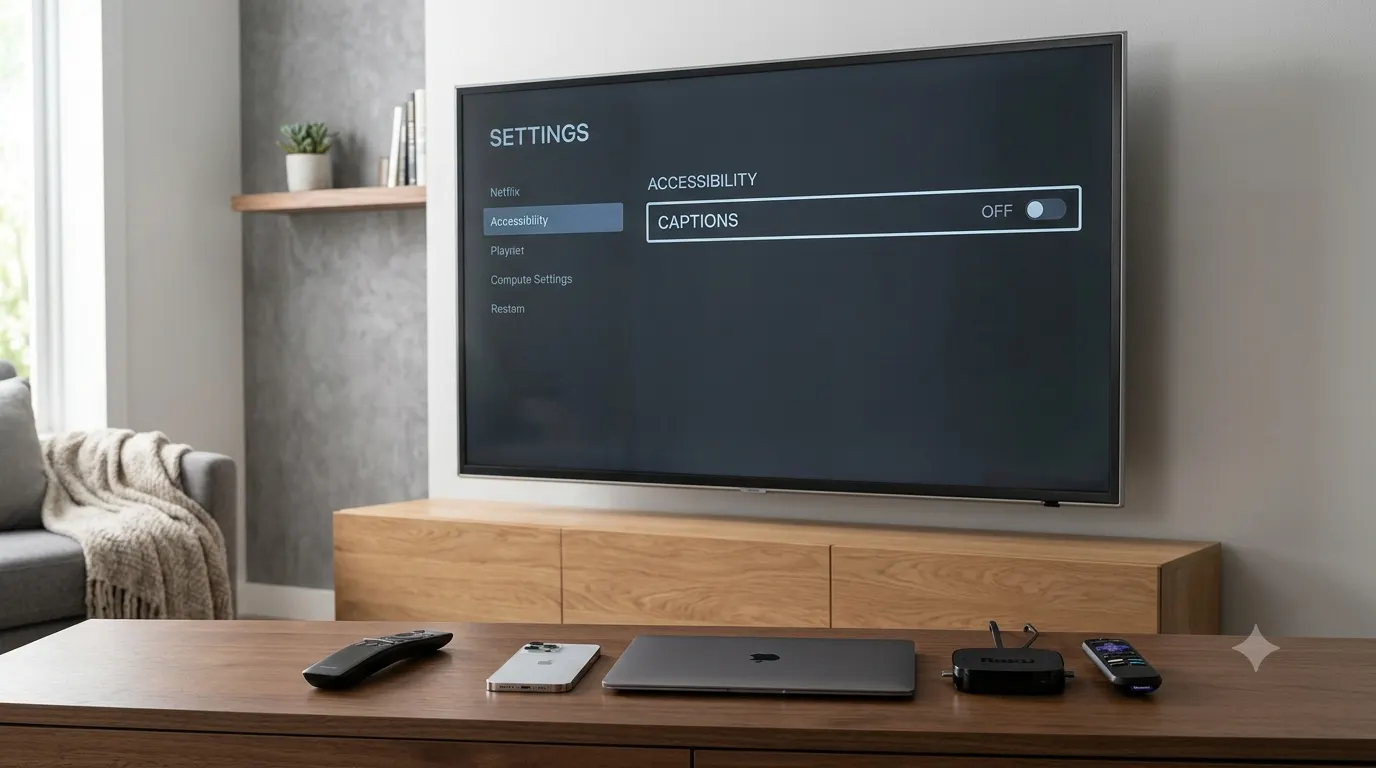
Captions make videos easier to understand, especially in noisy environments or when you cannot use sound. However, there are plenty of situations where you may want to turn them off. Whether captions appeared by accident or remain enabled after an update, finding the correct setting can sometimes feel confusing.
This guide explains how to turn off captions on popular streaming services, smart TVs, smartphones, computers, and media devices. You will also learn why captions sometimes stay on even after disabling them and how to fix common problems.
Quick Answer
To turn off captions, open the video player’s settings, select Captions, Subtitles, or CC, then choose Off.
If captions remain visible, check these places:
- The app’s subtitle settings
- Your TV’s accessibility menu
- Your streaming account preferences
- Your device’s accessibility settings
- External streaming devices such as Roku, Fire TV, Apple TV, or Chromecast
The exact steps depend on the device and app you are using.
Why Captions Keep Turning On
Many people assume captions come from the video player alone. In reality, several settings can control them.
Captions may come from:
- Your streaming app
- Your smart TV
- Your phone or tablet
- Your browser
- Your accessibility settings
- Your streaming device
- Your account preferences
If one setting overrides another, captions may appear even after you switch them off.
Turn Off captions on Smart TVs
Every TV brand uses a slightly different menu, but the process is generally similar.
Samsung Smart TV
Follow these steps if captions stay on while watching TV or streaming apps.
- Press the Home button.
- Open Settings.
- Select General.
- Open Accessibility.
- Choose Caption Settings.
- Turn Caption off.
If captions only appear inside one streaming app, disable subtitles within that app instead.
LG Smart TV
- Press the Settings button.
- Open Accessibility.
- Find Closed Captions.
- Switch them off.
Some LG TVs also allow caption control directly from the quick settings menu while watching content.
Sony Smart TV
- Open Settings.
- Select Display & Sound or Accessibility.
- Choose Captions.
- Turn captions off.
TCL Smart TV
Depending on the operating system, open:
- Settings
- Accessibility
- Captions
- Off
For Roku TV models, you can also adjust captions through the Roku menu.
Vizio Smart TV
- Open Menu.
- Select Closed Captions.
- Choose Off.
Turn Off Captions on Roku
Roku lets you disable captions for all content or only during playback.
While Watching a Video
- Press the Star button on your remote.
- Open Accessibility.
- Select Captions Mode.
- Choose Off.
Through Roku Settings
- Go to Settings.
- Select Accessibility.
- Open Captions Mode.
- Turn captions off.
If captions continue appearing, restart your Roku after changing the setting.
Turn Off Captions on Amazon Fire TV
- Open Settings.
- Select Accessibility.
- Choose Closed Caption.
- Turn the option off.
For streaming apps like Netflix or Prime Video, you may also need to disable subtitles within the video player.
Turn Off Captions on Apple TV
Apple TV supports captions through both system settings and individual apps.
System Settings
- Open Settings.
- Select Accessibility.
- Open Subtitles and Captioning.
- Turn Closed Captions and SDH off.
During Playback
Swipe down on the remote.
Open the subtitle menu.
Choose Off.
Turn Off Captions on Chromecast with Google TV
- Open Settings.
- Select Accessibility.
- Open Captions.
- Turn captions off.
If the subtitle option is still active inside Netflix or another app, disable it there as well.
Turn Off Captions on Netflix
Netflix remembers subtitle preferences for each profile.
a-On TV
- Start a movie or show.
- Open the playback menu.
- Select Audio & Subtitles.
- Choose Off under subtitles.
b-On Mobile
- Play a title.
- Tap the screen.
- Select Audio & Subtitles.
- Turn subtitles off.
c-On a Computer
Move your mouse over the video.
Open the subtitle icon.
Choose Off.
Turn Off Captions on YouTube
YouTube captions can be switched off in seconds.
Mobile App
- Open a video.
- Tap the screen.
- Tap the CC icon.
- Turn captions off.
Desktop
- Play a video.
- Click the CC button.
- Disable captions.
Smart TV
Open the playback controls.
Select the caption option.
Turn captions off.
Turn Off Captions on Disney+
- Start a movie or show.
- Open playback controls.
- Select Audio and Subtitles.
- Choose Off.
Disney+ saves subtitle preferences for future viewing in many cases.
Turn Off Captions on Hulu
- Play your content.
- Open Settings.
- Choose Subtitles & Audio.
- Select Off.
Some devices may require restarting the video before the change takes effect.
Turn Off Captions on Max
- Start playback.
- Open the subtitle menu.
- Choose Off.
- Resume watching.
If subtitles return automatically, update the app and check your accessibility settings.
Turn Off Captions on Prime Video
- Play a movie or TV show.
- Open the subtitle menu.
- Select Off.
- Continue watching without captions.
Prime Video also lets you customize subtitle appearance if you prefer to keep them enabled.
Turn Off Captions on Peacock
- Start a video.
- Open playback settings.
- Select Subtitles.
- Choose Off.
Turn Off Captions on Paramount+
Open any video.
Select the subtitle icon.
Turn subtitles off.
Refresh the stream if the setting does not update immediately.
Turn Off Captions on Android Phones
Android settings vary slightly by manufacturer.
System Settings
- Open Settings.
- Select Accessibility.
- Open Captions.
- Turn captions off.
Inside Apps
Most streaming apps include a subtitle option within the video player.
Disable captions there if they appear only in one app.
Turn Off Captions on iPhone and iPad
- Open Settings.
- Tap Accessibility.
- Select Subtitles & Captioning.
- Turn Closed Captions + SDH off.
If captions only appear in one app, adjust the subtitle setting during playback instead.
Turn Off Captions on Windows
Windows includes accessibility features that can display captions across supported apps.
- Open Settings.
- Select Accessibility.
- Choose Captions.
- Turn captions off.
Restart any video app if captions remain visible.
Turn Off Captions on Mac
- Open System Settings.
- Select Accessibility.
- Choose Captions.
- Disable closed captions if enabled.
Streaming websites may also require subtitle changes inside the browser.
Why Captions Stay On Even After You Turn Them Off
If captions keep returning, another setting is usually controlling them.
Common causes include:
- Accessibility features remain enabled.
- The streaming app saved subtitle preferences.
- Your TV forces captions for every input.
- Another family member changed account settings.
- The app has not refreshed after the change.
- Software updates reset accessibility options.
- The video itself includes hardcoded captions.
Hardcoded captions are permanently embedded into the video. Unlike regular closed captions, they cannot be turned off.
How to Choose the Right Caption Setting
Before changing anything, identify where the captions are coming from.
If captions appear on every app, start with your device’s accessibility settings.
If captions appear only on Netflix, YouTube, or another streaming service, change the subtitle option inside that app first.
Similarly, if captions only show while watching cable or antenna channels, check your television’s caption settings.
Taking the correct approach saves time and prevents unnecessary troubleshooting.
Common Mistakes to Avoid
Many users accidentally change the wrong setting and assume captions are broken.
Avoid these common mistakes:
- Turning off subtitles inside one app while accessibility captions remain enabled.
- Forgetting to restart the streaming app.
- Ignoring account level subtitle preferences.
- Confusing subtitles with hardcoded captions.
- Looking only in TV settings when the streaming device controls captions.
- Assuming every app uses the same menu layout.
- Forgetting that different user profiles may have different subtitle preferences.
Conclusion
Turning off captions is usually quick once you know where the setting is located. The biggest challenge is identifying whether the captions come from your streaming service, your TV, your device, or an accessibility feature. Start with the video player’s subtitle menu, then check your device settings if captions continue to appear. Following the correct steps for your specific platform helps you enjoy videos without unwanted text on the screen while making it easy to turn captions back on whenever you need them.
Frequently Asked Questions
How do I turn off captions quickly?
The fastest method is to open the video player’s settings while your video is playing. Select Captions, Subtitles, or CC, then choose Off. Most streaming apps let you change this in just a few taps.
Why are captions still showing after I turned them off?
This usually happens because another setting is controlling captions. Your TV, streaming device, phone, or accessibility settings may still have captions enabled. Check each of these if the problem continues.
What is the difference between captions and subtitles?
Captions often include spoken dialogue along with sound effects and speaker identification. Subtitles usually display only translated or transcribed dialogue. Many streaming apps group both options under the same settings menu.
Can I turn off captions on Netflix permanently?
Netflix saves subtitle preferences for each profile in many cases. Once you turn subtitles off, future videos on that profile often remember your choice unless you change it again or use another device.
Why does YouTube keep turning captions back on?
YouTube may automatically enable captions based on your account preferences, browser settings, language settings, or the specific video. You can disable them from the video player each time or review your account preferences.
Can I turn off captions on my phone?
Yes. Both Android and iPhone include accessibility settings for captions. You can also disable subtitles directly inside streaming apps if they only appear there.
Do smart TVs have their own caption settings?
Yes. Most Samsung, LG, Sony, TCL, Hisense, and Vizio smart TVs include built in accessibility settings that control closed captions independently from streaming apps.
What if only one app shows captions?
If captions appear only in one app, open that app’s playback settings instead of changing your device settings. Most streaming services have their own subtitle controls.
Why can’t I remove captions from some videos?
Some videos use hardcoded captions that are permanently embedded into the picture. These cannot be turned off because they are part of the video itself.
Will turning off captions affect audio?
No. Disabling captions only removes the on screen text. It does not change the video’s sound or audio quality.
Related Ideas
If you’re looking for more accessibility and streaming guides, these topics may also help.