
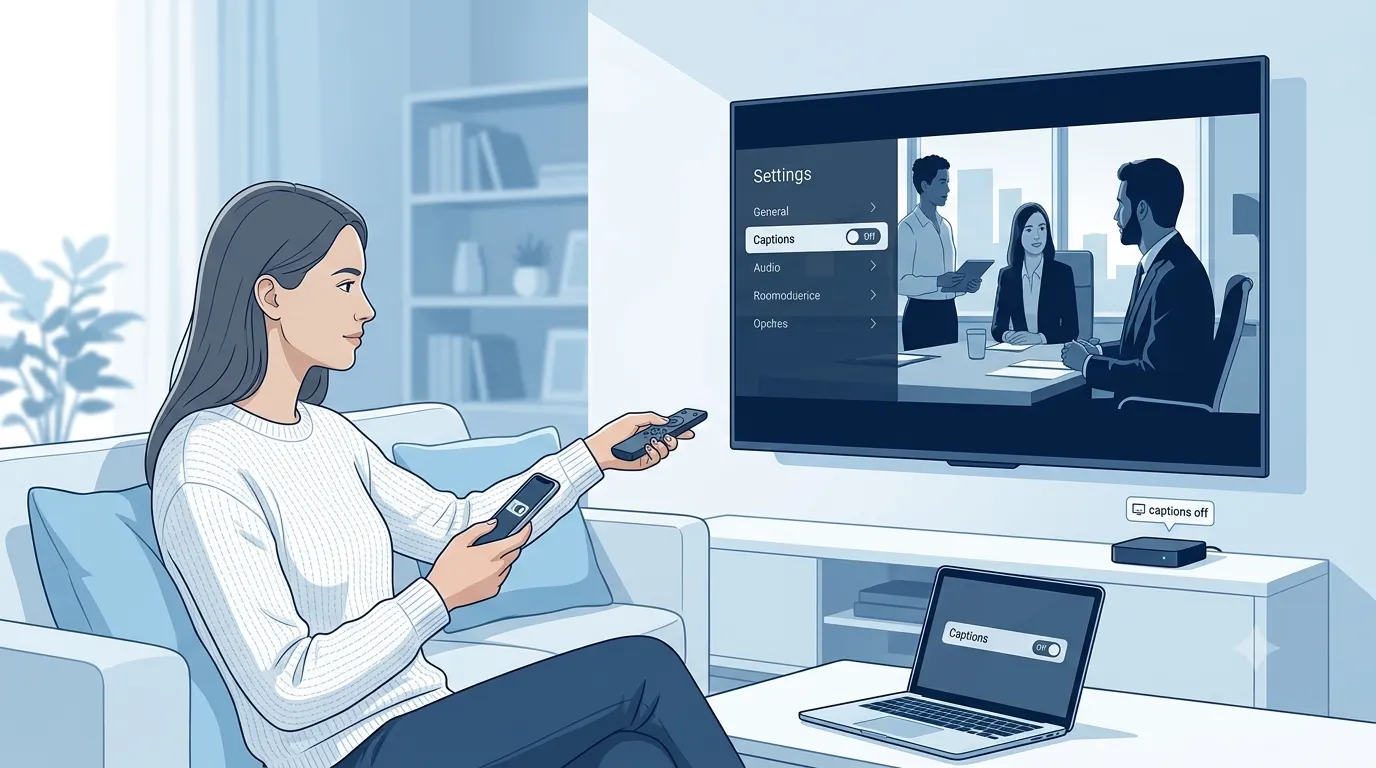
Closed captions help millions of people enjoy videos, movies, live streams, and online meetings. However, there are times when you may want to turn them off for a cleaner viewing experience. The steps vary depending on your device, streaming service, or app, which often leaves users searching for a quick solution.
This guide explains how to turn off closed captions on popular devices and platforms, why captions sometimes refuse to disappear, and what you can do if the setting does not work. Whether you’re watching YouTube, Netflix, a smart TV, or a mobile app, you’ll find practical instructions that are easy to follow.
Quick Answer: How Do You Turn Off Closed Captions?
In most cases, you can disable closed captions by opening the video’s playback settings and selecting Captions, Subtitles, or CC, then choosing Off.
If captions stay on, check these settings:
- Your device’s Accessibility settings
- Your TV’s Closed Caption menu
- The streaming app’s subtitle settings
- Your browser or media player’s caption preferences
- Account-wide accessibility preferences
If one method doesn’t work, another setting may be overriding it.
What Are Closed Captions?
Closed captions display spoken dialogue along with important sounds such as music cues, applause, or background noises. Unlike standard subtitles, closed captions are designed to improve accessibility for viewers who are deaf or hard of hearing.
Examples of closed captions include:
- Door slams.
- Soft music plays.
- Audience laughs.
- Phone rings.
- Thunder rumbles.
Many streaming services allow you to turn captions on or off whenever you want.
Why Are Closed Captions Still Showing?
If you already switched captions off but they keep appearing, you’re not alone. Several settings can control captions at the same time.
Common reasons include:
- Accessibility settings are enabled on your device.
- Your TV forces captions on every video.
- The streaming app remembers your previous preference.
- A browser extension automatically enables captions.
- Live broadcasts include permanent captions that cannot be disabled.
- The video creator has embedded captions directly into the video.
Knowing which type of caption you’re seeing makes troubleshooting much easier.
Before You Start Troubleshooting
Try these quick checks before changing advanced settings.
Make Sure You’re Turning Off the Right Option
Some apps offer both Subtitles and Closed Captions. Turning off one may not disable the other.
Look for options such as:
- CC
- Closed Captions
- Captions
- Subtitles
- SDH
- Accessibility
Restart the Video
Some apps don’t apply new caption settings until playback starts again.
Pause the video, close it completely, and reopen it.
Update the App
Older app versions sometimes contain subtitle bugs.
Check whether an update is available before spending time troubleshooting.
Restart Your Device
A quick restart often refreshes accessibility settings that fail to update correctly.
How to Turn Off Closed Captions on Different Types of Devices
The exact steps depend on the device you’re using. Below is a quick overview before diving into platform-specific guides later in this article.
Smartphones and Tablets
Most mobile apps include a CC or Subtitles button during playback.
General steps:
- Open the video.
- Tap the screen.
- Open the playback settings.
- Select Captions or Subtitles.
- Choose Off.
If captions continue appearing, check your phone’s Accessibility settings.
Computers
Whether you’re watching in a browser or media player, captions are usually controlled from the video player itself.
Typical process:
- Play the video.
- Open the settings menu.
- Find Captions or Subtitles.
- Turn them off.
- Refresh the page if necessary.
Browser extensions can sometimes override these settings.
Smart TVs
Most smart TVs have two separate caption controls:
- TV accessibility settings
- Streaming app subtitle settings
Both may need to be turned off.
If captions appear on every app, check your TV’s accessibility menu first.
Streaming Devices
Devices such as Roku, Fire TV, Apple TV, and Chromecast often include system-wide caption controls.
If captions appear across multiple apps, review the streaming device’s accessibility settings before changing individual app preferences.
Built-In Captions vs. Closed Captions
Not every caption can be turned off.
Understanding the difference saves a lot of frustration.
Closed Captions
These are optional.
You can usually enable or disable them from the video player’s settings.
Examples include:
- Netflix captions
- YouTube captions
- Disney+ subtitles
- Prime Video captions
Open Captions
These are permanently embedded into the video itself.
You cannot remove them because they are part of the video.
Examples include:
- Social media clips with burned-in text.
- Edited videos where captions were added during production.
- Some educational videos.
- Promotional videos shared on social media.
If the captions are permanently embedded, there is no setting that can hide them.
Common Caption Icons You May See
Different apps use different labels for captions.
Common icons include:
- CC
- Subtitle
- Captions
- Subtitles
- Language
- Accessibility
- Speech Bubble icon
Knowing these labels makes it easier to locate the correct setting.
When Should You Keep Closed Captions On?
Although many users want to remove captions, they can be helpful in several situations.
You may want to leave them enabled when:
- Watching videos in a noisy environment.
- Viewing content quietly without headphones.
- Learning a new language.
- Watching educational videos.
- Following fast dialogue.
- Watching live sports or news.
- Improving listening comprehension.
Many viewers switch captions on and off depending on the situation.
Common Mistakes to Avoid
Small mistakes often make it seem like captions cannot be disabled.
Avoid these common issues:
- Turning off subtitles instead of closed captions.
- Forgetting to restart the video after changing settings.
- Ignoring device accessibility options.
- Assuming every video supports optional captions.
- Confusing open captions with removable captions.
- Leaving account-wide caption preferences enabled.
- Using an outdated version of the streaming app.
- Expecting live broadcasts to behave like recorded videos.
Checking these basics first can save time before moving on to platform-specific troubleshooting.
How to Turn Off Closed Captions on Android
Most Android phones let you disable captions either through the video app or the phone’s accessibility settings.
Turn Off Captions in a Video App
- Open the video.
- Tap the screen to reveal playback controls.
- Tap the CC or Subtitles icon.
- Select Off.
- Resume playback.
Turn Off Android Accessibility Captions
If captions appear across multiple apps:
- Open Settings.
- Tap Accessibility.
- Select Caption Preferences or Hearing.
- Turn Captions off.
Menu names may vary depending on your phone manufacturer and Android version.
How to Turn Off Closed Captions on iPhone and iPad
Apple devices include a system-wide subtitle setting that can override individual apps.
Turn Off Captions in an App
- Start playing a video.
- Tap the screen.
- Open the subtitle or caption menu.
- Choose Off.
Turn Off iPhone Accessibility Captions
- Open Settings.
- Tap Accessibility.
- Select Subtitles & Captioning.
- Turn Closed Captions + SDH off.
Restart the streaming app if captions remain visible.
How to Turn Off Closed Captions on Window
If you’re watching videos in a browser or media player, captions are usually controlled within the player.
Browser Playback
- Play the video.
- Click the CC or Settings button.
- Select Subtitles.
- Choose Off.
Windows Accessibility Settings
If captions appear system-wide:
- Open Settings.
- Select Accessibility.
- Click Captions.
- Disable caption preferences if enabled.
How to Turn Off Closed Captions on Mac
Within the Video Player
- Start the video.
- Open subtitle settings.
- Select Off.
macOS Accessibility
- Open System Settings.
- Select Accessibility.
- Click Captions.
- Disable caption preferences if necessary.
How to Turn Off Closed Captions on YouTube
YouTube allows captions to be controlled for each video.
On Desktop
- Open the video.
- Click the CC button.
- If captions are on, click again to disable them.
You can also:
- Click Settings.
- Select Subtitles/CC.
- Choose Off.
On Mobile
- Open the video.
- Tap the screen.
- Tap the settings icon.
- Open Captions.
- Select Off.
If captions automatically appear on every video, check your YouTube account’s playback preferences.
How to Turn Off Closed Captions on Netflix
Netflix remembers your subtitle choice for each profile.
Smart TV or Streaming Device
- Start a movie or show.
- Open the playback menu.
- Select Audio & Subtitles.
- Choose Off under subtitles.
- Continue watching.
Mobile and Computer
- Start playback.
- Open subtitle settings.
- Select Off.
Netflix usually saves your last subtitle preference for future viewing.
How to Turn Off Closed Captions on Disney+
- Start playing a title.
- Open playback controls.
- Select the subtitle icon.
- Choose Off.
- Resume the video.
If subtitles remain, close the app and reopen it.
How to Turn Off Closed Captions on Amazon Prime Video
- Play your movie or TV show.
- Open the playback controls.
- Select Subtitles.
- Choose Off.
- Exit the menu.
Prime Video saves subtitle preferences on many devices.
How to Turn Off Closed Captions on Hulu
- Start your video.
- Open playback settings.
- Select Captions & Subtitles.
- Turn captions off.
- Restart playback if needed.
How to Turn Off Closed Captions on Facebook Videos
Facebook captions depend on whether they were automatically generated or uploaded by the creator.
- Play the video.
- Tap or click the CC icon.
- Turn captions off.
If captions are permanently embedded into the video itself, they cannot be removed.
How to Turn Off Closed Captions on Instagram
Instagram supports captions on some videos and Reels.
For Reels
- Open the Reel.
- Tap the menu if available.
- Turn captions off.
If text appears directly on the video, it is part of the original upload and cannot be hidden.
How to Turn Off Closed Captions on TikTok
TikTok creators can add automatic captions to videos.
- Open the TikTok video.
- Tap the screen.
- Look for the caption controls.
- Turn captions off if available.
Videos with permanently added text cannot have those captions removed.
How to Turn Off Closed Captions on Zoom
If captions are enabled during a meeting:
- Click Show Captions.
- Select Hide Captions.
If the meeting host requires captions, participants may have limited control over this setting.
How to Turn Off Closed Captions on Microsoft Teams
- Join the meeting.
- Open the More menu.
- Select Language and Speech or Captions.
- Turn live captions off.
Meeting organizers may control certain accessibility features.
How to Turn Off Closed Captions on Google Meet
- Join the meeting.
- Click the CC button.
- Toggle captions off.
If another participant shares a presentation containing text, that text is separate from captions.
How to Turn Off Closed Captions on Roku
Roku includes system-wide caption settings.
- Go to Settings.
- Select Accessibility.
- Open Captions.
- Choose Off.
If captions appear only in one app, also check that app’s subtitle settings.
How to Turn Off Closed Captions on Amazon Fire TV
- Open Settings.
- Select Accessibility.
- Choose Closed Caption.
- Turn it off.
Restart the streaming app if captions continue appearing.
How to Turn Off Closed Captions on Apple TV
- Open Settings.
- Select Accessibility.
- Choose Subtitles and Captioning.
- Turn Closed Captions + SDH off.
You can also disable subtitles while a video is playing through the playback menu.
How to Turn Off Closed Captions on Chromecast with Google TV
- Open Settings.
- Select Accessibility.
- Open Caption Preferences.
- Turn captions off.
Individual streaming apps may still have their own subtitle settings.
How to Turn Off Closed Captions on Samsung Smart TV
- Press the Home button.
- Open Settings.
- Select General.
- Open Accessibility.
- Choose Caption Settings.
- Turn captions off.
If you’re using a streaming app, verify the app’s subtitle settings as well.
How to Turn Off Closed Captions on LG Smart TV
- Press Settings.
- Open Accessibility.
- Select Closed Caption.
- Turn it off.
Some older LG TVs place this option under General Settings.
How to Turn Off Closed Captions on Sony Smart TV
- Press the Home button.
- Open Settings.
- Select Accessibility.
- Open Captions.
- Disable them.
If captions continue appearing, check the streaming service you’re using.
How to Turn Off Closed Captions on Vizio Smart TV
- Press the Menu button.
- Open Accessibility.
- Select Closed Captions.
- Turn the feature off.
Restart the TV if the setting does not update immediately.
If Captions Still Won’t Turn Off
If you’ve followed the correct steps but captions remain on screen, one of these situations is usually responsible.
The Video Uses Open Captions
Some creators permanently add captions during editing. These cannot be disabled because they’re part of the video itself.
Your Device Overrides the App
Accessibility settings on your phone, TV, or streaming device may automatically enable captions.
Your Streaming Profile Saves Caption Preferences
Many services remember subtitle settings for each profile. Try changing the preference while signed into the correct profile.
The App Needs to Be Restarted
Close the app completely and reopen it. Some platforms don’t apply subtitle changes until playback restarts.
The App Needs an Update
Outdated apps occasionally contain subtitle bugs. Installing the latest version often resolves the issue.
Advanced Troubleshooting When Closed Captions Won’t Turn Off
If you’ve already tried the standard settings and captions are still appearing, a few additional checks can usually solve the problem.
Sign Out and Back In
Some streaming apps save accessibility preferences to your account. Signing out and signing back in can refresh those settings.
Try this if captions keep returning after every video.
Clear the App Cach
Corrupted cached data may prevent new subtitle settings from saving.
On Android:
- Open Settings.
- Tap Apps.
- Choose the streaming app.
- Select Storage.
- Tap Clear Cache.
Avoid clearing app data unless you’re comfortable signing in again.
Update Your Device Software
Operating system updates often include accessibility fixes.
Check for updates on:
- Android
- iPhone or iPad
- Windows PC
- Mac
- Smart TV
- Streaming device
Try Another Device
If captions only appear on one device, the problem is likely device-specific rather than account-related.
For example:
- Netflix captions work normally on your phone but not your TV.
- YouTube captions only stay on in one browser.
- Prime Video subtitles only appear on one streaming stick.
This can help narrow down the source of the issue.
Disable Browser Extensions
Some browser extensions automatically generate captions or modify video players.
Temporarily disable extensions related to:
- Accessibility
- Video playback
- Language translation
- Media enhancement
Then reload the page.
Reinstall the App
If nothing else works:
- Remove the app.
- Restart the device.
- Install the latest version.
- Sign in again.
- Test caption settings.
A fresh installation often resolves persistent subtitle bugs.
How to Choose the Right Caption Setting
Not every viewing situation is the same. Consider leaving captions enabled when they improve your experience.
Keep captions on if you:
- Watch videos in a noisy environment.
- Prefer lower volume at night.
- Are learning English or another language.
- Need help understanding strong accents.
- Watch educational or instructional content.
- Have hearing difficulties.
Turn captions off if you:
- Want an uncluttered screen.
- Find subtitles distracting.
- Are watching visually rich content where text blocks important details.
- Prefer to focus on cinematography or gameplay.
There isn’t a universal “best” setting. Choose the one that fits your situation.
Common Mistakes People Make
Avoid these mistakes when trying to disable closed captions.
Assuming Every Caption Can Be Removed
Open captions are permanently embedded into the video and cannot be switched off.
Changing Only One Setting
Some devices have both system-wide and app-specific caption settings.
Forgetting About Multiple Profiles
Streaming services often save subtitle preferences separately for each profile.
Ignoring Accessibility Menus
Many users only check the video player and overlook their device’s accessibility settings.
Not Restarting Playback
Some apps require you to stop and restart the video before subtitle changes take effect.
Conclusion
Turning off closed captions is usually as simple as opening the playback settings and selecting Off, but some devices and streaming services also use accessibility settings that can override your choice. If captions continue to appear, check both your device settings and the app you’re using before assuming something is broken.
Remember that not every caption can be removed. Videos with permanently embedded, or open, captions will always display text because it’s part of the video itself. By following the steps in this guide, you should be able to identify the type of captions you’re seeing and quickly find the correct setting for your device.
Frequently Asked Questions
Why won’t my closed captions turn off?
This usually happens because another accessibility setting is overriding your preference, the streaming app has saved subtitle settings for your profile, or the video contains permanent open captions.
What’s the difference between subtitles and closed captions?
Subtitles mainly display spoken dialogue. Closed captions include dialogue plus sound effects, music cues, and other audio information to improve accessibility.
Can I remove captions that are part of the video?
No. If captions are permanently embedded into the video during editing, they cannot be turned off.
Why do captions keep turning back on?
Possible reasons include:
- Your device accessibility settings are enabled.
- Your streaming profile remembers captions.
- Another user changed the account settings.
- The app has a temporary software issue.
Do captions affect video quality?
No. Turning captions on or off does not change the video’s picture quality or resolution.
Are subtitles and captions available on every video?
No. Availability depends on the platform, the content creator, and the language options provided.
Can I customize caption appearance instead of turning them off?
Yes. Many devices let you change:
- Font size
- Text color
- Background color
- Opacity
- Caption style
This can make captions easier to read without disabling them.
Do live videos always allow captions to be turned off?
Not always. Some live broadcasts include captions generated by the broadcaster or streaming platform, and viewers may have limited control over them.