
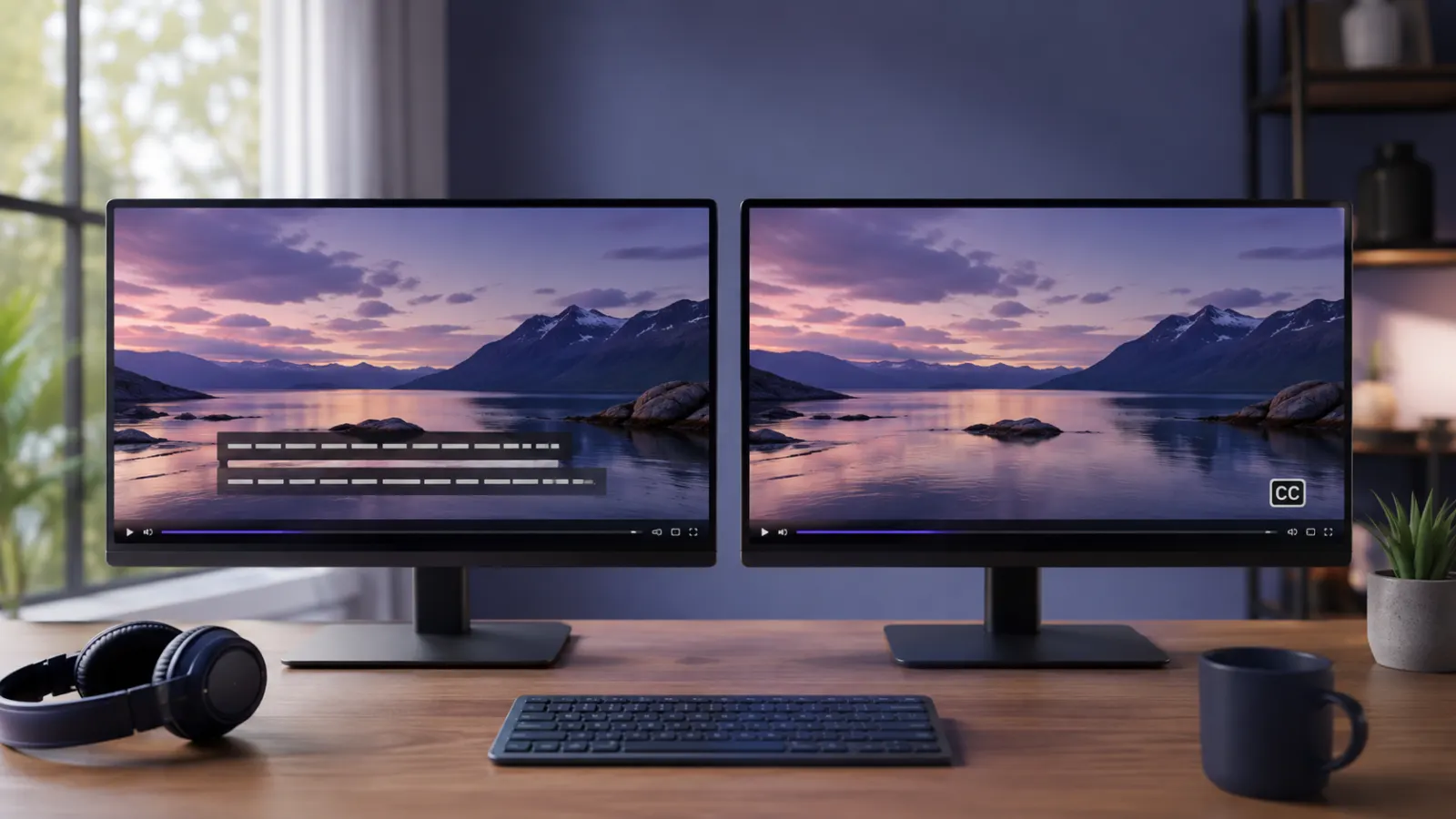
Open and closed captions both turn a video’s speech and meaningful audio into synchronized text. The main difference is viewer control. Open captions remain visible throughout the video, while closed captions can usually be switched on or off.
That simple distinction affects accessibility, appearance, distribution, editing, and the viewing experience. The right option depends on where the video will appear, who needs to access it, and whether the platform supports separate caption files.
Closed Captions: Meaning, Benefits, How They Work and Best Practices
Quick Answer: What Is the Difference Between Open and Closed Captions?
Open captions are permanently embedded in the video image. Everyone sees them, and viewers cannot turn them off.
Closed captions exist as a separate caption track. Viewers can activate or hide them through a CC button, player menu, television setting, or accessibility control.
Both formats can communicate:
- Spoken dialogue
- Speaker identification
- Important sound effects
- Relevant music
- Laughter and audience reactions
- Meaningful changes in tone
The World Wide Web Consortium defines closed captions as captions that viewers can show or hide. It defines open captions as captions that are always displayed and cannot be turned off.
Open vs Closed Captions at a Glance
| Feature | Open Captions | Closed Captions |
|---|---|---|
| Viewer can turn them off | No | Usually yes |
| Embedded in the video image | Yes | No |
| Requires caption support from the player | No | Yes |
| Visible to every viewer | Yes | Only when activated |
| Appearance can be customized by viewers | Usually no | Sometimes |
| Easy to preserve across social platforms | Yes | Depends on platform support |
| Separate caption file required | No after export | Usually |
| Easy to edit after publishing | No | Often yes |
| Useful for silent autoplay | Yes | Yes, if enabled automatically |
| Supports multiple caption languages | Requires separate video versions | Often supported through multiple tracks |
Closed captions offer more choice, but open captions provide more predictable display. Neither format is automatically better in every situation.
How to Turn Off Closed Captions on Any Device
What Are Open Captions?
Open captions are text permanently added to the video frames. Editors often describe this process as burning captions into the video.
Because the captions become part of the image, every viewer sees the same text, styling, size, color, timing, and placement. No caption button or compatible player is required. The W3C’s open-caption technique explains that open captions remain visible because the dialogue and important sounds are embedded directly in the video track.
Open captions work particularly well for:
- Social videos that start without sound
- Short vertical videos
- Public displays
- Videos played in noisy environments
- Clips shared across several platforms
- Content aimed at viewers who may not know how to activate CC
- Presentations where captions must remain visible
- Video files played through software with limited caption support
Example of open captions
Imagine a short interview posted on a social platform. The editor places the speaker’s words near the bottom of the screen before exporting the video. Anyone who watches that exported file sees those captions. There is no control for hiding them because the text is part of the picture.
Advantages of open captions
They are always available
Viewers do not need to locate a CC button, change a setting, or use a compatible media player. This makes the captions immediately visible.
Their appearance stays consistent
The creator controls the font, size, color, position, background, and animation. The layout should look similar wherever the video is displayed, although platforms may still crop or resize the video.
They survive simple sharing
If someone downloads, reposts, embeds, or plays the video in a basic player, the captions remain attached to the image.
They support sound-off viewing
Open captions let people follow speech when a device is muted, the environment is noisy, or playing audio would disturb others. The W3C notes that captions benefit people with disabilities and also help viewers in a range of everyday situations.
Limitations of open captions
Viewers cannot hide them
Some people find captions unnecessary or distracting. Open captions provide no way to remove the text.
Viewers usually cannot customize them
Because the text is baked into the image, users cannot normally change its size, color, font, contrast, or background through their device settings.
Corrections require a new video export
A misspelled name, poor line break, or timing problem becomes part of the video. The creator must correct the project and export a new file.
Captions can cover visual information
Poorly placed captions may hide faces, demonstrations, labels, or graphics. WCAG guidance states that captions should not obstruct relevant visual information. The DCMP Captioning Key also recommends repositioning captions when the usual placement would interfere with important content.
Multiple languages require more versions
A creator who wants permanent English, Spanish, and French captions may need to export three separate videos. Closed caption tracks can often store those language options in one player.
What Are Closed Captions?
Closed captions are stored separately from the main video image. A viewer activates them through a video player, television, app, browser, or device setting.
The caption information may appear in a file such as WebVTT or SRT, or in another caption format supported by the delivery system. The player reads the timing information and displays each caption at the appropriate moment.
The Federal Communications Commission describes closed captioning as the on-screen text display of the audio portion of television programming. It provides access to news, entertainment, and other programming for people who are deaf or hard of hearing.
Closed captions work well for:
- Streaming services
- Television programs
- Online courses
- Webinars and recorded meetings
- Training videos
- Educational content
- Long-form interviews
- Multilingual video libraries
- Websites with accessible media players
- Videos that may require future corrections
Example of closed captions
A training video includes an English caption track. The learner selects the CC icon, chooses English, and reads the captions while the video plays. Another learner leaves the track switched off. Both watch the same video file.
Advantages of closed captions
They give viewers control
People can turn captions on when they need them and hide them when they do not. This flexibility is the defining feature of closed captions.
They may support personalization
Some platforms and devices allow viewers to adjust caption size, color, background, opacity, or font. Available controls vary, so creators should verify the settings offered by the intended player.
They make corrections easier
A publisher can often replace or revise a separate caption file without rendering and uploading the entire video again.
They can support several languages
A compatible player can offer multiple caption or subtitle tracks from a language menu. This gives viewers options without requiring a separate video export for every language.
They preserve a clean video image
When captions are disabled, the original image remains free from caption text. This can help with content containing diagrams, labels, demonstrations, or other important visual details.
Limitations of closed captions
They depend on technical support
The video player, platform, file format, and publishing workflow must support the caption track. Captions can disappear if a file moves to an incompatible platform or someone downloads only the video without its associated track.
Viewers must know captions exist
A person may miss the captions if the control is difficult to find or the video gives no indication that a caption track is available.
Display can vary
Caption appearance may change across televisions, browsers, apps, and media players. This variation can reduce a creator’s control over branding and placement.
Automatic captions may contain mistakes
Machine-generated captions require review. Names, accents, technical terms, punctuation, and overlapping speech can cause errors. Caption availability alone does not guarantee an accurate or understandable experience.
Closed Captions vs Subtitles: What Is the Difference?
Why Captions Matter for Accessibility
Captions provide a text equivalent of meaningful audio. They are essential for many viewers who are deaf or hard of hearing, but their usefulness extends beyond one audience.
Captions can also help people who:
- Watch videos in noisy places
- Keep their device muted
- Work in quiet shared spaces
- Find an accent difficult to understand
- Are learning the language used in the video
- Need written reinforcement for complex terminology
- Want to confirm a name, number, or unfamiliar word
- Experience inconsistent audio quality
The U.S. Department of Justice’s web accessibility guidance identifies videos without captions as an accessibility barrier because people with hearing disabilities may be unable to understand the information communicated through audio.
What accessible captions should include
Captions should communicate more than spoken words when other sounds affect meaning. According to the W3C guidance for prerecorded captions, captions should convey dialogue and relevant non-speech information, including music, sound effects, laughter, and speaker identification.
For example, accessible captions may communicate that:
- A phone rings before someone answers it.
- Soft music plays during a reflective moment.
- The audience laughs after a joke.
- A second speaker talks from outside the camera view.
- An alarm interrupts the conversation.
- The speaker whispers the final sentence.
Only meaningful sounds need description. Filling the screen with irrelevant audio details can make captions harder to follow.
Do Open and Closed Captions Both Meet Accessibility Needs?
Both types can support accessibility when they are accurate, complete, synchronized, readable, and properly positioned. W3C provides recognized techniques for both closed captions and open captions.
However, the format alone does not make a video accessible. Poor timing, missing dialogue, weak contrast, incorrect words, and text placed over important visuals can create barriers in either format.
For web content, WCAG 2.2 Success Criterion 1.2.2 requires captions for prerecorded audio in synchronized media at Level A, with an exception when the media serves as a clearly labeled alternative to text. WCAG 2.2 Success Criterion 1.2.4 addresses captions for live synchronized media at Level AA. The requirements appear in the W3C WCAG 2.2 Quick Reference.
Specific legal duties depend on the organization, location, medium, and content. A general article cannot confirm which law applies to a particular publisher. Organizations should obtain qualified legal or accessibility advice for compliance decisions.
Open Captions vs Closed Captions vs Subtitles
Captions and subtitles may look similar, but the terms describe different purposes.
Captions generally reproduce speech and meaningful non-speech audio in the same language as the original program. Subtitles traditionally translate or transcribe dialogue for viewers who can hear the other audio information.
For example:
- English captions for an English video may include dialogue, speaker names, music, and important sounds.
- Spanish subtitles for an English film may translate the dialogue but omit sounds that hearing viewers can already perceive.
- Subtitles for deaf and hard-of-hearing viewers may include dialogue, speaker identification, music, and sound effects.
Terminology differs between countries and platforms. W3C notes that some regions use the word “subtitles” for captions. The practical question is not only what the track is called, but what information it contains.
Which Caption Type Should You Choose?
Choose the format based on distribution, user choice, platform support, and the level of control the audience needs.
1-Choose open captions when:
- The platform may remove separate caption tracks.
- The video must remain understandable during silent autoplay.
- The content will appear on public screens.
- Captions need consistent styling and placement.
- The video will move through several reposting channels.
- Viewers may have difficulty finding caption controls.
- You need one self-contained video file.
2-Choose closed captions when:
- Viewers should control whether captions appear.
- The platform supports reliable caption tracks.
- You need multiple language options.
- Users may benefit from personalized display settings.
- The video contains detailed visuals that captions might cover.
- You expect to correct or update the caption text.
- The content belongs to a long-term video library.
Consider providing both
Some campaigns benefit from two deliverables:
- An open-captioned version for social feeds, paid advertising, public displays, and silent autoplay.
- A clean version with closed caption tracks for websites, streaming platforms, courses, and video libraries.
Providing both versions combines predictable visibility with viewer choice. It also reduces the risk of losing captions when content moves between platforms.
How to Create Effective Captions
Whether you choose open or closed captions, quality matters more than decorative styling.
1. Start with an accurate transcript
Confirm names, technical terms, places, numbers, and brand terminology. Do not rely on unreviewed speech recognition for the final version.
2. Match captions to the audio
Display each caption when the corresponding words or sounds occur. Captions that arrive too early can reveal information before the video does. Captions that appear too late force viewers to divide their attention between old text and new action.
3. Include meaningful audio
Identify speakers when the image does not make the speaker clear. Describe music, laughter, alarms, knocks, and other sounds only when they contribute to the message, mood, or action.
4. Use readable line breaks
Keep connected words together. Avoid separating an article from its noun, a person’s name, or a short phrase that viewers naturally read as one unit.
5. Protect important visuals
Do not place captions over faces, product demonstrations, names, diagrams, or essential on-screen text. Move the captions when the lower portion of the video contains important information.
6. Check contrast and size
Text must remain readable against changing backgrounds. A solid or semi-opaque background can improve clarity when the video contains bright, detailed, or fast-moving scenes.
7. Review the finished video
Watch the full video with sound off. Check accuracy, timing, speaker changes, line breaks, punctuation, position, and readability on a small screen.
Common Captioning Mistakes to Avoid
Treating captions as a word-for-word transcript only
Captions must also communicate sounds that a viewer needs to understand the scene.
Confusing subtitles with complete accessibility captions
Dialogue-only subtitles may not identify speakers or describe meaningful non-speech audio.
Publishing raw automatic captions
Automatic tools can speed up transcription, but a person should review the results before publication.
Placing text behind platform controls
Social apps often cover parts of a vertical video with usernames, descriptions, buttons, and navigation elements. Keep open captions inside a safe viewing area.
Using tiny decorative fonts
A stylish font does not help if viewers cannot read it quickly. Prioritize clarity, spacing, and contrast.
Adding too many words at once
Large blocks of text are difficult to read while following the video. Divide speech into logical, manageable segments.
Forgetting the downloaded version
Test whether captions remain available after downloading, embedding, reposting, or moving the video to another platform.
Assuming captions replace audio description
Captions communicate audio through text. Audio description communicates important visual information through spoken narration. They address different accessibility needs, as explained in the W3C guidance on visual description.
Final Takeaway
The difference between open vs closed captions comes down to visibility and control. Open captions remain permanently visible because they are embedded in the video. Closed captions use a separate track that viewers can usually switch on or off.
Use open captions when guaranteed display, consistent styling, and easy sharing matter most. Use closed captions when viewer choice, customization, multilingual tracks, and future editing matter more. Whichever format you select, accurate wording, meaningful sound information, careful timing, strong contrast, and thoughtful placement determine whether the captions genuinely improve access.
Frequently Asked Questions
Are open captions always visible?
Yes. Open captions form part of the video image, so viewers cannot remove them through a CC button or player setting.
Can closed captions be turned off?
Usually. Closed captions are specifically intended to be shown or hidden through a supported device or media player.
Are open captions better than closed captions?
Not in every case. Open captions provide guaranteed visibility and consistent design. Closed captions provide viewer control, easier updates, and potential customization. The best choice depends on the platform and audience.
What does CC mean on a video?
CC means closed captions. Selecting the CC control usually activates a text track containing dialogue and relevant audio information.
Are captions and subtitles the same?
Not always. Captions typically include dialogue and meaningful sounds, while conventional subtitles often focus on dialogue or translation. Some countries and platforms use the terms interchangeably.
Do open captions require a caption file?
The editing process may begin with a transcript or caption file, but the final open-captioned video does not require a separate file. The text is already embedded in the image.
Can open captions be removed?
Not easily. Removing text burned into the image usually requires the original clean video or extensive visual editing. The most reliable solution is to retain an uncaptioned master file.
Can closed captions include sound effects?
Yes. Complete closed captions should include important non-speech information, such as meaningful music, alarms, laughter, or an off-screen speaker.
Are automatic captions accessible?
They can provide a useful starting point, but accessibility depends on accuracy, timing, completeness, and readability. Review and correct automatic captions before treating them as a finished accessibility feature.
Should social media videos use open or closed captions?
Open captions are useful when immediate visibility and silent viewing matter. Closed captions are useful when the platform supports reliable caption tracks and viewer control. Publishing an open-captioned social version and a closed-captioned website version can cover both needs.