
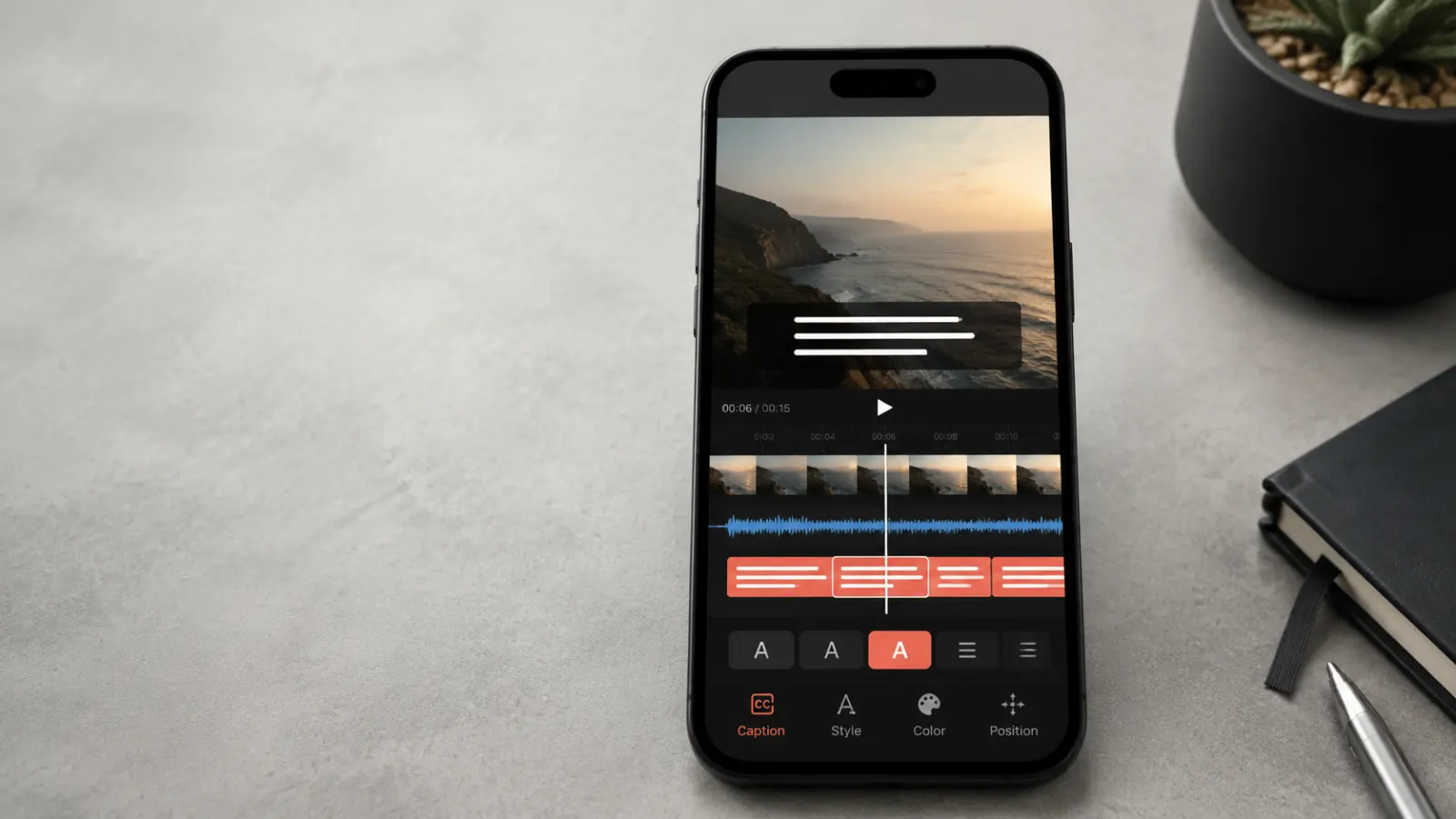
Adding captions to a TikTok video makes spoken content easier to follow, especially when viewers watch without sound or need written dialogue for accessibility. TikTok can generate captions automatically, and creators can review the text before publishing.
This guide explains how to add captions on TikTok, correct caption errors, create manual on-screen text, use TikTok Studio, and fix common caption problems.
Quick Answer: How Do You Add Captions on TikTok?
To add automatic captions in the TikTok mobile app:
- Open TikTok and tap the Add post + button.
- Record a video or upload one from your device.
- Continue to the editing screen.
- Tap Captions on the side panel.
- Wait while TikTok transcribes the spoken audio.
- Review the generated captions and correct any mistakes.
- Tap Save.
- Finish your post settings and tap Post.
TikTok’s official instructions confirm that the creator caption tool appears in the side panel while you create a video. Available tools and button locations can vary slightly by app version, device, account, or region.
Captions, On-Screen Text, and Post Descriptions Are Different
People often use the word caption for three separate TikTok features. Understanding the difference helps you choose the right tool.
Creator captions
Creator captions transcribe the speech in your video. They follow the spoken dialogue and help viewers understand what they hear.
Use creator captions for:
- Tutorials
- Talking videos
- Interviews
- Voiceovers
- Product explanations
- Educational clips
- Storytime videos
On-screen text
On-screen text consists of words that you place directly over the video. It can introduce the topic, highlight an important point, label a product, or display a call to action.
TikTok lets creators add text after recording or uploading a video. You can change its font, color, background, alignment, size, and position.
Post description
The post description appears with the published TikTok. It may contain a short explanation, keywords, hashtags, mentions, or context for the video.
A post description does not replace spoken-word captions because it does not present each line of dialogue as the video plays.
How to Add Automatic Captions on TikTok
TikTok’s creator caption tool provides the fastest way to turn speech into written text.
Step 1: Open the TikTok video creator
Open the TikTok app and tap the Add post + button at the bottom of the screen.
You can record a new video inside the app or upload an existing video from your phone. Choose a clip with clear speech if possible. Background music, wind, overlapping voices, and low recording volume can make automatic transcription less accurate.
Step 2: Record or upload your video
Record your content and tap the checkmark or continue button. If you already filmed the video, tap Upload and select it from your device.
Trim or arrange your clips before generating captions. Major changes to the spoken sections may require you to regenerate or recheck the transcript.
Step 3: Select Captions
On the editing screen, find Captions in the side panel and tap it.
TikTok will analyze the spoken audio and create a written transcript. The processing time depends on factors such as the video length and the amount of speech.
TikTok identifies this feature as creator captions in its accessibility guidance. TikTok Help Center: Accessibility for your videos
Step 4: Review the generated text
Read every line while listening to the video. Automatic transcription can misunderstand:
- Names
- Brand names
- Technical terminology
- Acronyms
- Numbers
- Regional accents
- Similar-sounding words
- Speech covered by music
- Two people speaking together
Do not assume the first transcript is completely accurate. A short review can prevent a caption error from changing the meaning of your message.
Step 5: Correct any mistakes
Use the editing controls within the caption screen to correct misspelled or misunderstood words. Check punctuation and capitalization where those details affect clarity.
Pay special attention to prices, measurements, dates, usernames, website names, and instructions. A small transcription error in these details can confuse viewers.
Step 6: Save the captions
After reviewing the transcript, tap Save or the relevant confirmation button shown in your version of TikTok.
Watch the full preview before publishing. Confirm that the captions remain readable and do not cover an important face, product, label, or visual demonstration.
Step 7: Complete and publish the post
Add your post description, cover, audience settings, mentions, or other publishing details. Tap Post when the video is ready.
How to Edit TikTok Captions Before Posting
Editing captions before publication gives you the best chance to catch errors without interrupting your posting workflow.
Use this review process:
- Generate the automatic captions.
- Play the video from the beginning.
- Pause when you notice an incorrect line.
- Open the caption editing control.
- Replace the incorrect word or phrase.
- Check names, numbers, and specialized terms separately.
- Save the changes.
- Replay the corrected section.
- Preview the complete video once more.
Reading the transcript without playing the audio may not reveal missing words or captions attached to the wrong part of a sentence. Listen and read at the same time.
How to Edit or Remove Auto-Generated Captions After Posting
TikTok’s current help guidance includes controls for editing or removing auto-generated captions on a published video. Open your video, tap the displayed caption, and use the available caption editing option. TikTok may show an edit icon or a caption management command, depending on the current interface.
Before changing a published video, check which type of text contains the mistake:
- If the error appears in the spoken transcript, open the caption controls.
- If it appears in decorative on-screen text burned into the video, you may need to edit the original project.
- If it appears below the video, check the post description rather than the subtitle track.
TikTok updates its interface periodically. If your screen does not match a tutorial exactly, update the app and look for similarly named options under the video’s caption or additional settings.
How to Add Manual Captions with TikTok’s Text Tool
Automatic captions work well for spoken dialogue, but manual text gives you more control over wording, design, and placement.
Add the first line of text
- Tap Add post +.
- Record or upload your video.
- Continue to the editing screen.
- Tap Text on the side panel.
- Type the words you want to display.
- Choose a font, color, alignment, or background.
- Move and resize the text.
- Tap Done.
TikTok states that creators can add multiple text elements to one video and customize their appearance and location.
Set how long the text appears
Select the text element and look for its duration or timing control. Adjust the text so it appears during the matching spoken line or visual moment.
Repeat the process for each section that needs manual captions.
Manual text works particularly well for:
- A strong opening hook
- Section headings
- Brief translations
- Ingredient names
- Product specifications
- Prices
- Step numbers
- Important corrections
- Calls to action
- Words that automatic transcription repeatedly misunderstands
Keep manual captions consistent
Use the same font, color, size, and general position throughout the video. Random changes can make the text difficult to follow.
For spoken dialogue, split long sentences into shorter groups. Viewers should have enough time to read each line without pausing the video.
How to Add Captions with TikTok Studio
TikTok Studio provides additional tools for creating, managing, and analyzing content. Its listed creation features include auto captions, which creators can use to add and edit captions for posts.
A typical TikTok Studio workflow is:
- Open TikTok Studio.
- Sign in with your TikTok account.
- Start a new post or upload a video.
- Open the editing tools.
- Select the automatic caption feature.
- Allow the tool to transcribe the audio.
- Review and edit the transcript.
- Preview the video.
- Complete the publishing settings.
- Publish or save the post.
TikTok has described TikTok Studio as a creation and management platform that supports filming, uploading, editing, publishing, post management, and analytics. TikTok also notes that features can differ between its app and web experiences.
How to Add Captions in Another Language
There are two practical approaches to multilingual captions.
Write the translation manually
Use TikTok’s Text tool to type a translated version of the dialogue. Place it in a readable area and match its timing to the relevant speech.
This method gives you control over:
- Word choice
- Regional language differences
- Names and terminology
- Caption placement
- Timing
- Font and color
Ask a fluent speaker to review important translations whenever possible. Literal translation can miss humor, idioms, tone, or cultural context.
Use available translation features
TikTok has introduced caption and description translation features for supported content and languages. Availability can depend on the video, language, account, and region.
Because availability can change, check the current options shown in your TikTok app instead of assuming that automatic translation will appear for every viewer.
How to Make TikTok Captions Easy to Read
Accurate wording matters, but presentation matters too.
Use strong contrast
Choose text and background colors that remain distinct from the video. White text may disappear over a bright wall, while dark text may become unreadable over shadows.
A solid or semi-opaque text background can improve legibility when the scene changes frequently.
Choose a readable size
View the finished TikTok at normal phone size. Text that looks fine while editing on a larger screen may feel too small during regular viewing.
Avoid shrinking captions just to fit an entire sentence. Shorten the phrase or divide it into two caption groups.
Keep text away from interface elements
TikTok places interface controls and post information around the video. Keep essential words away from the far edges and lower areas that may become crowded by buttons or descriptions.
Preview the composition carefully because interface placement can vary by device and app version.
Match the speech
Captions should appear with the words they represent. A line that appears too early can reveal a punchline. A late line makes viewers work harder to connect the words with the speaker.
Use natural line breaks
Divide captions where a speaker naturally pauses. Keep related words together.
Better:
- Three things helped me
- improve my morning routine
Harder to follow:
- Three things helped
- me improve my morning
- routine
Write what the viewer needs
For dialogue, capture the speaker’s meaning accurately. For instructional videos, include critical details such as quantities, settings, steps, and warnings.
If an important sound affects the meaning, describe it naturally. For example:
- The timer rings.
- A loud knock interrupts the conversation.
- Soft music begins.
- The speaker laughs before answering.
Captions for Different Types of TikTok Videos
Different formats need different caption strategies.
Tutorials
Use automatic captions for the explanation and manual text for steps, measurements, or tool names.
Example structure:
- Automatic transcript for the narration
- Step 1 as manual on-screen text
- Exact quantity displayed separately
- Short result label at the end
Talking-head videos
Keep captions close enough to the speaker for easy viewing without covering their face. Correct names, quotations, and topic-specific terms before publishing.
Product demonstrations
Display product names, sizes, colors, prices, or specifications as manual text. Use spoken-word captions for the explanation.
Interviews
Check speaker changes carefully. Automatic transcription may not clearly distinguish between people, especially when they interrupt one another.
Comedy and storytime videos
Time captions carefully so they do not reveal the joke or surprise before the speaker delivers it.
Recipe videos
Use automatic captions for narration. Add ingredients, temperatures, cooking times, and measurements manually so viewers can find them quickly.
Music-led videos
If the video contains little or no speech, use concise on-screen text to explain the idea. Do not treat decorative text as a full substitute for dialogue captions when spoken information matters.
Why TikTok Captions May Not Be Showing
Several issues can prevent the caption option or generated text from appearing.
The app needs an update
Open your device’s app store and check for a TikTok update. Then close and reopen the app.
TikTok cannot detect clear speech
Low audio, loud music, wind, noise, or overlapping speakers can reduce transcription quality. Test the tool with a clip containing clear spoken audio.
The feature differs by account or region
TikTok notes that some tools and experiences can vary across app and web versions. Feature availability may also differ by account or region.
The option moved
TikTok may revise button names or editing layouts. Check the side panel, expand additional editing options, and look for Captions, Auto captions, or a similar label.
The upload has no spoken dialogue
Caption generation needs detectable speech. For silent montages, use the Text tool instead.
The captions exist but are difficult to see
Play the preview and check whether the text blends into the background or sits beneath another visual element.
Common TikTok Captioning Mistakes
Publishing without reviewing the transcript
Automatic captions can mishear names, numbers, accents, and specialized vocabulary. Always proofread them.
Confusing the description with subtitles
A post description provides context below the video. It does not synchronize written dialogue with speech.
Placing essential text too close to the edges
Interface elements can cover text near the outer or lower areas of the screen.
Using long blocks of text
Large paragraphs take too long to read on a short video. Divide the message into short, timed sections.
Adding too many styles
Multiple fonts, colors, animations, and backgrounds can distract from the message. Use a consistent visual system.
Covering the subject
Do not place captions over a speaker’s mouth, a demonstrated action, product details, or other essential visuals.
Relying on captions to fix poor audio
Captions support understanding, but clear recording still matters. Poor audio can also produce a less accurate automatic transcript.
Forgetting the final preview
Watch the complete video with sound and then without sound. This simple test shows whether the captions communicate the intended message on their own.
A Quick Caption Review Checklist
Before publishing, confirm that:
- Every spoken section has the necessary caption coverage.
- Names and technical terms use the correct spelling.
- Numbers, dates, prices, and measurements are accurate.
- Caption timing matches the speech.
- Text remains readable against every background.
- Lines are short enough to read comfortably.
- Captions do not cover important visuals.
- Text stays clear of likely interface overlays.
- Font and color choices remain consistent.
- The video still makes sense with the sound turned off.
- The post description adds context without duplicating the full transcript.
- The final preview contains no missing or repeated lines.
Final Thoughts
Learning how to add captions on TikTok takes only a few steps. Record or upload your video, select Captions, review the automatic transcript, correct any errors, and preview the result before posting.
Use automatic captions for spoken dialogue and manual text for hooks, steps, names, measurements, and other details that need extra emphasis. Clear wording, accurate timing, readable design, and a final review will make your TikTok easier to understand.
Frequently Asked Questions
Does TikTok add captions automatically?
TikTok offers creator captions that automatically transcribe spoken audio after the creator selects the caption tool. Creators should review and edit the generated transcript before publishing.
Where is the caption button on TikTok?
During video creation, TikTok places the Captions button in the editing screen’s side panel. Its exact position may change with app updates or account variations.
Can I edit captions on a TikTok video?
Yes. TikTok allows creators to edit creator captions during the creation process. Its current help guidance also describes controls for editing or removing auto-generated captions on a published video.
Can I add captions manually?
Yes. Use TikTok’s Text tool to type individual lines and adjust their appearance, size, and position. TikTok supports multiple text elements within one video.
Are TikTok captions the same as the post description?
No. Creator captions transcribe speech inside the video experience. The post description accompanies the published post and can include context, keywords, hashtags, or mentions.
Why are my automatic captions incorrect?
Automatic transcription may struggle with unclear audio, background music, overlapping speech, names, accents, abbreviations, or specialized terms. Edit the transcript before posting.
Can viewers turn captions on?
TikTok has provided viewers with controls for auto-generated closed captions on supported videos. The available controls can depend on the video and current app experience.
Can I add subtitles in two languages?
You can create a second language manually with the Text tool. TikTok also supports caption translation on eligible content, but availability varies by language, video, and region.
Can I add captions through TikTok Studio?
Yes. TikTok Studio includes an auto-caption tool for adding and editing captions on posts.
Should every TikTok video have captions?
Videos containing speech, instructions, or meaningful sounds usually benefit from captions. A silent visual clip may need only a short piece of explanatory on-screen text.