
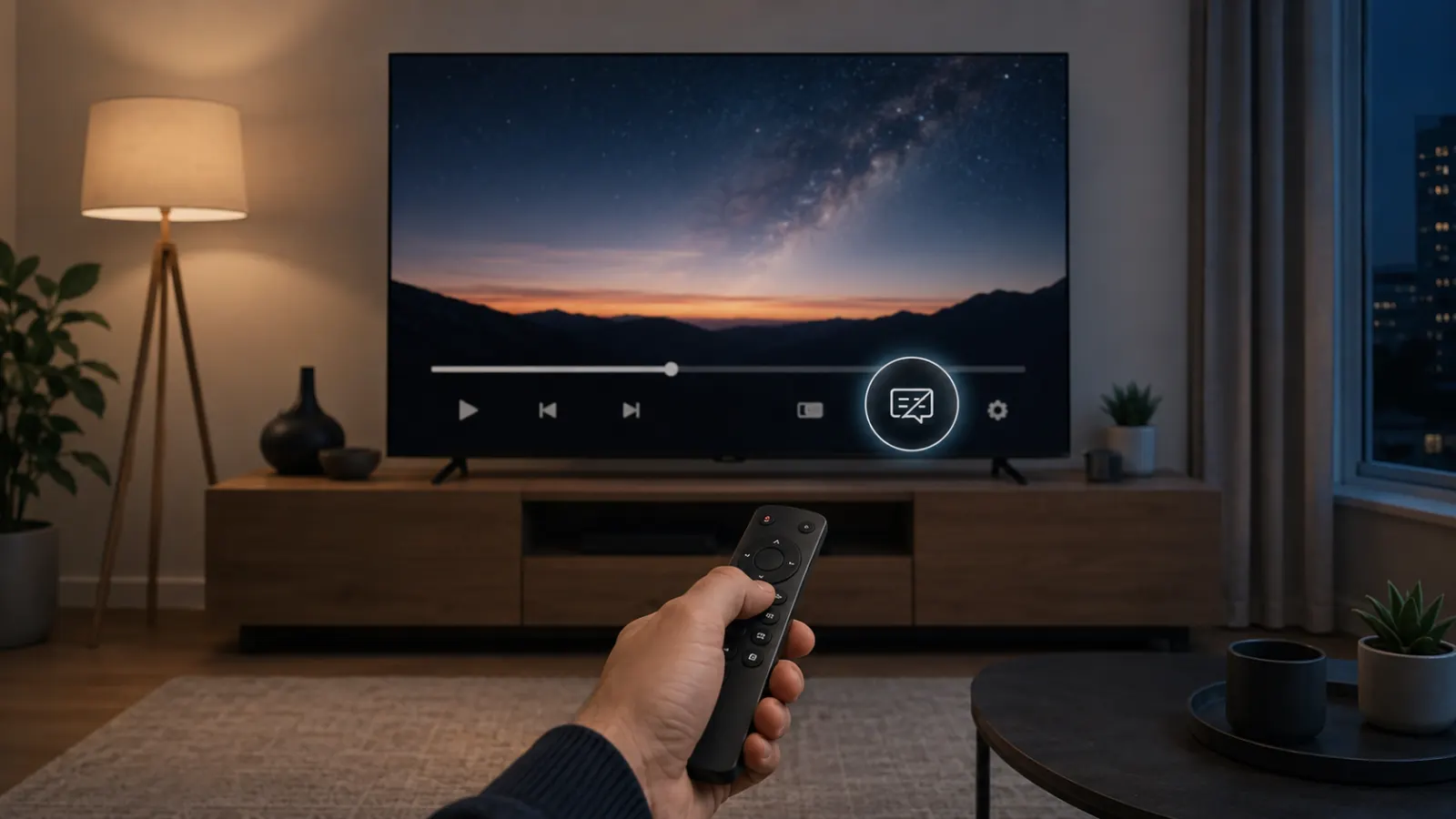
Captions can help you follow quiet dialogue, understand unfamiliar accents, or watch Netflix without sound. If you no longer need them, you can switch them off from the playback menu in a few seconds.
The exact button you press depends on your device, but the basic process stays the same. Start a movie or show, open Audio & Subtitles, then select Off under Subtitles. Netflix provides these controls on mobile devices, computers, smart TVs, game consoles, and streaming media players. Netflix Help Center
Quick Answer
To turn off captions on Netflix:
- Play any movie or TV show.
- Tap the screen or use your remote to display the playback controls.
- Select Audio & Subtitles.
- Under Subtitles, choose Off.
- Return to the video and continue watching.
On some TVs, Netflix displays the available languages at the bottom of the screen without showing a separate Audio & Subtitles icon.
How to Turn Off Captions on Netflix on a Smart TV
These instructions work for most supported smart TVs, Blu-ray players, cable boxes, game consoles, Roku devices, Fire TV devices, and other streaming media players.
- Open the Netflix app on your TV.
- Select a movie or episode.
- Start playing the title.
- Press the Up or Down arrow on your remote.
- Select Audio & Subtitles if the option appears.
- Go to the Subtitles section.
- Select Off.
- Press Back or resume the video.
Netflix may display language options directly at the bottom of the TV screen. In that layout, highlight Off under the subtitle choices and confirm your selection.
If Your Remote Does Not Have Arrow Buttons
Some smart remotes use a circular navigation pad, touchpad, or center button instead of traditional arrow buttons.
Try these controls while the video is playing:
- Press the center or Select button.
- Swipe up on the remote touchpad.
- Press Pause and check the controls at the bottom.
- Press the Menu or Options button.
- Move the navigation pad up or down.
The correct control depends on the television and remote model. Once the Netflix playback controls appear, open Audio & Subtitles and select Off.
How to Turn Off Netflix Captions on Roku
Netflix treats Roku as a TV streaming device, so you can normally change captions from the video player.
- Open Netflix on your Roku.
- Play a movie or episode.
- Press the Up or Down button on the Roku remote.
- Open Audio & Subtitles.
- Select Off under Subtitles.
- Return to the program.
These steps follow Netflix’s current instructions for TV streaming devices. Menu wording or placement can vary by Roku model and Netflix app version.
If captions remain visible, check Roku’s system accessibility settings. Device-level caption controls may affect content across multiple apps, not only Netflix.
How to Turn Off Netflix Captions on Amazon Fire TV
You can usually disable subtitles from the Netflix playback menu on a Fire TV Stick, Fire TV Cube, or Fire TV television.
- Launch Netflix.
- Start the title you want to watch.
- Press an arrow or the center button on the Fire TV remote.
- Select Audio & Subtitles.
- Choose Off in the Subtitles column.
- Resume playback.
If the text stays on screen, inspect the Fire TV accessibility and closed-caption settings. A caption feature enabled at the device level may continue affecting supported streaming apps.
How to Turn Off Captions on Netflix on a Phone or Tablet
Netflix uses a similar playback menu on Android phones, Android tablets, iPhones, and iPads.
- Open the Netflix app.
- Play a movie or TV episode.
- Tap anywhere on the video.
- Tap Audio & Subtitles.
- Select Off under Subtitles.
- Tap Apply, Done, or the close button if shown.
- Return to the video.
Netflix officially instructs mobile users to tap the screen during playback and select Audio & Subtitles from the player controls.
On an iPhone or iPad
Follow these steps:
- Start playing a title in the Netflix app.
- Tap the screen to reveal the controls.
- Tap Audio & Subtitles.
- Choose Off under Subtitles.
- Close the menu and continue watching.
Apple devices also have system accessibility settings for captions. If Netflix captions do not respond normally, check the subtitle and closed-caption options in your iPhone or iPad settings.
On an Android Phone or Tablet
Use the following process:
- Open Netflix and play a title.
- Tap the video once.
- Select Audio & Subtitles.
- Tap Off under Subtitles.
- Confirm the change if Netflix displays an Apply button.
Do not use the Subtitle Appearance menu when you only want to remove captions. That setting controls features such as subtitle font, size, shadow, and background color.
How to Turn Off Captions on the Netflix Website
You can disable subtitles while watching Netflix in a supported web browser.
- Visit Netflix and sign in.
- Choose your profile.
- Play a movie or episode.
- Move your mouse over the video.
- Click the Audio & Subtitles icon.
- Select Off under Subtitles.
- Move the pointer away or close the menu.
Netflix instructs computer users to click the screen during playback and open the Audio & Subtitles controls.
Can You Use a Keyboard Shortcut?
Netflix documents browser keyboard shortcuts for actions such as play, pause, volume, full-screen viewing, rewinding, and fast-forwarding. Its accessibility page directs users to playback controls for subtitle settings rather than identifying a universal shortcut that turns captions off.
For the most reliable method, use your mouse or trackpad to open the Audio & Subtitles menu.
How to Turn Off Captions on Apple TV
Apple TV uses slightly different remote controls from many other streaming devices.
- Open Netflix on your Apple TV.
- Start playing a show or movie.
- Swipe up or press the Up button on the Apple TV remote.
- Open the subtitle or Audio & Subtitles menu.
- Select Off under Subtitles.
- Close the menu and resume playback.
Netflix’s current instructions tell Apple TV viewers to swipe up or press the Up arrow to reach subtitle and audio options. Netflix Help Center
Netflix supports subtitles and alternate audio on Apple TV HD and supported Apple TV 4K models.
How to Turn Off Netflix Captions on a Game Console
The Netflix app on PlayStation and Xbox generally uses the television-style playback interface.
- Open Netflix on the console.
- Start a movie or episode.
- Press Up or Down on the controller’s directional pad.
- Open Audio & Subtitles.
- Select Off under Subtitles.
- Return to playback.
If captions stay on after you select Off, inspect the console’s accessibility settings. System-level closed captions can affect how subtitles appear in supported apps.
Xbox One Captions Will Not Turn Off
Netflix provides a separate fix for Xbox One when captions remain visible after being disabled in the app:
- Open the Xbox Settings menu.
- Select Ease of access.
- Select Closed Captioning.
- Choose Closed Captioning Off.
- Save the setting.
- Return to Netflix and test the video.
These troubleshooting steps come directly from Netflix’s subtitle support guidance.
Xbox 360 Captions Will Not Turn Off
For an Xbox 360:
- Select Settings.
- Open System.
- Choose Console Settings.
- Select Display.
- Open Closed Captioning.
- Select Off.
- Save the setting and test Netflix again.
Netflix identifies the console setting as a possible cause when subtitles remain visible on Xbox 360. Netflix Help Center
Why Are Subtitles Still Showing After You Turned Them Off?
Captions may remain visible for several different reasons. First, confirm whether the text is coming from Netflix, your device, or the program itself.
The Scene Uses Forced Subtitles
Some Netflix titles show translations when characters speak a language different from the title’s original language. Netflix notes that this text may appear even when subtitle settings are off.
For example, an English-language movie may briefly display a translation during a conversation in another language. These limited translations help viewers understand the scene and do not necessarily mean regular captions are enabled.
Captions Are Enabled in the Device Settings
Your TV, streaming device, phone, tablet, or console may have a separate accessibility setting for closed captions.
Check menus with names such as:
- Accessibility
- Captions
- Closed Captioning
- Subtitles
- Hearing Assistance
- Audio and Subtitles
Device settings can affect more than one app. Netflix confirms that device-level accessibility options may need adjustment in certain cases, including captions that remain active on Xbox consoles.
Netflix Did Not Save the Preference
Subtitle and audio preferences do not save in the usual way when you watch most Kids titles from an adult profile. Netflix recommends playing a title rated Teens or above for two to three minutes after changing the setting. This can save the preference for future viewing. Preferences do save when you watch from a Kids profile.
Try this method:
- Switch to an adult profile.
- Play a title with a Teens or higher maturity rating.
- Turn subtitles off.
- Continue playing the title for at least two to three minutes.
- Exit the video.
- Test another movie or episode.
An Older Netflix App Is Causing the Problem
Netflix reports a known issue affecting certain Samsung Smart TVs from 2011 and 2012. Selecting None may not disable subtitles on those older app versions. Netflix recommends using another supported streaming device in that situation.
The Text Is Part of the Video
Some text is embedded directly into the picture. Examples include translated signs, locations, dates, messages, and dialogue added during production.
Because this text forms part of the video image, the Netflix subtitle menu cannot remove it.
Subtitles, Closed Captions, and Audio Descriptions Are Different
Understanding the difference helps you change the correct setting.
Subtitles
Subtitles convert spoken dialogue into text. They may also translate dialogue from one language into another.
Closed Captions
Closed captions include dialogue and may describe important sounds, music, or speaker information. Netflix identifies supported options with an SDH badge, which means Subtitles for the Deaf and Hard of Hearing. Availability can vary between seasons and episodes.
Audio Descriptions
Audio descriptions provide spoken narration about visual events on screen. Turning off captions will not disable this narration.
If you hear a voice describing actions, expressions, settings, or scene changes, open Audio & Subtitles and choose an audio track that does not include Audio Description.
On Apple devices, audio descriptions may also be enabled in the device’s accessibility settings. Netflix provides separate troubleshooting instructions for Apple TV, iPhone, and iPad users.
How to Stop Netflix from Turning Captions Back On
Try these steps if subtitles return whenever you start another episode or movie:
- Confirm that you are using the intended Netflix profile.
- Play a title rated Teens or above.
- Open Audio & Subtitles.
- Set Subtitles to Off.
- Continue watching for at least two to three minutes.
- Close the title normally.
- Open another title and check the setting.
Netflix connects saved audio and subtitle preferences to profile activity. Its help guidance specifically recommends using a Teens or higher rated title for two to three minutes when a preference does not remain saved.
If that does not work:
- Close and reopen the Netflix app.
- Restart the streaming device.
- Check the device’s accessibility settings.
- Update the Netflix app if an update is available.
- Sign out of Netflix and sign back in.
- Test a different Netflix profile.
- Test Netflix on another device.
Netflix advises users to contact its support team when captions will not turn off on devices not covered by its device-specific fixes.
How to Change Captions Instead of Turning Them Off
You may prefer smaller or less distracting captions rather than removing them completely. Netflix allows viewers to adjust subtitle font, size, shadow, and background color on supported devices.
Change Subtitle Appearance in a Web Browser
- Open your Netflix Account page in a browser.
- Select Profiles.
- Choose the profile you want to change.
- Select Subtitle appearance.
- Adjust the available options.
- Select Save.
On a TV or streaming device, you may need to open Netflix, select Settings, choose Get Help, and then select Reload before the new appearance appears. Some older devices and certain languages may not support every appearance setting.
Change Subtitle Appearance on a TV
- Start playing a movie or show.
- Pause the video.
- Open the player controls.
- Select the Settings icon.
- Choose a subtitle size and style.
- Resume the title.
If the Settings icon does not appear, Netflix says the device does not support appearance changes for the selected subtitle language. Connected TV devices may also offer fewer customization options than a web browser.
Change Subtitle Appearance on Android
- Open the Netflix app.
- Tap My Netflix.
- Tap the profile name.
- Select Manage Profiles.
- Choose a profile.
- Tap Subtitle Appearance.
- Change the settings or restore the defaults.
Netflix notes that appearance changes made through the Android app apply to titles played on that Android device.
Common Mistakes to Avoid
Changing the Audio Track Instead of the Subtitle Setting
Audio and subtitles appear in the same menu. Make sure you choose Off under Subtitles, not a different option under Audio.
Turning Off Audio Descriptions by Disabling Captions
Captions control on-screen text. Audio descriptions use a separate audio track. Select an audio option without Audio Description if you want to stop spoken narration.
Looking for a Permanent Account Switch
Netflix manages subtitles through playback and profile preferences. The most reliable method is to turn subtitles off during a title and allow the preference time to save.
Assuming Every Piece of Text Is a Caption
A title may contain translated dialogue or text built into the video. Netflix warns that dialogue in a language different from the title’s original language may still receive subtitles when the general subtitle setting is off.
Testing Only a Kids Title
Most Kids titles played from an adult profile do not save audio and subtitle preferences normally. Test the setting with a Teens or higher rated title for two to three minutes.
Turn Off Netflix Captions and Get Back to Watching
The fastest way to turn off captions on Netflix is to start a title, open Audio & Subtitles, and select Off. On a phone or computer, tap or click the screen. On most TVs, consoles, and streaming devices, press Up or Down on the remote or controller.
If captions stay visible, check your device’s accessibility controls, save the preference by playing a Teens or higher rated title for two to three minutes, and determine whether the text is a forced translation or part of the video itself.
Frequently Asked Questions
How do I turn off captions on Netflix permanently?
Play a Teens or higher rated title, open Audio & Subtitles, choose Off, and keep the title playing for two to three minutes. Netflix recommends this process when you need to save an audio or subtitle preference for future viewing.
Why does Netflix keep showing subtitles when they are off?
The program may contain forced translations for dialogue in another language, your device may have closed captions enabled, or Netflix may not have saved the profile preference. Text embedded into the video also cannot be removed through Netflix settings.
Can I turn off subtitles before starting a movie?
The standard Netflix method requires you to start playing a movie or show and then open the Audio & Subtitles menu.
Why is there no Off option?
Look for None or scroll through the subtitle languages. Some device interfaces use different wording or display language choices at the bottom of the screen without the usual icon.
If the option remains unavailable, restart the app and try another title. I cannot confirm the exact menu wording for every television model because manufacturers and app interfaces vary.
Does turning off captions affect every Netflix profile?
Netflix associates language and subtitle preferences with profile activity. If another profile continues showing captions, change the setting while using that profile. The behavior can also differ when most Kids titles are played from an adult profile.
How do I turn captions back on?
Start a title, display the playback controls, and open Audio & Subtitles. Select your preferred subtitle language instead of Off.
Why do subtitles appear only during certain scenes?
Netflix may display translations when characters speak a language different from the movie or show’s original language. These subtitles can appear even when regular captions are disabled.
Is SDH the same as ordinary subtitles?
Not exactly. SDH subtitles include dialogue and may provide information about sounds, music, or speakers. Ordinary subtitles may show dialogue without those extra details. Netflix marks supported titles with an SDH badge, although availability may vary by episode or season.