
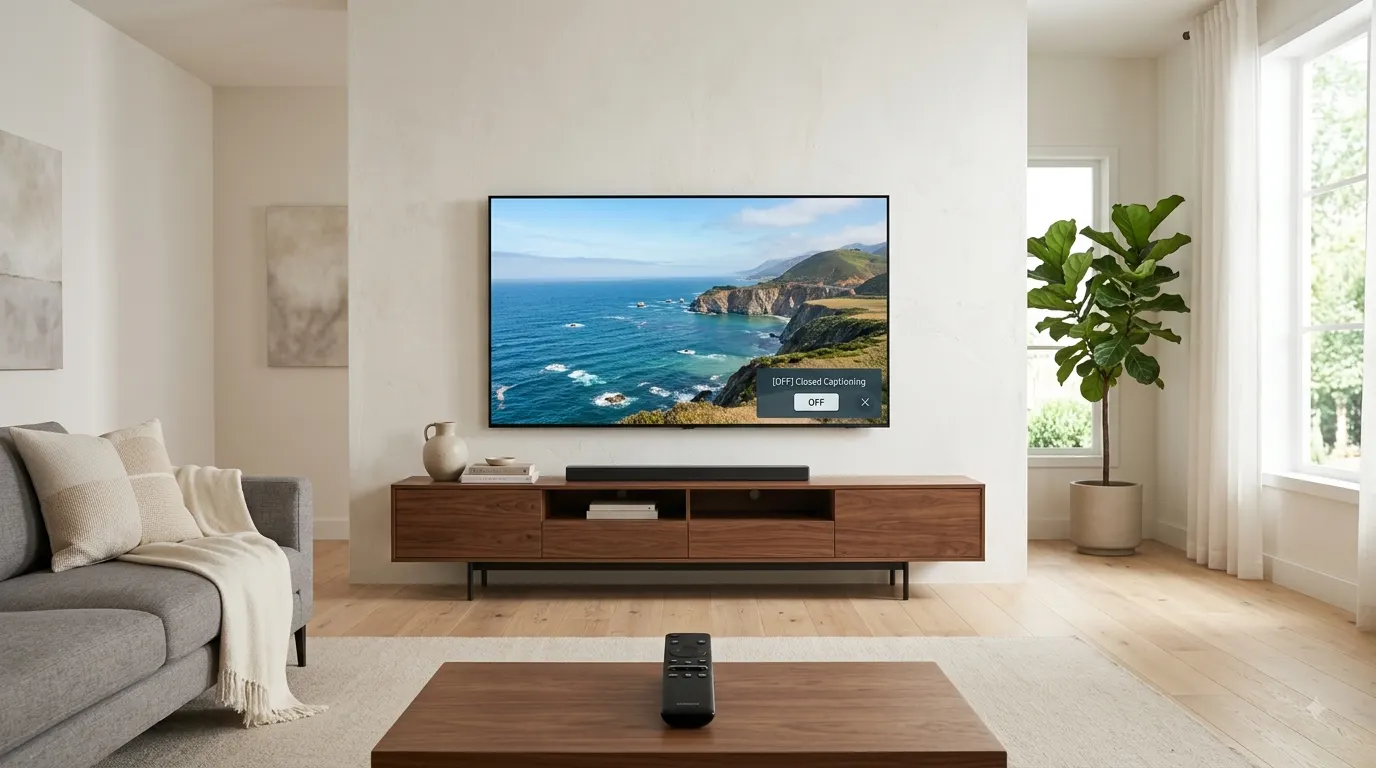
If you are wondering how do you turn off closed captioning on Samsung TV, open the TV’s accessibility settings, select Caption Settings, and switch Caption to Off. On most recent Samsung TVs, the full path is Home, Menu, Settings, All Settings, General & Privacy, Accessibility, Caption Settings, then Caption.
The exact menu names can vary by model, region, and software version. Captions may also come from a streaming app, cable box, satellite receiver, game console, or the video itself. This guide covers each possibility so you can remove the text without changing unrelated accessibility features.
Quick Answer
Use your Samsung remote and follow this menu path:
- Press the Home button.
- Open Menu or Settings.
- Select All Settings.
- Choose General & Privacy.
- Select Accessibility.
- Open Caption Settings.
- Select Caption to switch it Off.
Samsung lists this as the current menu path for supported models. Some versions shorten the path to Settings, General, Accessibility, Caption Settings, then Caption. Menu names and feature availability can differ by model and location, according to Samsung’s accessibility guidance.
The Fastest Way to Turn Off Captions With a Samsung Smart Remote
You may not need to search through the full Settings menu. Samsung Smart Remotes provide an accessibility shortcut.
- Press and hold the Volume or Mute button on the remote.
- Wait for the Accessibility Shortcuts menu to appear.
- Highlight Caption Settings or Caption.
- Press the Select button.
- Switch Caption to Off.
- Press Back or Return to close the menu.
On remotes without a dedicated Mute button, press and hold the Volume button instead. Samsung confirms that this shortcut opens the TV’s accessibility options on compatible models in its Samsung TV accessibility settings guide.
Do not press the Volume button quickly. A short press only changes the sound level. Hold it until the accessibility menu appears.
How to Turn Off Closed Captioning Through Settings
The full Settings menu gives you the clearest way to check whether the television itself produces the captions.
On Newer Samsung Smart TVs
Try this path first if your television uses a recent version of Samsung’s Smart Hub interface:
- Press Home on the remote.
- Move to Menu.
- Select Settings.
- Choose All Settings.
- Open General & Privacy.
- Select Accessibility.
- Choose Caption Settings.
- Highlight Caption.
- Change the setting to Off.
Return to the program and check whether the captions have disappeared.
On Samsung TVs With the General Menu
Some Samsung software versions use a shorter path:
- Press Home.
- Open Settings.
- Select General.
- Choose Accessibility.
- Open Caption Settings.
- Select Caption to turn it off.
Samsung documents this version of the menu path as Settings, General, Accessibility, Caption Settings, then Caption. The same control can turn captions on again when needed, as shown in Samsung’s Smart TV accessibility instructions.
On an Older Samsung TV
Older models may use a Menu button instead of a Home button and may organize accessibility controls differently.
- Press Menu on the original remote.
- Look for System, Setup, Accessibility, or Broadcasting.
- Find Caption, Subtitle, or Caption Settings.
- Set the caption option to Off.
- Exit the menu and return to live television.
Samsung changes menu layouts between model years and regions. If these labels do not appear, open the TV’s built-in e-Manual or search Samsung Support using the full model number. You can usually find that number on the label attached to the back of the television or in the Support section of its settings.
Why Captions May Stay On After You Disable Them
Turning off Caption in the Samsung TV menu only controls captions generated or managed by the television. Samsung states that supported apps and broadcasts may use this setting, while services such as Netflix can maintain separate subtitle controls. Discs can also require changes through their own menus.
Use this quick test:
- Open the Samsung Home or Settings menu.
- Check whether the unwanted text appears over the menu.
- Change to a different channel, app, or input.
- Notice whether the text stays or disappears.
If captions appear only inside one app, control them inside that app and if they appear only on an HDMI input, check the device connected to that input. If they appear on every source, review the Samsung TV caption setting again.
Turn Off Subtitles Inside a Streaming App
Streaming services often control their own subtitles. Changing the television’s accessibility setting may not affect text produced by an app.
Netflix
To turn off subtitles while watching Netflix:
- Play a movie or episode.
- Pause the video or open the playback controls.
- Select Audio & Subtitles.
- Find the subtitle choices.
- Select Off.
- Resume the video.
Netflix explains that viewers can change audio and subtitle selections through the playback controls. Available options can vary by title and device.
If subtitles still appear after you select Off, close and reopen Netflix. You should also check any streaming device or game console connected to the TV because it may have its own closed caption setting.
YouTube
For captions that appear only on YouTube:
- Start the video.
- Open the playback controls.
- Select the CC icon or Settings gear.
- Open Captions or Subtitles.
- Set the option to Off.
If you use a keyboard with YouTube, pressing C can show or hide available captions. Google lists this shortcut in its official YouTube keyboard guide.
Some videos contain text permanently added by their creators. You cannot remove that text using the CC control.
Other Streaming Services
Apps such as Prime Video, Hulu, Disney+, Max, and Apple TV usually place subtitle controls in the video player’s Audio, Language, Accessibility, or Subtitles menu.
Use this general method:
- Play the program.
- Press Select, Up, Down, or Pause to reveal the controls.
- Find the speech bubble, CC, Audio, or Subtitles option.
- Choose Off or None.
- Resume playback.
The labels and layout depend on the app version. If Off does not appear, check the app’s Help or Accessibility page for instructions specific to your device and region.
Turn Off Captions From a Cable or Satellite Box
A cable receiver, satellite box, or digital television decoder can add captions before sending the picture to the Samsung TV. In that situation, the Samsung Caption switch will not remove them.
Try these steps:
- Use the cable or satellite remote, not the Samsung remote.
- Press Menu or Settings.
- Open Accessibility, Preferences, Language, or Closed Captioning.
- Set Closed Captions, Subtitles, or CC to Off.
- Save the change.
- Return to the channel.
You can identify the likely source by switching away from the receiver’s HDMI input. If the captions disappear on Samsung TV Plus or another built-in app, the external receiver probably controls them.
The precise instructions depend on your service provider and receiver model. I cannot confirm one universal menu path for every cable or satellite box.
Turn Off Captions From a Streaming Device
Roku players, Fire TV devices, Apple TV boxes, Chromecast devices, and Android TV boxes maintain their own accessibility preferences.
If captions appear only while using one of these devices:
- Pick up that device’s remote.
- Open its Settings menu.
- Find Accessibility or Captions.
- Switch Closed Captions or Subtitles to Off.
- Check the playing app as well.
Changing Samsung’s television settings does not necessarily override text created by an HDMI device.
Check a Game Console
An Xbox or PlayStation can also control captions for games and streaming apps. Open the console’s accessibility settings and look for Closed Captioning, Subtitles, or Media Accessibility.
Netflix specifically notes that a device setting can keep subtitles visible even after a viewer changes the Netflix option. Its troubleshooting guide recommends checking the connected device’s closed caption controls when subtitles will not switch off.
Closed Captions, Subtitles, and Open Captions Are Not the Same
Understanding what type of text you see can help you find the correct control.
Closed Captions
Closed captions can usually be turned on or off. They may include:
- Spoken dialogue
- Speaker identification
- Music descriptions
- Important background sounds
- Other information needed to understand the audio
Netflix describes closed captions as dialogue plus descriptions of relevant sounds, while subtitles generally present dialogue as readable text.
Subtitles
Subtitles primarily show dialogue. Viewers often use them for foreign language content, quiet scenes, strong accents, or difficult audio.
A streaming app may label all onscreen text as Subtitles even if some options include sound information.
Open Captions
Open captions form part of the video picture. You cannot switch them off through the Samsung Caption menu because the broadcaster, editor, or content creator permanently placed them in the image.
Samsung confirms that open captions are inserted into the content and cannot be turned on or off. Closed captions remain selectable. .
Text Inside the Program
Some programs use text for translations, locations, dates, social media messages, or story details. This text may resemble subtitles but still belongs to the program. Turning off captions will not remove it.
What to Do if Caption Settings Are Grayed Out
A gray Caption option does not always mean the television has a fault. It may mean the current source, broadcast, or app does not let the TV control captions.
Try these checks:
- Switch from an HDMI input to a live television channel.
- Exit the current streaming app.
- Open Caption Settings again.
- Confirm that the current channel supports captions.
- Check the external device or app that supplies the video.
- Restart the television.
Samsung notes that caption services depend on the broadcast and that availability can vary by region and broadcaster.
If the setting remains unavailable on every source, check the e-Manual for your exact model or contact Samsung Support.
Captions Keep Turning Back On
If captions return after you switch them off, another device or app may be restoring its own preference.
Work through these steps in order:
- Turn captions off in the Samsung TV settings.
- Turn subtitles off inside the active streaming app.
- Check the cable box, streaming player, or game console.
- Close the app completely.
- Turn the TV off and back on.
- Test a different channel or app.
- Check the television for available software updates.
- Review the caption preference again.
Samsung recommends checking for software updates when caption controls do not behave as expected because an update may contain a relevant fix. Samsung also warns that menu screens and instructions can vary by software version.
Avoid a factory reset as your first step. A reset can remove saved preferences, accounts, network settings, and other television configuration. Use it only after reviewing the instructions for your exact model or after Samsung Support recommends it.
If You Only Want to Change the Caption Appearance
You do not have to disable captions completely if they block part of the picture or feel difficult to read. Supported Samsung TVs may let you adjust their appearance and position.
Open:
Settings, General or General & Privacy, Accessibility, Caption Settings, Digital Caption Options.
Depending on the model and content, you may be able to change:
- Caption size
- Font color
- Background color
- Background transparency
- Caption position
- Caption mode
- Separate Closed Caption
Samsung explains that Digital Caption Options can control size, font color, background color, and position for supported broadcast captions. Not every program or model supports every option.
Do Not Confuse Captions With Voice Guide
Closed captions place text on the screen. Voice Guide speaks menu names, channel information, volume changes, and other interface details aloud.
If your Samsung TV talks instead of displaying unwanted text, turn off Voice Guide:
- Press Home.
- Open Menu and Settings.
- Select All Settings.
- Choose General & Privacy.
- Open Accessibility.
- Select Voice Guide Settings.
- Switch Voice Guide to Off.
You can also hold the Volume or Mute button to open Accessibility Shortcuts. Samsung provides separate instructions for this feature in its Voice Guide troubleshooting guide.
Common Mistakes to Avoid
Changing the TV Setting While the App Controls the Text
If subtitles appear only in Netflix or another streaming service, open that app’s playback controls.
Using the Wrong Remote
Use the cable box remote for cable box captions and the streaming device remote for streaming device settings. The Samsung remote may not control every connected source.
Turning Off Voice Guide Instead of Caption
Voice Guide controls spoken navigation. Caption controls onscreen dialogue and sound descriptions.
Assuming Every Line of Text Is a Closed Caption
Translations, sports graphics, news tickers, and text added during video editing may form part of the picture.
Resetting the Entire TV Too Soon
Check the TV, app, and external device independently before considering a reset.
Forgetting That Menu Paths Vary
Samsung’s interfaces differ across models, software versions, and regions. Use the e-Manual for the television if the common paths do not match your screen.
Conclusion
To turn off closed captioning on a Samsung TV, start with the television’s Caption Settings and change Caption to Off. If the text remains, identify whether it appears only in one app, channel, or HDMI source. Then disable subtitles on the device or service creating them. This source by source approach usually solves the problem without changing useful accessibility settings or resetting the television.
Frequently Asked Questions
How do I turn off closed captioning on a Samsung TV with one remote?
Press and hold the Volume or Mute button to open Accessibility Shortcuts. Select Caption Settings, then change Caption to Off. If the shortcut does not appear, use the full Accessibility menu.
Where is the CC button on a Samsung Smart Remote?
Many Samsung Smart Remotes do not include a separate CC button. Press and hold the Volume or Mute control to open Accessibility Shortcuts. Traditional remotes may have a Caption, CC, or AD/SUBT. button, depending on the model and region.
Why will closed captioning not turn off on my Samsung TV?
The text may come from a streaming app, cable box, streaming device, game console, disc menu, or the video itself. Test another source to identify which device produces it.
How do I remove subtitles from Netflix on a Samsung TV?
Play the title, open the playback controls, select Audio & Subtitles, then choose Off under subtitles. Netflix manages its subtitle preference separately on supported devices.
Can I turn off captions for every app at once?
I cannot confirm a universal switch that overrides every Samsung TV app and connected device. Samsung states that some apps maintain independent caption settings, so you may need to disable subtitles inside each service.
Why do captions appear on only one channel?
That channel or program may provide caption data or open captions that other channels do not. If the text remains after you switch the Samsung Caption setting off, the broadcaster may have included it in the picture.
Can I remove open captions?
No. Open captions form part of the video. Samsung’s caption controls cannot remove them.
How do I turn captions back on?
Return to Settings, General or General & Privacy, Accessibility, Caption Settings, then set Caption to On. You can also use the Accessibility Shortcuts menu.
Will turning off captions disable other accessibility features?
No. The Caption switch controls captions. Voice Guide, High Contrast, Sign Language Zoom, and other accessibility features have separate controls on supported Samsung TVs.