
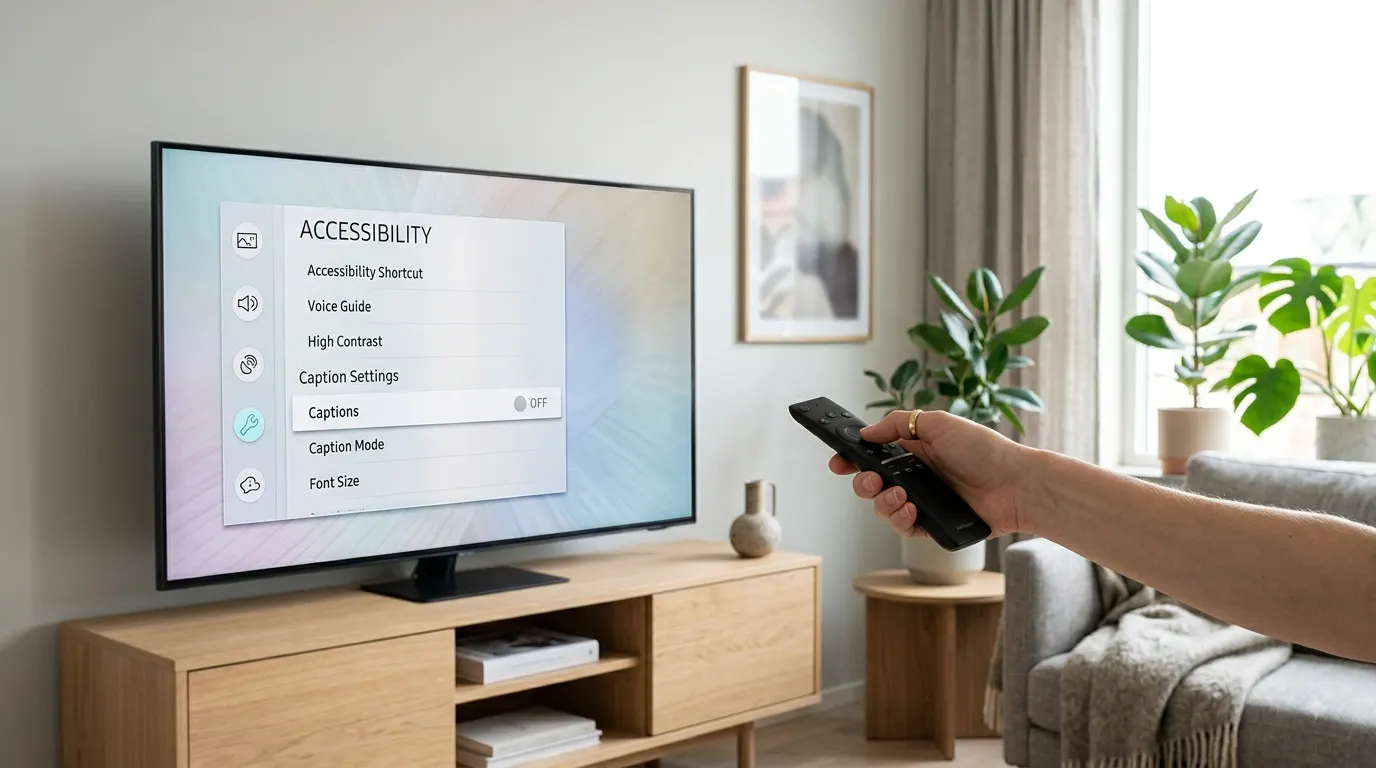
Captions can help you follow dialogue, but they may become distracting when you no longer need them. To turn off captions on a Samsung TV, open Settings, select General or General & Privacy, choose Accessibility, open Caption Settings, and switch Caption to Off.
The exact menu wording can vary by Samsung TV model, software version, and region. Captions from Netflix, Prime Video, a cable box, or another connected device may also require a separate setting.
Quick Answer
Follow this menu path on most recent Samsung Smart TVs:
- Press Home on the Samsung remote.
- Select Menu or Settings.
- Open All Settings if it appears.
- Select General & Privacy.
- Choose Accessibility.
- Open Caption Settings.
- Select Caption to switch it off.
Some models show General instead of General & Privacy. Samsung confirms that menu names and feature availability may differ between models.
How to Turn Off Captions on a Newer Samsung Smart TV
Recent Samsung TVs often place caption controls inside the General & Privacy section. Use these steps if your TV has the newer Samsung interface:
- Turn on your Samsung TV.
- Press the Home button on the remote.
- Move to Menu.
- Select Settings.
- Choose All Settings.
- Open General & Privacy.
- Select Accessibility.
- Open Caption Settings.
- Highlight Caption.
- Press the Select button to change it to Off.
The captions should disappear immediately if the Samsung TV itself generates them. Samsung documents this path for current Smart TV interfaces.
Turning Off Captions on Samsung TVs With the General Menu
Some Samsung TVs use a shorter settings path:
- Press Home on your remote.
- Select Settings.
- Choose General.
- Select Accessibility.
- Open Caption Settings.
- Select Caption to turn it off.
This is the standard path shown in Samsung’s United States accessibility guide.
If you cannot see Caption Settings, confirm that you opened Accessibility, not Broadcasting or Picture Settings.
Use the Accessibility Shortcut on a Samsung Smart Remote
You may not need to move through the full Settings menu. Many Samsung Smart Remotes provide a shortcut to the Accessibility menu.
- Press and hold the Volume button for at least two seconds.
- Wait for the Accessibility Shortcuts menu to appear.
- Move to Caption Settings or Caption.
- Select it and change the setting to Off.
- Press Back or Exit to close the menu.
On a Samsung Smart Remote, the volume control may look like a narrow rocker marked with plus and minus symbols. Press the control inward and hold it instead of moving it up or down.
Samsung confirms that holding the volume button opens Accessibility Shortcuts on supported models.
Turn Off Captions With a CC Button
Some standard Samsung remotes include a dedicated CC or Caption button.
- Look for a button marked CC, Caption, or Subtitle.
- Press the button once.
- Select Off if a caption menu appears.
- If no menu appears, check whether the captions disappear immediately.
The dedicated button may cycle through available caption options instead of opening the full Settings menu. Samsung identifies the CC button as the control for the television’s caption decoder on supported remotes.
Not every Samsung remote has this button. Use the Settings menu or Accessibility shortcut if you have a Samsung Smart Remote with only a few buttons.
How to Turn Off Subtitles in a Samsung TV App
The Samsung caption setting does not always control subtitles inside streaming apps. Netflix, Prime Video, YouTube, and other services may manage their own subtitles through the playback screen.
If captions appear in only one app, change the subtitle setting inside that app first.
Netflix
To turn off subtitles while watching Netflix:
- Open Netflix on your Samsung TV.
- Start the movie or episode.
- Press the Up or Down button on the remote.
- Select Audio & Subtitles.
- Under Subtitles, choose Off.
- Return to the video.
Netflix notes that some foreign language dialogue may still display translated text even when regular subtitles are off. This text may form part of the program’s intended presentation.
Amazon Prime Video
To remove subtitles from Prime Video:
- Start playing a supported movie or show.
- Open the playback controls.
- Select the Subtitles or Closed Caption icon.
- Choose Off.
- Resume playback.
Amazon confirms that Prime Video subtitle controls appear in the playback menu on supported Smart TVs.
YouTube
The available controls can differ between versions of the YouTube TV app, but the usual method is:
- Play a YouTube video.
- Press the Select or directional button to display the player controls.
- Find the CC icon.
- Select it to turn captions off.
If the CC icon is unavailable, the video may not offer an optional caption track. YouTube also supports the voice command Turn off closed captions on compatible TV setups that use Google Assistant.
Other Streaming Apps
For Disney+, Hulu, Max, Apple TV+, Paramount+, Peacock, and similar services:
- Start the video.
- Press the Select, Up, or Down button.
- Look for a speech bubble, subtitles, language, or CC icon.
- Open the subtitle menu.
- Choose Off or None.
I cannot confirm one universal path for every app because each service controls its own interface and may update it independently.
How to Remove Captions From a Cable or Satellite Box
If your Samsung TV receives programming from a cable box or satellite receiver, the external box may generate the captions.
Turning captions off in the Samsung menu will not remove text created by another device.
Try this process:
- Keep the cable or satellite box turned on.
- Use the remote supplied with that box.
- Press Menu, Settings, or Options.
- Find Accessibility, Closed Captions, Subtitles, or Language.
- Change the caption setting to Off.
- Return to the channel.
If the setting remains difficult to find, check the support guide for your cable provider or receiver model. Menu paths vary between providers and devices.
Turning Off Captions From an HDMI Device
A streaming stick, game console, Blu-ray player, or set top box connected through HDMI can place subtitles over the picture.
Possible sources include:
- Amazon Fire TV
- Apple TV
- Roku
- Chromecast
- Xbox
- PlayStation
- A cable or satellite receiver
- A Blu-ray player
- A computer connected through HDMI
Use the remote or controller for the connected device and turn off captions in its Accessibility or Subtitle menu.
Samsung explains that some caption options become unavailable when the selected input does not carry a caption signal that the TV can decode. In that situation, the connected device controls the captions.
Amazon Fire TV
If a Fire TV device supplies the video:
- Start playing the program.
- Press the Menu button on the Fire TV remote.
- Select Subtitles.
- Choose Off.
Amazon provides this method for supported Fire TV content.
Why Captions Stay On After You Turn Them Off
Persistent captions usually come from a different source than the setting you changed.
The Streaming App Controls Them
If captions appear only in Netflix, Prime Video, YouTube, or another app, open that app’s playback controls and switch subtitles off there.
The External Device Controls Them
If captions appear only while using one HDMI input, use the remote for the device connected to that input.
For example, captions that appear while watching a cable receiver on HDMI 1 probably come from the receiver rather than the Samsung TV.
The Video Contains Open Captions
Open captions form part of the video image. The viewer cannot switch them off through the television or app settings.
Samsung distinguishes between closed captions, which viewers can turn on or off, and open captions, which content creators or broadcasters place directly into the video.
You can usually recognize open captions when:
- The caption setting already shows Off.
- The text appears in the same position and style throughout the video.
- Other graphics cover or interact with the text.
- Captions appear only on one particular video.
- No subtitle track appears in the player menu.
Foreign Language Dialogue Uses Forced Subtitles
Some movies and shows display translations for selected dialogue even when normal subtitles are off. These are sometimes called forced narrative subtitles.
Netflix confirms that translated text may remain visible when characters speak a language different from the title’s original language.
More Than One Caption Setting Is Active
Your television and streaming app may both have captions enabled. Turn them off in both places:
- Disable Caption in the Samsung Accessibility menu.
- Open the app or connected device.
- Disable subtitles in its playback controls.
- Restart the program.
What to Do When Caption Settings Are Grayed Out
A grayed out Caption option does not always indicate a fault with the television.
The Samsung TV may not control captions for the selected source. This often happens when you watch content from an HDMI device.
Try these checks:
- Press Source on the Samsung remote.
- Switch temporarily to TV or a broadcast input.
- Open Settings.
- Return to Accessibility and Caption Settings.
- Check whether the option now works.
If Caption Settings becomes available on the TV source but remains unavailable on HDMI, change the setting through the connected device.
Samsung’s support material explains that the television cannot decode captions from certain external input types, so the source device must handle them.
Captions or Voice Guide: Which Setting Do You Need?
Captions display dialogue and other audio information as text. Voice Guide reads television menus and selected information aloud.
If your Samsung TV speaks whenever you change the volume, move through a menu, or select an app, captions are not causing it. You need to turn off Voice Guide.
Use this menu path:
- Press Home.
- Open Menu and then Settings.
- Select All Settings.
- Open General & Privacy.
- Select Accessibility.
- Open Voice Guide Settings.
- Switch Voice Guide to Off.
You can also press and hold the Volume button to open Accessibility Shortcuts and turn off Voice Guide on supported models.
Captions, Subtitles, and Audio Description
These features serve different purposes:
Closed Captions
Closed captions show spoken dialogue and may describe meaningful sounds. You can usually switch them on or off.
Subtitles
Subtitles commonly present dialogue as text, often as a translation. Streaming services may use the terms subtitles and captions in the same menu.
Open Captions
Open captions form part of the video itself. You cannot remove them with the television’s caption controls.
Audio Description
Audio description adds spoken narration that describes visual action. Turn it off through the audio or accessibility menu, not Caption Settings.
Choosing the correct control saves time. If you see text, check captions or subtitles. If you hear narration, check Audio Description or Voice Guide.
How to Find Caption Settings on an Older Samsung TV
Older Samsung TVs may use different menu labels. Look for one of these paths:
- Menu > System > Accessibility > Caption
- Menu > Setup > Caption
- Menu > Broadcasting > Caption Settings
- Menu > Accessibility > Caption
I cannot confirm a single path for every older Samsung model because menu layouts vary by model year, country, tuner type, and installed software.
If none of these paths appears:
- Find the model code on the label at the back of the TV.
- Open Samsung’s support website for your country.
- Search for the exact model code.
- Download the user manual or electronic manual.
- Search the manual for caption, subtitle, or accessibility.
How to Turn Off Captions Without the Original Remote
You still have several options if the original Samsung remote is missing.
Use a Compatible Replacement Remote
A compatible Samsung remote can open the Home or Menu screen. Follow the normal Accessibility menu path after pairing or connecting it.
Use the Controls on the TV
Some Samsung TVs have a small controller under the center of the screen, near the Samsung logo, or along the lower edge. Its functions vary by model.
You may be able to:
- Open the control menu.
- Select Home or Menu.
- Open Settings.
- Navigate to Accessibility.
- Turn Caption off.
Physical controls on some models provide only basic power, volume, channel, and source functions, so full Settings navigation may not be available.
Use the Remote for the Source Device
If Netflix runs through a streaming stick or captions come from a cable receiver, use that device’s remote. You may not need the Samsung remote at all.
A Simple Way to Identify the Caption Source
Use this quick test before changing several settings:
- Open the Samsung Home screen.
- Check whether the text remains visible.
- Switch to another app.
- Change to another input.
- Play a different video.
The result helps identify the source:
- Captions appear on broadcast channels only: Check the Samsung TV caption setting.
- Captions appear in one app only: Check that app’s subtitle controls.
- Captions appear on one HDMI input only: Check the connected device.
- Captions appear in one video only: They may be open or forced subtitles.
- The TV reads menus aloud: Turn off Voice Guide.
- Spoken narration describes the program: Turn off Audio Description.
Common Mistakes to Avoid
Changing Caption Mode Instead of Turning Caption Off
Caption Mode changes the caption channel or type. It does not necessarily disable captions. Select the main Caption switch and set it to Off.
Using the Wrong Remote
The Samsung remote controls television settings. A cable box, Roku, Fire TV, or game controller manages settings generated by that device.
Confusing Voice Guide With Captions
Voice Guide produces spoken menu feedback. Caption Settings control text on the screen.
Resetting the Entire TV Too Soon
A full factory reset removes settings and may require you to set up the television again. First identify whether the TV, app, channel, or HDMI device produces the captions.
Assuming Every Subtitle Can Be Removed
Open captions form part of the picture, while some programs include required translations for foreign language scenes. Television settings cannot remove text embedded in the video.
Final Check
The fastest way to turn off captions on a Samsung TV is:
Home > Settings > General or General & Privacy > Accessibility > Caption Settings > Caption > Off
If the text remains, open the subtitle menu in the app, cable box, or HDMI device you are currently watching. Captions that appear in only one video may be embedded open captions or required translations that the television cannot remove.
Frequently Asked Questions
Where is the CC setting on a Samsung Smart TV?
On many Samsung Smart TVs, go to Home > Settings > General > Accessibility > Caption Settings. Newer interfaces may use Home > Menu > Settings > All Settings > General & Privacy > Accessibility > Caption Settings.
Why are captions still showing when the Samsung caption setting is off?
The streaming app, cable box, or HDMI device may generate them. The video may also contain open captions that cannot be switched off.
Can I turn off captions with the Samsung remote?
Yes. Open Caption Settings through the television menu. On supported Smart Remotes, press and hold the Volume button to open Accessibility Shortcuts. A standard remote may also include a CC or Caption button.
Why is Caption Settings unavailable on my Samsung TV?
The selected input may not provide captions that the television can control. If you use an HDMI device, open that device’s subtitle or accessibility settings.
How do I turn off Netflix subtitles on a Samsung TV?
Start a Netflix title, press Up or Down on the remote, select Audio & Subtitles, and choose Off under subtitles.
How do I stop my Samsung TV from reading everything aloud?
Turn off Voice Guide through Settings > General & Privacy > Accessibility > Voice Guide Settings. This feature is separate from captions.
Can I remove text permanently from every app?
There is no single setting guaranteed to control every app and connected device. Turn off the Samsung TV caption switch, then check subtitle settings inside each app or external source that continues to display text.
Will turning off captions delete my other TV settings?
No. Switching Caption to Off changes the caption feature only. It does not reset picture, sound, network, or account settings.