
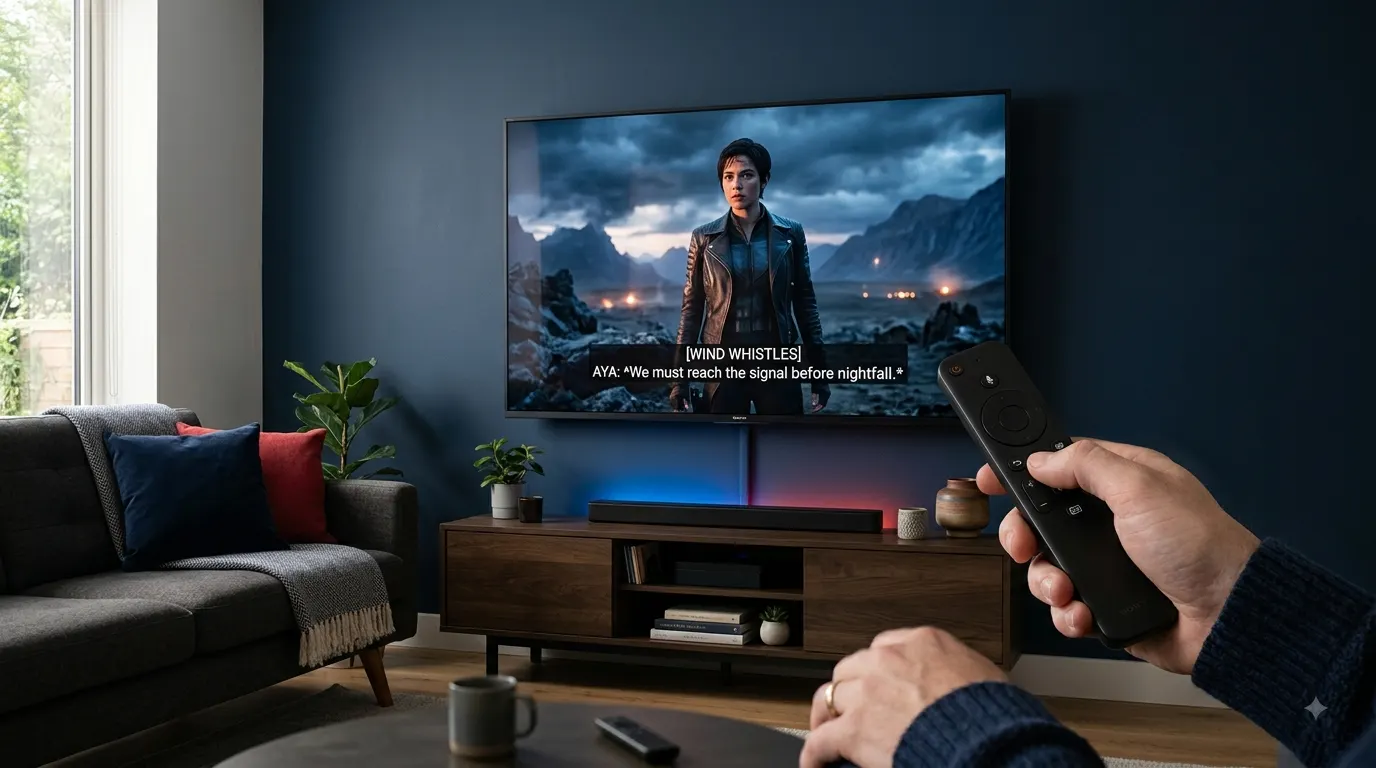
If you are wondering, how can I get closed captioning on Netflix, start playing a show or movie, open the Audio & Subtitles menu, and select an available caption option. On many titles, English captions appear as English CC or English SDH.
The exact button you need depends on whether you watch Netflix on a smart TV, streaming device, computer, phone, tablet, or Apple TV. This guide explains each method, how to customize caption appearance, and what to do when captions are missing or not working.
Quick Answer
To turn on closed captioning on Netflix:
- Open Netflix and play a movie or episode.
- Pause the video or display the playback controls.
- Select Audio & Subtitles.
- Choose English CC, English SDH, or another available caption language.
- Resume the video.
On a phone, tablet, or computer, tap or click the screen to display the controls. On most TVs, gaming consoles, Blu-ray players, and streaming devices, press the up or down arrow on the remote. Apple TV users can swipe up or press the up arrow.
What Closed Captioning Means on Netflix
Closed captions turn spoken dialogue and relevant audio information into text that appears on the screen. Unlike standard subtitles, closed captions may identify speakers and describe meaningful sounds, music, or other audio cues.
For example, closed captions may communicate that:
- A phone rings in another room.
- Suspenseful music begins.
- A character whispers.
- A door closes.
- The audience applauds.
- Thunder rumbles nearby.
Netflix defines subtitles as readable versions of dialogue. Closed captions include dialogue as well as descriptions of sounds that viewers would hear in the program.
Closed captions can help people who are deaf or hard of hearing, but they are also useful when:
- You watch in a noisy room.
- You need to keep the volume low.
- Actors speak quickly or quietly.
- A program contains unfamiliar accents.
- You are learning another language.
- You do not want to disturb someone nearby.
How to Recognize Closed Captions on Netflix
Look for a caption track marked CC or SDH in the Audio & Subtitles menu.
SDH means Subtitles for the Deaf and Hard of Hearing. These captions usually include dialogue and relevant non-speech information. Netflix displays an SDH badge on the details pages of titles that support this feature.
Some programs offer regular subtitles but not SDH. In that case, the available text may include dialogue without descriptions of music, background sounds, or speaker changes. Caption availability can also differ between seasons and episodes.
How to Get Closed Captioning on a Smart TV
The following method works on many smart TVs and TV-connected devices:
- Open the Netflix app.
- Choose a movie or TV show.
- Start playing the title.
- Pause the video.
- Press the up or down arrow on your remote to display the playback menu.
- Select Audio & Subtitles.
- Choose an option marked CC or SDH.
- Return to the video and resume playback.
Some TV versions of Netflix show the available audio and subtitle languages along the bottom of the screen instead of displaying a separate Audio & Subtitles icon. Select Other if you need to see additional language options. Netflix Help Center
If Your Remote Does Not Show the Menu
Try these steps:
- Pause the program first.
- Press the up arrow once.
- If nothing appears, press the down arrow.
- Look for a speech bubble, dialogue icon, or language menu.
- Select the caption language and resume playback.
Remote layouts and Netflix interfaces vary by device, so the position of the menu may look slightly different.
How to Turn On Netflix Closed Captions on Roku
Netflix groups Roku with other streaming media players in its instructions. Use these steps while a title is playing:
- Start a movie or episode in the Netflix app.
- Press the up or down arrow on the Roku remote.
- Open Audio & Subtitles.
- Select English CC, English SDH, or your preferred option.
- Return to the program.
If no caption option appears for that title, test another movie or episode. Caption and language availability varies by title.
How to Turn On Captions on Amazon Fire TV or Fire TV Stick
Use the Netflix playback menu rather than the main Fire TV settings first:
- Open Netflix.
- Play the title you want to watch.
- Press the up or down direction on the Fire TV remote.
- Select Audio & Subtitles.
- Choose an available CC or SDH track.
- Continue watching.
If the text is difficult to read, check Netflix’s subtitle appearance controls or the accessibility settings on your Fire TV device.
How to Get Netflix Closed Captions on Apple TV
Netflix provides the following general steps for Apple TV:
- Open Netflix and start playing a title.
- Swipe up or press the up arrow on the Apple TV remote.
- Select Audio & Subtitles.
- Choose the caption or subtitle option you want.
- Return to the video.
The available options depend on the movie, episode, language, and region.
Apple devices may use their own accessibility settings for caption appearance. Netflix directs Apple users to Apple’s support instructions when they want to change how captions look.
How to Enable Closed Captions on a Computer
You can turn on captions while watching Netflix through a supported web browser.
- Go to Netflix and sign in.
- Open a movie or TV show.
- Start playback.
- Move your mouse or click the video to show the player controls.
- Select Audio & Subtitles.
- Choose English CC, English SDH, or another caption language.
- Click outside the menu to return to the video.
The caption selection should appear immediately if the title and browser support it.
Full Screen Viewing
If the controls disappear in full screen mode, move the pointer over the video or click once. The playback menu should reappear. Select Audio & Subtitles without leaving the movie.
How to Turn On Closed Captions on an Android Phone or Tablet
Follow these steps in the Netflix mobile app:
- Open Netflix.
- Play a movie or episode.
- Tap the screen while the video is playing.
- Tap Audio & Subtitles.
- Select the caption language you want.
- Tap Apply if the app displays that option.
- Return to the video.
Netflix lists mobile phones and tablets together in its playback instructions. Tapping the screen reveals the controls needed to open the language menu.
How to Get Closed Captions on an iPhone or iPad
The process is similar on iOS and iPadOS:
- Open the Netflix app.
- Start playing a title.
- Tap the video to display the controls.
- Select Audio & Subtitles.
- Choose English CC, English SDH, or another available option.
- Close the menu and continue watching.
If you want larger text throughout the Netflix app, Netflix recommends enabling Larger Text in the accessibility settings on your iPhone or iPad.
How to Use Captions on a PlayStation or Xbox
Netflix places gaming systems in the same control group as smart TVs, Blu-ray players, and streaming media players.
- Open the Netflix app on your console.
- Play a show or movie.
- Press the up or down direction on your controller.
- Open Audio & Subtitles.
- Select the caption track you want.
- Resume playback.
If captions remain visible after you select None, check the console’s system accessibility settings. Netflix specifically notes that console-level closed-caption settings can affect caption behavior on some Xbox models.
How to Change the Default Subtitle Language
Netflix lets you choose preferred audio and subtitle languages for each profile.
On a TV or Streaming Device
- Open Netflix.
- Go to the profile selection screen.
- Highlight the profile you want to change.
- Select the Edit icon.
- Select Language.
- Choose your preferred language.
- Select Done.
On Android, iPhone, or iPad
- Open the Netflix app.
- Tap My Netflix in the lower-right corner.
- Tap the profile name at the top.
- Select Manage Profiles.
- Choose a profile.
- Tap Audio & Subtitles.
- Select your preferred languages.
In a Web Browser
- Open your Netflix Account page.
- Select Profiles.
- Choose the profile you want to edit.
- Select Languages.
- Choose your preferred audio and subtitle languages.
- Select Save.
Language availability still varies by title. Changing profile preferences helps Netflix display relevant choices, but it does not create a caption track that the program does not offer.
How to Change the Appearance of Netflix Captions
You can adjust several visual features of subtitles and closed captions. Depending on the device and language, Netflix may let you change the font, size, shadow, text color, and background.
Change Captions on a Smart TV
On supported TV devices:
- Start playing a movie or episode.
- Pause the video.
- Open the player controls.
- Select Settings.
- Adjust the subtitle Size and Style.
- Resume playback.
If Settings does not appear, the device may not support appearance changes for that language. Connected TV devices may also provide fewer appearance options than a web browser.
Change Caption Style on Android
- Open the Netflix app.
- Tap My Netflix.
- Tap the profile name.
- Select Manage Profiles.
- Choose the profile you want to edit.
- Tap Subtitle Appearance.
- Choose your preferred settings.
Netflix says appearance changes made through the Android app apply only to titles watched on that Android mobile device. You can use Restore Default Settings if you want to remove the changes.
Change Caption Appearance Through a Browser
Netflix offers more appearance choices through a web browser than it does on some connected TV devices. Open the subtitle appearance controls for the relevant profile, choose the preferred design, and save the changes.
If a TV does not display the update, open Netflix on the TV and go to Settings, Get Help, then Reload. Some older devices and certain languages may not support every appearance option.
Why Closed Captions May Not Be Available
A missing caption choice does not always indicate a problem with your account or device.
The Title Does Not Offer That Caption Track
Not every title includes captions in every language. Available languages may depend on the title, licensing, region, profile preferences, and device.
Different Episodes Have Different Options
Some programs use different subtitle or audio sources for individual seasons. Older seasons may offer fewer languages, while captions for newly released weekly episodes may become available after Netflix receives the completed files.
Your Device Is Too Old
Netflix reports that some older devices may not display subtitles in languages such as Arabic, Chinese, Hebrew, Hindi, Japanese, Korean, Romanian, Thai, or Vietnamese. Netflix uses 2014 as a general reference point, although device support can still vary.
You Downloaded the Title
Netflix displays all available languages while streaming on a supported device, but downloads show the two most relevant languages. Your profile language preferences can influence which options appear.
The Program Uses Forced Subtitles
Some titles display subtitles for dialogue spoken in a language different from the program’s main language. These lines may appear even when your regular subtitle setting is off.
What to Do When Netflix Captions Will Not Turn On
Try these checks in order:
- Confirm that you selected a caption track in Audio & Subtitles.
- Test captions on another movie or episode.
- Close and reopen the Netflix app.
- Restart the streaming device.
- Sign out of Netflix, then sign back in.
- Update the Netflix app and device software.
- Test the same title on another supported device.
- Restore custom connection settings, such as a VPN, proxy, custom DNS, or modified modem configuration, to their defaults.
- Contact Netflix support if the problem continues.
Netflix’s troubleshooting guidance also recommends checking whether the network permits video streaming and whether the internet connection is stable enough to play Netflix.
What to Do If the Caption Style Does Not Change
If your new size, color, or style does not appear, reload Netflix.
On a smart TV:
- Return to the Netflix home screen.
- Press the back button to open the menu.
- Select Get Help.
- Select Reload Netflix.
- Play the title again.
On Android, Netflix recommends switching to another profile and then returning to the original profile if appearance changes do not appear.
Why Netflix Captions Look Too Large
Caption text may become unusually large when both Netflix and the device accessibility settings increase the text size.
Adjust the size in one location:
- Reduce it through your Netflix subtitle appearance settings.
- Reduce it through the device’s accessibility settings.
Changing Netflix settings affects caption presentation inside Netflix, while device settings may affect captions in other apps as well.
Why Netflix Keeps Turning Captions On or Off
Netflix saves language preferences in many situations, but Kids titles can behave differently. Subtitle and audio choices from most Kids titles watched through an adult profile may not remain saved.
Netflix recommends playing a title rated Teens or above for two to three minutes with your preferred subtitle option selected. This can save the preference for future viewing. Choices made directly through a Kids profile are saved.
Older smart TVs and Blu-ray players may not support subtitles or alternate audio correctly on Kids profiles. Netflix recommends trying another profile or device when the controls do not appear.
How to Find Netflix Titles With Captions in Your Language
You can search or browse Netflix by subtitle language.
Try these methods:
- Search Netflix for a language followed by subtitles.
- Visit Netflix’s subtitle-language browsing page.
- Update the audio and subtitle preferences for your profile.
- Open Audio & Subtitles during playback and select Other.
- Check the title details page for an SDH badge.
Netflix provides dedicated browsing pages at netflix.com/browse/subtitles and netflix.com/browse/audio.
How to Choose the Best Caption Settings
The right settings should keep captions readable without covering too much of the picture.
Consider these practical choices:
- Use a medium or large font when watching from across a room.
- Add a solid or translucent background when white text disappears against bright scenes.
- Choose a strong contrast between the caption text and background.
- Keep the text slightly smaller on phones and tablets.
- Select an SDH track when you need sound descriptions and speaker information.
- Use regular subtitles when you only need dialogue translation.
- Save language preferences to the profile used by the viewer.
Test the settings during both bright and dark scenes. A style that looks clear against one background may become difficult to read against another.
Common Netflix Caption Mistakes to Avoid
Selecting an Audio Track Instead of a Caption Track
The Audio & Subtitles menu contains two different types of controls. Choose your caption language under Subtitles, not under Audio.
Assuming Every English Option Is Closed Captioning
A track labeled English may contain dialogue only. Look for CC or SDH if you need speaker identification and descriptions of important sounds.
Changing the Wrong Netflix Profile
Language and appearance preferences may be linked to a specific profile. Confirm that you edit the same profile you use for viewing.
Expecting Every Device to Show the Same Options
Older devices may support fewer languages and fewer appearance controls. Test a newer device if a language or style works elsewhere but not on your usual screen.
Reporting a Problem Before Testing Another Title
Caption availability varies between titles, seasons, and episodes. Test another program to determine whether the issue affects one title or the entire app.
How to Report Incorrect or Poor Netflix Captions
You can report captions that are missing, difficult to read, out of sync, misspelled, or poorly translated.
One reporting method uses your Netflix viewing activity:
- Open the Netflix Account page in a browser.
- Select Profiles.
- Choose the relevant profile.
- Open Viewing activity.
- Find the movie or episode.
- Select Report a problem.
- Choose Problems with subtitles or captions.
- Describe the issue.
- Submit the report.
Netflix also offers reporting options from supported mobile apps, although availability can depend on the plan.
Final Answer
To get closed captioning on Netflix, play a movie or show, display the playback controls, open Audio & Subtitles, and choose a track labeled CC or SDH. On a computer or mobile device, tap or click the screen. On most TVs and streaming devices, press the up or down arrow on the remote.
If the caption you need does not appear, check another title, review your profile language preferences, and test a newer device. You can also customize the size and style on supported devices to make Netflix captions more comfortable to read.
Frequently Asked Questions
How do I turn on English closed captions on Netflix?
Play a title, display the playback controls, select Audio & Subtitles, and choose English CC or English SDH. If neither option appears, that title may only offer regular English subtitles or may not include English captions.
Is closed captioning free on Netflix?
Netflix includes available subtitle and caption tracks as playback features within its service. Netflix’s official instructions do not identify a separate captioning charge. Your normal membership and internet requirements still apply.
What does English SDH mean on Netflix?
English SDH means English Subtitles for the Deaf and Hard of Hearing. It generally includes spoken dialogue and relevant audio information, such as music, sound effects, and speaker identification. Netflix marks supported titles with an SDH badge.
Can I leave Netflix captions on permanently?
Netflix saves subtitle preferences in many viewing situations. Kids titles watched through an adult profile may not retain the selection. Playing a Teens-rated or higher title for two to three minutes with the preferred language selected may save the setting.
Why does Netflix show subtitles when I turned them off?
A title may include dialogue in a language different from its original language. Netflix may display subtitles for that dialogue even when ordinary subtitles are off. Some regional titles may also show subtitles by default.
Can I make Netflix closed captions bigger?
Yes, on supported devices. Netflix may let you change caption size and style through the video player, profile settings, or mobile accessibility settings. Available controls depend on the device and language.
Can I change the caption color?
Netflix supports changes to features such as font, size, shadow, and background color on compatible devices. Some TV devices and languages offer fewer customization choices.
Why does one Netflix episode have captions while another does not?
Caption and language files can vary by season or episode. Weekly releases may receive additional language options after the relevant files have been completed.
Are subtitles and closed captions the same?
No. Subtitles usually present spoken dialogue as text. Closed captions also communicate relevant sounds, music, and other audio information. Netflix may label accessible subtitle tracks as CC or SDH.
Can I use Netflix closed captions while traveling?
Available titles and language tracks may change by location. Check the Audio & Subtitles menu after opening the title in your current region. I cannot confirm that a specific caption track will remain available in every country because Netflix states that language availability varies.