
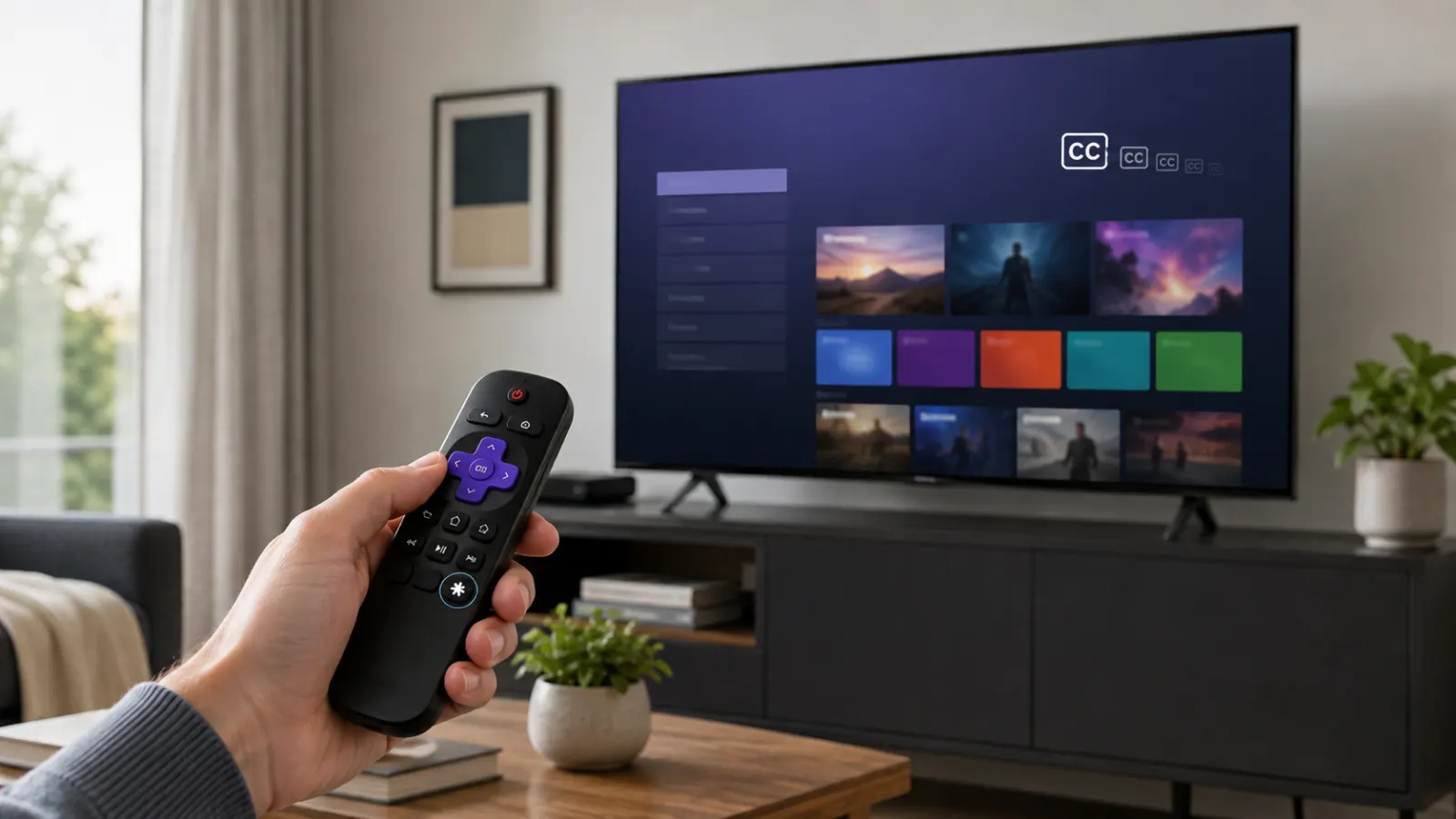
Closed captions can help you follow dialogue, but you may not want text covering the screen during every movie or show. The quickest way to turn them off is to press the Star button while a video is playing, open Closed captioning, and select Off.
You can also disable captions across your Roku device through Settings > Accessibility > Captions mode > Off. Some streaming apps manage subtitles separately, so you may need to turn them off inside the app as well. Roku Support
Quick Answer
To turn off closed captions on Roku:
- Press the Home button on your Roku remote.
- Select Settings.
- Select Accessibility. If Accessibility does not appear, select Captions.
- Open Captions mode.
- Select Off.
Roku defines the Off setting as the mode in which captions never appear through the device caption system. Apps that use their own subtitle controls may not follow this setting.
Turn Off Closed Captions During a Show
You do not always need to return to the Roku home screen. Many apps let you change the caption setting while a movie or episode is playing.
- Start playing the movie, show, or video.
- Press the Star button on your Roku remote.
- Scroll to Closed captioning.
- Select Off.
- Close the Options menu and continue watching.
The Star button opens Roku’s Options menu during playback. Roku notes that not every streaming app makes the closed-caption option available through this menu.
What Does the Star Button Look Like?
The Star button displays an asterisk-shaped symbol. It normally sits below and to the right of the directional pad on a Roku remote.
If you use the Roku mobile app as your remote, open the virtual remote and tap the Options button, which also uses the Star symbol. The mobile remote includes the Options control, although the available controls can vary by Roku device.
Turn Off Captions from the Roku Home Screen
Use the main Settings menu if captions appear across several apps or return whenever you start another video.
- Press Home on the remote.
- Scroll down and select Settings.
- Select Accessibility.
- Select Captions mode.
- Choose Off.
On some Roku models or software layouts, Captions may appear directly under Settings instead of inside Accessibility. Roku officially documents both menu arrangements.
This change controls apps that use Roku’s system-level caption settings. If captions remain visible in one particular service, that app probably uses a separate subtitle menu.
Understanding Roku Caption Modes
Selecting the right mode can prevent captions from appearing unexpectedly.
Off
Captions stay hidden in apps that follow the Roku device setting.
On Always
Captions appear whenever the program and streaming provider make them available.
On Replay
Captions appear after you press the Instant Replay button on supported content. This mode can make captions seem to appear unexpectedly after you replay a scene.
On Mute
Captions appear when you mute the volume. Roku states that this option is not available on every device. Roku’s developer documentation identifies On mute as a Roku TV setting.
If you want captions completely disabled, select Off, not On replay or On mute.
Why Closed Captions Keep Turning On
Captions can remain on even after you change the Roku setting. The cause often depends on whether the text appears everywhere or only inside one app.
The Streaming App Uses Its Own Subtitle Setting
Some apps manage captions within their own playback menus and do not follow the setting saved on your Roku device. Roku recommends checking both the app controls and Settings > Accessibility > Captions mode.
While the video is playing:
- Open the app’s playback menu.
- Look for Audio, Subtitles, Captions, CC, or a speech-bubble icon.
- Set subtitles or captions to Off.
- Resume the video and check the screen.
The exact names and menu positions depend on the streaming service and its current app design.
On Replay Is Enabled
If captions appear only after you jump backward, your Roku may use On replay mode. Change the caption mode to Off through the playback Options menu or the main Accessibility settings. Roku documents On replay as a mode that shows captions after the Replay button is pressed on supported content.
On Mute Is Enabled
If captions appear whenever you silence the television, check whether On mute is selected. Change the mode to Off if you do not want captions connected to the mute control. Roku notes that the On mute option is not available on all devices.
The Setting Is Saved to an App Profile
Some streaming features, including caption preferences, may be saved separately for individual profiles. If the setting keeps changing, confirm that you are watching through the same profile each time.
Only One Show Has the Problem
Test another movie or episode in the same app. Then open a different app and play another video. Roku recommends these comparisons because they help identify whether the issue affects one title, one app, or the entire device.
How to Turn Off Subtitles in a Specific Roku App
Closed captions and subtitles may appear under different menu names. Roku controls system captions, while individual streaming services may provide their own audio and subtitle controls.
Use this general method:
- Open the affected streaming app.
- Play a movie or episode.
- Press the Star button.
- Look for Closed captioning, Captions, Subtitles, Audio and subtitles, or Language.
- Select Off under the caption or subtitle option.
- Return to the video.
If the Star button does not display a caption option, open the playback controls or the app’s settings menu. Roku confirms that some apps use their own caption settings and skip the Roku device setting.
Because streaming apps can update their interfaces independently, I cannot confirm one permanent menu path that applies to every app.
Turn Off Captions Without a Physical Roku Remote
You can use the official Roku mobile app as a virtual remote.
- Install and open the Roku mobile app.
- Sign in and connect it to your Roku device.
- Open Remote.
- Start playing your content.
- Tap the Options button with the Star symbol.
- Open the caption setting and choose Off.
Roku states that its mobile app can connect to a Roku streaming player or Roku TV and provide remote controls such as Options, playback, navigation, mute, and volume. Some controls depend on the connected device.
You can also use the virtual remote to reach the main setting:
Home > Settings > Accessibility > Captions mode > Off
What to Do If the Caption Option Is Missing
The caption control may not appear in every playback menu. Roku specifically notes that not all apps support changing captions through the Roku Options menu.
Try these steps:
- Return to the Roku home screen.
- Open Settings.
- Check Accessibility for Captions mode.
- If Accessibility is missing, look for a separate Captions menu.
- Set the mode to Off.
- Reopen the streaming app.
- Check the app’s own subtitle or language menu.
If the problem affects only one service, consult that service’s help information. Roku recommends contacting the streaming provider when captions or other playback features fail only in its app.
Troubleshooting Captions That Will Not Turn Off
Work through these checks in order and test the video after each one.
1. Confirm the System Setting
Go to:
Settings > Accessibility > Captions mode > Off
If your device does not list Accessibility, open:
Settings > Captions > Captions mode > Off
Both paths appear in Roku’s official caption instructions.
2. Check the App Setting
Play the affected video and open its caption or subtitle controls. Turn off the active subtitle track inside the app.
This check matters because some apps do not use the caption preference stored by Roku OS.
3. Try Another Video
Play another show in the same app. If captions appear on only one title, the issue may relate to that video or its available tracks.
Next, play content in another app. If captions appear everywhere, inspect the Roku system setting again. Roku recommends testing different shows, locations within an app, apps, and devices to isolate feature problems.
4. Check for App Updates
From the Home screen:
- Highlight the affected app.
- Press the Star button.
- Select Check for updates.
- Install an update if Roku finds one.
Roku includes this step in its official troubleshooting process for streaming app features.
5. Update the Roku Device
Go to:
Settings > System > Software update > Check now
Allow the update to finish before testing the caption setting again. This is Roku’s documented path for manually checking device updates.
6. Restart the Device
For a Roku player, go to:
Settings > System > System restart
For a Roku TV, go to:
Settings > System > Power > System restart
Roku also states that you can unplug the device, wait a few seconds, and reconnect it.
7. Reinstall the Affected App
If captions remain stuck in one app:
- Highlight the app on the Home screen.
- Press the Star button.
- Select Remove channel.
- Confirm the removal.
- Restart your Roku device.
- Add the app again from the Roku Streaming Store.
Roku recommends restarting the device between removing and adding the app again.
Closed Captions, Subtitles, and the Screen Reader
These features serve different purposes.
Closed captions display a text transcription of supported video audio. The program must provide caption data for it to appear.
Subtitles commonly present spoken dialogue as text, sometimes in another language. A streaming app may place subtitles and captions in the same selection menu.
The Roku screen reader is a separate text-to-speech accessibility feature that reads menus and other interface items aloud. Pressing the Star button four times quickly can activate or deactivate its remote shortcut.
If your Roku is speaking menu items aloud rather than displaying text over a video, turn off the screen reader instead of changing Captions mode.
How to Avoid Changing the Wrong Setting
A few simple checks can save time:
- Choose Off if you want no captions.
- Do not choose On replay unless you want temporary captions after replaying a scene.
- Do not choose On mute unless you want captions whenever the volume is muted.
- Check the app’s subtitle menu if captions remain in only one service.
- Check the correct user profile if the preference keeps returning.
- Treat spoken menu narration as a screen reader issue, not a closed-caption issue.
Roku documents Off, On always, On replay, and On mute as the available system modes, although On mute is not available on every device.
Final Steps
The simplest way to turn off closed captions on Roku is to open Settings > Accessibility > Captions mode and select Off. You can also press the Star button during playback and disable closed captioning without leaving the video.
If the text remains on screen, check the streaming app’s subtitle settings. Apps that manage their own captions may ignore the setting saved on your Roku device. Roku Support
Frequently Asked Questions
How do I turn off closed captions on my Roku TV?
Press Home and open Settings > Accessibility > Captions mode > Off. If Accessibility is not listed, open Settings > Captions instead.
How do I turn off captions while watching a show?
Press the Star button during playback, select Closed captioning, and choose Off. This option may not appear in every streaming app.
Why are captions still showing after I selected Off?
The streaming app may use its own subtitle preference instead of the Roku system setting. Open the app’s playback menu and disable captions or subtitles there.
Why do captions appear only after I rewind?
Your Captions mode may be set to On replay. Change it to Off if you do not want captions after using Instant Replay.
Why do captions appear when I mute my Roku TV?
The caption setting may be On mute. Select Off to prevent captions from appearing with muted audio. Roku notes that On mute is not available on every Roku device.
Can I turn off Roku captions with my phone?
Yes. The Roku mobile app provides a virtual remote with an Options button. Connect the app to your Roku device, open the remote, and use it to access the playback or system caption settings. Available mobile controls can vary by device.
Is closed captioning the same as the Roku screen reader?
No. Closed captions place text from a video’s audio on the screen. The screen reader speaks Roku interface elements aloud for users who are blind or have low vision.
Will turning captions off affect every streaming app?
It affects apps that use Roku’s device-level caption setting. Apps with independent subtitle controls may require a separate change inside the app.
Should I contact Roku or the streaming service?
Contact the streaming service if the caption problem happens only in its app. If the issue affects several apps or the Roku menus, check the device settings and Roku troubleshooting options.