
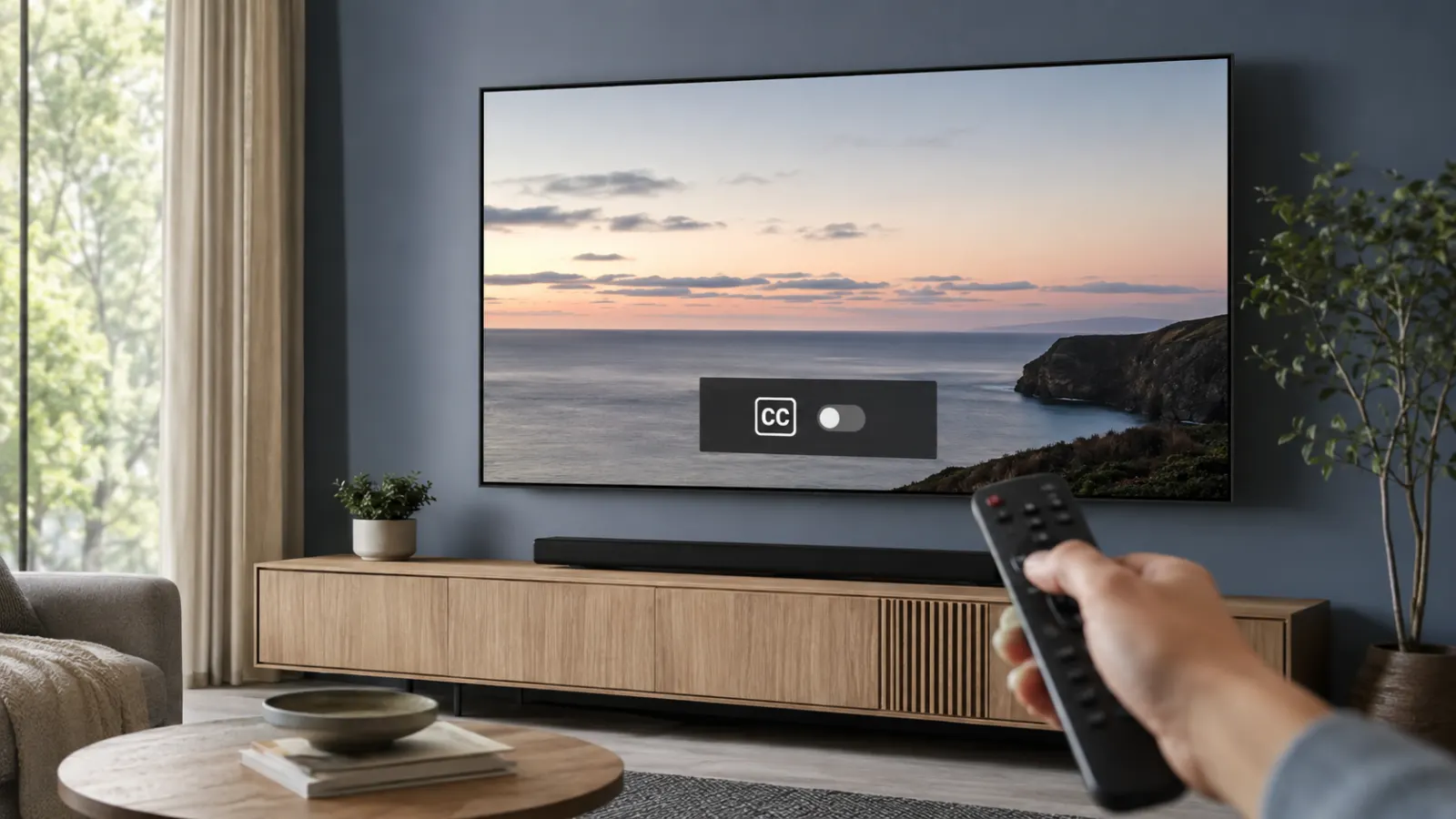
Closed captions usually turn off through the CC, Subtitles, or Audio and Subtitles menu inside the video player. Start playing the video, open the playback controls, select the caption icon, and choose Off.
If the words remain on the screen, captions may be enabled through your television, streaming device, cable box, phone, or accessibility settings instead of the app. The instructions below explain how to find and disable each setting.
Quick Answer: How Do You Turn Off Closed Caption?
Try these steps first:
- Play the movie, show, or video.
- Press OK, Select, Up, Down, or Pause on your remote.
- Look for CC, Captions, Subtitles, or Audio and Subtitles.
- Select Off or None.
- Resume the video to confirm that the text has disappeared.
On a phone, tablet, or computer, tap or click the video to display the playback controls. Then select the CC or speech bubble icon and turn captions off.
If this does not work, check the settings on every device involved. For example, captions may come from the Netflix app, a Roku player, a cable box, or the television itself.
Closed Captions, Subtitles, and Open Captions Explained
These terms often appear together, but they do not always describe the same thing.
Closed captions
Closed captions display spoken dialogue and may also identify speakers, music, background sounds, or other important audio. Viewers can normally turn them on or off.
Subtitles
Subtitles usually display dialogue as text. They may translate dialogue into another language or show dialogue in the same language. Streaming apps sometimes use the words subtitles and captions interchangeably in their menus.
Open captions
Open captions form part of the video image. You cannot disable them through a television or app menu because the video creator permanently added them to the picture. Samsung’s support guidance also distinguishes open captions from closed captions and confirms that viewers cannot turn off open captions.
If no caption setting removes the words, you may be watching open captions, translated dialogue added by the filmmaker, or text embedded in the video.
How to Turn Off Closed Caption on a Smart TV
Your television menu may use Caption, Closed Caption, CC, Subtitles, or Accessibility.
A common path looks like this:
- Press Home or Settings on the television remote.
- Open All Settings.
- Select Accessibility.
- Find Captions, Closed Caption, or Subtitle Settings.
- Change the setting to Off.
Television menus differ by brand, model, region, and software version. If you cannot find the option, search the settings menu for caption, subtitle, hearing, or accessibility controls.
Turn off closed captions on a Samsung TV
On many current Samsung televisions:
- Press Home on the Samsung remote.
- Open Settings.
- Select General.
- Choose Accessibility.
- Open Caption Settings.
- Select Caption to turn it off.
Samsung lists this menu path in its current accessibility instructions. Samsung Support
Some models may place accessibility under General and Privacy instead of General. Older televisions may use Menu, followed by Setup or Function, and then Caption.
If the option is unavailable or captions remain visible, the text may come from a connected cable box, streaming player, or app.
Turn off closed captions on an LG TV
The menu path depends on the version of webOS installed on the television.
For many LG TVs released from 2021 onward:
- Press Settings on the remote.
- Select All Settings.
- Open General.
- Select Accessibility.
- Choose Closed Caption.
- Set it to Off.
On many models from 2020 or earlier, go to All Settings, Accessibility, and Closed Caption. LG also places the option under Hearing Features on some newer models. LG Support
Turn off captions on other television brands
On Sony, TCL, Hisense, Vizio, Philips, and other televisions, try one of these common routes:
- Settings > Accessibility > Captions
- Settings > System > Accessibility > Closed Captions
- Menu > Setup > Closed Caption
- Settings > Channels > Caption Settings
- Settings > Device Preferences > Accessibility > Captions
I cannot confirm one universal path for every model because menu names depend on the manufacturer and installed operating system. Check the television’s model specific manual if these routes do not appear.
How to Turn Off Captions on Roku
You can disable captions globally through Roku settings:
- Press Home on the Roku remote.
- Open Settings.
- Select Accessibility.
- Choose Captions mode.
- Select Off.
If Accessibility does not appear, Roku advises opening Captions directly from the Settings menu.
You may also change captions while watching supported content:
- Begin playing the video.
- Press the star shaped Options button on the Roku remote.
- Select Closed captioning.
- Choose Off.
Some Roku apps control captions through their own video players. If Roku captions are off but text remains, open the app’s subtitle menu. Roku confirms that an app may use its own caption settings instead of the device setting.
How to Turn Off Closed Caption on Fire TV
To disable captions while watching supported Fire TV content:
- Start playing the video.
- Press the Menu button on the Fire TV remote.
- Select Subtitles.
- Choose Off.
Amazon lists the Subtitles menu and Off option in its Fire TV caption instructions.
Individual streaming apps may use different playback controls. If the Fire TV menu does not remove the text, open the caption menu inside the app you are watching.
Do not confuse closed captions with Fire TV’s Text Banner accessibility feature. If a large rectangular information box appears instead of dialogue captions, go to Settings > Accessibility > Text Banner and switch it off.
How to Turn Off Closed Captions on Apple TV
To change the system caption preference on Apple TV 4K:
- Open Settings.
- Select Accessibility.
- Choose Subtitles and Captioning.
- Turn off Closed Captions and SDH.
Apple documents this path for Apple TV 4K.
You can also change subtitles during playback:
- Play the video.
- Display the playback controls.
- Open the subtitles or audio menu.
- Select Off for subtitles.
Apple TV 4K may automatically show subtitles after you mute the sound or skip backward. You can adjust those preferences under Settings > Video and Audio > Automatic Subtitles.
How to Turn Off Captions on Netflix
The exact controls differ slightly by device, but the general method is:
- Open Netflix.
- Play a movie or episode.
- Display the playback controls.
- Select Audio and Subtitles.
- Under Subtitles, choose Off.
- Return to the video.
On phones, tablets, and computers, tap or click the screen to display the controls. On smart TVs, game consoles, cable boxes, and streaming players, press the up or down arrow on the remote. Netflix provides these device control methods in its help guidance.
You may still see translated text during scenes spoken in another language. Netflix explains that some titles display subtitles for foreign language dialogue even when the regular subtitle setting is off.
If Netflix captions refuse to disappear, check the accessibility settings on your television, streaming device, or game console. Netflix specifically notes that device level caption settings can keep captions visible after viewers disable them in the app.
How to Turn Off Subtitles on Prime Video
On a smart TV or supported streaming device:
- Start the Prime Video title.
- Open the playback menu.
- Select the Closed Caption or Subtitles icon.
- Change Subtitles to Off.
- Close the menu and continue watching.
Amazon confirms that supported Prime Video titles provide an on screen caption or subtitle icon for turning subtitles on or off. Amazon Prime Video Help
If Prime Video captions remain visible, inspect the device’s accessibility settings as well.
How to Turn Off Closed Captions on YouTube
On a computer
- Open the YouTube video.
- Move the pointer over the player.
- Click the CC button at the bottom of the video.
- Click it again if captions remain active.
YouTube confirms that the CC button switches available captions on and off.
You can also press C on a computer keyboard while the video player is active. This shortcut may not work if you are typing in a search box, comment field, or another text area.
On an Android phone or tablet
- Tap the video once.
- Find the CC icon in the player controls.
- Tap it to turn captions off.
The CC icon only appears when captions are available for that video.
On an iPhone or iPad
- Tap the playing video to display its controls.
- Tap the CC icon.
- Confirm that captions are off.
If captions automatically appear across supported apps, check iPhone or iPad Settings > Accessibility > Subtitles and Captioning > Closed Captions and SDH. YouTube and Apple both identify this as the device level caption preference.
On a smart TV or streaming device
- Play the YouTube video.
- Press Up, Down, OK, or Select to show the player controls.
- Select CC or open Settings.
- Choose Captions.
- Select Off.
The buttons and menu layout can differ across television platforms.
How to Turn Off Captions on an iPhone or iPad
For captions enabled through iOS or iPadOS:
- Open Settings.
- Select Accessibility.
- Scroll to the Hearing section.
- Tap Subtitles and Captioning.
- Turn off Closed Captions and SDH.
This changes the preference for supported video apps. It may not override captions selected directly inside every streaming service.
If you see live transcriptions outside a video player, check whether a separate accessibility feature or app is producing them.
How to Turn Off Captions on a Computer
In a web browser
Most video websites place a CC, speech bubble, or settings icon inside the player.
- Move the pointer over the video.
- Click CC, Subtitles, or Settings.
- Select Off or None.
If the captions appear on every website, check the accessibility settings in your operating system or browser.
On a Mac
To stop supported apps from preferring closed captions:
- Open the Apple menu.
- Choose System Settings.
- Select Accessibility.
- Under Hearing, choose Captions.
- Turn off Prefer closed captions and SDH.
Apple provides this setting for macOS.
On Windows
Caption controls can come from Windows, the browser, a media player, or the streaming website. First disable captions inside the video player. If the text remains, open Windows Accessibility settings and inspect the caption or live caption options available on your version of Windows.
I cannot confirm one identical menu path for every supported Windows release because Microsoft may change settings between versions.
How to Turn Off Captions on Cable or Satellite TV
A television connected to a cable or satellite receiver can receive captions from two places:
- The television
- The cable or satellite box
First turn captions off through the receiver:
- Press Menu, Settings, or Options on the receiver remote.
- Open Accessibility, Preferences, or Language.
- Select Closed Captioning.
- Choose Off.
If the captions remain, repeat the process in the television’s settings.
Samsung also advises checking the cable box when television settings do not remove captions, since the connected box may generate the text.
Menu names differ among cable and satellite providers, so use the receiver’s official manual if the setting is difficult to locate.
Why Won’t Closed Captions Turn Off?
When captions remain after you select Off, one of these issues usually explains the problem.
The captions come from another device
Your app, streaming player, cable box, and television can each have separate caption settings. Turn captions off at the source that produces the video signal.
The streaming app has its own setting
Some apps ignore or supplement the television’s global setting. Open the playback menu inside the app and choose Subtitles Off.
Your profile saved the caption preference
A streaming service may remember language and subtitle choices for a profile. Confirm that you are using the same profile, disable captions, and play the video for a short period so the preference can save.
The video contains open captions
Text embedded in the image cannot be disabled. Test another program. If the captions disappear on the second video, the first video probably contains permanent text.
The text only appears during foreign language dialogue
Some movies and shows include forced narrative subtitles to translate dialogue that differs from the title’s main language. Netflix confirms that this text may appear even when subtitles are turned off.
Captions are enabled through accessibility settings
Check the Accessibility menu on your phone, computer, television, game console, or streaming device.
The application did not apply the change
Close and reopen the app after switching captions off. If the problem continues, restart the device and check for available app or system updates.
A Simple Troubleshooting Order
Follow this order to avoid changing unrelated settings:
- Turn captions off in the current video player.
- Check the streaming app’s main settings.
- Check the streaming device or cable box.
- Check the television’s Accessibility menu.
- Test a different video or channel.
- Close and reopen the app.
- Restart the television or streaming device.
- Consult the official manual for your exact model.
Testing another video matters because it helps distinguish selectable closed captions from permanent open captions or translated dialogue.
Common Mistakes to Avoid
Changing caption style instead of caption mode
Font, color, size, and background controls only change the appearance of captions. Find the main Caption or Subtitle switch and select Off.
Using the wrong remote
If you watch through Roku, Fire TV, Apple TV, or a cable box, use that device’s remote first. The television remote may only control the TV’s own caption setting.
Confusing captions with audio description
Audio description narrates visual action through sound. It is not an on screen caption feature. Look under audio or language settings if you hear narration.
Confusing captions with a screen reader
A screen reader speaks menu items aloud. Turning off subtitles will not disable it. Look for Voice Guide, VoiceView, or Screen Reader in Accessibility settings.
Assuming every line of text can be removed
Program titles, names, scoreboards, creator added text, translated dialogue, and open captions may form part of the picture.
Final Answer
If you are wondering how do you turn off closed caption, start with the video player. Open CC, Captions, or Audio and Subtitles, then choose Off. If the text remains, check the streaming app, connected player, cable box, and television Accessibility settings in that order.
Captions that still cannot be removed are often open captions, required translations, or text embedded directly in the video.
Frequently Asked Questions
What button turns off closed caption?
Look for a CC button on the remote or video player. If there is no dedicated button, press Options, Menu, OK, Up, or Down, then choose Captions or Subtitles and select Off.
Why are subtitles showing when closed captions are off?
The app may have a separate subtitle setting, the content may include foreign language translations, or the text may be permanently embedded. Check the app menu and test another video.
Can I turn captions off permanently?
Many devices provide a global caption setting under Accessibility. However, individual apps and profiles may save their own subtitle preferences, so no single setting controls every possible source.
Why do captions come back on the next episode?
The app may save captions by title, profile, language, or device. Disable them during playback, confirm the correct profile, and reopen the app if the preference does not save.
Why is the caption option grayed out?
The television may not control captions for the current HDMI source. Open the settings on the connected streaming player, game console, or cable box instead. Older Samsung guidance specifically notes that the available caption controls may depend on the selected input.
How do I remove words that are part of the video?
You cannot remove open captions or creator added text with the CC setting. You would need another version of the video that does not contain embedded text.
Does turning captions off affect every user?
Not necessarily. Some services store subtitle preferences by profile, while device accessibility settings may affect every app that follows them.
Can I turn captions off without a remote?
You may be able to use the television’s physical controls, its official mobile remote app, or the streaming service’s phone app. Availability depends on the device model.
1 thought on “How Do You Turn Off Closed Caption? Easy Steps for Any Device”