
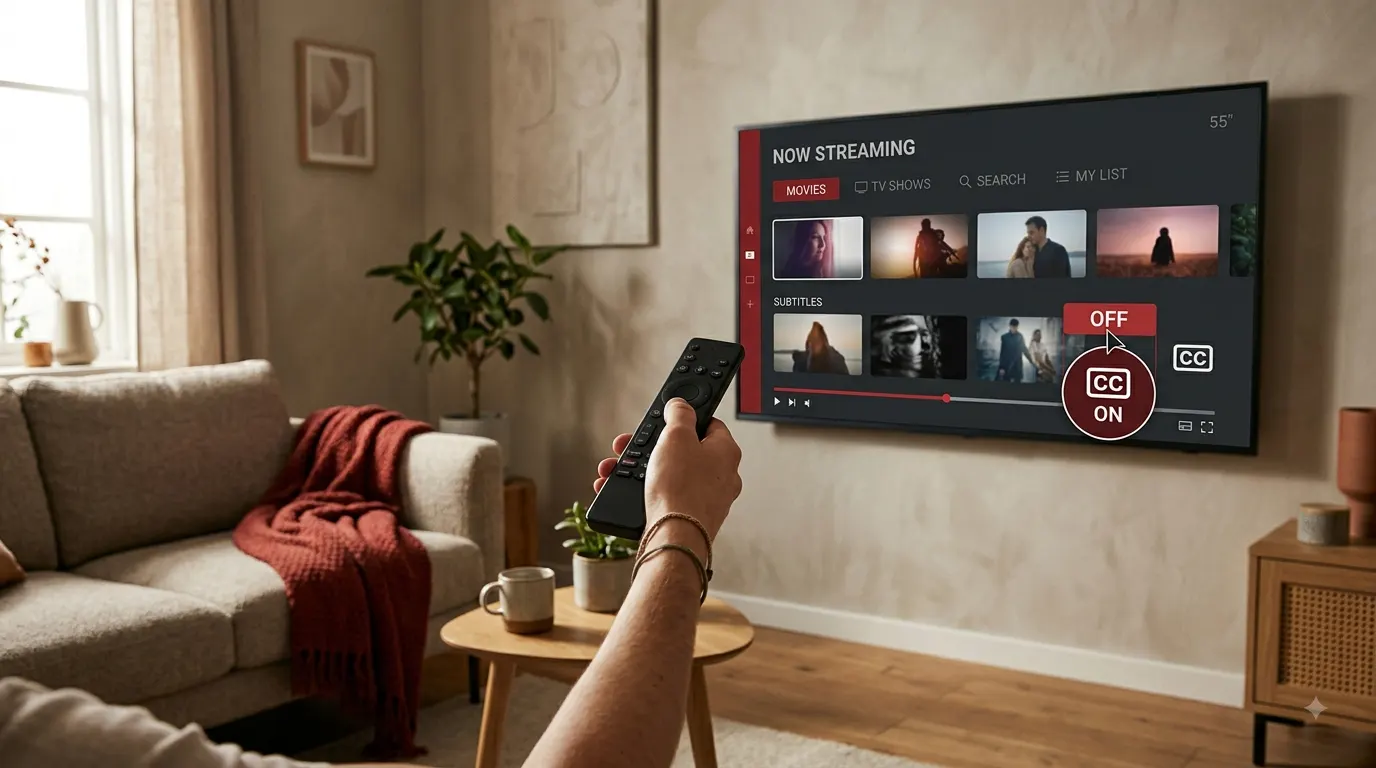
Closed captions can make dialogue easier to follow, but you may not want text covering the screen during every movie or episode. To turn off closed caption on Netflix, start playing a title, open the Audio & Subtitles menu, and select Off under Subtitles.
The controls look slightly different on a smart TV, phone, computer, streaming stick, or game console. This guide covers each device and explains what to do when Netflix captions refuse to disappear.
Quick Answer
Follow these basic steps to turn off Netflix closed captions:
- Open Netflix.
- Play a movie or TV show.
- Open the playback controls.
- Select Audio & Subtitles.
- Choose Off under Subtitles.
- Return to the video and continue watching.
On a television or streaming device, press the up or down arrow on your remote while the video plays. On a phone, tablet, or computer, tap or click the screen to reveal the controls. Netflix places the Audio & Subtitles option at either the top or bottom of the player, depending on the device.
How to Turn Off Closed Caption on Netflix on a Smart TV
The following method works with most modern smart TVs that support the Netflix app, including many Samsung, LG, Sony, TCL, Hisense, and Vizio models.
- Open the Netflix app on your television.
- Choose your profile.
- Start playing a movie or episode.
- Press the up or down arrow on the TV remote.
- Find Audio & Subtitles or the speech bubble icon.
- Move to the Subtitles section.
- Select Off.
- Press Back or Play to return to the video.
Some television versions show the available audio and subtitle languages directly at the bottom of the screen instead of displaying a separate icon. Select Off from that menu if you see it.
If You Cannot Find Audio & Subtitles on Your TV
Pause the video first and check the player controls at the bottom of the screen. Depending on your television and Netflix app version, the subtitle control may appear as:
- Audio & Subtitles
- Other
- A speech bubble
- A dialogue icon
- The name of the current subtitle language
Do not confuse the subtitle menu with Subtitle Appearance. Appearance settings change the size and style of the text, but they do not turn captions off.
How to Turn Off Netflix Captions on Samsung TV
On most supported Samsung smart TVs:
- Launch Netflix.
- Play the title that shows captions.
- Press the up or down arrow on the Samsung remote.
- Open Audio & Subtitles.
- Highlight Off under Subtitles.
- Select it and resume the video.
If you use a Samsung Smart Remote with limited buttons, press the center button or directional pad while the title plays. This should reveal the Netflix playback controls.
Captions Will Not Turn Off on an Older Samsung TV
Netflix identifies a known problem affecting some 2011 and 2012 Samsung smart TVs. On those devices, captions may remain visible even after you select None or Off. Netflix recommends using another supported device because the issue involves an older version of its television app.
How to Turn Off Closed Captions on LG Smart TV
The Netflix controls on an LG television usually appear inside the Netflix player rather than the main TV settings.
- Open Netflix on your LG TV.
- Play a movie or episode.
- Press the up or down direction on the Magic Remote.
- Open Audio & Subtitles.
- Select Off under the subtitle options.
- Close the menu and resume playback.
If captions remain after you select Off, check whether the LG television has its own accessibility captions enabled. Device-level caption settings can affect more than one application, while Netflix settings apply inside Netflix.
How to Remove Netflix Captions on Roku
Netflix runs as a channel on Roku, but you can normally turn captions off through the Netflix playback menu.
- Open the Netflix channel on Roku.
- Start the movie or episode.
- Press the up or down arrow on the Roku remote.
- Select Audio & Subtitles.
- Choose Off from the subtitle list.
- Return to the video.
If the text remains on the screen, press the star button on the Roku remote while the video plays and check Roku’s accessibility or caption options. Roku’s system setting may control captions separately from the selection inside Netflix.
How to Turn Off Netflix Captions on Amazon Fire TV Stick
Use your Fire TV remote while a Netflix title is playing:
- Open Netflix on your Fire TV Stick.
- Start the title.
- Press the up or down direction on the remote.
- Select Audio & Subtitles.
- Choose Off under Subtitles.
- Press Back and continue watching.
If captions remain visible in multiple streaming apps, inspect the Fire TV accessibility settings. A device-level caption preference may affect more than Netflix.
How to Turn Off Captions on Apple TV
Netflix’s official instructions say to swipe up or press the up arrow on the Apple TV remote while a title plays. Netflix Help Center
- Open Netflix on Apple TV.
- Start a movie or TV episode.
- Swipe up or press the up arrow on the remote.
- Open Audio & Subtitles.
- Select Off under Subtitles.
- Close the menu and resume the video.
Apple TV accessibility settings may also influence captions. If the text appears in several apps, check the subtitle and caption options in the Apple TV Settings app.
How to Turn Off Closed Caption on Netflix on iPhone
You can remove captions without leaving the video:
- Open the Netflix app on your iPhone.
- Play a movie or episode.
- Tap anywhere on the video.
- Tap Audio & Subtitles.
- Select Off under Subtitles.
- Tap the close button or return to the video.
The same process works on an iPad.
If the captions return only on a particular title, reopen its Audio & Subtitles menu and confirm that Off remains selected.
How to Turn Off Netflix Captions on Android
The Netflix Android app places the controls inside the video player.
- Open Netflix on your Android phone or tablet.
- Start the title you want to watch.
- Tap the screen once.
- Select Audio & Subtitles.
- Tap Off in the Subtitles section.
- Close the menu and continue watching.
Selecting another language changes the caption language. It does not disable the captions. Make sure you choose Off rather than English, English CC, English SDH, or another language.
How to Turn Off Closed Captions on a Computer
These instructions apply when watching Netflix through a supported web browser on a Windows computer, Mac, or Chromebook.
- Visit Netflix and sign in.
- Open your profile.
- Play a movie or episode.
- Move the mouse over the video.
- Click the Audio & Subtitles icon.
- Select Off under Subtitles.
- Move the pointer away and continue watching.
The icon commonly resembles a speech bubble. It appears among the playback controls when you move the pointer over the video.
Turning Off Captions in the Netflix Windows App
The process is similar in the Netflix app:
- Start playing a title.
- Click or tap the screen.
- Open Audio & Subtitles.
- Select Off.
- Return to playback.
How to Turn Off Netflix Captions on PlayStation
Netflix groups PlayStation with gaming systems in its general device instructions. Pressing the up or down direction while a title plays should reveal the audio and subtitle controls.
- Launch Netflix on your PlayStation.
- Play a movie or episode.
- Press up or down on the controller.
- Select Audio & Subtitles.
- Choose Off under Subtitles.
- Return to the title.
If captions appear outside Netflix or in other streaming applications, check the PlayStation accessibility settings.
How to Turn Off Netflix Captions on Xbox
On a current Xbox console:
- Open the Netflix app.
- Start playing a title.
- Press up or down on the controller.
- Open Audio & Subtitles.
- Select Off under Subtitles.
- Resume the video.
Xbox Captions Stay On After You Select Off
Netflix provides separate troubleshooting instructions for older Xbox systems because console-level closed captions may override the selection inside the app.
For Xbox One:
- Open the Xbox Settings menu.
- Select Ease of Access.
- Select Closed Captioning.
- Choose Closed Captioning Off.
- Save the setting.
- Return to Netflix and test the video.
For Xbox 360:
- Open Settings.
- Select System.
- Select Console Settings.
- Select Display.
- Select Closed Captioning.
- Select Off.
- Save the setting and reopen Netflix.
These paths come from Netflix’s official troubleshooting instructions.
Why Netflix Captions May Still Appear After You Turn Them Off
Selecting Off should remove optional captions, but several situations can make text remain on the screen.
The Scene Uses Forced Subtitles
A show may display subtitles for dialogue spoken in a language different from the title’s original language. Netflix states that this text may appear even when subtitle settings are off.
These subtitles provide information needed to understand the scene. You may not have a separate option to remove them.
Your Device Has Its Own Caption Setting
Televisions, streaming devices, and game consoles can have system-level accessibility settings. If captions appear in several apps, inspect the accessibility or closed-caption menu on the device itself.
This issue differs from Netflix’s subtitle selection. Turning captions off in Netflix changes the title’s playback option, while changing the device setting may affect multiple apps.
The Preference Did Not Save to Your Profile
Netflix says subtitle and audio preferences may not save when you watch most Kids titles from an adult profile. To save the preference, Netflix recommends playing a title with a Teens or higher maturity rating for two to three minutes after choosing the desired audio and subtitle settings. Preferences should save normally when you watch through a Kids profile.
You Selected a Subtitle Language Instead of Off
Options such as English, English CC, and English SDH keep text on the screen. Return to Audio & Subtitles and select Off.
The Netflix App Needs to Reload
If the selection does not take effect on a smart TV:
- Return to the Netflix home screen.
- Press Back to open the menu.
- Find Get Help.
- Select Reload Netflix.
- Open the title and test the setting again.
Netflix provides Reload Netflix as an official troubleshooting step when subtitle changes do not appear on a smart TV.
An Older App or Device Has a Compatibility Problem
Older devices may use Netflix app versions that no longer behave like the current player. The known 2011 and 2012 Samsung TV issue is one example. If Netflix identifies no working fix for the device, try a current streaming stick, game console, smart TV, phone, tablet, or computer.
Closed Captions, Subtitles, and SDH Explained
These labels may appear similar, but they do not always provide the same information.
Subtitles
Standard subtitles show spoken dialogue as text. Viewers often use them to understand dialogue in another language.
Closed Captions
Closed captions include dialogue and may also identify relevant sounds, music, or speakers. Netflix describes closed captions as dialogue plus descriptions of sounds heard in the movie or show.
SDH
SDH means Subtitles for the Deaf and Hard of Hearing. These subtitles may include dialogue, speaker identification, music information, and important sound descriptions. Netflix places an SDH badge on the details pages of supported titles, although availability can differ between seasons and episodes.
Choosing Off disables the optional subtitle or caption track regardless of whether it carries standard subtitles, CC, or SDH.
Do You Need to Change Subtitle Appearance?
You do not need to edit the font, size, shadow, or background to turn captions off. Those controls only change how subtitles look when enabled.
Netflix allows subtitle appearance changes through profile settings in a web browser. Some TVs and streaming devices also provide limited Size and Style controls inside the player. Availability varies by device and language.
Use the Audio & Subtitles menu and select Off if your only goal is removing the text.
Common Mistakes to Avoid
Changing the Audio Track
Audio and subtitles appear in the same menu, but they control different features. Changing English audio to another language will not remove captions.
Choosing English Instead of Off
English, English CC, and English SDH are active text tracks. Select Off to remove them.
Looking Only in Account Settings
Netflix lets you manage profile languages and subtitle appearance from your account, but the quickest way to turn captions off is through the controls while a title plays.
Adjusting Font Size to the Smallest Option
A smaller font still leaves captions enabled. Open the subtitle track menu and select Off.
Mistaking Audio Description for Captions
Audio description is spoken narration that describes visual action. It is an audio feature, not on-screen text. If you hear narration, select an audio track that does not include Audio Description.
How to Make Netflix Remember That Captions Are Off
Use these steps if captions keep returning:
- Sign in to the correct Netflix profile.
- Play a title rated Teens or above.
- Open Audio & Subtitles.
- Select Off.
- Continue playing the title for at least two to three minutes.
- Close Netflix normally.
- Reopen the app and test another title.
Netflix specifically recommends using a title rated Teens or above for two to three minutes when a preference does not save after watching Kids content from an adult profile.
Remember that each profile can keep its own preferences. If another person uses a different profile, changing captions there may not change your profile.
Final Steps
To turn off closed caption on Netflix, play the title, open Audio & Subtitles, and select Off. Tap the screen on mobile devices and computers, or press up or down on a television remote, streaming remote, or game controller.
If captions stay visible, check the device’s accessibility settings, reload Netflix, and test another title. Text used to translate foreign-language dialogue may remain because it forms part of the viewing experience.
Frequently Asked Questions
Where is the closed caption button on Netflix?
Start playing a title and reveal the playback controls. Tap or click the screen on a phone, tablet, or computer. Press up or down on a TV remote, streaming remote, or game controller. Then select Audio & Subtitles.
Why is there no Off option on Netflix?
Check the Subtitles column rather than the Audio column. If no Off option appears and text displays only during foreign-language dialogue, the title may use necessary or forced subtitles. Netflix confirms that some titles show this text even when subtitle settings are off.
Can I turn captions off permanently on Netflix?
Netflix can save subtitle preferences to a profile, but the selection may not carry over in every situation. Kids titles viewed through an adult profile may not save the preference. Device-level settings and required foreign-language subtitles can also affect what appears.
Why do captions come back on the next episode?
Confirm that you use the same Netflix profile, select Off again, and play a Teens or higher rated title for two to three minutes to save the preference. You should also check the device’s accessibility settings if captions appear in other apps.
Does turning off captions affect every Netflix profile?
Netflix connects many viewing preferences to individual profiles. Turning captions off on one profile should not be treated as a guaranteed account-wide change. Check the setting on the profile where captions appear.
How do I turn subtitles back on?
Play a title, open Audio & Subtitles, and choose the subtitle language you want. Available languages depend on the title, location, profile language preferences, and device.
What does English SDH mean on Netflix?
English SDH provides English dialogue and may include speaker names, music cues, and descriptions of important sounds for viewers who are deaf or hard of hearing.
Why do subtitles appear during only part of a movie?
The title may display text when characters speak a language different from the movie’s main language. Netflix notes that these subtitles can appear while regular subtitle settings remain off.
Can I turn off subtitles before starting a Netflix movie?
The most reliable method is to start the title and change the option through Audio & Subtitles. Netflix presents the available tracks for the title inside the player.
What should I do if captions will not turn off on any device?
Verify that Off is selected, reload the Netflix app, and test another title. If the issue continues across different supported devices, contact Netflix Support. Netflix asks users with unresolved caption problems on other devices to contact its support team.