
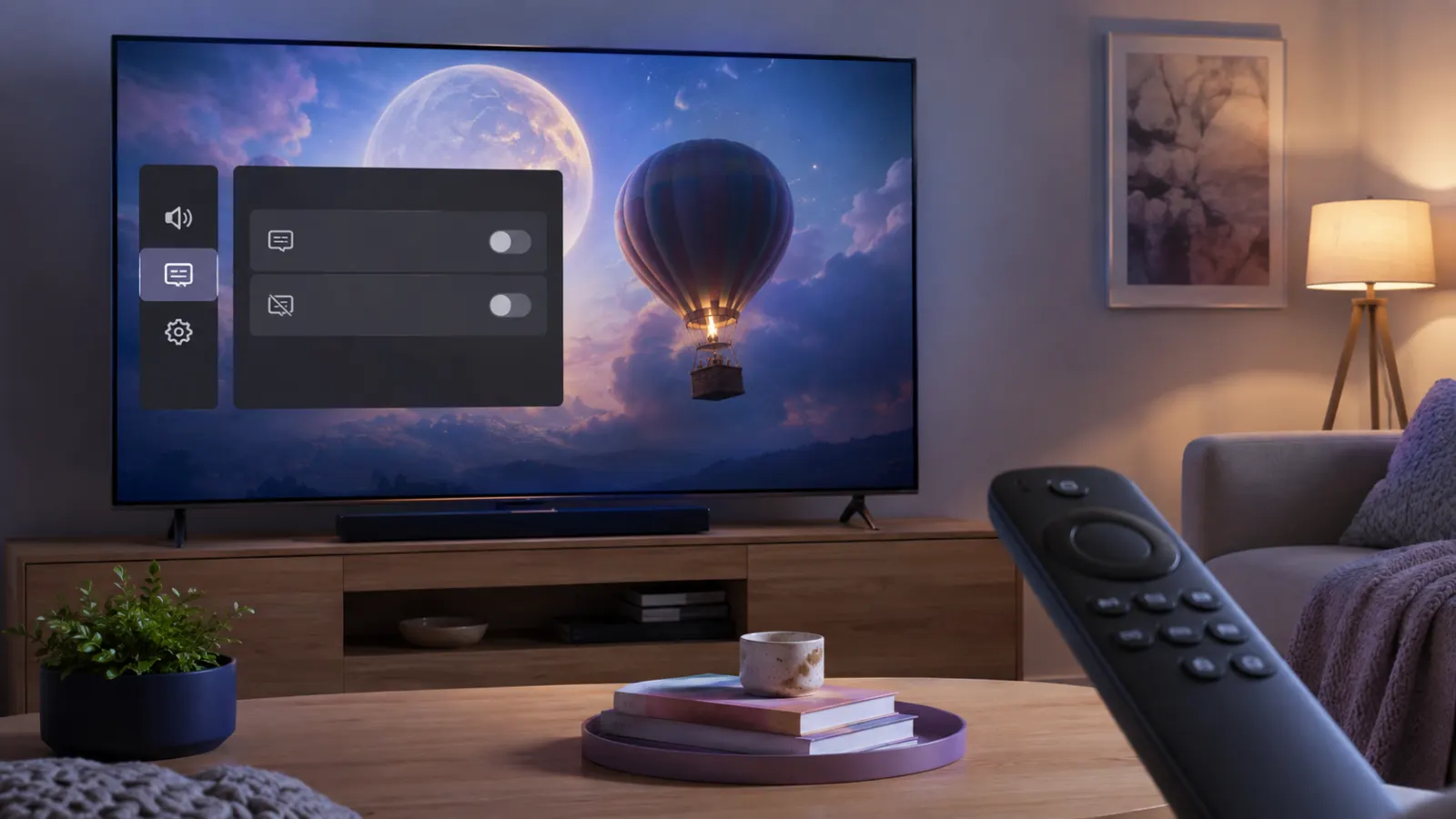
Captions can make dialogue easier to follow, but you may not want text covering the screen during every movie or episode. Disney+ lets you manage subtitles and closed captions from the video player on most supported devices.
The exact button may look slightly different on a phone, browser, smart TV, or streaming device. This guide explains how to turn off captions on Disney Plus across the most common platforms, including Roku, Fire TV, Apple TV, Samsung TV, LG TV, Chromecast, and gaming consoles.
Quick Answer: How Do You Turn Off Captions on Disney Plus?
Start playing a movie or episode, open the playback controls, and select the Audio and Subtitles icon. It often looks like a small keyboard or speech box. Under Subtitles, choose Off, then close the menu and continue watching.
Disney’s current instructions say viewers can manage audio, subtitles, and closed captions through the video player’s keyboard icon. The company also notes that language options vary by title and region. Disney+ Help Center
Use these general steps:
- Play any movie or episode on Disney+.
- Tap the screen, move your mouse, or press a direction button on your remote.
- Select the Audio and Subtitles icon.
- Find the Subtitles column.
- Select Off.
- Close the menu and return to the video.
If the captions remain visible, your device may have a separate system caption setting. The device-specific solutions below should help.
How to Turn Off Captions on Disney Plus on a Phone or Tablet
The Disney+ mobile app uses similar controls on Android phones, Android tablets, iPhones, and iPads.
On an iPhone or iPad
- Open the Disney+ app.
- Start playing a movie or episode.
- Tap the video once to reveal the player controls.
- Tap the Audio and Subtitles icon in the upper area of the screen.
- Look under Subtitles.
- Select Off.
- Tap the back arrow or close the menu.
The caption text should disappear immediately.
If captions remain on other supported video apps as well, check the iPhone or iPad accessibility settings:
- Open Settings.
- Select Accessibility.
- Tap Subtitles & Captioning.
- Turn off Closed Captions + SDH if you do not want accessible captions enabled by default.
Apple confirms that subtitle and caption controls are available during supported video playback.
On an Android Phone or Tablet
- Open Disney+ and play a title.
- Tap the video to display the playback controls.
- Select the Audio and Subtitles icon.
- Choose Off under Subtitles.
- Return to the video.
If a separate caption box remains on the screen after Disney+ subtitles are off, Android’s Live Caption feature may be active.
To disable it:
- Open your device Settings.
- Select Accessibility.
- Tap Live Caption.
- Turn off Use Live Caption.
On many Android phones, you can also press a volume button, tap the Live Caption symbol below the volume controls, and switch it off. Menu names can vary by device manufacturer and Android version. Google provides additional instructions for controlling Live Caption in its Android Accessibility Help guide.
How to Turn Off Disney Plus Captions in a Web Browser
These steps work when watching Disney+ through a supported browser on a Windows computer, Mac, Chromebook, or Linux device:
- Visit DisneyPlus.com and sign in.
- Start playing a movie or episode.
- Move your mouse over the video to reveal the controls.
- Click the Audio and Subtitles icon near the upper right corner.
- Find the Subtitles section.
- Click Off.
- Click the X or anywhere outside the menu.
You do not normally need to change your computer’s language or accessibility settings. The Disney+ player should save the selected subtitle preference, although behavior may differ between profiles, browsers, and app versions.
How to Turn Off Captions on a Smart TV
Most smart TV versions of Disney+ let you disable captions while a video is playing. Because remote controls differ, you may need to press Up, Down, OK, Enter, or the center selection button to reveal the controls.
Use this basic method first:
- Open Disney+ on your television.
- Play the movie or show with captions.
- Press Up, Down, OK, or Enter on the remote.
- Open Audio and Subtitles.
- Select Off under Subtitles.
- Return to playback.
If the Disney+ menu says subtitles are off but text remains visible, check the television’s accessibility settings.
On a Samsung Smart TV
Try turning the captions off inside Disney+ first. If that does not work, review the Samsung TV settings:
- Press Home on the Samsung remote.
- Open Settings.
- Select General or General & Privacy.
- Choose Accessibility.
- Open Caption Settings.
- Turn Caption off.
Samsung menu names can vary according to the television model and software version. If the Caption option is unavailable, return to the Disney+ video and use the app’s Audio and Subtitles menu.
On an LG Smart TV
To turn off Disney+ captions from the video player:
- Play a title in the Disney+ app.
- Press OK, Enter, or the center button on the LG remote.
- Open Audio and Subtitles.
- Select Off.
If the text remains:
- Press Settings on the remote.
- Open All Settings.
- Select Accessibility.
- Find Subtitles or Closed Captions.
- Switch the setting off.
The wording and location may differ across LG webOS versions.
On a Vizio Smart TV
- Start the Disney+ movie or episode.
- Press the center or navigation button to show the playback menu.
- Select Audio and Subtitles.
- Choose Off under Subtitles.
If captions still appear, press Menu on the Vizio remote and inspect the Accessibility or Closed Captions settings. Turn off the TV-level caption option, then reopen Disney+.
On an Android TV or Google TV
- Open Disney+ and play a title.
- Press Up or the center button on the remote.
- Select the Audio and Subtitles icon.
- Choose Off.
- Return to the program.
If captions appear in multiple apps, open the television’s Settings menu and check Accessibility, Captions, or Caption preferences. The exact path varies between Sony, TCL, Hisense, Philips, and other Android TV manufacturers.
How to Turn Off Captions on Disney Plus on Roku
Roku caption behavior can depend on both the streaming app and Roku’s system settings. Roku recommends checking both locations because some apps use their own caption controls.
Turn Off Captions During Playback
- Play a Disney+ movie or episode.
- Press the Star button on your Roku remote.
- Open the captions, accessibility, or language option.
- Set Captions mode to Off.
- Close the menu.
You may also be able to open Disney+ playback controls with the directional buttons and select Off from the Subtitles menu.
Turn Off Captions in Roku Settings
If the first method does not work:
- Press Home on the Roku remote.
- Open Settings.
- Select Accessibility.
- Choose Captions mode.
- Select Off.
Some Roku devices place Captions directly under Settings instead of Accessibility. Roku confirms that menu wording can differ and that captions may be controlled through either the app or the device.
Avoid choosing On replay if you want captions completely disabled. That setting briefly displays captions after you press the replay button.
How to Turn Off Captions on Disney Plus on Fire TV
For an Amazon Fire TV or Fire TV Stick:
- Open Disney+ and start playing a title.
- Press Up or Menu on the Fire TV remote.
- Select the Audio and Subtitles option.
- Choose Off under Subtitles.
- Return to the video.
Amazon’s current Fire TV guidance also says you can press Menu during supported playback, select Subtitles, and choose Off.
If captions still appear, restart Disney+:
- Return to the Fire TV home screen.
- Open Settings.
- Select Applications.
- Choose Manage Installed Applications.
- Select Disney+.
- Choose Force Stop.
- Reopen the app and check the subtitle setting.
Do not confuse captions with VoiceView. VoiceView reads screen elements aloud and does not create subtitle text at the bottom of a movie.
How to Turn Off Captions on Disney Plus on Apple TV
Turn Them Off During Playback
- Play a movie or episode in Disney+.
- Press the center or clickpad button to show the video controls.
- Open the Audio and Subtitles menu.
- Select Off under Subtitles.
- Return to the video.
Remote gestures and button behavior may differ between Apple TV generations.
Stop Automatic Subtitles on Apple TV
Apple TV can automatically display subtitles after you mute the sound or skip backward. If captions return during these actions:
- Open Settings on Apple TV.
- Select Video and Audio.
- Find Automatic Subtitles.
- Turn off the automatic subtitle options you do not want.
Apple confirms that Apple TV 4K can automatically show subtitles when the viewer mutes audio or skips back. These preferences can be changed under Video and Audio.
You can also check:
- Open Settings.
- Select Accessibility.
- Choose Subtitles and Captioning.
- Turn off Closed Captions and SDH if it is enabled as a general accessibility preference.
Only change the accessibility preference if you want captions disabled across supported Apple TV apps.
How to Turn Off Captions While Casting Disney Plus
When casting Disney+ through Chromecast or another casting connection, control the subtitles from the phone, tablet, or browser that started the stream.
- Keep the Disney+ title playing on the TV.
- Open Disney+ on the connected phone, tablet, or computer.
- Tap or click the active playback screen.
- Open Audio and Subtitles.
- Select Off under Subtitles.
- Close the menu.
If the casting session does not respond, disconnect from the TV, disable subtitles on the controlling device, and start casting again.
How to Turn Off Captions on PlayStation
The general method applies to PlayStation 4 and PlayStation 5:
- Open Disney+.
- Start a movie or episode.
- Press Up on the directional pad to reveal the player controls.
- Select Audio and Subtitles.
- Choose Off.
- Resume playback.
If captions remain visible, inspect the console settings:
- Open PlayStation Settings.
- Select Accessibility.
- Find Closed Captions.
- Disable Display Closed Captions.
Console menus can change after system updates, so begin with the Disney+ player controls whenever possible.
How to Turn Off Captions on Xbox
On an Xbox One or Xbox Series console:
- Start playing a Disney+ title.
- Press Up on the directional pad.
- Open the Audio and Subtitles menu.
- Choose Off under Subtitles.
- Return to full-screen playback.
If the setting does not take effect, close Disney+ completely and relaunch it. You can also inspect the Xbox accessibility settings if captions appear in other streaming apps.
Why Are Disney Plus Captions Still Showing?
Selecting Off normally removes the captions right away. If it does not, one of the following settings may be responsible.
The Device Has Its Own Caption Setting
Roku, Apple TV, Fire TV, smart TVs, smartphones, and gaming consoles can have accessibility controls separate from Disney+. Turn subtitles off inside Disney+ first, then check the device settings if the text remains.
Android Live Caption Is Active
Live Caption generates text at the device level. It can continue displaying words even when subtitles are disabled in Disney+. Turn it off through Android’s Accessibility settings.
Apple TV Automatic Subtitles Are Enabled
Apple TV may temporarily display subtitles after you mute the sound or skip backward. Disable Automatic Subtitles under Settings, then Video and Audio if you do not want that behavior.
The Setting Is Linked to a Profile
Caption preferences may behave differently between Disney+ profiles. Confirm that you are using the same profile on which you disabled subtitles.
Roku specifically notes that some app settings, including captions, may be stored by profile. Roku Support
The App Has Not Saved the Change
Pause the video, select Off again, and exit the playback menu normally. If captions return, close Disney+ completely and reopen it.
The Disney Plus App Needs an Update
An outdated app may fail to retain playback preferences. Check your device’s app store for a Disney+ update. Update the device software as well if a newer version is available.
The Text Is Part of the Video
Some translated dialogue, location names, dates, fictional languages, or story details may be embedded in the picture. These are often called forced narrative subtitles. You generally cannot remove text that forms part of the video itself.
A useful test is to open the Audio and Subtitles menu. If it already says Off and only occasional translated lines appear, the text may belong to the program rather than the optional caption track.
What to Do When Disney Plus Captions Will Not Turn Off
Try these fixes in order:
- Pause the title and select Off again.
- Exit the video and play it again.
- Test a different movie or episode.
- Confirm that the correct Disney+ profile is active.
- Close and reopen the Disney+ app.
- Check the device’s accessibility and caption settings.
- Disable Android Live Caption or Apple TV Automatic Subtitles where relevant.
- Update the Disney+ app.
- Update the television or streaming device.
- Restart the device.
- Sign out of Disney+ and sign back in.
- Reinstall Disney+ only if the simpler fixes fail.
On Roku, the official troubleshooting sequence includes updating the app, updating Roku OS, restarting the app, and restarting the device.
Reinstalling the app can require you to sign in again, so keep your account details available before removing Disney+.
Captions, Subtitles, and Audio Description Are Different
These options serve different purposes:
Subtitles
Subtitles display spoken dialogue as text. They may translate dialogue into another language or show dialogue in the same language as the audio.
Closed Captions
Closed captions can include dialogue and relevant audio information, such as identifying a speaker or describing a sound. Disney explains that closed captions provide additional context for viewers who are deaf or hard of hearing.
Audio Description
Audio description adds spoken narration that explains important visual action. If you hear a voice describing scenes, changing the subtitle setting will not stop it. Open Audio and Subtitles, then select a standard audio track instead of one labeled Audio Description.
How to Choose the Right Disney Plus Caption Setting
Select the option that fits your viewing situation:
- Choose Off when you want no optional text on the screen.
- Choose English or another language when you need dialogue subtitles.
- Choose an option marked CC or SDH when you want accessible captions that may include sound information.
- Use On replay on Roku if you only want captions after replaying a scene.
- Keep captions active when watching with low volume or in a noisy room.
- Change the caption style if the text helps but feels too large or distracting.
Disney+ supports different audio and caption languages, but availability depends on the program and region.
Common Mistakes to Avoid
Changing the Audio Instead of the Subtitles
The Audio and Subtitles menu contains two separate columns. Changing the audio language will not remove captions. Select Off specifically under Subtitles.
Turning Off Captions on the Wrong Device
When casting, make the change on the phone, tablet, or browser controlling playback. When using Roku, you may need to inspect both the app and Roku settings.
Confusing Captions With Audio Description
Captions create visible text. Audio description creates spoken narration. Use the Audio section if you want to stop descriptive narration.
Disabling Every Accessibility Feature
You do not need to disable all accessibility settings. Begin with the Disney+ subtitle control and change system settings only if captions remain visible outside the app.
Reinstalling the App Too Soon
Restarting playback, reopening Disney+, or restarting the device often takes less time. Save reinstallation for persistent problems.
Final Steps
The simplest way to turn off captions on Disney Plus is to open the Audio and Subtitles menu during playback and select Off. If the words remain, check your Roku, Fire TV, Apple TV, smart TV, phone, or console accessibility settings.
Remember that occasional translated dialogue may be embedded in the program and cannot always be removed. For captions that return unexpectedly, restart Disney+, confirm the active profile, and update the app before trying more extensive troubleshooting.
Frequently Asked Questions
Can I turn off Disney Plus captions permanently?
Disney+ may remember the selected subtitle preference, but I cannot confirm that Off will remain saved across every title, profile, app version, and device. If captions return, check the Disney+ player, active profile, and device accessibility settings.
Why do subtitles keep turning on when I mute Apple TV?
Apple TV includes automatic subtitle options that can display subtitles when audio is muted or when you skip backward. Open Settings, select Video and Audio, and turn off the relevant Automatic Subtitles options.
Why does Disney Plus say subtitles are off when text is still showing?
The device may be generating captions separately, or the text may be embedded in the video. Check Android Live Caption, television accessibility settings, or your streaming device’s caption mode.
How do I remove the black background behind Disney Plus captions?
Open the caption style settings on your device and adjust the background opacity, window opacity, color, or text style. Disney provides device-specific caption formatting guidance through its caption formatting help page.
Can I turn captions off for only one Disney Plus profile?
Caption behavior may be associated with the active profile on some platforms. Use the profile where captions appear, start a title, and select Off. Test another profile to determine whether the preference is profile-specific on your device.
How do I turn off subtitles without stopping the movie?
Open the Audio and Subtitles menu while the movie is playing and select Off. You do not need to leave the movie or change the Disney+ profile.
Why is there no Off option?
Make sure you are looking under Subtitles rather than Audio. If the menu still lacks an Off option, close and reopen the app, update Disney+, and test another title. I cannot confirm that every regional app version uses identical labels.
Will turning off captions change the audio language?
No. Audio and subtitle selections are separate. Choosing Off under Subtitles should remove the text without changing the selected audio track.