
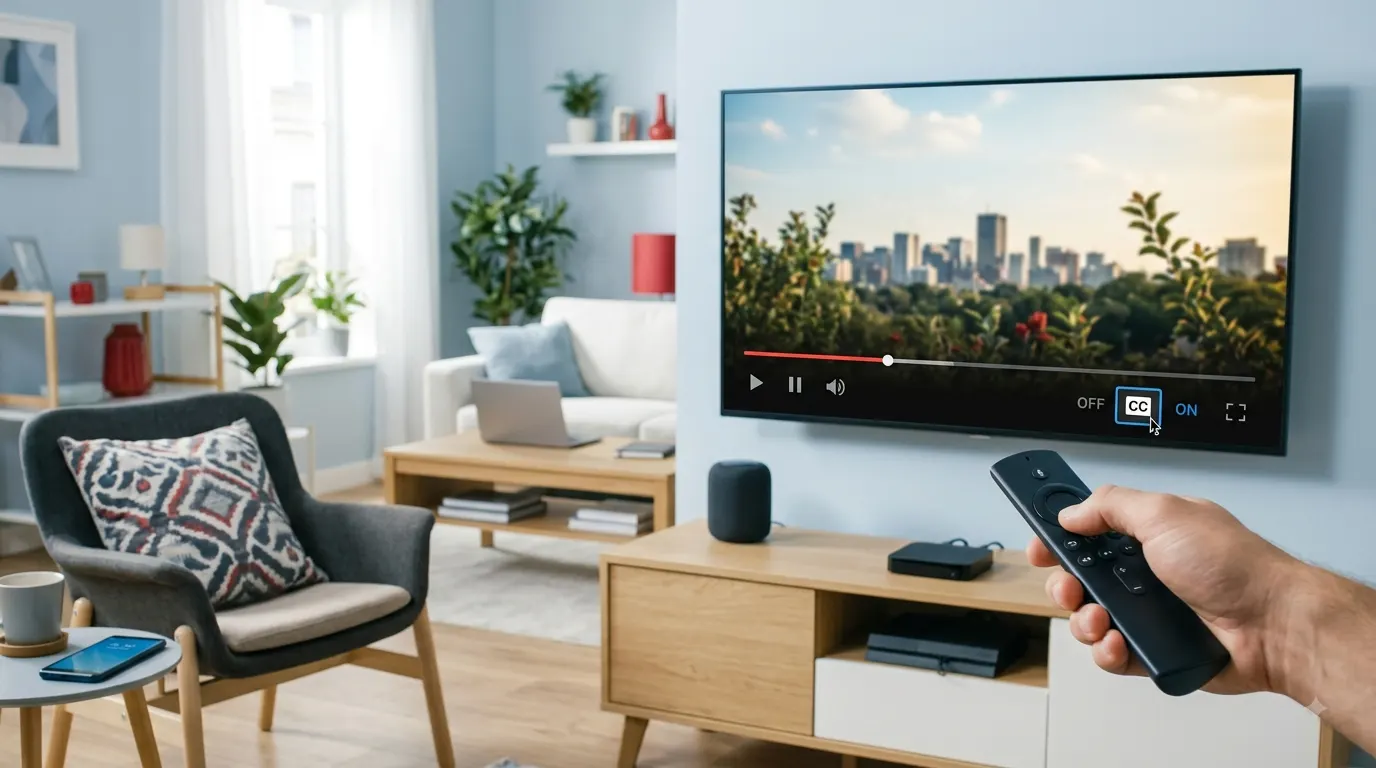
Learning how to turn off closed caption on YouTube TV takes only a few seconds once you find the CC control. While watching a program, open the playback controls, select the CC icon, and choose Off. The exact steps vary slightly between smart TVs, streaming devices, phones, tablets, and computers.
This guide covers each device and explains what to do when captions stay on, return automatically, or appear without a visible CC setting.
Quick Answer
To turn off closed captions in the YouTube TV app on a television:
- Play a live channel or recorded program.
- Press the down arrow on your remote to display the playback controls.
- Press down again if the full control bar does not appear.
- Move across the controls and select the CC icon.
- Choose Off.
Google’s YouTube TV accessibility instructions confirm that viewers can open the player controls on a TV device by pressing down and then selecting the CC icon. The interface may look slightly different depending on your television, streaming device, and app version. Google YouTube TV Help
How to Turn Off Closed Captions on a Smart TV
Use these instructions if you watch YouTube TV through an app installed directly on your smart television.
The method generally works on:
- Samsung smart TVs
- LG smart TVs
- Sony smart TVs
- TCL smart TVs
- Hisense smart TVs
- Vizio smart TVs
- Google TV and Android TV models
Steps for Most Smart TVs
- Open the YouTube TV app.
- Start watching the affected channel, movie, or show.
- Press the down arrow on your TV remote.
- Press down a second time if you only see the progress bar.
- Move left or right until you highlight the CC icon.
- Select the CC icon.
- Choose Off.
The captions should disappear immediately. You do not normally need to close or restart the program.
If the CC icon does not appear, make sure the video is playing before opening the controls. Some YouTube TV menus show different options when a program is paused or when you are browsing the Home, Library, or Live screens.
Turning Off YouTube TV Captions on Roku
You can control YouTube TV captions from the app’s playback menu on a Roku television or Roku streaming player.
- Open YouTube TV on your Roku.
- Play a channel or recorded program.
- Press the down arrow on the Roku remote.
- Press down again if necessary.
- Highlight the CC control.
- Press OK.
- Select Off.
If Roku Captions Remain on
Roku also has system-level accessibility settings. Check them if captions remain visible after you turn off CC inside YouTube TV:
- Go to the Roku home screen.
- Open Settings.
- Select Accessibility.
- Select Captions mode.
- Choose Off.
On some Roku software versions, the caption options may appear under Settings, followed by Accessibility or Captions. Roku documents its system caption controls in its accessibility guidance. Roku Accessibility
Turning off Roku’s system setting helps when another app or device-level preference keeps activating captions.
How to Disable YouTube TV Captions on Amazon Fire TV
The YouTube TV player contains its own CC control on Fire TV devices.
- Open the YouTube TV app.
- Play the content you want to watch.
- Press down on the Fire TV remote.
- Open the full playback control bar.
- Select CC.
- Choose Off.
If captions do not disappear, check the Fire TV accessibility settings:
- Open Fire TV Settings.
- Select Accessibility.
- Select Closed Caption.
- Turn the option off.
Amazon explains that Fire TV includes accessibility settings for closed captions and other viewing features.
The YouTube TV setting and Fire TV setting operate separately. Turning off one may not change the other.
How to Turn Off Captions on Apple TV
Follow these steps inside the YouTube TV app first:
- Start a program in YouTube TV.
- Display the playback controls with the Apple TV remote.
- Find and select the CC icon.
- Choose Off.
If captions continue to appear, check the Apple TV subtitle and accessibility controls:
- Open Settings on Apple TV.
- Select Accessibility.
- Select Subtitles and Captioning.
- Turn off Closed Captions and SDH if it is active.
Apple also allows viewers to control subtitles and audio languages during playback. The available options depend on the app and the content.
If you use the Apple TV remote’s accessibility shortcut, make sure you have not activated closed captions unintentionally.
Turning Off Closed Captions on Chromecast or Google TV
Chromecast With Google TV
If your Chromecast includes a remote:
- Open YouTube TV.
- Play a program.
- Press down on the remote.
- Open the player controls.
- Select CC.
- Choose Off.
Casting From a Phone or Tablet
If you cast YouTube TV from a mobile device:
- Open YouTube TV on your phone or tablet.
- Connect to your Chromecast.
- Start playing the program.
- Tap the video to display the controls.
- Open the caption or More menu.
- Select CC.
- Choose Off.
Change the setting from the device controlling the cast session. The television remote may not provide access to every playback option during casting.
How to Turn Off YouTube TV Captions on a Phone or Tablet
The mobile app places its caption option inside the video controls or More menu.
On Android
- Open the YouTube TV app.
- Play a channel, recording, or on-demand program.
- Tap the video once.
- Tap the CC icon if it appears.
- If you do not see it, open the More menu.
- Select Captions.
- Choose Off.
On iPhone or iPad
- Start watching a program in the YouTube TV app.
- Tap the video to show the playback controls.
- Tap the CC icon or More menu.
- Open the caption options.
- Select Off.
Google’s YouTube TV accessibility page provides platform-specific instructions for managing captions in the app.
Check Your Phone’s Accessibility Settings
If the app setting does not solve the problem, review the caption preferences on your device.
On Android, the menu location can vary by manufacturer, but it usually appears under:
- Settings
- Accessibility
- Caption preferences
- Show captions
On an iPhone or iPad:
- Open Settings.
- Select Accessibility.
- Select Subtitles and Captioning.
- Turn off Closed Captions and SDH.
Apple documents this control in its accessibility guide for subtitles and closed captions.
How to Turn Off Closed Captions on a Computer
The web player usually displays a CC button with the other playback controls.
- Visit YouTube TV in a supported browser.
- Start playing a live channel or recorded show.
- Move your mouse over the video.
- Find the CC icon near the lower area of the player.
- Click the icon to turn captions off.
If clicking the button does not work, open the caption settings and select Off.
Useful Keyboard Shortcut
Press the C key while the video player is active to toggle captions on or off.
The shortcut may not work if your cursor is inside the search field or another text box. Click the video player first, and then press C.
How to Turn Off Captions on a Game Console
The YouTube TV controls on supported consoles generally follow the television layout.
- Start playing a program.
- Use the controller to display the playback bar.
- Navigate to the CC icon.
- Select it.
- Choose Off.
Console and app support can change, so check YouTube TV’s current supported-device list if the app or its controls do not work as expected.
Why YouTube TV Captions May Not Turn Off
Captions should disappear after you choose Off, but several settings can affect what appears on the screen.
The Television Has Its Own Caption Setting
Many televisions include a separate closed-caption control. It can remain active even when YouTube TV captions are off.
Open the television’s Settings menu and look under:
- Accessibility
- General
- Captions
- Subtitles
- Closed Caption
- Audio and language
Turn off the television setting, return to YouTube TV, and check the program again.
Your Streaming Device Controls Captions Separately
Roku, Fire TV, Apple TV, and other streaming platforms provide system-level caption settings. Check both places:
- The CC menu inside YouTube TV
- The accessibility menu on the streaming device
A device-level preference can sometimes affect multiple apps.
The Text Is Part of the Video
Not all words displayed on a program are optional closed captions. A broadcaster may place names, translations, locations, news updates, or dialogue directly into the video.
These are often called open captions or burned-in subtitles. Because they form part of the picture, the YouTube TV CC control cannot remove them.
You can test this by opening the CC menu. If it already shows Off but the same text remains visible, the words may be embedded in the program.
You Are Controlling the Wrong Device
This can happen during casting. For example, changing a phone’s accessibility setting may not change the setting used by a smart TV app. Likewise, a television remote may not control captions in an active casting session.
Use the device that started and currently controls playback.
The App Did Not Save the Change
A temporary app problem may prevent YouTube TV from applying or remembering the setting. Stop the program, reopen it, and check the CC menu again.
If captions return frequently, continue with the troubleshooting steps below.
What to Do When YouTube TV Captions Keep Coming Back
Try these fixes in order. Test the captions after each step so you know which action solved the problem.
1. Turn CC Off During Playback
Do not change the setting from the YouTube TV Home or Live guide. Open an actual program, display the player controls, and select CC followed by Off.
2. Try Another Channel
Open a different live channel or recording. If captions appear on only one program, the issue may relate to that broadcast rather than your general app settings.
3. Close and Reopen YouTube TV
Exit the app completely instead of leaving it running in the background. Open it again and test the same program.
4. Restart the Device
Restart your television, phone, computer, console, or streaming player. A restart clears temporary app and playback problems without changing your account.
Google recommends restarting a device as an early troubleshooting step for YouTube problems on televisions and streaming hardware. Google YouTube Help
5. Update the YouTube TV App
Open your device’s app store and install any available YouTube TV update. Older app versions may display different controls or develop compatibility problems after the device software changes.
6. Update the Device Software
Check for an operating system or firmware update on your smart TV or streaming device. Restart the device after installing it.
7. Check System Accessibility Options
Make sure closed captions are disabled in the accessibility settings for the television or streaming device. Review any accessibility shortcut that could reactivate them.
8. Sign Out and Sign Back In
Sign out of YouTube TV, restart the app, and sign in again. Make sure you select the correct Google account if several accounts use the same device.
9. Reset or Reinstall the App
If your device allows it, clear the app cache before reinstalling. On a television or streaming player, remove YouTube TV and download it again from the official app store.
Reinstallation may sign you out, so make sure you can access your Google account before removing the app.
10. Report a Persistent Problem
If captions remain enabled across several channels after you update and reinstall the app, send feedback through YouTube TV or contact its support team. Include:
- Your device model
- Operating system or firmware version
- YouTube TV app version
- The affected channel or program
- Whether the problem affects live TV, recordings, or on-demand content
- A photo of the captions and player controls
These details help support staff separate an app problem from a device accessibility setting or broadcaster issue.
Closed Captions, Subtitles, and On-Screen Text
These terms often describe different types of text.
Closed Captions
Closed captions provide dialogue and may identify relevant sounds. Viewers can usually turn them on or off with the CC control.
Subtitles
Subtitles commonly translate spoken dialogue or present dialogue in another language. Some programs place them in the same menu as closed captions.
Open Captions
Open captions form part of the video image. Every viewer sees them, and the YouTube TV CC button cannot hide them.
Broadcast Graphics
News tickers, sports scores, speaker names, weather alerts, and program graphics are not controlled by the caption setting. They remain visible when CC is off.
Recognizing the type of text can save time. If the CC menu says Off, but the text remains in exactly the same position, it may not be optional closed captioning.
Can You Change the Appearance Instead of Turning Captions Off?
If you need captions but find them distracting, adjusting their style may provide a better solution.
Depending on the device and program, available options may include:
- Text size
- Font style
- Text color
- Background color
- Background opacity
- Window color
- Edge style
Open the CC menu during playback and look for caption style settings. You may also find these controls in your device’s accessibility menu.
Available customization options vary between devices. A style chosen on one television or streaming player may not transfer to another.
Common Mistakes to Avoid
Changing Only the TV Setting
YouTube TV has an in-player caption control. Check it even if your television’s general caption setting already shows Off.
Confusing YouTube With YouTube TV
YouTube and YouTube TV are separate services with different apps and interfaces. Make sure you are following instructions for the YouTube TV app.
Looking for CC in the Main Settings Menu
The fastest control usually appears while a program is playing. Open the playback bar first.
Assuming Every Piece of Text Is a Caption
A channel logo, sports score, news banner, translated scene, or embedded subtitle may form part of the broadcast image.
Resetting the Device Too Soon
Check both the in-app CC control and the device accessibility menu before resetting or reinstalling anything.
Final Steps
To turn off closed caption on YouTube TV, play a program, open the playback controls, select CC, and choose Off. If the words remain, check the accessibility settings on your television or streaming device.
Text that stays visible while CC shows Off may be embedded in the broadcast. In that case, the YouTube TV caption control cannot remove it.
Frequently Asked Questions
Where is the CC button on YouTube TV?
The CC button appears in the playback controls. Start a program and press down on your TV remote, or tap the video on a mobile device. On a computer, move the mouse over the player.
Why can’t I find the caption option?
The full control bar may not be open. Press down again on a TV remote, tap the mobile video, or move the mouse across the computer player. Some programs may not offer captions.
Why are captions still visible when CC says Off?
The text may come from your television’s accessibility system, your streaming device, or the video itself. Check the device settings. If the words are embedded in the picture, you cannot remove them with the YouTube TV controls.
Does turning off captions affect every YouTube TV profile?
Caption behavior can vary by device, session, program, and account. I cannot confirm that one change will always apply to every profile or device. Check the CC setting on each device you use.
Can I turn captions off permanently?
YouTube TV may remember your selection, but caption behavior can vary across devices and content. If captions return, verify the in-player CC setting and the device’s accessibility controls.
How do I remove subtitles from a foreign-language program?
Open the CC menu and select Off if the subtitles are optional. You cannot remove subtitles that the broadcaster or program producer embedded directly into the picture.
Can I use a voice command?
On compatible devices using Google Assistant, the command Turn off closed captions may control captions during YouTube playback. Voice control availability depends on the device, account, and active app.
Will turning off captions remove news tickers or sports graphics?
No. News tickers, scoreboards, channel logos, and similar graphics form part of the television broadcast.