
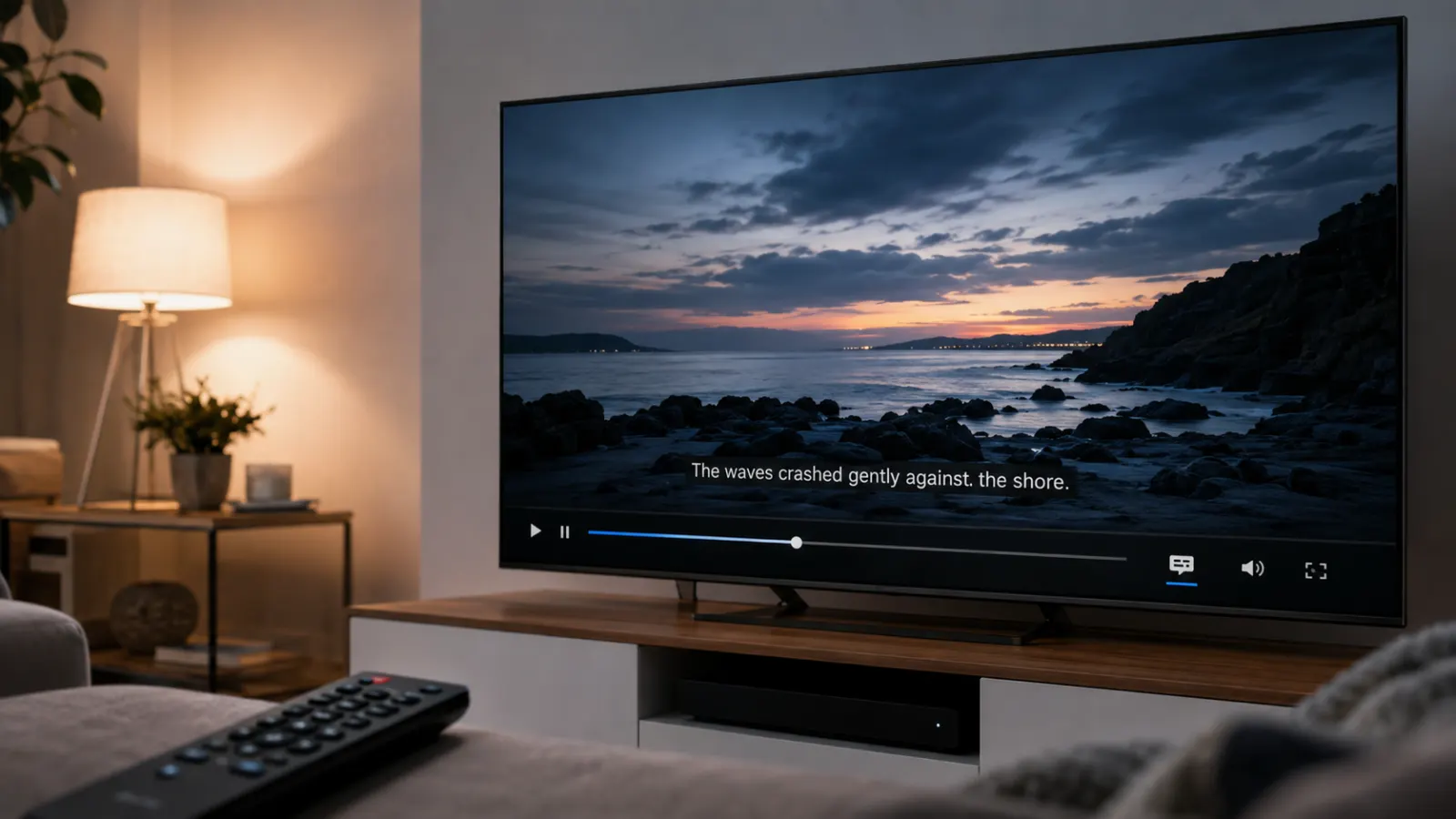
Netflix closed captioning displays dialogue and important audio details as text on the screen. It can identify speakers and describe meaningful sounds, music, or other audio cues. This makes shows and movies easier to follow for viewers who are deaf or hard of hearing, learning a language, watching in a noisy place, or keeping the volume low.
Netflix offers subtitles or closed captions for many titles, but the available languages and accessibility features vary by show, season, location, and device. This guide explains how Netflix and closed captioning work, how to find SDH content, and how to solve common caption problems.
Quick Answer: How Do You Turn On Closed Captioning on Netflix?
Start playing a movie or show, open the playback controls, and select Audio & Subtitles. Choose an available caption or subtitle option, such as English, English CC, or English SDH.
The way you open the controls depends on your device:
- On a phone, tablet, or computer, tap or click the screen.
- On most smart TVs and streaming devices, press the up or down arrow on the remote.
- On Apple TV, swipe up or press the up arrow.
- Select Audio & Subtitles, choose your preferred option, and resume playback.
Netflix may show language options directly at the bottom of the television screen. Selecting Other can reveal additional languages when they are available.
What Does Closed Captioning Mean on Netflix?
Closed captions convert spoken dialogue and relevant audio information into readable text. They may include details that ordinary subtitles leave out, such as:
- The name of the person speaking
- Music playing in the background
- A telephone ringing
- A door closing
- A character whispering
- Laughter from another room
- An offscreen speaker
- Other sounds that affect the scene
Netflix distinguishes between subtitles and closed captions in its accessibility guidance. Subtitles generally display spoken dialogue, while closed captions include dialogue and descriptions of sounds heard during the program.
The word closed means viewers can turn the captions on or off. Open captions, by comparison, form part of the video and remain visible to everyone.
Netflix Subtitles, Closed Captions, and SDH Explained
The language options on Netflix can include standard subtitles, closed captions, or SDH. These terms describe related features, but they do not always provide the same information.
Standard subtitles
Standard subtitles mainly reproduce or translate dialogue. They often help viewers understand a program spoken in another language.
They may not include sound effects, music descriptions, speaker identification, or other nonverbal audio details.
Closed captions
Closed captions include dialogue and may describe relevant sounds. Traditional television services often label this option CC.
Netflix labels can vary by title, language, and device. You may see a language name without a separate CC label even when the track contains additional audio information.
Subtitles for the Deaf and Hard of Hearing
SDH stands for Subtitles for the Deaf and Hard of Hearing. An SDH track combines dialogue with information about sound effects, music, tone, and speakers.
Netflix displays an SDH badge on the details pages of supported titles. Availability may differ between seasons or episodes. If a title does not offer SDH, Netflix may provide standard subtitles containing dialogue without descriptions of sounds or music.
Audio description
Audio description is separate from closed captioning. It provides optional spoken narration about visual details, including actions, expressions, costumes, settings, and scene changes.
Netflix states that audio description is available for most Netflix original titles and many other movies and shows.
How to Turn On Netflix Closed Captions on Any Device
Netflix uses a similar caption menu across its supported platforms, although remote controls and interface layouts differ.
On a smart TV
Use these steps on many smart television models:
- Open Netflix.
- Start playing a movie or episode.
- Pause the video.
- Press the up or down arrow on your remote.
- Select Audio & Subtitles, Other, or the visible language controls.
- Choose the required caption or subtitle language.
- Resume the video.
Some television interfaces show language choices without displaying the Audio & Subtitles icon. Netflix confirms that available controls can differ by device.
On Roku and other streaming players
To turn captions on while watching Netflix through a Roku or another streaming device:
- Play the selected title.
- Press the up or down arrow on the remote.
- Open the audio and subtitle controls.
- Select an available subtitle, CC, or SDH track.
- Return to playback.
Netflix notes that many Roku devices support subtitles, closed captions, and alternate audio. Appearance controls depend on the specific device.
If the Netflix player does not respond as expected, check the caption settings in the Roku system menu as well. Device settings can influence how captions appear across multiple applications.
On Amazon Fire TV
The general Netflix method works on Fire TV:
- Open a show or movie.
- Press a navigation button to display the player controls.
- Find Audio & Subtitles.
- Select the desired caption option.
- Resume playback.
If Netflix does not show captions after you make a selection, restart the Netflix app and inspect the Fire TV accessibility settings.
On Apple TV
Use the following steps:
- Begin playing a Netflix title.
- Swipe up or press the up arrow on the Apple TV remote.
- Open the audio and subtitle options.
- Choose a caption or subtitle language.
- Return to the program.
Netflix supports subtitles and alternate audio on Apple TV HD and Apple TV 4K models, although features can vary by model and software version.
Apple TV may apply the caption appearance selected in its own accessibility settings.
On iPhone or iPad
To enable captions in the Netflix app:
- Start playing a title.
- Tap the screen.
- Select Audio & Subtitles.
- Choose the required subtitle or caption track.
- Tap the close button and continue watching.
Apple controls subtitle appearance through iOS or iPadOS accessibility settings. Netflix directs Apple users to the relevant Apple device settings for appearance changes.
On an Android phone or tablet
Follow these steps:
- Open Netflix and play a title.
- Tap the screen to display the controls.
- Tap Audio & Subtitles.
- Select an available caption or subtitle option.
- Return to the video.
Android users can also manage Netflix subtitle appearance inside the app:
- Tap My Netflix.
- Tap the profile name.
- Select Manage Profiles.
- Choose a profile.
- Tap Subtitle Appearance.
- Adjust the available settings.
Changes made through the Android app apply to titles played on that Android mobile device
On a computer browser
To activate Netflix captions on a computer:
- Visit Netflix in a supported browser.
- Play a movie or episode.
- Move the pointer over the video.
- Select the dialogue or Audio & Subtitles icon.
- Choose a caption or subtitle language.
- Move the pointer away to close the menu.
The browser version can also provide more subtitle appearance choices than some connected television devices.
On a game console
The process on a PlayStation, Xbox, or another supported console generally follows the television method:
- Start playing the title.
- Open the playback controls with the controller.
- Select the audio and subtitle menu.
- Choose an available caption track.
- Resume the program.
Button layouts differ between consoles, so use the directional control that opens the Netflix player menu.
How to Turn Off Closed Captioning on Netflix
To remove captions:
- Start or resume the movie or episode.
- Open the player controls.
- Select Audio & Subtitles.
- Choose Off under the subtitle options.
- Return to the video.
Netflix may still display translated text during scenes containing dialogue in a different language from the title’s original language. These are often forced narrative subtitles, and they can appear even when the general subtitle setting is off.
If captions remain visible throughout the entire program, check the accessibility or caption settings on your television, streaming player, phone, or tablet. The device may apply its own caption setting independently.
How to Change Netflix Caption Size, Font, Color, and Background
Netflix lets viewers adjust several caption appearance settings. Depending on the device and language, options can include:
- Text size
- Font style
- Text color
- Shadow
- Background color
- Window appearance
Change captions on a television or streaming device
- Play a movie or show.
- Pause playback.
- Open the player controls.
- Select the settings icon if it appears.
- Choose Size and Style preferences.
- Resume the video.
A missing settings icon means the device does not support Netflix appearance changes for the selected language. Connected television devices may also offer fewer choices than a web browser.
Change captions through a web browser
- Sign in to Netflix through a browser.
- Open the Account page.
- Select a profile.
- Open Subtitle Appearance.
- Adjust the available font, color, shadow, size, and background options.
- Save the changes.
If updated settings do not appear on a television or streaming player, open the Netflix app and select Settings, Get Help, and Reload. Older devices may not display every selected style.
Avoid captions that look too large
Caption text can become unusually large when both Netflix and the device apply enlarged subtitle settings. Adjust the size in either Netflix or the device’s accessibility menu to prevent the two settings from combining.
How to Find Netflix Titles With SDH
Netflix places an SDH badge on the details page of a supported movie or series. Check this badge before starting the title if you need captions that include audio context.
You can also:
- Open a title and inspect its Audio & Subtitles menu.
- Select Other on a television to reveal more options.
- Search Netflix for content available in a particular subtitle language.
- Visit Netflix’s subtitle browsing page.
- Set preferred audio and subtitle languages on your profile.
Not every season or episode has the same accessibility track. Netflix states that SDH availability can vary within a series.
Why a Subtitle Language Might Be Missing
Netflix subtitle availability depends on several factors:
- Your location
- Your profile language preferences
- The selected movie, series, season, or episode
- The device used for playback
- Licensing and content agreements
- Whether you are streaming or watching a download
Netflix shows all available languages for a title when streaming on a supported device. Downloads show the two languages Netflix considers most relevant. Deleting the download and streaming the title can reveal additional language choices.
To make a missing language easier to find:
- Open your profile settings.
- Select Languages or Audio & Subtitles.
- Add the desired language.
- Save the setting.
- Reopen the title.
- Select Other from the playback language menu if available.
Some older devices do not support captions in every writing system. Netflix uses 2014 as a general guide for when devices began supporting languages such as Arabic, Chinese, Hebrew, Hindi, Japanese, Korean, Thai, Romanian, and Vietnamese, although support still varies by model.
Why Netflix Captions Do Not Stay On
Netflix normally saves language preferences, but there are exceptions.
Caption preferences may not remain selected when you watch most Kids titles from an adult profile. Netflix saves those choices when the content plays through a Kids profile.
Netflix recommends playing a title rated Teens or above for two to three minutes after selecting the preferred audio language if the setting resets repeatedly. This can help save the preference for future viewing.
Settings may also appear inconsistent if different household members use the same profile. Create separate profiles so each viewer can maintain individual language and appearance preferences.
How to Fix Netflix Closed Captions That Are Not Working
Use the following checks if captions are missing, frozen, delayed, or not displaying correctly.
Confirm that the title offers captions
Open Audio & Subtitles and inspect the available options. A title may not offer the language or SDH track you need.
Try another title as a comparison. If captions work elsewhere, the issue may concern one movie, episode, or language track rather than your device.
Select the caption track again
Turn subtitles off, return to the video, reopen the menu, and select the required track again. This refreshes the current playback selection.
Restart Netflix
Close the app fully and reopen it. On a smart TV, you can also use Get Help and Reload Netflix when that option appears.
Restart the device
Turn off the television, streaming player, phone, tablet, computer, or console. Restart it, open Netflix, and test the captions again.
Check for app and system updates
Install available updates for Netflix and the device operating system. Menu behavior and supported accessibility features can differ across device and software versions.
Review device accessibility settings
A television, phone, streaming player, or console may control caption style at the system level. Check its accessibility menu if Netflix settings have no visible effect.
Try a different device
If one device does not display a supported language, test the same title and Netflix profile on a newer phone, computer, television, or streaming player. Netflix specifically recommends trying another device when a caption language is available but cannot display on the current hardware.
Restart the home network
For smart television subtitle problems, Netflix recommends turning off or unplugging the television, unplugging the modem and router for 30 seconds, reconnecting the network equipment, and then trying Netflix again.
Report a title-specific problem
Report the issue if captions are missing, inaccurate, mistimed, or attached to the wrong speaker.
Netflix accepts reports concerning subtitle quality and availability. Viewers can report a problem while watching on supported mobile devices, browsers, and the Windows app, or through viewing activity on the Account page.
Common Netflix Caption Mistakes to Avoid
Choosing ordinary subtitles when you need audio context
Select an SDH or CC option when available if sound descriptions and speaker identification are important to you. Ordinary subtitles may contain dialogue only.
Changing only the profile display language
Display language controls the language used in Netflix menus. Audio and subtitle preferences use a separate setting. Update both areas if your required language does not appear.
Testing only a downloaded copy
Downloads display only two relevant languages. Stream the title while connected to the internet or delete the download to check for additional choices.
Expecting identical settings on every device
Caption controls differ between browsers, phones, smart televisions, and streaming players. Some devices apply Netflix profile settings, while others also use system accessibility preferences.
Assuming every episode has the same caption track
Different episodes or seasons can have different subtitle and SDH availability. Inspect the menu for the specific episode you want to watch.
How to Choose the Right Netflix Caption Option
Choose the track that matches your viewing needs:
- Select SDH or CC if you need dialogue, speaker identification, and relevant sound descriptions.
- Select standard subtitles if you mainly need translated dialogue.
- Select subtitles in the original spoken language for language learning or dialogue clarification.
- Choose a larger size and contrasting background if the text blends into the picture.
- Use separate Netflix profiles if viewers need different caption languages or styles.
- Use audio description if you need spoken information about visual action rather than on-screen text.
A readable style usually combines clear text, sufficient size, and strong contrast. Test your settings against both dark and bright scenes before settling on a style.
Making Netflix Easier to Watch With Closed Captions
Netflix and closed captioning work together through the Audio & Subtitles menu. Choose SDH or CC when you need dialogue plus meaningful audio information, or select standard subtitles when you mainly need translation.
If captions do not appear, confirm the title’s available tracks, check your profile languages, reload the app, inspect device accessibility settings, and test another device. A few careful adjustments to text size, color, shadow, and background can also make captions easier to read across different scenes.
Frequently Asked Questions
Does Netflix have closed captioning?
Yes. Netflix offers subtitles and closed captions on many shows and movies. Availability varies by title, episode, language, country, and device. Titles with Subtitles for the Deaf and Hard of Hearing may display an SDH badge.
Are Netflix subtitles the same as closed captions?
Not always. Subtitles usually display or translate dialogue. Closed captions can include dialogue plus relevant sound information. SDH provides similar accessibility information for viewers who are deaf or hard of hearing.
What does SDH mean on Netflix?
SDH means Subtitles for the Deaf and Hard of Hearing. These tracks can include dialogue, speaker identification, music information, and descriptions of significant sounds.
Why does Netflix show subtitles when they are turned off?
Some titles contain forced subtitles for dialogue spoken in a language different from the title’s original language. Netflix states that this text may appear even when regular subtitles are off.
Can I make Netflix captions bigger?
Yes, on supported devices. You can adjust subtitle size through Netflix appearance settings or your device’s accessibility menu. Available choices vary by platform and language.
Can I change the color of Netflix captions?
Netflix profile settings may let you change caption text color, shadow, and background. Some televisions and streaming devices offer fewer appearance options than the browser version.
Why are Netflix captions unavailable in my language?
Possible causes include your location, profile preferences, the title, the device, or licensing restrictions. Downloads also show fewer language options than streaming playback.
Why do Netflix captions look different on another device?
Devices do not support the same appearance controls. A phone or television may also apply its own system accessibility settings in addition to Netflix preferences.
Can each Netflix profile use different caption settings?
Language and subtitle preferences are associated with profiles. Some appearance behavior can still depend on the device, especially on Android and Apple products.
How do I report inaccurate Netflix captions?
Use the reporting flag during playback on a supported device or report the title through your Netflix viewing activity. Choose the option for subtitle and caption problems.