
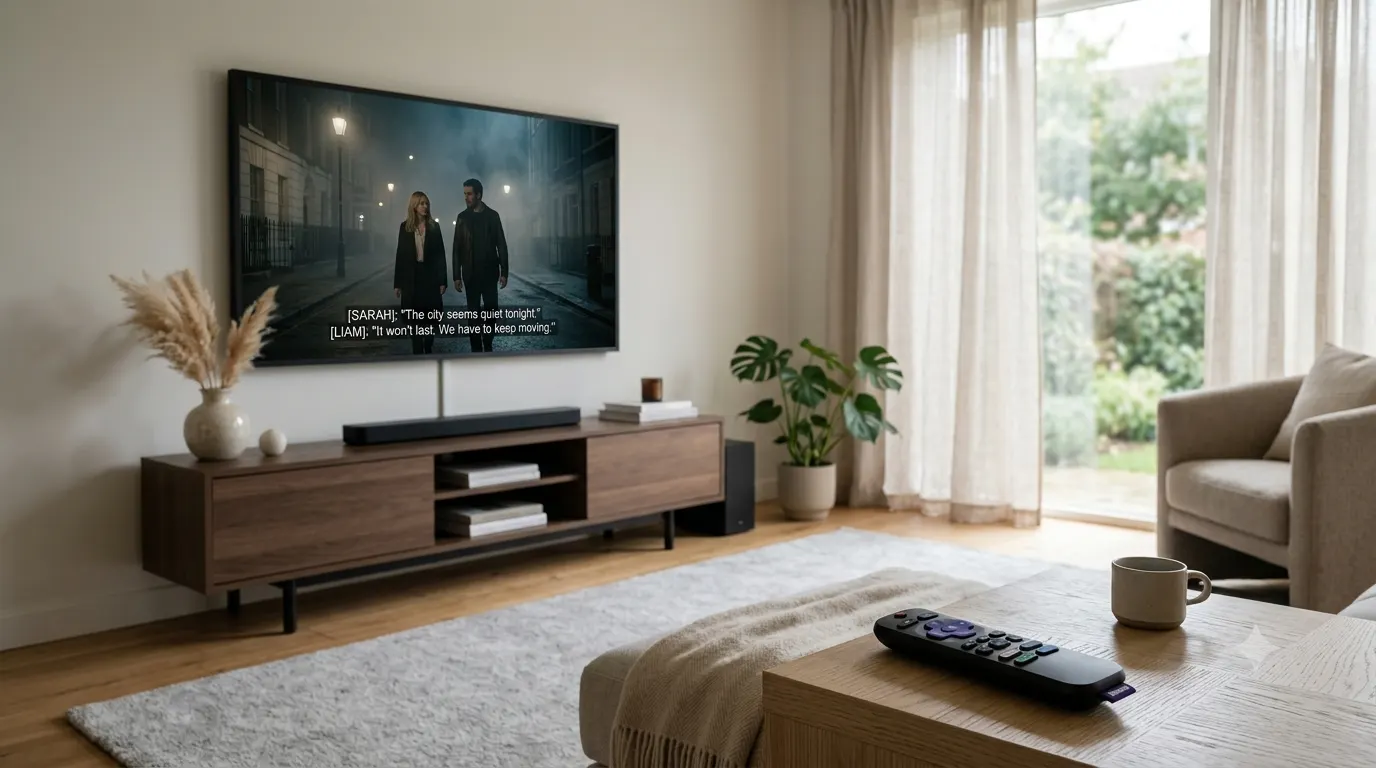
Closed captions are useful when you need text on screen, but they can become distracting when you no longer want them. If you are trying to figure out how to turn off closed caption, the exact steps depend on where the captions are coming from.
In many cases, you can switch them off directly from the video player. On some TVs, however, captions are controlled through Accessibility settings. Streaming apps such as Netflix and Disney+ can also have their own caption controls, which means turning captions off on the TV itself may not be enough.
This guide covers the most common ways to turn off closed captions on YouTube, Netflix, Roku, Samsung TV, LG TV, Apple TV, Android, iPhone, Windows, and other common devices.
Quick answer: how do I turn off closed caption?
If you are currently watching a video, first look for the CC, Subtitles, or Audio & Subtitles button in the playback controls.
Usually, you can:
- Start or pause the video.
- Open the playback controls.
- Select CC, Subtitles, or Captions.
- Choose Off or disable the caption option.
If captions continue appearing after you turn them off, the device or app may have a separate caption setting.
For example, Roku lets you control captions from its Options menu, while Netflix and some other streaming services can manage captions within the app itself.
Why do closed captions keep appearing?
Captions can come from different sources, and identifying the source is the easiest way to fix the problem.
The streaming app controls them
Apps such as Netflix and Disney+ may manage subtitles and captions independently of your TV’s general settings. Samsung also notes that some apps have their own closed caption controls.
Your TV has captions enabled
If you are watching broadcast television directly through a supported TV connection, the TV’s Accessibility or Caption settings may control the text.
Samsung places these controls under Accessibility and Caption Settings on supported TVs.
Your streaming device controls them
A Roku device, Apple TV, game console, or another streaming device may have its own caption settings.
Your phone or computer has a system caption feature enabled
Android has Live Caption, while Windows has Live captions. These are different from captions supplied by a particular streaming app.
The captions are part of the video
Some subtitles are permanently embedded in the video itself. These are sometimes called open captions. Because they are part of the video image, you cannot switch them off through normal closed caption controls. Samsung specifically distinguishes open captions from closed captions for this reason.
How to Turn Off Closed Caption on YouTube
YouTube provides its own caption control, so you normally do not need to change your entire device’s Accessibility settings.
On a computer
- Open the YouTube video.
- Move your mouse over the video.
- Look for the CC button in the lower right corner.
- Click CC to turn captions off.
YouTube’s official instructions confirm that clicking the Closed captions button toggles captions on and off.
Stop YouTube from automatically showing captions
If captions keep appearing on videos, check your YouTube caption preferences.
On a computer:
- Open YouTube.
- Go to your profile picture.
- Open Settings.
- Go to Playback and performance.
- Check the caption preferences.
- Turn off Always show captions if it is enabled.
- You can also disable Include auto-generated captions if you do not want automatically generated captions to appear when available.
On Android
When watching a YouTube video:
- Tap the video player.
- Tap the CC button.
- Tap it again to turn captions off.
YouTube also provides a default caption setting under:
Profile picture → Settings → Captions
From there, you can manage whether YouTube always serves captions when available.
On iPhone or iPad
- Open the YouTube video.
- Tap the video player.
- Tap the CC button.
- Tap it again to disable captions.
If captions still appear because of a device-level accessibility feature, check your iPhone’s caption settings as well.
How to Turn Off Closed Caption on Netflix
Netflix captions are generally controlled from the playback screen.
While watching a show or movie:
- Open the playback controls.
- Select Audio & Subtitles.
- Look for the subtitle or caption selection.
- Choose Off.
The exact controls can vary by device and Netflix interface.
If subtitles still appear after you select the option to disable them, Netflix says some titles may have subtitles that cannot be turned off, particularly certain content produced in another region. Netflix also documents situations where the device itself controls captioning rather than the Netflix app.
Netflix captions keep coming back
If you have to disable captions repeatedly, check whether the issue is limited to a particular device or title.
Netflix recommends specific troubleshooting for some devices, including cases where caption settings are controlled by the device rather than the Netflix application.
How to Turn Off Closed Caption on Roku
Roku has a built-in closed caption setting for supported content.
While watching a program:
- Press the Star button on your Roku remote.
- Open Closed captioning.
- Select Off.
Roku states that the available choices can include Off, On always, On replay, and On mute, although availability can vary by device. Roku also says that the setting can be retained for future programs.
If captions still appear on Roku
The app may control its own captions.
Roku explains that some service providers activate closed captions from within the app instead of Roku’s general caption settings.
In that situation:
- Open the streaming app.
- Start the movie or show.
- Open the playback controls.
- Find Captions, Subtitles, or Audio & Subtitles.
- Select Off.
This distinction matters because changing Roku’s system setting does not necessarily control every app.
How to Turn Off Closed Caption on Samsung TV
Samsung places its built-in caption controls in the Accessibility section on supported models.
A common current path is:
Settings → General → Accessibility → Caption Settings → Caption
Turn Caption off. Samsung notes that menu names and available features can vary by model and software version.
Some Samsung Smart Remotes also provide a shortcut by pressing and holding the Mute or Volume button to open Accessibility Shortcuts.
Samsung captions still appear in Netflix or another app
Your Samsung TV settings may not control captions inside every app.
Samsung explains that certain apps, consoles, and set-top boxes have independent closed caption settings.
If captions remain visible:
- Turn off the TV’s Caption setting.
- Open the streaming app.
- Start the video.
- Open the app’s subtitle or caption menu.
- Select Off.
How to Turn Off Closed Caption on LG TV
LG’s current instructions place closed caption controls under Accessibility on supported models.
For many recent LG TVs:
Settings → All Settings → General → Accessibility → Closed Caption
Set Closed Caption to Off. LG notes that the menu path varies between webOS versions and TV models.
For example, LG lists different paths for newer webOS versions and older models, so you should not assume that every LG TV uses exactly the same menu structure.
LG TV captions won’t turn off
If you are using Netflix, a set-top box, or another external device, the LG TV’s caption setting may not control the captions.
LG explains that captions for external devices and streaming apps may need to be managed directly through that device or app.
How to Turn Off Closed Caption on Apple TV
The Apple TV app provides subtitle and caption controls during playback.
While watching:
- Press the Play/Pause button to display playback controls.
- Open the Subtitles option.
- Select the appropriate subtitle setting or turn subtitles off.
Apple documents this playback method for Apple TV, smart TVs, streaming devices, and other supported platforms.
Turn off default captions on Apple devices
If captions are being enabled through accessibility preferences, check:
Settings → Accessibility → Subtitles and Captioning
If Closed Captions + SDH is enabled, switching it off prevents that accessibility preference from forcing captions where supported.
On Apple TV 4K, the corresponding setting is under:
Settings → Accessibility → Subtitles and Captioning
Apple provides a Closed Captions and SDH option there.
How to Turn Off Closed Caption on Disney+
Disney+ provides caption and subtitle controls directly through its video player.
While streaming:
- Start the movie or show.
- Open the player controls.
- Select the audio and captions or subtitles control.
- Change the subtitle or caption selection as needed.
Disney+ says its player provides controls for managing audio, subtitles, and closed captions while streaming.
The exact appearance of these controls can vary according to the device you are using.
How to Turn Off Live Caption on Android
Android’s Live Caption is different from captions supplied by YouTube, Netflix, or another streaming service.
Live Caption can automatically caption speech from media, calls, video calls, podcasts, and other audio on supported devices.
To turn it off:
- Press a volume button.
- Open the additional volume controls.
- Tap Live Caption.
- Turn Live Caption off.
Google notes that the exact steps can vary by device manufacturer. If you cannot find Live Caption, search your phone’s Settings for Live Caption.
You can also check:
Settings → Accessibility → Live Caption
This is particularly useful if captions appear across different apps rather than only inside one streaming service.
How to Turn Off Live Captions on Windows
Windows has a system feature called Live captions that can create captions for audio played on the computer.
Microsoft provides several ways to access the feature, including:
Settings → Accessibility → Captions
You can also access Live captions through Quick Settings or use the keyboard shortcut Windows key + Ctrl + L.
If text appears over videos across multiple applications, check Windows Live captions rather than changing the settings inside the streaming service.
How to Turn Off Closed Caption on iPhone
On iPhone, captions can come from the video app or from accessibility preferences.
For a video playing in a supported app, open the playback controls and look for Subtitles or Captions. Apple documents this as the normal way to choose available subtitle and caption tracks.
For system-level caption preferences, check:
Settings → Accessibility → Subtitles & Captioning
If Closed Captions + SDH is enabled, you can turn it off.
Keep in mind that not every video supports the same caption features.
How to Turn Off Captions on a Smart TV
If you have a smart TV but do not know the exact model, start with the Accessibility menu.
Look for menu names such as:
- Accessibility
- Captions
- Closed Caption
- Caption Settings
- Subtitles
- Hearing
- Subtitles and Captioning
The most important step is to determine whether the captions come from the television itself or from an app.
Samsung and LG both explain that streaming apps and external devices can have separate caption controls.
General smart TV method
- Open Settings.
- Find Accessibility.
- Look for Captions or Closed Caption.
- Select the caption setting.
- Choose Off.
If nothing changes, open the streaming app and disable captions there.
Closed Captions vs Subtitles: Are They the Same?
Closed captions and subtitles overlap, but they are not always identical.
Closed captions can include spoken dialogue as well as relevant non-speech information, such as sound effects and other audio cues. Roku describes closed captions as displaying spoken elements, background noises, and sound effects as text.
Subtitles generally focus on spoken dialogue and may also provide translated dialogue.
This distinction explains why your device might show several choices, such as:
- Subtitles
- English
- English CC
- SDH
- Closed Captions
- Audio & Subtitles
The available options depend on the content, app, device, and region.
What If the Captions Are Part of the Video?
If you have turned captions off but text remains permanently visible, the text may be embedded directly into the video.
These are often called open captions or burned-in subtitles.
You cannot remove permanently embedded text through your TV’s closed caption settings because the text forms part of the video image. Samsung explicitly distinguishes open captions, which are pre-inserted into content, from closed captions, which can be toggled on and off.
A simple test is to open the same video on another device. If the text appears in exactly the same place and cannot be disabled through the player, it may be part of the video itself.
Why Turning Off Captions on the TV May Not Work
This is one of the most common sources of confusion.
Imagine you turn captions off in your Samsung TV settings, but Netflix continues showing them. That does not necessarily mean the TV setting failed.
The streaming app may have its own subtitle controls.
The same principle applies to external devices such as:
- Roku
- Apple TV
- Game consoles
- Cable boxes
- Streaming sticks
- Set-top boxes
Samsung and LG both specifically warn that apps and external devices can handle caption settings independently.
The best approach is to identify where the text originates before changing multiple settings.
A Simple Troubleshooting Checklist
If you have tried turning captions off but they keep returning, work through these steps.
1. Turn captions off inside the video
Open the playback controls and look for CC, Captions, Subtitles, or Audio & Subtitles.
2. Check the app settings
If you are watching Netflix, YouTube, Disney+, Apple TV, or another service, check that app’s caption controls.
3. Check your TV
Open Accessibility settings and look for Caption or Closed Caption.
4. Check your streaming device
If you use Roku, Apple TV, a streaming stick, or another external device, check its caption settings.
5. Check your phone or computer
Android Live Caption and Windows Live captions can create captions independently of the streaming app.
6. Try another video
If captions appear only on one movie, show, or video, the content itself may have different subtitle behavior.
7. Check whether the text is embedded
If the words are permanently part of the video image, normal caption controls cannot remove them.
Common Mistakes When Trying to Remove Closed Captions
Changing the TV setting when the app controls captions
This is especially common with streaming services. Check the app’s playback controls first.
Assuming every TV has the same menu
Samsung, LG, Apple TV, Roku, and other platforms use different menu structures. Even different software versions from the same manufacturer can use different paths.
Confusing Live Caption with closed captioning
If captions appear across different apps and types of audio, check Android Live Caption or Windows Live captions.
Assuming subtitles are always removable
Some content can contain permanently embedded subtitles or captions. Those cannot be switched off through normal settings.
Changing accessibility settings unnecessarily
If captions only appear in one app, start with the app’s own subtitle control instead of changing system accessibility settings.
The Fastest Way to Find the Right Caption Setting
If you are unsure which instructions apply, use this simple rule:
Captions in one app only: check the app.
Captions on broadcast TV: check the TV.
Captions across multiple apps on Roku: check Roku and then the individual app.
Captions across different audio sources on Android: check Live Caption.
Captions across Windows applications: check Windows Live captions.
Text that never disappears from one particular video: check whether it is embedded in the video.
This approach is faster than changing every accessibility setting on your devices.
Final Thoughts
The easiest way to turn off closed caption is usually to open the video controls and select the CC, Captions, or Subtitles option, then choose Off. If that does not work, look for a second caption setting in the streaming app, TV, streaming device, phone, or computer.
The key is to identify which device or service is generating the text. YouTube, Roku, Samsung, LG, Apple, Android, Windows, and major streaming services can manage captions differently, so the correct solution depends on where you are watching.
Frequently Asked Questions
How do I turn off closed caption on my TV?
Open your TV’s Settings, go to Accessibility, find Caption or Closed Caption, and set it to Off. The exact menu varies by TV model. Samsung and LG both provide caption controls through Accessibility settings on supported models.
Why won’t my closed captions turn off?
The captions may be controlled by the streaming app, an external device, or your phone or computer’s accessibility feature. Check the playback controls first, then check the relevant device or app settings.
How do I turn off CC on YouTube?
Open the YouTube video and select the CC button to toggle captions off. YouTube provides this control on computers and mobile devices.
How do I turn off closed captions on Roku?
While watching a program, press the Star button on your Roku remote, select Closed captioning, and choose Off.
How do I stop YouTube captions from automatically appearing?
On a computer, open YouTube Settings and check Playback and performance. Turn off Always show captions if it is enabled. YouTube also provides caption preferences on mobile devices.
Why do captions appear when I mute my device?
Some platforms can show captions when the device is muted. YouTube, for example, provides a Show when muted option on supported mobile devices.
Can I turn off captions permanently?
Often, yes. You can disable the relevant default caption setting on your device or app. However, the exact behavior depends on the service and device. Some content may contain captions that cannot be removed.
Can I remove subtitles that are burned into a video?
No, not through normal closed caption settings. If the text is embedded into the video itself, it forms part of the picture rather than functioning as a separate caption track.
Why are captions still showing after I turn them off on my Samsung TV?
The app or external device may have its own caption controls. Samsung specifically notes that apps such as Netflix can have independent caption settings.
Why are captions showing on my Android phone?
Check whether Android’s Live Caption feature is enabled. Live Caption can caption speech from media and other audio independently of an individual app.
Why are captions showing on Windows?
Windows Live captions may be enabled. Check Settings → Accessibility → Captions or open Quick Settings and look for Live captions. Microsoft also provides the Windows key + Ctrl + L shortcut.