
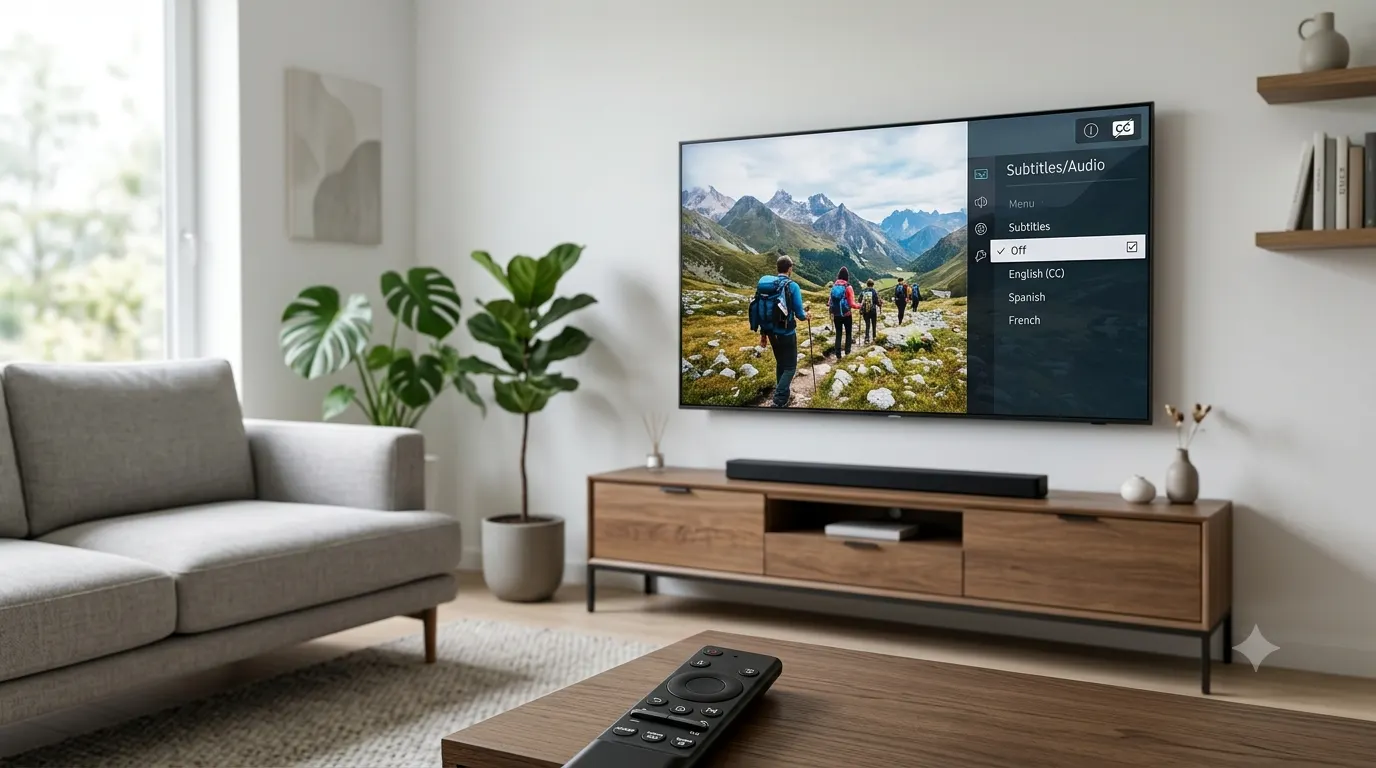
If you are wondering how do I turn off closed captioning, the answer usually takes only a few clicks. The exact steps depend on whether captions are coming from your TV, streaming device, phone, computer, or the app you are using.
In many cases, you can turn captions off directly from the video player by selecting the CC, Subtitles, or speech bubble icon and choosing Off. If captions keep coming back, you may need to change the accessibility or subtitle settings on the device or inside the streaming app.
This guide explains how to turn off closed captioning on common TVs, streaming platforms, phones, and other devices, plus what to do when captions refuse to stay off.
How Do I Turn Off Closed Captioning Quickly?
The quickest method is usually to open the playback controls while your video is playing.
Look for one of these options:
- CC
- Closed Captions
- Subtitles
- Captions
- SDH
- A speech bubble icon
Select the option and choose Off, None, or a setting without captions.
If captions continue appearing after you turn them off, the device or app may have a separate caption setting. For example, LG notes that captions controlled by an external set top box or streaming app may need to be disabled on that device or app rather than through the TV’s built in settings.
Why Do Closed Captions Keep Appearing?
Closed captions can come from several different places, which is why turning them off in one menu does not always solve the problem.
Your captions may be controlled by:
- Your smart TV
- A cable or satellite box
- Roku
- Google TV
- Apple TV
- A streaming app
- Your phone or tablet
- Your computer
- The video player itself
- Accessibility settings
For example, Netflix explains that subtitle behavior can vary by device and title. Some older devices can also have their own subtitle controls separate from Netflix.
The easiest solution is to identify where the captions are coming from and turn them off at that level.
How to Turn Off Closed Captioning on a Smart TV
Smart TVs often have a dedicated accessibility menu for closed captions. However, the exact menu names can vary by model and software version.
Samsung Smart TV
On many Samsung Smart TVs, you can turn off captions through the accessibility settings.
Try:
- Press Home on your Samsung remote.
- Open Settings.
- Select General.
- Select Accessibility.
- Open Caption Settings.
- Select Caption to turn it off.
PBS gives the same general path for Samsung Smart TVs and notes that captioning can be controlled through the TV’s main settings.
If captions still appear after changing this setting, check the individual streaming app or external device.
LG Smart TV
LG uses different menu paths depending on the webOS version.
For newer LG TVs using webOS 26 or later, LG lists this path:
Settings > All Settings > General > Accessibility > Hearing Features > Closed Caption
Then set closed captions to Off. Older LG models use slightly different menu paths.
LG also specifically warns that its built in TV caption settings may not control captions generated by an external set top box or streaming app.
Verizon Fios TV
If you use Verizon Fios, many Fios remotes include a dedicated closed caption button.
You can also access the setting through:
Menu > Settings > System > Accessibility > Closed Captions > Service Selection
Choose the appropriate caption option, save the setting, and confirm your selection. Verizon notes that the exact availability can depend on the equipment and setup.
How to Turn Off Closed Captions on Roku
Roku devices can control caption behavior through their accessibility settings, although the exact menu wording can vary between Roku versions and devices.
Start by opening the Roku settings and looking for:
Settings > Accessibility > Captions
From there, look for the caption mode and select Off.
If captions appear only inside a particular streaming service, also check that service’s playback controls. An app can sometimes have its own subtitle preference.
This distinction matters because the caption setting on the streaming device and the setting inside an individual app may not always be the same.
How to Turn Off Closed Captioning on Google TV
Google TV devices can have system level caption controls as well as caption controls inside individual streaming apps.
A common approach is:
- Open Settings.
- Go to Accessibility.
- Select Captions or Closed Captions.
- Turn the display option off.
You can also start a video and check the playback controls for a CC or Subtitles option.
If captions remain visible, check the app itself. Different services can manage subtitles independently, so turning captions off at the Google TV level may not always change the setting inside every app.
How to Turn Off Closed Captioning on Apple TV
Apple devices place caption preferences under accessibility settings.
On Apple TV and supported Apple devices, Apple provides a setting under:
Settings > Accessibility > Subtitles and Captioning
From there, you can manage Closed Captions + SDH and related caption preferences.
If you only want to remove captions from a particular video, check the playback controls first. Many video players let you turn subtitles off without changing your device wide accessibility preferences.
How to Turn Off Closed Captioning on iPhone or iPad
If captions appear while watching videos on an iPhone or iPad, first check the video player’s own controls.
Look for:
- CC
- Subtitles
- Captions
- The speech bubble icon
- The three dot menu
Tap the option and select Off.
For system level subtitle preferences, Apple provides accessibility controls under:
Settings > Accessibility > Subtitles and Captioning
Apple’s current support information also explains that caption preferences can be managed from the accessibility settings on compatible Apple devices.
If automatic subtitles are appearing in newer iOS video experiences, additional automatic subtitle settings may also need attention. Current reporting on iOS 27 describes automatic subtitle controls under Settings > Accessibility > Subtitles & Captioning.
How to Turn Off Closed Captioning on Netflix
Netflix normally lets you change subtitle settings while a title is playing.
Start the movie or show and open the audio and subtitles controls. Select the subtitle language currently being used and choose the option that turns subtitles off.
If Netflix subtitles keep returning, the issue may involve your profile, device, or the specific title.
Netflix explains that some titles can have subtitle behavior affected by regional availability, while certain devices may also handle subtitle settings separately.
If captions appear on every title, check both the Netflix playback settings and your device’s accessibility settings.
How to Turn Off Closed Captioning on YouTube
YouTube normally provides a CC button directly in the video player when captions are available.
To turn captions off:
- Start the video.
- Move your cursor over the video on a computer, or tap the screen on a phone.
- Find the CC button.
- Select it to turn captions off.
On some devices, you may need to open the settings or three dot menu before finding the caption option.
If you are watching YouTube through a smart TV or streaming device and captions continue appearing, check the device’s accessibility settings as well.
How to Turn Off Closed Captioning on YouTube TV
YouTube TV provides caption controls through the video player.
On a TV, open the playback controls and look for the CC option. On mobile devices, tap the video and look for the available caption controls. On a computer, move your cursor over the video player and look for the CC icon.
A Google support community response also describes accessing CC controls from the playback interface on TV, mobile, and computer.
If YouTube TV captions return after you disable them, check the accessibility settings on the television or streaming device as well.
What Is the Difference Between Closed Captions and Subtitles?
Closed captions and subtitles are related, but they are not always identical.
Subtitles generally provide the spoken dialogue, often for viewers who do not understand the language being spoken.
Closed captions can include spoken dialogue as well as additional information about relevant sounds, speakers, or audio events.
For example, captions may identify meaningful background sounds or indicate who is speaking.
The accessibility purpose matters because captions allow people who are deaf or hard of hearing to access information that would otherwise be communicated through sound.
Research on caption experiences also shows that viewers care about more than simple transcription accuracy. Caption readability, timing, appearance, and difficulty following the text can affect the viewing experience.
So turning captions off is a personal viewing preference for some people, while keeping them enabled is an important accessibility feature for others.
What Does CC Mean on a TV?
CC means closed captions.
When CC is enabled, the TV or video player displays text associated with the audio.
Depending on the content, the captions may include dialogue and other information that helps communicate what viewers would otherwise hear.
You may see labels such as:
- CC
- CC1
- CC2
- SDH
- English CC
- Captions
- Subtitles
The exact options depend on the broadcaster, device, application, and content.
For example, Verizon identifies CC1 as the primary broadcast language and provides additional CC channels for other caption options where available.
Why Won’t Closed Captioning Turn Off?
If you selected Off but captions are still visible, try these checks.
Check the app first
Open the video player and turn subtitles off there.
This is especially important when using Netflix, YouTube, Disney+, Prime Video, or another streaming service.
Check the TV settings
If the captions remain after changing the app setting, open the TV’s accessibility menu and check its closed caption setting.
Check your streaming device
If you use Roku, Apple TV, Google TV, Fire TV, or another external device, check its caption settings.
Check the cable or satellite box
Your television may not be generating the captions. A cable box or other set top box can provide its own caption controls.
LG specifically explains that captions from an external device may need to be disabled on that device rather than through the TV.
Check accessibility settings
Some devices include broader subtitle or caption preferences under accessibility.
Look for menus containing terms such as:
- Accessibility
- Hearing
- Captions
- Subtitles
- Closed Captioning
- Subtitles and Captioning
- Audio and Subtitles
What If Captions Turn Back On Every Time?
When captions repeatedly turn themselves on, avoid changing random settings. Instead, identify which device is controlling them.
Try this order:
- Turn captions off inside the video.
- Close and reopen the app.
- Check the app’s subtitle preferences.
- Check the streaming device’s accessibility settings.
- Check the TV’s accessibility settings.
- Check any connected cable or satellite box.
- Restart the device if the setting still does not stick.
- Test another app or video.
If captions disappear in one app but remain in another, that strongly suggests the problem is app specific rather than a general TV setting.
If captions appear everywhere, check the TV or streaming device settings first.
How to Turn Off Captions Without Disabling Accessibility Features
You do not necessarily need to disable every accessibility feature just because you do not want captions on one video.
If you occasionally use captions, the better approach may be to turn them off directly from the video player.
For example, if you normally watch content without captions but need them occasionally, using the CC button during playback lets you change the setting for that viewing session without changing unrelated accessibility preferences.
This can be particularly useful on shared TVs where different people have different caption preferences.
When Should You Keep Closed Captions On?
Closed captions provide important access to spoken and audio information.
They can help:
- Deaf and hard of hearing viewers
- People watching videos in noisy environments
- People watching without sound
- Viewers learning a language
- People who have difficulty understanding certain accents
- People following dialogue when audio quality is poor
- Viewers who simply prefer reading along
Research into online video accessibility has found that captions are an important part of making video content more accessible to people with different hearing needs.
If you share a TV with someone who relies on captions, consider using the individual video’s caption control instead of disabling captions across the entire device.
Closed Captioning Troubleshooting Checklist
If you want a quick checklist, work through these steps:
- Look for CC on the video player.
- Select Off or None.
- Check the app’s subtitle settings.
- Check your TV’s Accessibility menu.
- Check your Roku, Apple TV, Google TV, or other streaming device.
- Check your cable or satellite box.
- Restart the app.
- Restart the streaming device.
- Try another video.
- Check whether captions appear in every app or only one.
The last step can save time. If captions appear only in one application, focus your troubleshooting there instead of changing the entire TV’s accessibility settings.
Common Mistakes When Turning Off Closed Captions
Turning off captions in the wrong place
If Netflix controls the subtitles, changing your TV’s caption setting may not solve the problem.
Assuming every TV uses the same menu
Samsung, LG, Apple TV, Roku, Google TV, and other platforms use different menus. Even two models from the same manufacturer can use different paths.
LG, for example, lists different closed caption menu paths depending on the webOS generation.
Confusing subtitles with closed captions
A video can have subtitles enabled even when you are looking for a setting labeled closed captioning.
Check both terms when troubleshooting.
Disabling every accessibility feature
You usually only need to change the caption or subtitle setting. Avoid changing unrelated accessibility options unless they are causing the problem.
Forgetting external devices
If your TV has a Roku, cable box, game console, or another connected device, that device may be responsible for the captions.
Final Answer: How Do I Turn Off Closed Captioning?
If you only want a quick fix, start by opening the video controls and selecting CC, Captions, or Subtitles, then choose Off. If captions keep returning, check the settings in this order:
Video player → streaming app → streaming device → TV → cable or satellite box
The most important thing to remember is that captions can come from different sources. Turning them off in one place does not necessarily disable them everywhere.
Menu names also change between device models and software versions, so if a particular option is missing, look for the closest equivalent under Accessibility, Captions, Subtitles, or Hearing. The manufacturer or service’s current support documentation is the best source for model specific instructions.
Frequently Asked Questions
How do I turn off closed captioning on my TV?
Open your TV’s settings and look under Accessibility, Hearing, Captions, Subtitles, or Closed Captioning. Select the caption option and turn it off. The exact menu depends on your TV model.
Why are closed captions on when I never turned them on?
Captions may have been enabled by the streaming app, TV, streaming device, or another connected device. Check each level until you find the setting controlling them.
Does turning off subtitles turn off closed captions?
Not always. Some devices and apps distinguish between subtitles, closed captions, and SDH. Check the exact option displayed by the service you are using.
Why do captions keep coming back on Netflix?
Netflix explains that subtitle behavior can depend on the title, device, profile, and regional availability. If captions keep returning, check Netflix’s subtitle controls and your device’s accessibility settings.
How do I turn off CC on Samsung TV?
On many Samsung Smart TVs, go to Settings > General > Accessibility > Caption Settings, then turn Caption off.
How do I turn off closed captions on an LG TV?
On newer LG TVs, go to Settings > All Settings > General > Accessibility > Hearing Features > Closed Caption and switch it off. Older models can use a different menu path.
How do I turn off closed captions on Apple TV?
Open Settings > Accessibility > Subtitles and Captioning and manage the Closed Captions + SDH setting.
Can I turn captions off for only one video?
Usually, yes. Many video players provide a CC or subtitle button that lets you turn captions off during playback without changing every accessibility setting on your device.
What should I do if the CC button is missing?
The video may not offer captions, or the option may be located in a settings or three dot menu. BBC’s current help documentation, for example, notes that caption controls can appear as a speech bubble or S icon depending on the device and video.
Are closed captions an accessibility feature?
Yes. Closed captions help make audiovisual content accessible to people who cannot fully access spoken audio. They can also benefit people who watch videos without sound or have difficulty understanding dialogue.