
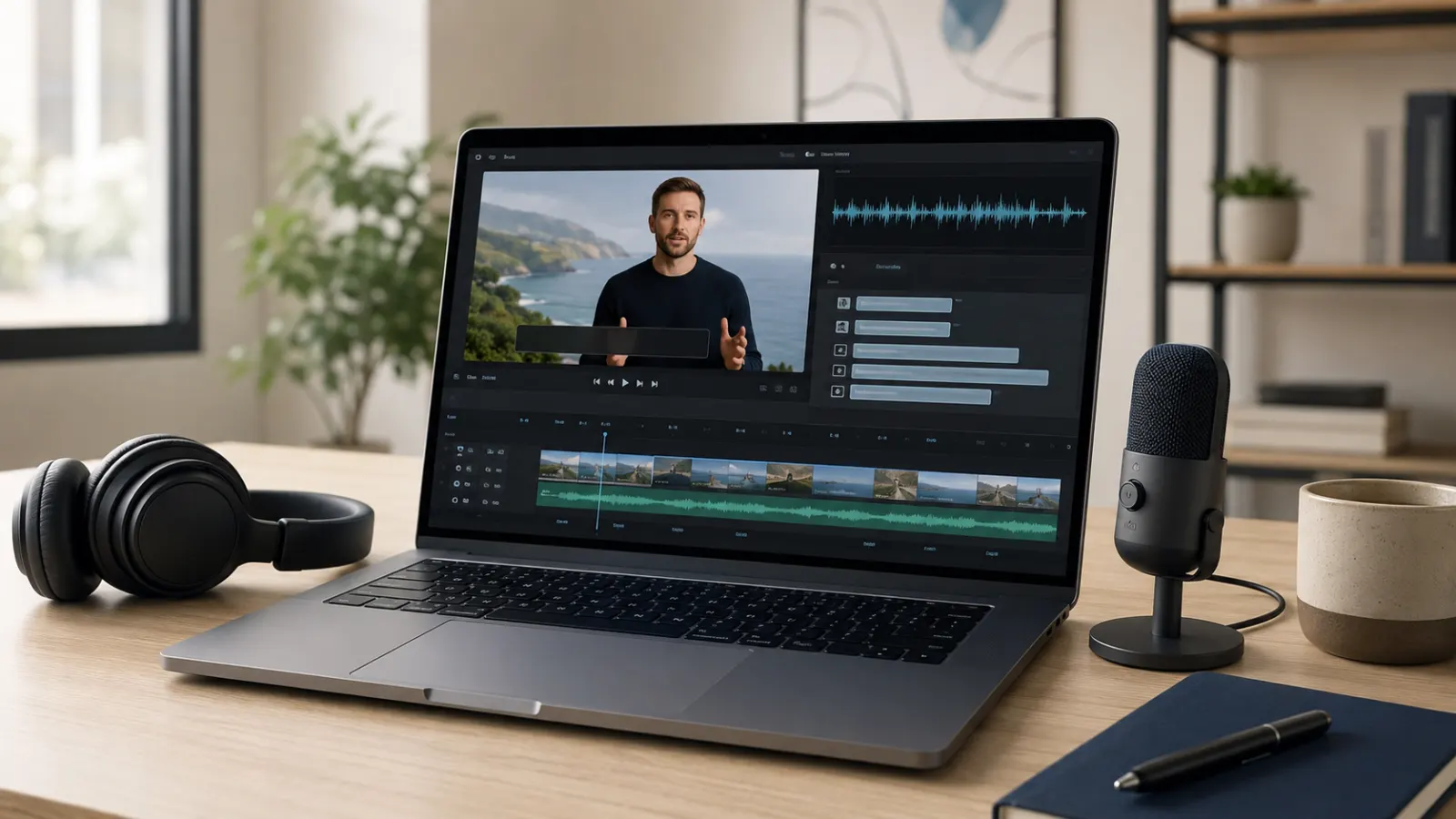
Closed captioning software converts spoken dialogue and meaningful audio into synchronized text. The right tool can generate a transcript, identify speakers, time each caption, describe relevant sounds, and export a caption file for your video platform.
Some programs automate most of this work. Others give professional editors precise control over timing, placement, formatting, and quality checks. This guide explains the differences and helps you choose software for YouTube videos, social media, courses, meetings, broadcasts, and professional productions.
Quick Answer: What Is the Best Closed Captioning Software?
The best choice depends on your workflow:
- YouTube Studio: A practical option for captioning YouTube videos
- Adobe Premiere: A strong fit for professional video production
- Descript: Useful for transcript based video editing and caption exports
- Microsoft Clipchamp: An accessible choice for simple video projects
- Amara: Suitable for browser based captioning and team collaboration
- Subtitle Edit: A capable free, open source desktop editor
- Aegisub: Useful for detailed timing and visual subtitle styling
- Zoom: Designed for automated or human supplied captions in live meetings
- Google Meet: Convenient for participant controlled live captions
No automatic system should publish important captions without human review. Names, technical terms, accents, overlapping speech, background noise, punctuation, speaker changes, and sound descriptions often require correction.
What Closed Captioning Software Actually Does
Captioning software connects written text to specific moments in a video or live stream. Depending on the program, it may provide:
- Automatic speech recognition
- Manual transcription tools
- Caption timing and synchronization
- Speaker labels
- Sound effect descriptions
- Music identification
- Line length controls
- Reading speed warnings
- Caption placement
- Translation tools
- Team review workflows
- Live caption generation
- Subtitle file import and export
- Burned-in caption rendering
Closed captions should communicate more than dialogue. They may also identify speakers and describe meaningful audio, such as a phone ringing, distant thunder, laughter, applause, or tense music.
W3C explains that captions provide the audio information needed by people who are Deaf or hard of hearing. Under WCAG 2.2, captions for prerecorded synchronized media fall under Level A, while captions for live synchronized media fall under Level AA.
Closed Captions, Subtitles, and Burned-In Text
These terms often appear together, but they do not always describe the same output.
Closed captions
Viewers can usually turn closed captions on or off. They include spoken words and relevant non-speech audio. The video player reads the accompanying caption track.
Subtitles
Subtitles traditionally communicate dialogue for viewers who can hear the audio but may not understand its language. In online tools, however, the words subtitles and captions often overlap.
Open captions
Open captions remain permanently visible because the text forms part of the video image. Viewers cannot disable them.
Social media text overlays
Animated words used in Reels, Shorts, and promotional videos may improve attention, but they do not automatically form a complete accessibility track. A few highlighted words cannot replace captions that represent all meaningful audio.
For accessible publishing, choose a tool that can export or upload a proper caption file when the destination supports one.
The Most Useful Closed Captioning Software Options
Features and plan availability can change. The descriptions below reflect official product documentation available in August 2026. Check the provider’s current plan page before purchasing.
1. YouTube Studio for YouTube Creators
YouTube Studio lets creators upload a caption file, enter captions manually, use automatic synchronization, or edit captions associated with a video. Its automatic captions should be reviewed because YouTube specifically advises creators to correct sections that were not transcribed properly.
Best for:
- YouTube channels
- Tutorials and commentary
- Interviews
- Educational videos
- Creators who do not need a separate editing program
Useful features:
- Automatic caption generation
- Manual editing
- Caption file upload
- Multiple language tracks
- Direct connection to published videos
Main limitation:
The workflow centers on YouTube. Creators who publish the same video across several platforms may prefer a tool that exports reusable SRT or WebVTT files.
2. Adobe Premiere for Professional Video Editing
Adobe Premiere includes Speech to Text for transcript generation and automatic caption creation. Editors can modify the text inside the production workflow instead of moving between unrelated applications. Adobe also supports burned-in captions, embedded caption data, and sidecar caption exports. Adobe Speech to Text documentation Adobe caption export guide
Best for:
- Professional editors
- Agencies
- Documentaries
- Branded video campaigns
- Multiformat production
- Projects requiring detailed visual control
Useful features:
- Automated transcription
- Caption track creation
- Transcript search and correction
- Speaker labeling settings
- Caption translation
- Sidecar, embedded, and burned-in exports
- Integration with the editing timeline
Main limitation:
Premiere offers far more than captioning, so it may feel unnecessarily complex for someone who only needs to caption an occasional short video.
3. Descript for Text Based Video Workflows
Descript connects transcript editing with audio and video editing. It can export subtitle files in SRT or WebVTT format and provides controls for speaker labels, characters per line, and lines per caption card.
Best for:
- Podcasts with video
- Talking-head content
- Interviews
- Training materials
- Creators who prefer editing through text
Useful features:
- Transcript based editing
- SRT and WebVTT export
- Speaker label options
- Line and character controls
- Translation workflow
- Captions rendered directly into video
Main limitation:
A text centered workflow works well for speech-heavy content, but complex productions may still require a dedicated timeline editor.
4. Microsoft Clipchamp for Simple Video Projects
Clipchamp can generate automatic captions, display an editable transcript with timestamps, and provide controls for caption font, alignment, style, and color. Microsoft recommends using strong contrast between the caption text and video background.
Best for:
- Beginners
- Internal business videos
- School assignments
- Short social videos
- Basic screen recordings
Useful features:
- Automatic transcription
- Editable timestamped transcript
- Caption styling
- Transcript based trimming
- Browser friendly editing
- Microsoft ecosystem integration
Main limitation:
The available languages and features can depend on the version of Clipchamp, the video format, and the type of Microsoft account. Confirm support for your source language before starting a large project.
5. Amara for Online Captioning and Collaboration
Amara provides an online editor for creating captions and subtitles individually or as part of a team. Its editor supports manual text entry, timing, line breaks, splitting, merging, positioning, and other subtitle adjustments.
Best for:
- Nonprofit organizations
- Volunteer captioning
- Distributed teams
- Translation projects
- Review based workflows
Useful features:
- Browser based editor
- Team collaboration
- Caption and translation workflows
- Multiple download formats
- Timing and line length feedback
- Professional captioning services when needed
Main limitation:
Export and integration options may depend on the workspace or plan. Verify whether your intended video host connects directly to the selected Amara account.
6. Subtitle Edit for Free Desktop Captioning
Subtitle Edit is a free, open source editor for creating, synchronizing, correcting, and converting subtitle files. Its official documentation states that it can generate text through Whisper based and other speech recognition engines. The core editor, file conversion, playback, and local backup functions run on the user’s device.
Best for:
- Editors seeking a free desktop tool
- Offline workflows
- Caption repair
- Format conversion
- Detailed synchronization
Useful features:
- Visual timing adjustments
- Subtitle synchronization
- Speech recognition options
- Format conversion
- Local file processing
- Manual editing and quality tools
Main limitation:
The interface and technical options may require more learning than a simple browser based caption generator.
7. Aegisub for Precise Timing and Styling
Aegisub is a free, cross-platform open source subtitle editor. It provides audio synchronization tools, visual styling controls, and real-time video previews. Aegisub
Best for:
- Manual subtitle creation
- Detailed timing work
- Styled subtitles
- Translated media
- Editors who want waveform based control
Useful features:
- Audio based timing
- Real-time video preview
- Subtitle grid
- Style management
- Detailed line editing
- Cross-platform availability
Main limitation:
Aegisub focuses more heavily on subtitle authoring and styling than on effortless automatic transcription.
Closed Captioning Software for Live Meetings
Recorded video software and live captioning platforms solve different problems. Live tools must convert speech to text immediately, so some delay and recognition errors may occur.
Zoom
Zoom can generate automated captions during meetings and webinars. Hosts can also assign someone to enter captions manually or connect an external captioning service. Translation is available only for eligible accounts and configurations. Zoom Support
Choose Zoom when:
- Your organization already runs meetings through Zoom
- Participants need real-time captions
- You want automated, manual, or third-party captioning options
- You need a visible meeting transcript
Google Meet
Google Meet allows users to turn on live captions during meetings. Captions appear for the individual participant who enables them. Google also documents translated captions as a separate feature, with availability affected by account eligibility. Google Meet Help Google translated captions guide
Choose Google Meet when:
- Your team uses Google Workspace
- Participants need personal caption controls
- You want built-in captions without a separate editing application
- Your meetings involve supported spoken languages
Live automatic captions can support access, but they may not be sufficient for high-stakes legal, medical, academic, or public events. Consider a qualified human captioner when an error could materially change the meaning.
Features That Matter Most
A long feature list does not guarantee accessible captions. Focus on the parts that affect accuracy, comprehension, and delivery.
Editable automatic transcription
Automatic speech recognition saves time only if the program makes corrections easy. Look for transcript search, speaker management, playback shortcuts, and quick timing adjustments.
Accurate synchronization
Captions should appear with the corresponding speech and sounds. The FCC identifies synchronicity as one of four caption quality standards for covered television programming. The other three are accuracy, completeness, and appropriate placement.
Speaker identification
Viewers need to know who is speaking when the person cannot be identified visually. Speaker names or consistent labels can prevent confusion during interviews, group discussions, and off-screen dialogue.
Non-speech audio descriptions
Choose software that lets editors add meaningful sounds, not just spoken words. Examples include:
- Door closes
- Audience applauds
- Phone vibrates
- Alarm sounds
- Soft piano music begins
- Jordan speaks from another room
Only describe sounds that contribute to meaning, mood, identity, or action.
Caption positioning
Captions should not cover names, demonstrations, visual instructions, signs, faces, or other important information. The FCC includes appropriate placement within its television caption quality framework.
File format support
Common caption file types include:
- SRT: Widely accepted and easy to edit
- WebVTT: Common for web video
- SCC: Used in some broadcast and professional workflows
- TTML and DFXP: XML based formats used by certain platforms
- ASS and SSA: Support advanced visual styling
Before choosing a format, check the upload requirements of the destination platform. A correctly written file will still fail if the platform does not accept its format or encoding.
Closed and open caption exports
Use a selectable caption track when the player supports closed captions. Export a burned-in version when the destination cannot display a separate caption file, but remember that viewers cannot hide burned-in text.
Collaboration and approval tools
Teams may need:
- Reviewer comments
- Version history
- Role based permissions
- Glossaries
- Shared style guides
- Approval status
- Translation management
- Secure media access
These features matter more for universities, agencies, broadcasters, and organizations producing large media libraries.
Privacy and data handling
Review where the software processes audio, how long it stores media, whether it uses uploaded content for model development, and who can access project files. This deserves special attention when videos contain student data, customer information, private meetings, legal discussions, or health information.
How to Choose the Right Captioning Tool
Use this process before paying for a subscription or uploading a large content library.
1. Identify the content type
A YouTube creator, university, broadcaster, and live event organizer will not need the same system.
- Use a platform editor for occasional channel uploads.
- Use a video editor for integrated production.
- Use a subtitle editor for detailed file work.
- Use a meeting platform for live conversations.
- Use a managed service when human review and accountability matter.
2. Decide whether you need live or prerecorded captions
Prerecorded media allows careful correction before publication. Live captions prioritize speed and must handle speech while it happens.
WCAG 2.2 treats prerecorded and live captions as separate success criteria. Prerecorded captions appear under Criterion 1.2.2 at Level A, while live captions appear under Criterion 1.2.4 at Level AA. WCAG 2.2
3. Test the software with your real audio
Do not rely only on a polished demonstration. Test a sample containing:
- The speakers’ actual accents
- Names and specialist vocabulary
- Typical background noise
- Multiple speakers
- Music or sound effects
- The usual recording equipment
Check the transcript, timing, speaker changes, punctuation, and export process.
4. Confirm the delivery format
Find out whether you need SRT, WebVTT, embedded captions, broadcast data, or captions permanently rendered into the video.
5. Measure the review workload
A fast transcript that needs extensive correction may cost more staff time than a slower but more accurate workflow. Evaluate the full process from upload to publication.
6. Check accessibility before convenience
Stylish animated words may suit a social video, but readable and complete captions should come first. View the result on a small screen and check contrast, placement, timing, and line breaks.
A Reliable Captioning Workflow
Follow these steps for prerecorded content:
- Record the cleanest audio possible.
- Upload or import the video into the captioning tool.
- Generate an automatic transcript or create one manually.
- Correct every spoken word.
- verify names, numbers, places, and technical terms.
- Add meaningful sound information.
- Identify speakers when the image does not make them clear.
- Divide long text into readable caption units.
- Synchronize each caption with the audio.
- Move captions that cover important visuals.
- Watch the complete video with sound.
- Watch critical sections without sound.
- Export the required caption file.
- Upload it to the destination platform.
- Test the published version on desktop and mobile.
Keep the editable project and final caption file. You may need them when updating, translating, republishing, or correcting the video.
Common Captioning Mistakes to Avoid
Publishing raw automatic captions
Automatic transcription creates a draft, not a guaranteed final product. YouTube’s own instructions tell creators to review automatic captions and correct transcription errors.
Leaving out meaningful sounds
Dialogue alone may not explain why someone reacts, where a sound comes from, or how the mood changes.
Writing captions too early or too late
Poor synchronization makes viewers divide their attention between outdated text and the current scene.
Covering visual information
Do not place captions over a person’s name, presentation text, product detail, sign language interpreter, or instructional action.
Using weak contrast
Text must remain readable against changing backgrounds. A background box, outline, or shadow may improve visibility when the video contains both light and dark scenes.
Treating a transcript as captions
A transcript contains the spoken content, but it does not necessarily divide and synchronize the text for on-screen reading.
Using decorative social text as the only accessible version
Animated keywords and colorful text effects may support a creative style. They still need to represent the complete audio accurately if they serve as the only captions.
Forgetting the final platform test
Timing, line breaks, formatting, and character support can change after upload. Always review the published video.
Final Thoughts on Closed Captioning Software
Good closed captioning software should make accurate editing, timing, sound description, and export easier. Choose YouTube Studio for a straightforward YouTube workflow, Premiere for integrated professional production, Descript for transcript based editing, Clipchamp for simpler projects, Amara for online collaboration, or Subtitle Edit and Aegisub for free desktop control.
Whichever tool you select, treat automatic captions as a starting point. Review the full video, correct the language, describe relevant sounds, check synchronization, and test the published caption track. Accessibility comes from the quality of the finished captions, not simply from turning on an automatic feature.
Frequently Asked Questions
Is there free closed captioning software?
Yes. Subtitle Edit and Aegisub are free, open source applications. YouTube Studio also provides caption tools for videos uploaded to YouTube. Features, platform limits, and supported workflows differ, so free does not automatically mean suitable for every project.
Can closed captioning software generate captions automatically?
Many tools use speech recognition to create an initial transcript and timing. Adobe Premiere, Clipchamp, YouTube Studio, Descript, Subtitle Edit, Zoom, and Google Meet all provide automatic captioning or transcription functions within their respective workflows. Human review remains necessary for dependable results.
What is the easiest software for beginners?
YouTube Studio may be easiest for videos that will only appear on YouTube. Clipchamp offers a simple editing environment for general video projects. Ease of use still depends on the required format, language, and amount of correction.
What is the best professional closed captioning software?
Adobe Premiere is a strong option when captioning forms part of a professional video editing workflow. Subtitle Edit provides extensive dedicated caption controls without the cost of a full production suite. Broadcasters and regulated organizations may need specialized systems or professional captioning services.
Does closed captioning software meet WCAG automatically?
No. Software can help generate and format captions, but accessibility depends on the finished result. The captions must accurately and completely communicate the relevant audio and remain synchronized with the media.
Are automatic captions accurate enough?
Accuracy varies with recording quality, vocabulary, accents, speaker overlap, microphone placement, and background noise. I cannot confirm a universal accuracy rate because results differ by tool and recording conditions, and official sources do not provide one comparable figure across all products.
Should I use SRT or WebVTT?
Use the format accepted by your publishing platform. SRT offers broad compatibility and simple formatting. WebVTT works well with web video and supports web focused caption features. Test the uploaded file before publication.
Can captioning software translate a video?
Some tools can translate caption tracks, including Adobe Premiere, Descript, Zoom, and Google Meet in eligible workflows. Translation still needs review by someone fluent in the target language, especially for professional, educational, or sensitive content.
Do captions help people besides Deaf and hard of hearing viewers?
Captions can also support viewers watching without sound, people working in noisy settings, language learners, and viewers who benefit from seeing unfamiliar words. Their primary accessibility role remains providing audio information to people who cannot fully access it through hearing.