
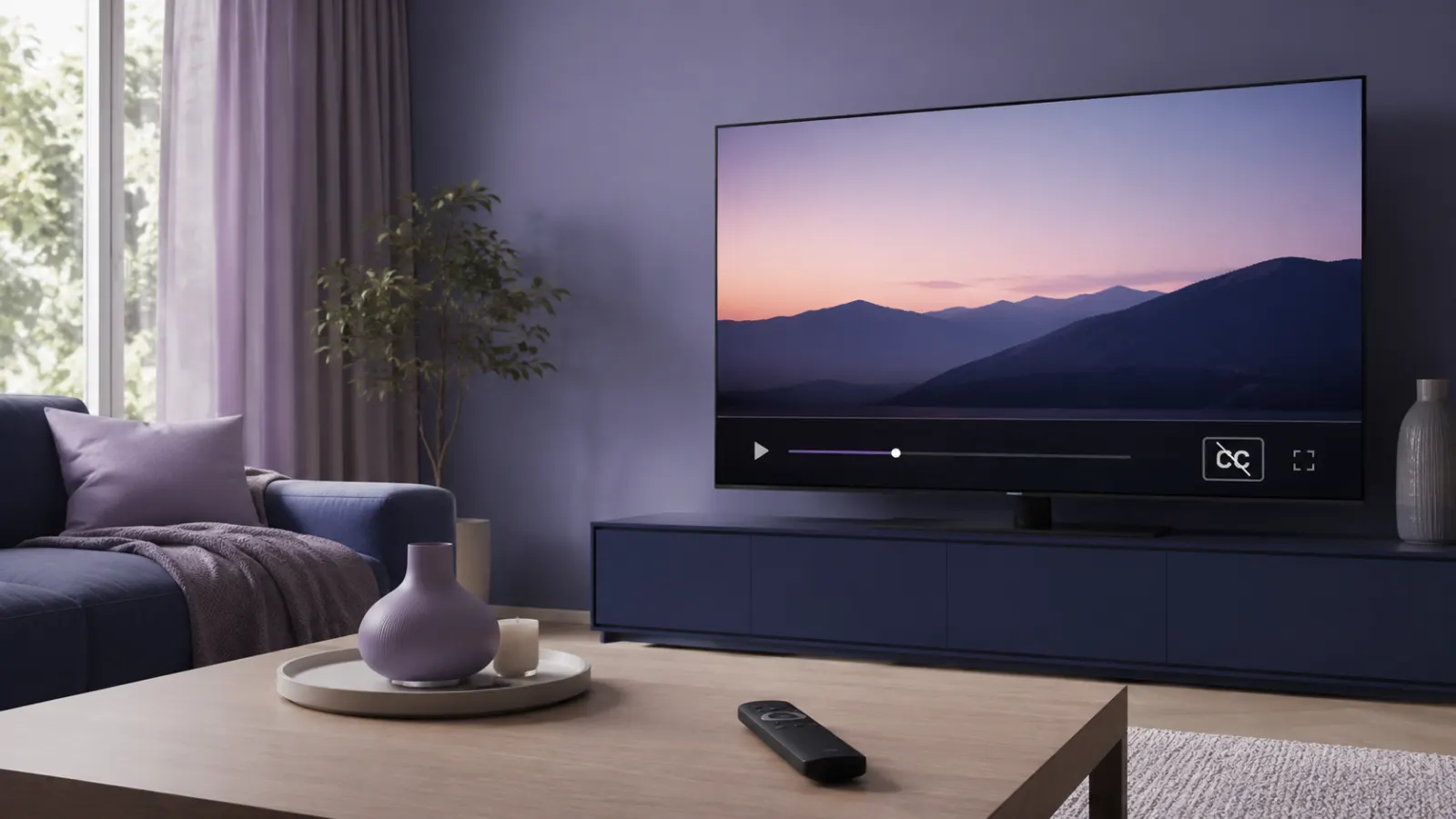
Closed captions make videos accessible to people who are Deaf or hard of hearing. They also help viewers understand quiet dialogue, unfamiliar accents, and videos watched without sound. However, you may want to hide them when they cover important visuals or appear unexpectedly.
To stop closed captions, open the video’s playback controls, select the CC, Captions, Subtitles, or speech bubble icon, and choose Off. If the text remains, check the accessibility settings on your TV, streaming device, phone, or computer.
The exact menu varies by device and app. This guide explains where to find the correct setting and what to do when captions refuse to disappear.
what closed captions mean
Quick Answer: How Do You Stop Closed Captions?
Try these steps first:
- Play the video.
- Tap the screen, move your mouse, or press the remote’s select button.
- Find CC, Captions, Subtitles, or Audio and Subtitles.
- Select Off or deselect the active caption language.
- Resume the video.
If that does not work, go to your device’s Settings and look under Accessibility, Captions, Subtitles, or Hearing.
You may need to turn captions off in two places:
- Inside the streaming app
- In the device or television settings
What Does “Stop Closed Captions” Mean?
The phrase “stop closed captions” usually means turning off optional text that appears over a video. Closed captions can include spoken dialogue and relevant audio information, such as music, laughter, or a door closing.
The word “closed” means the viewer can switch the captions on or off. Open captions work differently because they form part of the video image. You cannot remove open captions through a player setting.
Closed Captions, Subtitles, and Open Captions
These terms often appear together, but they do not always mean the same thing:
- Closed captions: Optional text that includes dialogue and important audio information.
- Subtitles: Text that usually translates or transcribes spoken dialogue.
- SDH: Subtitles for Deaf and hard of hearing viewers, including dialogue and relevant sounds.
- Open captions: Text permanently placed inside the video image.
- Live captions: Text generated by a device or app as audio plays.
If you turn off the CC option and the words remain, the video may contain open captions or forced subtitles.
How to Turn Off Closed Captions on a Smart TV
Most smart televisions place caption controls inside the accessibility menu.
Try this general path:
- Press Home or Menu on the TV remote.
- Open Settings.
- Select Accessibility, General, or System.
- Open Caption Settings or Subtitles.
- Set Captions to Off.
Some remotes include a dedicated CC or Subtitle button. Pressing it may open the caption menu or switch captions off immediately.
Menu names vary by manufacturer, model, software version, and input source. If you cannot find the option, search the television’s settings for “captions” or consult its official model guide.
Stop Closed Captions on a Samsung TV
On supported Samsung televisions:
- Press Home.
- Open Settings.
- Select General.
- Choose Accessibility.
- Open Caption Settings.
- Turn Caption off.
Samsung confirms that closed captions can be controlled from Settings > General > Accessibility > Caption Settings. Samsung also explains that open captions are embedded in the content and cannot be switched off.
On some newer models, the path may include All Settings or General and Privacy before Accessibility.
What If the TV Caption Option Is Grayed Out?
A television may disable its caption control when:
- A streaming app controls the captions
- An external cable box supplies the video
- A Roku, Fire TV, Apple TV, or game console supplies the video
- The current input does not support the television’s caption decoder
Open the caption settings on the device or app that is actually playing the content. For example, captions shown by Netflix on a Fire TV may need to be disabled in Netflix or Fire TV rather than in the television menu.
How to Stop Closed Captions on Roku
Roku offers a system caption setting, but some channels use their own controls.
To switch Roku captions off systemwide:
- Press Home on the Roku remote.
- Open Settings.
- Select Accessibility.
- Select Captions mode.
- Choose Off.
If Accessibility does not appear, look for a separate Captions menu.
You can also change the setting during playback:
- Start the video.
- Press the Star button on the remote.
- Select Closed captioning.
- Choose Off.
Roku notes that services with their own caption systems may require you to change the setting inside the app.
How to Turn Off Captions on Amazon Fire TV
To stop captions while watching supported content on Fire TV:
- Start playing the video.
- Press the Menu button on the remote.
- Open Subtitles.
- Select Off.
The available controls can differ between apps. If the Fire TV menu does not remove the text, open the video player’s own subtitle or audio menu.
Amazon’s official instructions direct viewers to open Subtitles during playback and select Off.
How to Stop Subtitles on Apple TV
During playback in the Apple TV app:
- Display the playback controls.
- Open the Subtitles or Audio and Subtitles menu.
- Select Off.
If subtitles appear automatically after muting or replaying a scene:
- Open Settings on Apple TV.
- Select Video and Audio.
- Find Automatic Subtitles.
- Turn the unwanted automatic subtitle options off.
Apple states that Apple TV 4K can automatically display subtitles when the viewer mutes the audio or skips backward. These preferences can be changed under Settings > Video and Audio.
You should also check:
- Open Settings.
- Select Accessibility.
- Choose Subtitles and Captioning.
- Turn off Closed Captions and SDH if you do not want them preferred by default.
This change may affect supported apps across the device.
How to Stop Closed Captions on YouTube
On a Computer
- Open the YouTube video.
- Move the pointer over the player.
- Click the CC button.
Clicking the active CC button again turns captions off. YouTube documents this control in its official caption settings guide.
You can also open Settings > Subtitles/CC and select Off when that option appears.
On an Android Phone, iPhone, or iPad
- Open a video.
- Tap the video once to reveal the controls.
- Tap the CC icon to turn captions off.
If captions appear whenever your phone is muted:
- Open the player settings.
- Select Captions.
- Turn off Show when muted.
YouTube confirms that the “Show when muted” feature is available on supported mobile and tablet experiences.
On a Smart TV or Streaming Device
- Start the video.
- Display the playback controls with your remote.
- Move to the CC or settings icon.
- Open Captions.
- Select Off.
If captions return, check whether accessibility settings on the television or streaming device are overriding the YouTube setting.
How to Stop Closed Captions on Netflix
Netflix lets you choose audio and subtitle options during playback.
- Start a movie or series.
- Pause the video or reveal the playback controls.
- Select Audio and Subtitles.
- Find the active subtitle language.
- Select Off.
- Return to the video.
Netflix notes that controls differ by device, but they become available after you start playing a title.
Why Do Some Netflix Subtitles Remain?
Netflix may show text even when your subtitle selection is off if characters speak a language different from the title’s original language. These are often called forced narrative subtitles. They provide information needed to follow the story.
If ordinary captions will not turn off, check the device’s accessibility settings. Netflix specifically advises Xbox users to disable closed captioning in the console settings when the app setting does not remove it.
How to Turn Off Captions on Prime Video
On most Prime Video devices:
- Play the movie or episode.
- Open the playback controls.
- Select the Closed Caption or Subtitles icon.
- Choose Off.
Amazon confirms that supported titles display a Closed Caption or Subtitles icon in the playback menu.
If no Off option appears, deselect the active language or check the Fire TV, Roku, Apple TV, phone, or smart TV settings.
How to Stop Captions on a Phone or Tablet
Captions on a mobile device can come from the video app or an accessibility feature.
On iPhone or iPad
First, turn captions off in the video player. If they continue appearing in supported apps:
- Open Settings.
- Select Accessibility.
- Tap Subtitles and Captioning.
- Turn off Closed Captions and SDH.
Apple identifies this menu as the system preference for captions and SDH in supported video apps.
This preference does not remove text that has been permanently added to a video.
On Android
Start with the app’s CC or subtitle control. If captions appear in several apps, check the device’s accessibility settings:
- Open Settings.
- Select Accessibility.
- Look for Caption preferences, Captions, or Hearing enhancements.
- Turn off the relevant caption feature.
Menu wording varies among Android versions and phone manufacturers. A separate feature called Live Caption may also transcribe audio across multiple apps. If the text appears in a movable caption box rather than inside the video player, turn off Live Caption from the volume controls or accessibility settings.
How to Stop Captions on a Computer
In a Web Browser
Look inside the video player first:
- Move your mouse over the video.
- Click CC, the speech bubble, or the settings icon.
- Select Off.
If captions appear on every website, a browser extension or operating system feature may be generating them. Check your browser’s accessibility settings and installed extensions.
On a Mac
For supported apps, check the system preference:
- Open the Apple menu.
- Select System Settings.
- Open Accessibility.
- Select Captions under Hearing.
- Turn off Prefer closed captions and SDH if it is active.
Apple documents this preference as the control that tells supported Mac apps to show closed captions and SDH when available.
You may still need to disable subtitles inside the website or video app.
Why Won’t Closed Captions Turn Off?
If you selected Off but still see text, identify where the text originates.
The App Has Its Own Caption Setting
Many streaming apps manage subtitles separately from the television or streaming device. Turn captions off inside the app while the video is playing.
The Device Setting Is Still Active
Your TV, Roku, Fire TV, Apple TV, console, phone, or computer may have a systemwide caption preference. Disable it in Accessibility settings.
Captions Are Saved to a Profile
Some services remember subtitle choices for each profile. Confirm that you are changing the setting on the profile you normally use.
Roku states that certain app settings, including captions, may be saved by profile.
The Video Contains Open Captions
Open captions are part of the image. No CC switch can remove them. You would need a different version of the video without embedded text.
The Program Uses Forced Subtitles
A movie may display translations only when characters speak another language. These subtitles can remain visible even when normal subtitles are off.
Live Caption Is Active
Phones, browsers, and computers may generate captions from any detected speech. Turn off the device’s Live Caption feature rather than changing the video player.
A Casting Device Controls Playback
If you cast from a phone or computer, the sending device may control captions. Open the app on that device and disable its caption selection.
The App Has Not Saved the Change
Close and reopen the video after selecting Off. If necessary:
- Exit the app.
- Restart the device.
- Install available app and system updates.
- Play the video again.
- Check the caption menu.
Avoid a factory reset unless official support for your exact device recommends it and you understand which settings and accounts it will remove.
A Simple Troubleshooting Order
Use this sequence when captions keep coming back:
- Turn captions off in the current video player.
- Check the streaming app’s audio and subtitle menu.
- Check the device’s accessibility settings.
- Check the television’s caption setting.
- Look for Live Caption or automatic subtitle features.
- Confirm that the text is not embedded in the video.
- Restart the app and device.
- Check the manufacturer’s guide for your exact model.
This order helps you find the active caption source without changing unrelated settings.
Do Not Confuse Captions With Other Screen Text
Turning off CC will not remove every type of text. The following features use separate controls:
- Audio descriptions
- Voice Guide or screen reader narration
- Menus and program information
- Emergency alerts
- Translated text built into a movie
- News tickers
- Sports score graphics
- Creator added text in social videos
- Karaoke lyrics
- Live chat comments
If your television is reading menus aloud, you need to disable Voice Guide, Audio Guidance, TalkBack, or a similar screen reader. That feature is different from closed captions.
Accessibility Matters When Sharing a Screen
Before disabling captions on a shared television, classroom display, workplace screen, or public presentation, check whether another viewer relies on them.
Closed captions can support:
- Deaf and hard of hearing viewers
- People watching in noisy rooms
- Viewers learning the spoken language
- People who process written and spoken information differently
- Anyone following dialogue at low volume
If captions block an important part of the picture, adjusting their size, color, background, or position may work better than removing them. YouTube, Apple, Netflix, Samsung, and other platforms provide appearance controls on supported devices.
How to Choose the Right Caption Setting
1-Use Off when you do not need captions and want an unobstructed screen.
2-Use On always when captions improve comprehension or accessibility.
3-Use On mute if you only need text when the sound is muted.
4-Use On replay if your device supports temporary subtitles after you skip backward.
5-Use SDH when you want dialogue plus relevant sound information.
6-Use ordinary subtitles when you mainly need dialogue translation.
The available choices depend on the platform, device, title, and caption track.
Common Mistakes to Avoid
Changing Only the TV Setting
The streaming app or external device may generate the captions. Check every active layer.
Turning Off the Wrong Accessibility Feature
Audio descriptions and screen readers control spoken narration, not caption text.
Assuming Every Caption Can Be Removed
Text embedded in the picture is open captioning and cannot be switched off.
Resetting the Entire Device Too Soon
A factory reset can remove accounts and preferences. Try the app and accessibility settings first.
Disabling Captions for Everyone
Shared screens may serve people who need captions. Adjusting the style or position may provide a better solution.
Final Check Before You Resume Watching
To stop closed captions, begin with the CC or subtitle control inside the video player. If the words remain, check the app, streaming device, television, and accessibility settings in that order.
Text that survives every caption setting is probably an open caption, forced translation, or creator added graphic. Identifying the source will tell you whether it can actually be removed.
Frequently Asked Questions
How do I stop closed captions with my remote?
Press the CC, Subtitle, Menu, Options, or Settings button. Select Captions or Subtitles, then choose Off. The button and menu depend on the remote and playback device.
Why are captions still showing after I selected Off?
The text may come from a second caption setting, a systemwide accessibility feature, forced subtitles, Live Caption, or open captions embedded in the video.
Can I permanently stop closed captions?
You can disable the default caption preference on many devices. However, apps may save separate settings, and some programs contain subtitles that cannot be removed.
Why do closed captions turn on when I mute the TV?
Some devices and apps offer automatic captions when audio is muted. For example, Apple TV 4K includes automatic subtitle preferences for muting and skipping backward. Open the device’s video and audio settings to change this behavior.
How do I remove subtitles that are part of the video?
You cannot disable open captions with a player control because the text is part of the video image. Look for another upload, language version, or caption free copy.
Is the CC button the same as the subtitle button?
Not always. Closed captions can include dialogue and important sounds, while subtitles often focus on dialogue or translation. Many services place both options in the same menu.
Will turning off captions on one app disable them everywhere?
Usually not. Apps, profiles, streaming devices, and televisions can store separate preferences.
Why does Netflix show occasional subtitles when captions are off?
Some titles display necessary translations when characters speak a language different from the title’s main language. Netflix notes that this text may appear even when the regular subtitle setting is off.
Can I hide captions without disabling them permanently?
Yes. Turn them off in the current video’s playback menu instead of changing the device’s systemwide accessibility preference.