
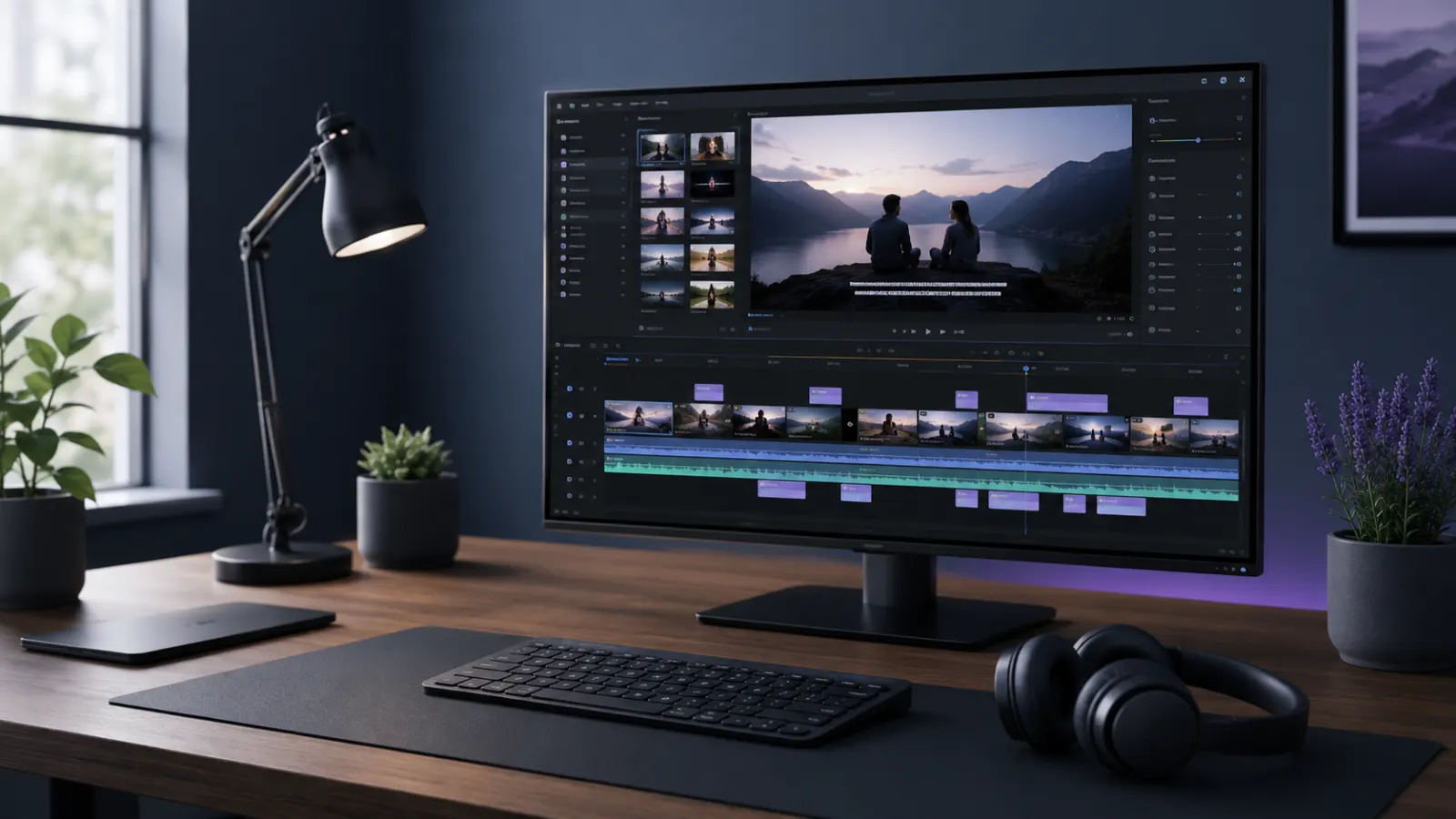
DaVinci Resolve added built-in auto captions in DaVinci Resolve Studio 18.5. The feature is officially called Create Subtitles from Audio. It analyzes spoken dialogue and automatically places timed subtitle clips on a subtitle track.
The important detail is the edition. Installing version 18.5 or later is not enough by itself. Blackmagic Design lists automatic subtitles and audio transcription as a Studio feature, so you need the paid DaVinci Resolve Studio edition to use it natively. The standard free desktop edition does not include this AI transcription feature. Blackmagic Design’s official Resolve Studio feature comparison confirms that “Subtitles and Transcriptions from Audio” requires Studio.
how closed captions work
open captions and closed captions
Quick Answer
DaVinci Resolve Studio 18.5 and later versions have auto captions.
For the most reliable experience, use the latest available version of DaVinci Resolve Studio. Blackmagic Design introduced automatic caption generation in version 18.5 and has continued improving transcription and subtitle tools in later releases.
As of August 2026, Blackmagic Design lists DaVinci Resolve 21 and DaVinci Resolve Studio 21 as its current major versions. Automatic audio transcription remains part of the Studio feature set.
Here is the simple compatibility breakdown:
| DaVinci Resolve edition | Version | Built-in auto captions |
|---|---|---|
| DaVinci Resolve Free | 18.1 or earlier | No |
| DaVinci Resolve Studio | 18.1 or earlier | No |
| DaVinci Resolve Free | 18.5 and later | No native audio transcription |
| DaVinci Resolve Studio | 18.5 and later | Yes |
| DaVinci Resolve Studio | 19, 20, and 21 | Yes, with later improvements |
Which DaVinci Resolve Version First Introduced Auto Captions?
DaVinci Resolve 18.5 was the first version to introduce automatic subtitle creation from timeline audio.
Blackmagic Design announced the feature in April 2023. Editors could open the Timeline menu, choose Create Subtitles from Audio, and let the DaVinci Neural Engine analyze the dialogue. Resolve then created editable subtitle clips on the timeline. Blackmagic Design’s Resolve 18.5 announcement describes this workflow.
The official DaVinci Resolve 18.5 New Features Guide also documents automatic caption detection on the Cut and Edit pages.
You will not find the command in Resolve 18.1, 18.0, 17, or any older release because those versions predate the built-in feature.
Do You Need DaVinci Resolve Studio for Auto Captions?
Yes. You need DaVinci Resolve Studio for the native Create Subtitles from Audio tool on desktop.
DaVinci Resolve comes in two editions:
DaVinci Resolve Free
The free edition includes manual subtitle tracks, subtitle editing, subtitle import, subtitle export, and several caption formatting controls. It does not include Blackmagic’s built-in audio transcription and automatic subtitle generation feature.
You can still add subtitles manually or import captions created by another transcription service.
DaVinci Resolve Studio
The Studio edition adds the DaVinci Neural Engine and advanced AI tools, including automatic transcription and subtitle generation. Blackmagic Design currently sells the desktop Studio edition for US$295, although local pricing and taxes may differ. Check the current price for your region before purchasing. Blackmagic Design’s product page displays the current US list price.
If you see the Create Subtitles from Audio command but receive a limitation message, confirm that you opened the Studio application and activated a valid Studio license.
What Is the Latest DaVinci Resolve Version With Auto Captions?
DaVinci Resolve Studio 21 includes audio transcription and subtitle tools. Blackmagic Design’s current product page identifies version 21 as the latest major release as of August 2026.
Resolve 21 also adds word timing analysis for manually entered or imported captions. Editors can update word timings after correcting text, which helps maintain accurate synchronization for word-level subtitle animation. DaVinci Resolve 21 New Features Guide
You do not have to remain on version 18.5 merely because it introduced the feature. A newer supported Studio release normally gives you later fixes and subtitle workflow improvements.
How to Check Your DaVinci Resolve Version
Before troubleshooting missing auto captions, check both your version number and edition.
On Windows
- Open DaVinci Resolve.
- Select Help from the top menu.
- Click About DaVinci Resolve.
- Read the version number and product name.
On macOS
- Open DaVinci Resolve.
- Click DaVinci Resolve in the macOS menu bar.
- Select About DaVinci Resolve.
- Check whether the application name includes Studio.
The application should identify itself as DaVinci Resolve Studio, not simply DaVinci Resolve, if you want to use built-in automatic captions.
How to Create Auto Captions in DaVinci Resolve Studio
Once you have DaVinci Resolve Studio 18.5 or later, you can create captions directly from your timeline audio.
Step 1: Prepare the timeline
Add the video and its dialogue audio to a timeline. Make sure the correct audio track is present and audible.
Clear speech produces more useful transcription results. Reduce disruptive background noise where practical before generating the subtitles.
Step 2: Open the Edit page
Select the Edit page from the page controls at the bottom of the Resolve interface.
You can also access automatic caption tools through supported Cut page workflows in versions that provide the relevant timeline command. The Edit page remains the clearest place for most new users to manage subtitle tracks.
Step 3: Start automatic subtitle creation
Open the Timeline menu and choose:
Create Subtitles from Audio
The wording or exact menu placement can vary slightly across major releases. Blackmagic Design’s 18.5 documentation places the command in the timeline controls and explains that Resolve analyzes the timeline audio before creating captions.
Step 4: Choose the transcription settings
Depending on your installed version, the window may offer controls such as:
- Language
- Caption preset
- Maximum characters per line
- Number of subtitle lines
- Minimum caption duration
- Gap between subtitle clips
Choose settings that match the destination of your video. Shorter lines often work better for vertical videos, while standard landscape videos can usually accommodate longer captions.
Available language and transcription options can change between releases. Check the choices displayed in your installed version rather than relying on an older tutorial.
Step 5: Generate the subtitles
Start the transcription process. Resolve analyzes the spoken audio and creates a subtitle track above the video tracks.
Processing time depends on factors such as timeline duration, hardware performance, audio complexity, and the software version.
Step 6: Review every caption
Play the video and compare each subtitle with the spoken words. Correct names, technical terms, numbers, punctuation, and words affected by accents or background noise.
Automatic captions save time, but they still require human review before publication.
Step 7: Format the captions
Select a subtitle clip and open the Inspector. Depending on the subtitle format and version, you can adjust available settings such as:
- Font
- Size
- Color
- Alignment
- Position
- Background
- Outline
- Line spacing
- Track style
Keep captions readable against both bright and dark footage. Avoid placing important text too close to the edges, especially for social platforms that cover parts of a video with buttons, usernames, and descriptions.
Auto Captions Versus Manual Subtitles in Resolve
Auto captions and manual subtitles appear similar on the timeline, but they begin with different workflows.
1-Auto captions
Resolve analyzes the dialogue and creates timed text automatically. This option saves significant typing and timing work on interviews, tutorials, podcasts, talking-head videos, and social media clips.
The native tool requires Resolve Studio.
2-Manual subtitles
You create a subtitle track, insert subtitle clips, type the dialogue, and adjust the timing yourself.
Manual subtitle creation works when you already have a script or only need a few captions. It also gives you complete control, but it takes longer for dialogue-heavy videos.
3-Imported subtitle files
You can generate captions elsewhere and import a supported subtitle file into Resolve. SRT is a common choice because it stores numbered captions with start and end timecodes.
Importing an SRT file can provide a practical workflow for users of the free edition.
Why Is “Create Subtitles from Audio” Missing?
If you cannot find the auto-caption command, one of the following issues usually explains it.
You are using an older version
Resolve 18.1 and earlier do not contain the feature. Update to a supported Studio release if your operating system and hardware meet its requirements.
Download installers through Blackmagic Design’s official support page rather than an unofficial software site.
You installed the free edition
The free and Studio applications look very similar. If the About screen says only DaVinci Resolve, you likely have the free edition.
Installing the newest free version does not unlock Studio-only transcription.
Your Studio license is not active
Resolve Studio requires an activation key, compatible license dongle, or another licensing method supported by Blackmagic Design. Confirm that activation completed correctly.
No timeline is open
The command relates to timeline audio. Open the required timeline before looking for the subtitle generation option.
You are following instructions for another version
Menus and transcription workflows can move or gain new controls between releases. Match the tutorial to your installed major version.
The audio is unavailable
Confirm that the timeline contains audible dialogue. Check muted tracks, disabled clips, channel assignments, and audio levels before running transcription.
You installed the wrong application after updating
Some computers retain both the free and Studio applications or installers. Open the About window and confirm the edition you are actually running.
Can You Get Auto Captions in DaVinci Resolve Free?
DaVinci Resolve Free does not include Blackmagic’s native Subtitles and Transcriptions from Audio feature, according to the company’s edition comparison document.
However, you can use an external transcription workflow:
- Export the dialogue audio or a review-quality version of the video.
- Process it with a reputable captioning or speech-to-text service.
- Export the result as an SRT file.
- Import the SRT into your Resolve project.
- Place it on a subtitle track.
- Review the words and timing.
- Export the subtitles separately or include them in the final video.
Check the privacy policy of any external transcription service before uploading confidential, personal, medical, legal, or unreleased material.
How to Import an SRT File Into DaVinci Resolve
An SRT file lets you bring externally generated captions into either edition of Resolve.
- Open your project and timeline.
- Import the SRT file into the Media Pool.
- Drag the file above the video tracks on the Edit timeline.
- Resolve creates or uses a subtitle track.
- Play the timeline and check synchronization.
- Correct the text, line breaks, and timing where needed.
Do not assume an imported transcript is accurate merely because the timing looks correct. Review it against the source audio.
How to Export Auto Captions From DaVinci Resolve
Resolve can use subtitles in two main ways.
Export subtitles as a separate file
A separate subtitle file lets viewers turn captions on or off when the publishing platform supports optional captions.
On the Deliver page, review the subtitle export controls and choose the required subtitle format. Available formats and delivery options depend on the selected render format and Resolve version.
Burn captions into the video
Burned-in captions become a permanent part of the picture. Viewers cannot turn them off.
This option is useful for social videos that need visible text regardless of the platform’s caption settings. It is less flexible because you must render the video again to correct a mistake.
Always watch the exported file before publishing it. Check timing, spelling, safe placement, line breaks, and contrast.
Which Version Should You Install?
Your best choice depends on your workflow.
1-Choose Resolve Studio 18.5 or later if:
- You need built-in automatic captions.
- Your computer cannot support a newer release.
- You already have a compatible Studio installation.
- A specific project or plugin requires an older version.
2-Choose the latest supported Resolve Studio version if:
- You want current caption and transcription improvements.
- Your computer meets the release requirements.
- Your plugins and project workflow support the update.
- You want current maintenance fixes and tools.
3-Choose Resolve Free if:
- You only need manual subtitles.
- You can create an SRT file with another service.
- You do not need the Studio AI toolset.
- You want to test the core editing workflow before buying Studio.
Back up important project libraries and project files before changing major software versions. Also confirm compatibility with your operating system, graphics hardware, codecs, and third-party plugins.
Tips for More Accurate Auto Captions
The software version matters, but the source audio has a major effect on the usefulness of the generated text.
Use clear dialogue
Place the microphone close enough to record the speaker clearly. Dialogue buried under room echo or music is harder to transcribe accurately.
Lower background music
Reduce music beneath speech before transcription if it masks words. You can restore the final mix balance after generating and checking the captions.
Review names and specialist terms
People’s names, product names, locations, acronyms, and industry terminology often need manual correction.
Keep captions easy to read
Break long sentences into natural phrases. Avoid filling too much of the screen with text.
Check timing by watching the video
A caption should appear with the related speech and remain visible long enough to read comfortably.
Review vertical videos separately
Instagram Reels, TikTok videos, and YouTube Shorts place interface elements over the image. Preview the final vertical export and keep subtitles away from covered areas.
Common Auto-Caption Mistakes to Avoid
- Assuming the free edition includes Studio transcription
- Searching for the feature in Resolve 18.1 or an older version
- Publishing the first AI transcript without proofreading
- Leaving incorrect names or numbers in the captions
- Using lines that are too long for a phone screen
- Placing captions behind social media interface controls
- Using weak contrast against the footage
- Mixing subtitle styles without a clear reason
- Forgetting to check the final rendered video
- Uploading confidential audio to an external service without reviewing its privacy terms
Final Answer
DaVinci Resolve first gained auto captions in DaVinci Resolve Studio 18.5. Any later Studio generation, including versions 19, 20, and 21, can provide the native audio transcription workflow, subject to the features and compatibility of that specific release.
The free edition lets you work with subtitles, but it does not include Blackmagic’s built-in Subtitles and Transcriptions from Audio feature. If you use DaVinci Resolve Free, create captions manually or generate an SRT file elsewhere and import it into your timeline.
create auto captions in CapCut
Frequently Asked Questions
Does DaVinci Resolve 18 have auto captions?
The original Resolve 18 releases did not have the feature. Automatic subtitle generation arrived with DaVinci Resolve Studio 18.5. Earlier releases such as 18.0 and 18.1 do not offer it.
Does DaVinci Resolve 18.6 have auto captions?
Yes, DaVinci Resolve Studio 18.6 includes the automatic subtitle feature introduced in 18.5. The free 18.6 edition does not include native audio transcription.
Does DaVinci Resolve 19 have auto captions?
Yes, DaVinci Resolve Studio 19 can transcribe audio and create subtitles. Blackmagic Design’s Resolve 19 feature comparison identifies “Subtitles and Transcriptions from Audio” as a Studio feature. Official Resolve Studio feature comparison
Does DaVinci Resolve 20 have auto captions?
Yes, Resolve Studio 20 includes audio transcription and automatic subtitle creation. Later 20.x updates also improved parts of the transcription workflow. For example, Blackmagic Design documented faster audio transcription on supported macOS systems in Resolve 20.2. DaVinci Resolve 20.2 New Features Guide
Does DaVinci Resolve 21 have auto captions?
Yes, DaVinci Resolve Studio 21 includes transcription and subtitle tools. Resolve 21 also adds subtitle word timing updates for manually entered or imported captions. DaVinci Resolve 21 New Features Guide
Are auto captions free in DaVinci Resolve?
No. Blackmagic Design’s native audio transcription and automatic subtitle generation require Resolve Studio on desktop. Free edition users can create captions manually or import an externally generated subtitle file.
Where is the auto-caption button?
On supported Studio versions, open a timeline and look for Create Subtitles from Audio in the Timeline menu or the relevant timeline actions menu. The exact placement can differ slightly between versions and pages.
Can Resolve translate auto captions?
Transcription and translation are separate tasks. Caption language options and AI capabilities differ across releases. Check the transcription controls in your installed version and confirm the text manually before publishing. I cannot confirm that every Studio version supports automatic caption translation.
Can DaVinci Resolve make animated captions?
Recent Studio versions provide additional tools for styled or animated subtitle workflows. Resolve 21 supports word timing analysis that can help maintain word-level highlighting after caption edits. The available animation method depends on the version, subtitle style, and chosen workflow.
Can I edit the automatically generated text?
Yes. Resolve creates editable subtitle clips. Select a subtitle and correct its text, timing, line breaks, or available style controls in the Inspector.
Should I upgrade only for auto captions?
That depends on how often you create dialogue-heavy content. Studio can reduce transcription work, but importing an SRT may be enough for occasional projects. Compare the purchase cost with your editing volume and the time you currently spend creating captions.