
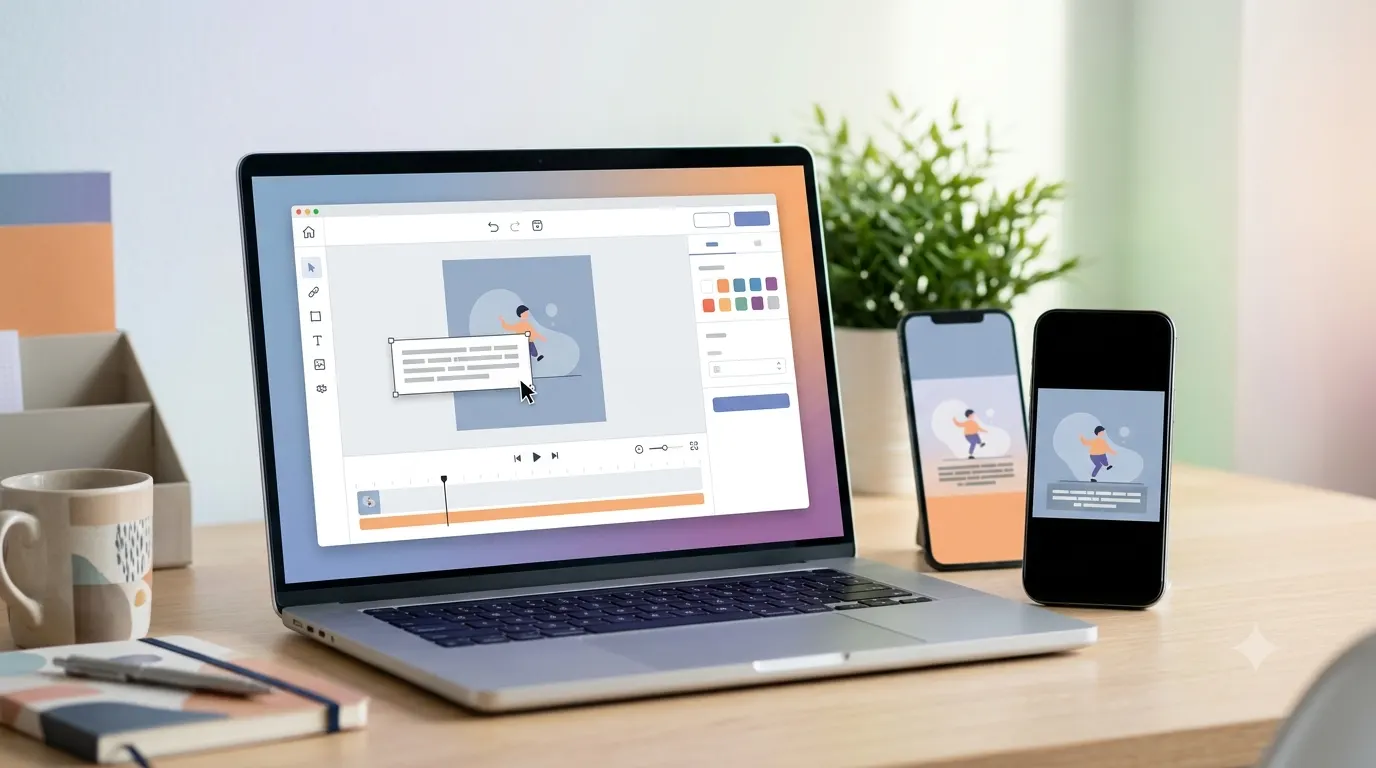
GIFs make conversations, social media posts, and marketing content more engaging. Adding a caption to a GIF helps you explain a reaction, create a meme, share a message, or make your content more accessible. Whether you want to add funny text, subtitles, or a stylish caption, you can do it in just a few minutes using free online tools, mobile apps, or desktop software.
This guide explains how to add a caption to a GIF step by step, recommends the best tools, and shares practical tips for creating clean, readable, and eye catching GIF captions.
Quick Answer
You can add a caption to a GIF by uploading it to a GIF editor, inserting a text box, customizing the font, color, and position, then exporting the edited GIF.
Most people use one of these methods:
- Online GIF editors for quick edits without installing software.
- Mobile apps for editing GIFs on Android or iPhone.
- Desktop software for advanced customization.
- Graphic design tools that support animated GIFs.
The best method depends on how often you edit GIFs and how much control you want over the final result.
What Does It Mean to Add a Caption to a GIF?
A GIF caption is text placed directly on an animated GIF. The caption can appear at the top, bottom, center, or even move with the animation, depending on the editing tool.
People commonly add captions to:
- Funny reaction GIFs
- Social media posts
- Memes
- Marketing graphics
- Educational content
- Product demonstrations
- Tutorial GIFs
- Customer support guides
- Messaging app reactions
Captions help viewers understand the message even when they watch the GIF without context.
Why Add a Caption to a GIF?
Adding text transforms a simple animation into content that communicates a clear message. A well written caption can make a GIF more memorable, relatable, and easier to understand.
Some of the biggest benefits include:
Make Your Message Clear
A short caption explains the meaning of the animation instantly, even if someone has never seen the original clip.
Create Better Memes
Most viral memes rely on simple text paired with an expressive animation. The right caption often matters more than the GIF itself.
Increase Social Media Engagement
Captions help people understand your joke, opinion, or reaction faster, making your posts more likely to receive likes, shares, and comments.
Improve Accessibility
Adding descriptive text can help communicate important information to viewers who may not hear accompanying audio or who need extra visual context.
Match Your Brand
Businesses often add branded colors, fonts, or messaging to GIFs before sharing them on websites or social media.
Best Ways to Add a Caption to a GIF
There isn’t a single best method for everyone. The right option depends on your device, editing experience, and the features you need.
Use an Online GIF Editor
Online editors are ideal if you want to edit a GIF quickly without downloading software.
Advantages include:
- Works in most web browsers
- No installation required
- Usually free for basic editing
- Easy drag and drop interface
- Fast exporting
Best for:
- Quick social media posts
- Memes
- School projects
- Simple marketing graphics
Use a Mobile App
If you create content from your phone, mobile apps make it easy to add captions anywhere.
Benefits include:
- Edit on the go
- Share directly to social media
- Touch friendly editing
- Fast workflow
- Great for Instagram Stories and Reels
Best for:
Use Desktop Software
Desktop editing programs offer greater precision and more advanced features.
Advantages include:
- Better font control
- High quality exports
- Layer based editing
- Advanced animation options
- Professional results
Best for:
- Designers
- Video editors
- Marketing teams
- Professional creators
Use a Graphic Design Platform
Many design platforms support animated GIF editing with templates, custom fonts, and branding tools.
This option works well when you already create social media graphics and want a consistent visual style across your content.
How to Add a Caption to a GIF on a Computer
Whether you use Windows, macOS, or a Chromebook, the overall process is nearly the same.
Step 1. Choose a GIF Editor
Open your preferred online editor or desktop application.
Most editors include:
- Upload button
- Timeline
- Text tool
- Font settings
- Export option
Step 2. Upload Your GIF
Select the GIF from your device.
After uploading, wait until the animation finishes loading before making changes.
Step 3. Add a Text Box
Click the text tool and type your caption.
Keep the message concise so viewers can read it before the animation loops.
Good examples include:
- Monday mood.
- Mission accomplished.
- That awkward moment.
- Finally finished.
- Me every Friday.
Step 4. Customize the Caption
Improve readability by adjusting:
- Font
- Font size
- Font color
- Background color
- Outline
- Shadow
- Transparency
- Alignment
Use high contrast colors so the text remains visible throughout the animation.
Step 5. Position the Caption
Most creators place captions:
- At the top
- At the bottom
- Centered
- Above the subject
- Below the action
Avoid covering important facial expressions or key movements.
Step 6. Preview the Animation
Watch the GIF several times before exporting.
Check that:
- Text stays readable.
- Nothing important is blocked.
- Timing feels natural.
- The caption fits every frame.
Step 7. Export the Finished GIF
Once you’re satisfied, export the edited animation.
If possible, choose settings that maintain image quality while keeping the file size small enough for easy sharing.
How to Add a Caption to a GIF on Android or iPhone
Editing GIFs on a smartphone is straightforward thanks to modern editing apps.
Step 1. Save the GIF
Download or save the GIF to your device’s photo library or file manager.
Step 2. Open Your Editing App
Launch a GIF editor or design app that supports animated images.
Most apps include simple tools for:
- Adding text
- Changing fonts
- Applying colors
- Moving captions
- Previewing animations
Step 3. Insert Your Caption
Tap the text option and enter your message.
Short captions usually work best because GIFs loop quickly and viewers only have a moment to read the text.
Step 4. Style the Text
Choose a font that matches the tone of your GIF.
For example:
- Bold fonts for memes
- Minimal fonts for professional content
- Playful fonts for casual posts
- Elegant fonts for aesthetic designs
Keep the style consistent and avoid using too many decorative effects.
Step 5. Save and Share
Export the edited GIF, then share it directly to your preferred platform or messaging app.
Before posting, play the GIF one last time to confirm the caption remains clear and readable on a small screen.
How to Add a Caption Using Popular Online GIF Editors
Online GIF editors are the fastest option if you want to add text without installing software. Most work directly in your browser and let you upload, edit, and download your GIF within minutes.
Below are some of the most popular choices and how to use them.
Add a Caption to a GIF with Canva
Canva is a great option if you want a polished design with custom fonts, colors, and branding elements.
Steps
- Open Canva and create a new design.
- Upload your GIF.
- Drag the GIF onto the canvas.
- Select Text from the sidebar.
- Add a heading or body text.
- Choose your preferred font and color.
- Resize and position the caption.
- Preview the animation.
- Export the project as a GIF.
Why Choose Canva?
Benefits include:
- Large font library
- Professional templates
- Brand color support
- Easy drag and drop editing
- Beginner friendly interface
Best for:
- Instagram posts
- Marketing graphics
- Business promotions
- Educational content
- Personal projects
Add a Caption to a GIF with GIPHY
GIPHY includes a built in caption editor that works well for memes and reaction GIFs.
Steps
- Upload your GIF.
- Select the text option.
- Type your caption.
- Choose a text style.
- Move the caption into place.
- Preview the animation.
- Save or share the finished GIF.
Why Choose GIPHY?
GIPHY is ideal for users who want a simple editing experience.
Highlights include:
- Quick editing
- Easy sharing
- Meme friendly tools
- Animated text options
- Large GIF community
Best for:
- Reaction GIFs
- Funny memes
- Messaging apps
- Social media posts
Add a Caption to a GIF with Kapwing
Kapwing offers more editing control than many basic GIF editors. It supports multiple text layers, subtitles, and timeline editing.
Steps
- Upload your GIF.
- Click the text tool.
- Enter your caption.
- Adjust the font and colors.
- Resize and reposition the text.
- Preview the animation.
- Export the edited GIF.
Why Choose Kapwing?
Kapwing works well for creators who want extra flexibility.
Key features include:
- Timeline editing
- Subtitle support
- Multiple text layers
- Team collaboration
- High quality exports
Best for:
- Content creators
- Tutorials
- Business content
- Social media campaigns
Add a Caption to a GIF with Imgflip
Imgflip has been a favorite meme generator for years. Its editor focuses on speed and simplicity.
Steps
- Upload your GIF.
- Enter text in the top or bottom caption boxes.
- Customize the font size if needed.
- Preview the GIF.
- Generate and download the finished version.
Why Choose Imgflip?
It is perfect for classic meme formatting.
Advantages include:
- Fast editing
- Familiar meme layout
- Easy interface
- Free basic tools
- Quick downloads
Best for:
- Viral memes
- Funny reactions
- Community posts
- Casual sharing
Tips for Writing Better GIF Captions
A great caption makes your GIF easier to understand without distracting from the animation. Keep these best practices in mind before you publish.
Keep It Short
GIFs loop quickly, so viewers have limited time to read.
Instead of writing:
- I cannot believe this happened to me today because everything went completely wrong.
Try:
- Worst day ever.
- I saw that coming.
- Not again.
Short captions are easier to read before the animation repeats.
Match the Mood
Your caption should fit the emotion shown in the GIF.
Examples include:
Happy GIF
- Best day ever!
- Finally!
- We did it!
Excited GIF
- Let’s go!
- Worth the wait.
- Time to celebrate.
Confused GIF
- What just happened?
- I need answers.
- Make it make sense.
Matching the text with the animation makes the message feel more natural.
Choose Readable Fonts
Fancy fonts may look attractive, but they often become difficult to read on smaller screens.
Good choices include:
- Bold sans serif fonts
- Clean modern fonts
- Medium to large text sizes
- High contrast colors
Avoid using several font styles in one GIF unless you have a clear design purpose.
Use High Contrast Colors
Your caption should remain readable throughout every frame.
Some effective combinations include:
- White text with a black outline
- Black text on a light background
- Yellow text with a dark shadow
- White text over a semi transparent dark box
If the background changes frequently, adding an outline or shadow improves visibility.
Leave Enough Space
Do not place text directly over important faces, actions, or objects.
Good placement often includes:
- Top edge
- Bottom edge
- Empty background areas
- Above or below the main subject
A little spacing keeps both the animation and the caption easy to follow.
Stay Consistent
If you create GIFs for a business or content channel, use the same:
- Font family
- Brand colors
- Text size
- Caption style
- Placement
A consistent design helps people recognize your content.
Creative Ways to Use GIF Captions
Captions are useful for much more than memes. They can improve communication, branding, and storytelling across many types of content.
Here are a few ideas:
Social Media Posts
Pair a reaction GIF with a witty caption to encourage comments and shares.
Examples:
- Current mood.
- Weekend unlocked.
- Monday survived.
Marketing Campaigns
Highlight promotions or announcements with short, memorable text.
Examples:
- New collection available now.
- Limited time offer.
- Shop today’s favorites.
Educational Content
Use captions to explain a process or reinforce key points in tutorial GIFs.
Examples:
- Step one.
- Click here.
- Repeat this action.
- You’re done.
Team Communication
GIFs can make workplace conversations more engaging while keeping messages clear.
Examples:
- Great job!
- Meeting complete.
- Thanks for the update.
- Approved.
Personal Messages
Celebrate milestones or express emotions with personalized captions.
Examples:
- Happy Birthday!
- Congratulations!
- Miss you already.
- Welcome home.
Common Mistakes to Avoid
Even a well chosen GIF can lose its impact if the caption is difficult to read or distracts from the animation.
Writing Too Much Text
Long captions overwhelm the viewer and are hard to finish before the GIF loops.
Keep your message brief and direct whenever possible.
Blocking Important Parts of the GIF
Avoid placing text over faces, gestures, or key actions.
Instead, use empty areas of the frame whenever possible.
Using Hard to Read Fonts
Decorative fonts may suit special occasions, but simple fonts are easier to read on phones, tablets, and desktops.
Prioritize clarity over style.
Ignoring Mobile Users
Many people view GIFs on small screens.
Before sharing, preview your GIF on a mobile device to make sure the caption remains readable.
Choosing Low Contrast Colors
Light text on a light background or dark text on a dark background can disappear during the animation.
Always test your color choices across different frames.
Exporting a Low Quality GIF
Over-compressing your GIF can make both the animation and the caption appear blurry.
Use export settings that balance image quality with a reasonable file size, especially if you plan to post on social media or embed the GIF on a website.
Conclusion
Adding a caption to a GIF is one of the easiest ways to make your animations more engaging, informative, and memorable. Whether you’re creating a funny meme, explaining a process, promoting a product, or sharing a reaction with friends, a clear and well placed caption helps your message stand out.
The best results come from keeping your text short, choosing readable fonts, using high contrast colors, and positioning captions where they don’t hide the most important parts of the animation. With today’s online editors, mobile apps, and desktop tools, you can create polished GIFs in just a few minutes, even if you’re a beginner.
Experiment with different caption styles, preview your GIF before exporting, and choose the editing tool that fits your workflow. A small change in wording or placement can make a big difference in how people respond to your content.
Frequently Asked Questions
Can I add a caption to a GIF for free?
Yes. Many online GIF editors let you upload a GIF, add text, and download the edited version for free. Some platforms also offer premium features such as brand kits, advanced fonts, or watermark removal.
Can I add multiple captions to the same GIF?
Yes. Most modern GIF editors support multiple text boxes. You can place captions in different areas or display different text at various points in the animation if the editor includes timeline controls.
Will adding a caption reduce GIF quality?
Not necessarily. Quality depends on the export settings you choose. Selecting a higher quality export while keeping the file size reasonable usually preserves sharp text and smooth animation.
Can I add subtitles to a GIF?
Yes. If your GIF comes from a video clip, you can add subtitle style text that appears at specific moments. Editors with timeline features make this process much easier.
Can I edit a GIF on my phone?
Absolutely. Many Android and iPhone apps let you upload a GIF, add text, customize fonts, and save the finished animation directly to your device.
What is the best font for GIF captions?
Simple, bold fonts are usually the easiest to read. Choose a font with good contrast against the background and avoid overly decorative styles unless they match the design.
Where should I place the caption?
The top or bottom of the GIF is often the best location because it avoids covering important actions or facial expressions. If those areas are busy, place the caption in an empty section of the frame.
What file format should I export?
Export as a GIF if you want to keep the animation and share it on websites, messaging apps, or social media platforms that support GIF files.